
What it is
A screen for operators and supervisors that shows the jobs in progress, their status, and lets you move production forward.
What it is for
- So the operator can see what has been assigned to them and mark steps as started / finished.
- So the supervisor can assign jobs, create delivery notes and close work orders.
- Sharing the progress of the work order with the end customer (DIRECT).
How to use it
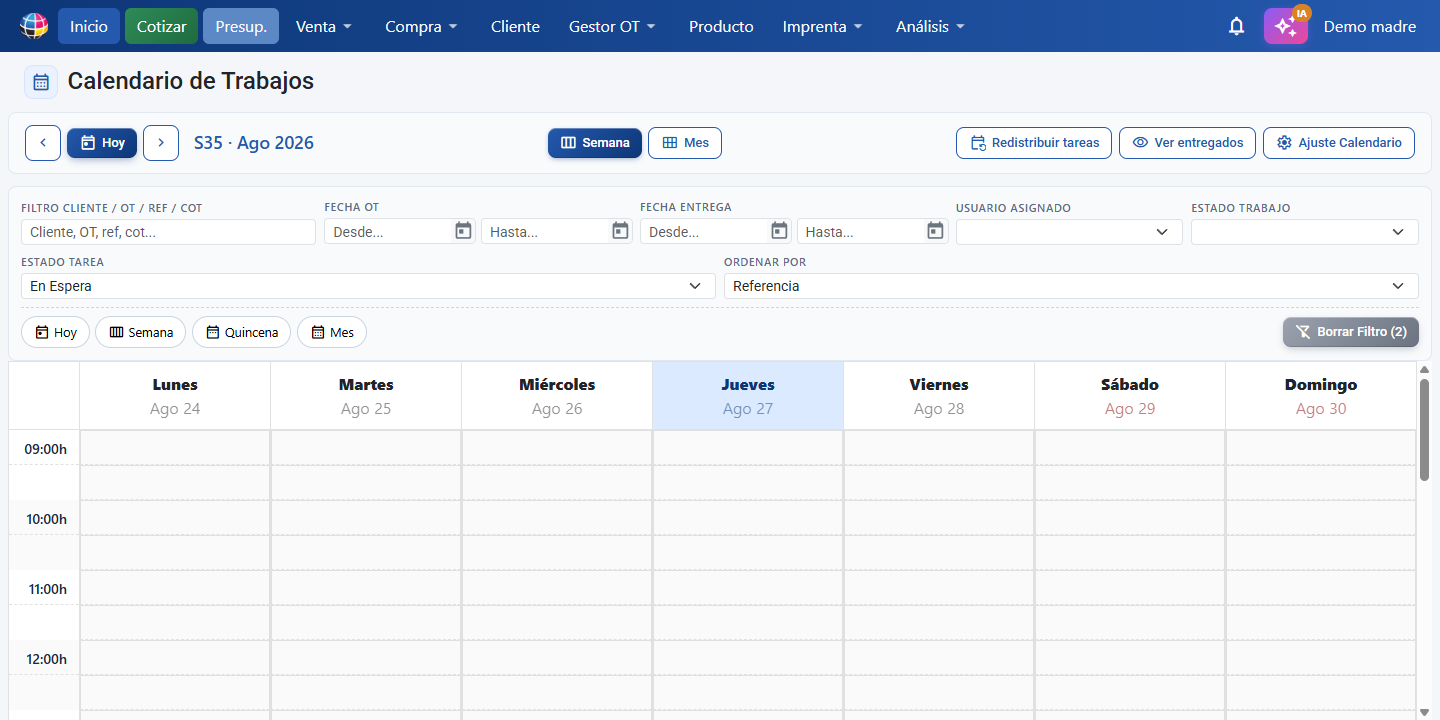
- Go into
/tarea. The page title is "Jobs Organiser". - Operator: use "Assign to me" on the free tasks and mark the progress of each machine/operation.
- Supervisor: assign tasks, create the "Delivery note" and "Finish" the jobs.
- If you do not have a role, the notice "You must assign yourself the operator or supervisor role to manage tasks" appears; click "Assign a role to your user" to choose your role.
Views available
- Calendar: jobs are placed by date. Switch between "Week" and "Month" and move around with "Previous (←)", "Today" and "Next (→)". Drag a job (drag and drop) onto the "Deliver", "Today", "Tomorrow" or "Day after tomorrow" areas to reschedule it or mark it delivered.
- Organiser (list): job cards with their filters, counters and production actions. It has three modes, switched with the "Detail", "Compact" and "Flow" buttons (the one you choose is remembered for next time, and the Screen View uses it too).
- Status Screen: a full-screen view meant for a TV/monitor on the shop floor, refreshing itself at regular intervals. It opens with "Screen View".
Buttons and actions — what each one is for
The exact wording as it appears on screen. For toggles, both states are documented.
Calendar navigation
| Button / Control (text on screen) | What it is for |
|---|---|
| Previous (←) | Goes to the previous period (month or week, depending on the active view). |
| Today | Goes to today's date in the calendar. |
| Next (→) | Goes to the next period (month or week, depending on the active view). |
| Week | Switches the calendar to the weekly view. |
| Month | Switches the calendar to the monthly view. |
| Redistribute tasks | Moves to today every task that was left behind (dated before today). |
| Show delivered / Hide delivered (toggle) | Show delivered = also shows the jobs already delivered/finished · Hide delivered = hides them so you only see what is outstanding. |
| Calendar Settings | Opens the calendar settings. Only visible with the calendar_edit permission. |
| Deliver (drop area) | Drag a job here to mark it as delivered. |
| Today (drop area) | Drag a job here to schedule it for today. |
| Tomorrow (drop area) | Drag a job here to schedule it for tomorrow. |
| Day after tomorrow (drop area) | Drag a job here to schedule it for the day after tomorrow. |
Organiser and calendar filters (shared)
The same filter bar appears in the Organiser and in the Calendar, and the filter is one and the same: whatever you filter on one screen stays applied on the other (and in the Screen View), even after you close it and come back. In the calendar the filter narrows down the jobs of the month/week and the Past / Today / Future columns. With "Assigned User" a supervisor can look at the calendar of one particular person; the operator does not need to filter at all: on both screens they only see their own tasks and the "Unassigned" ones.
| Button / Control (text on screen) | What it is for |
|---|---|
| Customer / WO / Ref / Quote filter | Searches by customer, work order number, reference or quote. |
| Work Order Date | Filters by the date range the work order was created in. |
| Delivery Date | Filters by the scheduled delivery/work date range. |
| Assigned User | Filters the jobs by assigned user. Only visible if you are not an operator. |
| Job Status | Filters by the overall status of the job: Pending, In progress, Finished. |
| Task Status | Filters by the specific status of the individual tasks. |
| Today | Quick filter: shows only today's jobs. |
| Week | Quick filter: shows this week's jobs. |
| Fortnight | Quick filter: shows the jobs of the next fortnight. |
| Month | Quick filter: shows the jobs of the next month. |
| Sort by | Sorts the jobs by Reference, Customer, Start date or Delivery date. |
| Show (at the foot of the list) | How many jobs to show per page (Auto, 6, 10, 20, 30, 50). Each view remembers its own amount. |
| Clear Filter | Clears every active filter and shows all the jobs again. |
| Screen View | Opens the screen view for a TV with automatic refreshing (tooltip: "View for a TV, refreshes itself"). |
| Detail | Cards showing the status of each machine/operation and the Work Order Date, which can be edited (tooltip: "Cards with the tasks of each job"). |
| Compact | Summarised cards, without the task detail (tooltip: "Summarised cards without tasks"). |
| Flow | A horizontal production line per job (tooltip: "Horizontal production line per job"): the steps of each job as connected cards, in the order they are carried out. See the Flow View section. |
| Manager | Opens the window for printing the job manager templates. |
| WO | Opens the window for printing work orders (WO). |
| Settings | Opens the task manager settings. Only visible with the gestor_edit permission. |
Summary and counters
| Label (text on screen) | What it shows |
|---|---|
| Jobs | The heading of the job summary, with the totals by status. |
| Pending | How many jobs are in the pending status. |
| In progress | How many jobs are in progress. |
| Finished | How many jobs are finished. |
| Tasks | The heading of the task summary, with the totals by status. |
| Completed | How many tasks are finished. |
| jobs | The total number of jobs shown under the current filter. |
| No results | Appears when the search or the filters return nothing. |
Job card and production actions
| Button / Control (text on screen) | What it is for |
|---|---|
| Customer name (card heading) | Hovering over it shows a tooltip with the details of the contact chosen on the order: name, job title, email, mobile, landline, fax and notes. Clicking it opens the customer record so you can look at it or edit it. |
| W.O: | The identifier of the work order on the card. Clicking it opens the work order. |
| ⋮ (Actions) | A drop-down menu next to the status label with the job actions (see the "Dates and actions menu" section). |
| Quote: | The identifier of the quote, next to the W.O. Clicking it opens the quote. |
| Product name (on the card) | Clicking it opens the quote for the job; if the line has no quote, it opens the work order. |
|---|---|
| Document icon (lines with no image) | On jobs with no quote (no product image) the icon can be clicked and opens the work order. |
| Start | The date the work order was created. Its calendar icon opens the calendar so you can change it. |
| Delivery | The date and time scheduled for delivery. Its calendar icon opens the "Delivery date" window (Date + Time). |
| No date | Shows that the job has no delivery date assigned. |
| Finished | The status label when the job is complete. |
| Pending (label) | The status label when the job is pending. |
| Print WO | Prints the work order attached to it. |
| Direct | Shares the work order through Direct (requires the Full plan; on another plan, clicking it explains the module and offers you an upgrade). |
| Assign to me | Puts you down as the person in charge of every task on that job line. |
| Pending (button) | Marks the job as pending; undoes the finishing. |
| Delivery note | Creates the delivery note, looking for a job from the same source. Supervisor only. |
| Finish | Marks every task as finished and closes the job. Operator and supervisor (in the ⋮ menu). |
| Deliver and note | Finishes the job and creates its delivery note. Supervisor only (in the ⋮ menu). |
| Machine | The name of the machine process inside the workflow of the job. |
| Guillotine | The guillotine cutting stage inside the workflow of the job. |
| Unassigned | Shows that a task does not have a user assigned yet. |
| + (next to a task's user drop-down) | Adds a second user to that task: it shows a second drop-down so you can assign someone else alongside the first person. |
| − (next to the second user drop-down) | Removes the second user from the task, leaving only the first one. |
Second user per task
Each task (machine, guillotine or operation) can have two people in charge. By default you see a single User drop-down; clicking + brings up a second drop-down to assign another person, and − takes you back to just one. The second user counts exactly like the first: the Assigned User filter, the assignment filters and, for the operator, seeing and taking tasks with Assign to me take both into account. In the Screen View and on the printed WO both names are shown, separated by a comma.
Flow View (production line)
With the "Flow" button, each card shows in its heading the customer, the W.O, the Quote, the job title centred and the "Start" and "Delivery" dates; underneath, the product image on the left and on the right its horizontal production line — the steps of the job as connected cards in the order they are carried out: first the operations (in the order of the artwork), then the machine and finally the guillotine. If the job has several pieces of artwork, each one gets its own lane, one under the other.
| Element (text on screen) | What it means |
|---|---|
| Step card (OP1, OP2…, MAC, GUI) | Each task of the job: operation, machine or guillotine. The colour shows its status: grey = pending, blue = in progress, green = finished. Every card is the same size. |
| Name under the status on the card | The user assigned to that step (or "Unassigned"). With two people in charge they are shown joined by +. |
| Connector between cards | The line joining two steps; it turns green when the previous step is finished. |
| ✓ / Xd / Today (bottom of the card) | ✓ = step finished · Xd = how many days the step has been in its current status · Today = the status changed today. |
| ! (orange warning in the corner) | The step has gone 2 days or more without moving: it may be held up. |
Clicking a card opens a window for changing its status and its user (the operator sees their "Assign to me" button there); it closes with "Close". A user with the operator role sees the full lane of the job, just as the supervisor does. The days per step start counting from the first status change made from this version onwards.
Dates and the card's actions menu (all views)
- "Start": the date the work order was created. Clicking its calendar icon opens the calendar so you can change it.
- "Delivery": the delivery date and time. Clicking its calendar icon opens the "Delivery date" window with the "Date" and "Time" fields (the times follow the slots set up in the calendar) and the "Cancel" and "Save" buttons.
- ⋮ (Actions): a drop-down menu next to the status label that gathers the job actions in every view: "Print WO", "Direct", "Assign to me" (not the operator) and, depending on the status, "Finish" (visible to the operator too) and "Deliver and note" (= finish the job and create its delivery note, supervisor only), or "Pending" and "Delivery note" if it has already been delivered.
Organiser paging
| Button / Control (text on screen) | What it is for |
|---|---|
| First | Goes to the first page of results. |
| Last | Goes to the last page of results. |
Status Screen View (TV)
| Button / Control (text on screen) | What it is for |
|---|---|
| Status Screen | The title of the view meant for a TV/monitor. |
| Refresh rate | Changes how often the screen refreshes itself: 5s, 10s, 15s, 30s or 60s. |
| Full screen | Turns on full-screen mode for the TV view. |
| Exit | Leaves the screen view and goes back to the organiser. |
| Previous (icon) | Goes to the previous page of the screen's paging. |
| Next (icon) | Goes to the next page of the screen's paging. |
| Page | Shows the current page number and the total number of pages. |
Roles
| Button / Control (text on screen) | What it is for |
|---|---|
| Assign a role to your user | Opens the window for giving yourself the operator or supervisor role. It appears next to the notice "You must assign yourself the operator or supervisor role to manage tasks". |
Key concepts
- WO (Work Order): the document that groups the job lines to be processed, with its reference, customer and attached quote. On the card it is identified with "W.O:".
- Line: a job line inside a work order. It stands for one specific product/service to be made, with its own workflow of processes. It is identified with "Line:".
- Quote: the quote for a line, holding the artwork (products), machines, operations and costs. It is identified with "Quote:".
- Artwork: a product or item inside a quote, with its images, sizes and quantity.
- Machine: a production process assigned to one specific piece of kit inside the workflow of the line. It appears as "Machine" in the workflow.
- Guillotine: the cutting/finishing stage of the workflow, the trimming of materials. It appears as "Guillotine" in the workflow.
- Operation: a specific task of the workflow (printing, varnishing, binding or any other process).
- Job Status: the overall status of a line: Pending (not started), In progress (started), Finished (complete).
- Task Status: the fine-grained status of each machine/operation inside the workflow of a line.
- Work Order Date: the date the work order was created.
- Delivery Date: the date scheduled for delivering/finishing the job.
- Assigned User: the operator in charge of one specific task (machine, guillotine or operation). With nobody in charge it shows "Unassigned".
- Default person in charge: when a quote is accepted, each task of the job is automatically assigned to its default owner: the one set on the machine, operation or guillotine record (the "Default user" field), or failing that the default user in Settings → Task manager. The assignment is saved, so the "Assigned User" filter and the operator's view find the job from the very first moment.
- Supplier: the subcontracted company when a piece of artwork is outsourced.
- Outsource: handing a piece of artwork/product to an outside supplier instead of processing it in house.
- Delivery note: the delivery/dispatch document that groups several job lines from the same source.
- Direct: the feature for sharing the work order with direct customers (requires the Full plan).
- Calendar: the view of the jobs organised by date, in month or week format, with drag and drop for rescheduling.
- Status Screen: a view tuned for a TV/monitor, refreshing the status of the jobs at regular intervals.
- Manager: the task and workflow management module. Roles: operator (carries out tasks) and supervisor (assigns and keeps control).
What you can do in each role
- Operator (
gestor_operario): can take tasks with "Assign to me" and mark the progress of each machine/operation. Does not see the "Assigned User" filter. - Supervisor (
gestor_superv): can also assign tasks, create the "Delivery note" and "Finish" jobs.
What you get on each plan
- FULL: the "Direct" action (sharing the work order with the customer).
Permissions
- Route:
access_manage. - Specific actions: they depend on the role (
esOperario,esSupervisor). - Calendar Settings: requires
calendar_edit. - Settings (of the manager): requires
gestor_edit.
Frequently asked questions
Q: How do I assign a job to myself?
A: On the job card, click "Assign to me". It puts you down as the person in charge of every task on that job line. If a task shows as "Unassigned", it does not have an operator yet.
Q: Why does a task already show as assigned to someone when nobody assigned it?
A: That is the automatic assignment: when the quote is accepted, each task is assigned to the default owner set on the matching machine, operation or guillotine (or to the default user in Settings → Task manager). You can change it in the task's user drop-down.
Q: I filter by a user and not all of their jobs show up, what is going on?
A: The "Assigned User" filter shows every job where that person has at least one task (as first or second user), even if the other tasks belong to other people. If an old job does not appear, open the job and save any change on a task to refresh its assignments.
Q: What is the "Redistribute tasks" button for?
A: It moves to today every task that was left behind (dated before today). It is there to regroup what is outstanding without dragging each job by hand.
Q: How can my colleagues see a calendar with only their own tasks?
A: The calendar has the same filters as the organiser. A user with the operator role automatically sees only their own tasks and the "Unassigned" ones on both screens, without filtering anything. A supervisor can use the "Assigned User" filter to look at the calendar of one particular person. The filter is shared between organiser and calendar and is remembered between sessions.
Q: How do I switch the calendar from month to week?
A: Use the "Week" and "Month" filters in the calendar. To move between periods use "Previous (←)", "Today" and "Next (→)"; they move by month or by week depending on the view you have active.
Q: How do I reschedule a job for another day?
A: Drag the job card (drag and drop) onto the area you want: "Today", "Tomorrow" or "Day after tomorrow" to schedule it, or "Deliver" to mark it as delivered.
Q: What is the "Finish" button for?
A: It marks every task of the job as finished and closes the job. It is in the card's ⋮ menu and both operator and supervisor can use it. If you get it wrong, "Pending" undoes the finishing and puts the job back to pending.
Q: How do I create a delivery note from here?
A: Click "Delivery note" on the job card. The system looks for a job from the same source and creates the delivery note grouping them together. It is only available to the supervisor.
Q: What is the difference between "Job Status" and "Task Status"?
A: "Job Status" is the overall status of the whole line (Pending, In progress, Finished). "Task Status" is the fine-grained status of each machine/operation inside the workflow of that line. There is a filter for each of them.
Q: What is the "Show delivered / Hide delivered" toggle for?
A: On "Show delivered" the list also takes in the jobs already delivered/finished. On "Hide delivered" it hides them so you only see what is left to do.
Q: How do I see the detail of each machine on a job?
A: Click the "Detail" button. The "Compact" view hides the tasks; the detail one shows the status of each "Machine", "Guillotine" and operation, and lets you edit the "Work Order Date".
Q: How do I see the steps of a job as a production line?
A: Click the "Flow" button. Each job shows its steps as connected cards in the order they are carried out (operations → machine → guillotine); with several pieces of artwork, each one gets its own lane. Click a card to change its status or the person in charge, and use the ⋮ menu next to the status label for the job actions (Print WO, Direct, Assign to me, Finish, Deliver and note). The view you choose is remembered.
Q: How do I change the delivery date or time of a job?
A: Click the calendar icon next to the "Delivery" date on the card. The "Delivery date" window opens with "Date" and "Time"; click "Save". The "Start" date is also changed with its own calendar icon.
Q: What is the difference between "Finish" and "Deliver and note"?
A: "Finish" marks every task of the job as complete and treats it as delivered (the operator can use it too). "Deliver and note" does the same and also creates the delivery note — only the supervisor sees it.
Q: What does the orange "!" warning on a flow card mean?
A: That the step has gone 2 days or more without changing status: it may be held up. Under each card you can see "Xd" with the days it has been in its current status, and ✓ when it is finished.
Q: How do I put the organiser on a TV on the shop floor?
A: Click "Screen View" (tooltip "View for a TV, refreshes itself"). It opens the "Status Screen". Set how often it refreshes with "Refresh rate" (5s, 10s, 15s, 30s, 60s), turn on "Full screen" and come back with "Exit".
Q: How do I clear all the filters at once?
A: Click "Clear Filter". It takes off every active filter and shows all the jobs again. To narrow things down by time quickly, use the "Today", "Week", "Fortnight" or "Month" buttons.
Q: How do I look for a job by customer or work order number?
A: Use the "Customer / WO / Ref / Quote filter" field: it searches by customer, work order number, reference or quote. If nothing comes up you will see the message "No results".
Q: I get "You must assign yourself the operator or supervisor role to manage tasks". What do I do?
A: Click "Assign a role to your user" and choose operator or supervisor. Without a role you cannot manage tasks in the manager.
Q: What is the "Direct" button for?
A: It shares the work order with the end customer through Direct, so they can follow the progress of their job. It requires the Full plan; on another plan, clicking it shows what the module does and the option to upgrade.