
What it is
Catalogue of the production operations applied during manufacturing: laminating, die-cutting, cutting, bagging, folding, and so on. Each operation is made up of options (the variants you offer) and each option has one or more costs.
What it is for
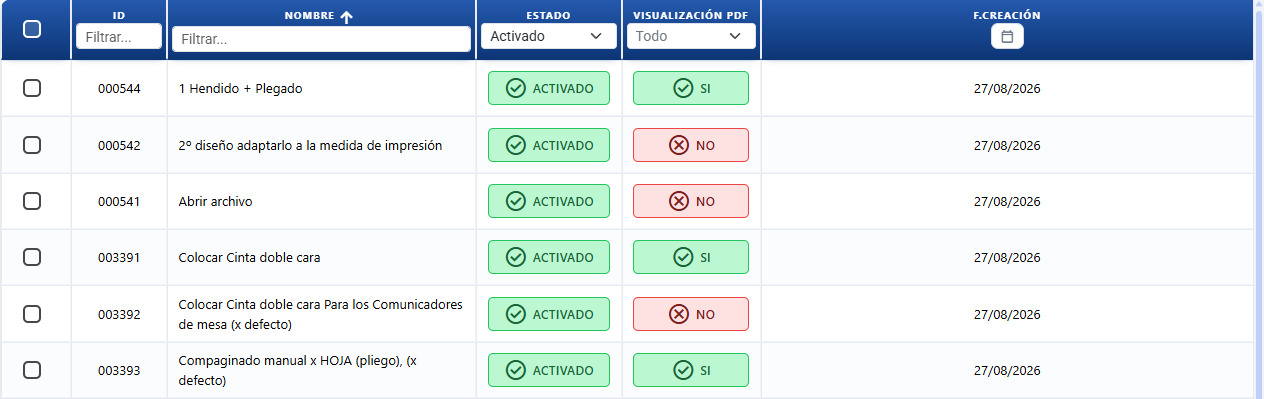
- Define the operations available in your shop.
- Set the cost and the margin of each variant.
- Link operations to products so the quoting engine includes them in the price.
Three-level structure
| Level | What it is for |
|---|---|
| Operation | The service in general (e.g. "Laminating"). |
| Option | Variants of that service (e.g. "Matt", "Gloss", "1 side", "2 sides"). |
| Cost | The amount attached to the option (an option may have several costs for different multipliers). |
What you set at each level
Operation (general details)
| Field (text on screen) | Editable | Notes |
|---|---|---|
| Operation name | Yes | Name of the service (e.g. "Laminating"). Required, 255 characters maximum. |
| Show on printed document | Yes | YES / NO selector: show or hide the operation on the printed PDF document. |
| Operation manager | Yes | User assigned by default as the person responsible for the operation. |
| Enabled / Disabled | Yes | Status of the operation. A button that toggles between the two. |
This level has no cost and no margin. Both live in its options.
Option — variants of the operation
Each Option (Option 1, Option 2…) is a selectable variant of the operation. Each one has its own cost table and its own margin.
| Control / Field (text on screen) | Editable | Notes |
|---|---|---|
| Set as default option / Unset as default | Yes | Sets (or removes) this option as the one preselected in the quoting engine. |
| Move option up | Yes | Changes the order of the options. |
| Duplicate Operation | Yes | Duplicates the whole option with all its costs. |
| Delete option | Yes | Removes the option from the form. |
| Margin (Per product / Independent) | Yes | Toggle: use the margin of the product or apply a fixed margin belonging to the option. |
This is where the margin per option is decided. The cost goes in the cost table (next level).
Cost — the cost table of the option
Each option may have one or more cost rows. The columns of the table:
| Column (text on screen) | What it is for |
|---|---|
| Reference | Name of the cost (e.g. "make ready", "labour"). |
| Cost | Base amount of the cost. |
| Increment | Factor in % added on top of the base cost. |
| Time price | Price calculated when the cost goes by time (it only appears if the time multiplier requires it). |
| Total | Final cost calculated after the increment and the multipliers. |
| Quote multiplier | Type of quantity the cost is multiplied by (copies, m², pages, printing sheets…). |
| Time multiplier | Time unit for the calculation by time (By price, seconds, minutes, hours, part day 4h, full day 8h). |
The Add Cost button creates a new row in the current option.
How it is applied when quoting
When the quoting engine uses an operation:
- The user picks one option from those available.
- It takes the costs of that option and multiplies them by their Quote multiplier (quantity, m², pages…) and, if it goes by time, by their Time multiplier.
- It applies the Increment (factor %) if there are surcharges.
- It applies the Margin: the margin of the option if it is set to Independent, or the margin of the product if it is set to Per product.
Buttons and actions — what each one is for

List view (main screen)
| Button / Control (text on screen) | What it is for |
|---|---|
| Statistics | Opens the operation cost statistics modal. Carries a BETA badge. Requires the access_stat permission. |
| Settings | Opens the operations settings (where, among other things, you set the price per hour used by the Time price). Requires the compra_edit permission. |
| Import / Export | Opens a menu to import or export data. Requires the allow_Import or allow_Export permission. |
| Operations (in Import / Export) | Import/export the operations table. |
| Options (in Import / Export) | Import/export the operation options table. |
| Costs (in Import / Export) | Import/export the operation costs table. |
| New operation | Opens the form to create an operation from scratch. |
| AI Assistant | Opens the AI agent (centred window) to create or edit an operation (finishing process) with its options and costs by describing it in plain language. The agent shows a summary of what it is going to do and only applies it when you press Run. To edit, name the operation; if there are several matches it asks you which one. See AI Assistant. |
| Enabled | Indicates the operation is active; pressing it switches it to disabled. |
| Disabled | Indicates the operation is inactive; pressing it switches it to enabled. |
| ID | Table column: unique identifier of the operation. |
| Name | Table column: name of the operation. |
| Created | Table column: creation date of the operation. |
Bulk actions (on the selected operations)
| Button (text on screen) | What it is for |
|---|---|
| Add to products | Bulk action: select one or several operations and link them in one go to the product artworks you choose, without going product by product. It opens a list of products/artworks with tick boxes; mark the ones you want and press Save and they are linked to the selected operations (without duplicating any that already existed). |
| Edit Cost | Opens a modal to apply a % increment to every cost of the selected operations. |
| Edit Factor | Opens a modal to replace the factor (increment %) in every cost. |
| Status | Opens a modal to change the status (Enabled / Disabled) of the selected operations. |
| Show in | Opens a modal to change the PDF visibility of the selected operations. |
| Duplicate | Opens a modal to duplicate the selected operation, with confirmation. |
| Where it is used | Opens a modal with the products linked to the operation. |
| Delete | Opens a confirmation modal and deletes the selected operations. |
Edit modal (New operation / edit)
| Button / Control (text on screen) | What it is for |
|---|---|
| Set as default option | Marks that option as the one preselected in the quoting engine. |
| Unset as default | Removes the default mark from the option. |
| No default operation in the quoting engine. | Label with a tooltip: ticks or unticks whether the quoting engine shows an empty option (no operation) by default. |
| Move option up | Moves the option up in the order of the list. |
| Duplicate Operation | Duplicates the whole option with all its costs. |
| Delete option | Deletes that option from the form. |
| Margin (Per product / Independent) | Margin toggle of the option (see Key concepts). |
| Add Cost | Adds a cost row to the current option. |
| Add Operation | Adds a new option to the form. |
| AI (next to the name of the operation) | Opens the AI Assistant · Name to suggest the name of the operation. You write an instruction, the AI suggests, you rate it 👍/👎 and apply or cancel. |
| AI (next to the name of each option) | Opens the AI Assistant · Name to suggest the name of that option. |
| "Create or edit with AI" | Opens the AI Assistant to create from scratch or rewrite the whole operation: the name of the operation and its options with their costs. Describe in plain language how you want the operation (stating the cost and units of each option) and, when you apply it, it replaces the entire operation with what has been suggested (name + options), whether you are creating a new one or editing an existing one. You review it and save. If your instruction states a cost and its unit (e.g. "€0.15 per m²"), the AI uses it exactly as given. If you state neither cost nor unit, the cost is always applied BY THE HOUR: the AI estimates the time in hours and the system automatically applies your configured price per hour (Settings → time price). |
| Delete | Deletes the whole operation. |
| Cancel | Closes the modal without saving changes. |
| Save | Saves the operation to the database. |
| (info icon on Time price) | Tooltip "The time price is set up in the operation settings. Click to open them." — opens the operation settings. |
Key concepts
- Operation: the production service in general (laminating, cutting…). It carries no cost directly; the cost lives in its options.
- Option (Option 1, Option 2…): a variant of the operation. Each option has its own cost table and its own margin.
- Cost: each financial row inside an option. It carries a Reference, a Cost, an Increment, multipliers and a Total.
- Margin (Per product / Independent toggle): on Per product, the option uses the margin set on the product; on Independent, it applies a fixed margin in % belonging to the option, with no dependence on the product.
- Increment (also called factor): percentage added on top of the base cost. E.g. a cost of 100 with a 10% increment → 110 before multipliers. It is not the margin: the increment raises the cost, the margin is what you make on top of the final cost.
- Quote multiplier: the type of quantity the cost is multiplied by. Options: extra cost (one-off application, quantity 1), number of passes, ups, printing sheets, copies, sides, pages, sheets, m² of substrate / of print / perimeter, linear metres (height / width).
- Time multiplier: the time unit used to calculate the Time price. Options: By price (flat value, no time unit), by seconds, minutes, hours, By part day (4h) and By full day (8h).
- Time price: the price of a cost when it is set up by time. It is calculated from the cost, the increment, the price per hour of the operation and the chosen time unit. Its setup (price per hour) is in Settings.
- Extra cost (one-off application): a multiplier that applies the cost as a fixed value, independent of the quantity (quantity = 1). Useful for setup or make ready charges.
- Default operation: the option marked as the default, which appears already selected in the quoting engine. The label "No default operation in the quoting engine." makes the quoting engine show an empty option instead.
- Show on printed document: YES / NO selector that decides whether the operation is mentioned on the PDF documents (invoices, delivery notes, work orders…).
- Operation manager: user assigned by default as the person responsible for the operation.
- Statistics: view of metrics and analysis of operation costs. Requires the
access_statpermission.
Permissions
Requires access_op to enter the section. In addition: access_stat for Statistics, compra_edit for Settings, allow_Import / allow_Export for Import / Export.
Frequently asked questions
Q: When I go into Operations a tips window appears. What is it and how do I get rid of it?
A: It is the "Tip: manage your operations" notice that CotizaPrint shows to trial accounts. It recommends "Do not delete Operations: rename them": rename and reuse the operations instead of deleting them, so you keep the setup that comes ready made. To stop it coming back, tick "Do not show this notice again" and close the window. Only trial accounts see it.
Q: How do I create a new operation?
A: Press New operation on the main screen. The form opens: enter the Operation name, add options with Add Operation, inside each option enter its costs with Add Cost and press Save.
Q: Can I create or edit an operation with AI?
A: Yes. Press AI Assistant (or the AI button in the header, the sparkles icon ✨) to open the AI agent. Describe in plain language the operation you want to create (with its options and costs), or name an existing one to edit it. The agent shows a summary of the actions and only applies them when you press Run; if you name an operation and there are several matches, it asks you which one. (Do not confuse it with "Create or edit with AI", the button inside the operation form itself, which rewrites that whole operation — name and options — for you to review and save.) See AI Assistant.
Q: Inside the form of an operation there is a "Create or edit with AI" button. What does it do?
A: It creates from scratch or rewrites the whole operation: the name and all its options with their costs. It used to only add options ("Options with AI"); now it replaces the entire operation with whatever you describe, so it works both for creating a new one and for redoing an existing one. Describe the cost and unit of each option (e.g. "€0.15 per m²") and the AI uses it exactly as given; if you state neither cost nor unit, it applies it by the hour with your configured price per hour (Settings → time price). You review it and press Save.
Q: Where do I put the cost of my operation?
A: In the cost table of each Option (third level). Press Add Cost and fill in the Reference, the Cost, the Increment and the multipliers.
Q: My laminating service costs a fixed part plus an hourly part. How do I model that?
A: Create the "Laminating" operation and, inside its option, enter two costs with Add Cost: one with the Quote multiplier "extra cost (one-off application)" for the make ready, and another with the Time multiplier "By hours" for the working time.
Q: What is the Margin toggle (Per product / Independent) for?
A: It decides which margin the option uses. On Per product it inherits the margin set on the product. On Independent it applies a fixed margin in % belonging to that option, with no dependence on the product.
Q: What is the Increment?
A: A percentage added on top of the base cost of each cost row (it is not the margin). It is there for surcharges. E.g. a cost of 100 with a 10% increment gives 110 before the multipliers are applied.
Q: What is the Time price and where is it set up?
A: It is the price of a cost when it goes by time (hours, days…). Its price per hour is set up in Settings. The info icon on that column opens that setup directly: "The time price is set up in the operation settings. Click to open them."
Q: How do I mark the option that comes up by default in the quoting engine?
A: On the option, press Set as default option. To remove it, press Unset as default. If you would rather the quoting engine showed an empty option, use the label "No default operation in the quoting engine.".
Q: I do not want an operation to appear on the customer PDF.
A: Set Show on printed document to NO. To change it on several at once, select them and use the bulk action Show in.
Q: How do I disable an operation without deleting it?
A: Press its Enabled button to switch it to Disabled. For several at once, select them and use the Status action. The quotes already using it keep it; new ones will not see it.
Q: How do I put up the price of all my operations in one go?
A: Select the operations and use Edit Cost (applies a % increment to every cost) or Edit Factor (replaces the increment factor in every cost).
Q: How do I duplicate an operation or an option?
A: To duplicate a whole operation, select it and use the Duplicate action. Inside the form, to duplicate one particular option with its costs, use the Duplicate Operation icon of that option.
Q: How do I see which products use an operation?
A: Select the operation and use the Where it is used action. A modal opens with the products linked to it.
Q: Who appears as the person responsible for an operation in production?
A: The Operation manager you choose on the operation. That is the user assigned by default for its management and follow-up.
Q: What is the difference between the Quote multiplier and the Time multiplier?
A: The Quote multiplier chooses the type of quantity the cost is multiplied by (copies, m², pages, printing sheets…). The Time multiplier chooses the time unit when the cost goes by time (By price, hours, part day 4h, full day 8h…).
Q: How do I set up an operation?
A: Go into Operations and open the operation (or press New operation). Inside, you define its options and, in each option, its costs: you enter the Reference, the Cost, the Increment (factor %) and whichever multipliers apply. Each option also carries its Margin (Per product or Independent). Operations are then used in products and quotes to add jobs such as cutting, laminating, creasing, folding, delivery or make ready to the final price.
Q: How do I set an independent margin on an operation?
A: Open the operation and, on the option, use the Margin toggle: choose Independent so the option applies its own margin in %, or Per product so it takes the margin of the product/quoting engine. Use Independent when that operation has a different profitability from the product.
Q: What is the quote multiplier?
A: The Quote multiplier states which quantity the cost of the operation is multiplied by: per unit/copy, per pass, per linear metre, per square metre (m²), per substrate or as an extra cost (one-off application). It is there to calculate the cost according to the real logic of the job (charging by m² is not the same as charging by unit).
Q: Why does an operation appear (or not appear) on the work order or on the PDF?
A: Each operation is set to show or not show on the printed documents with the Show on printed document selector (YES / NO). If it is an internal operation and it appears where it should not, check that selector on the operation or the setup of the product. If it still appears incorrectly after you adjust it, open a ticket with a screenshot.
Q: How do I use the cost per hour in operations?
A: CotizaPrint can calculate the cost of an operation by labour or machine using time. The general price per hour is set up in Settings (time price) and serves as the basis for many operations at once. If an operation has special logic, check it individually: not every cost is fixed by changing the general price per hour. In particular, the global price per hour does not fix costs for materials, reels or suppliers (for example a delivery with a carrier cost, or an operation that consumes material on a roll): those have to be checked one by one.
Q: What is an operation?
A: It is an additional process or production job added to the price: guillotine, cutting, laminating, creasing, folding, file opening, design, installation, transport/delivery, gluing, bagging, and so on. Each operation can contribute cost, time and margin to the calculation, depending on how you set up its options and multipliers.
Q: Should I delete the operations that come preconfigured?
A: Not at the start. Many operations already come with logic and times worked out from a real print shop. Before deleting them, review them, rename them or adjust their costs. Deleting is the last resort. In CotizaPrint the rule is do not delete, adapt.
Q: How do I set up the guillotine or the cutting?
A: Cutting can be modelled as an operation with its cost per cut and its margin. Define the jaw/cutting dimensions and the cost per cut; the quoting engine works out how many cuts are needed from the size of the job and the sheet. (The guillotine can also have its own setup tied to the substrate/thickness; see the Guillotine section.)
Q: How do I charge for design or "file opening"?
A: Create a Design / File opening operation with a fixed cost (Quote multiplier "extra cost / one-off application") or a time-based one (Time multiplier "By hours"). If it is only charged when it applies, do not mark it as the default: leave it as a selectable option so it is added only on the jobs that need it.
Q: How do I set up delivery or transport?
A: Use a Delivery/Transport operation with several options (for example economy, standard and express), each with its Cost and its Margin. If delivery depends on the job, leave it optional (not the default). The independent margin is useful here because transport usually has a different profitability from the product.
Q: How do I set up laminating so that it is always on?
A: Create the laminating operation with Matt and Gloss options, each with its cost and multiplier. If a product is always laminated, mark the option as the default so it comes up already selected in the quoting engine. As an alternative, a fixed finishing process can also be modelled as a variant of the substrate.
Q: Can an internal operation appear on the work order but not on the customer quote?
A: The Show on printed document selector (YES / NO) controls whether the operation appears on the printed documents. It is a single selector, it does not distinguish by type of document: if you set it to NO, the operation is hidden on the printed document but still calculates the cost. For fine-grained needs such as "show it only on the work order and not on the quote", check the setup of the product and, if it does not behave as you expect, open a ticket with a screenshot.