
What it is
The main screen where the price of a specific job is worked out by combining product, size, substrate, ink, press, operations, quantity and lead time. The price updates live as you edit.
It opens as a modal on top of the sales document. It is not a section you reach from the menu: it appears when you create a new line on a quote / order / delivery note / invoice, or when you open the detail of an existing quote.
What it is for
- Working out the price of a specific job with all of its variables.
- Inserting the result as a line on a quote, order, delivery note or invoice.
- Printing the works order with the technical breakdown for production.
- Generating a direct ticket (PRO) without going through the sales flow.
When it appears
Three entry points:
- From the sales form → New quote button → choose a product → the quoting engine opens.
- From the Categories menu → choose a product → the quoting engine opens in standalone mode.
- By clicking an existing line on a saved quote (as long as it has not progressed to an invoice or delivery note).
Editing lock
If the quote is already inside an invoice or delivery note, the quoting engine opens in read-only mode. Nothing can be changed. You have to reopen or void the downstream document before you can touch it again.
Layout of the screen
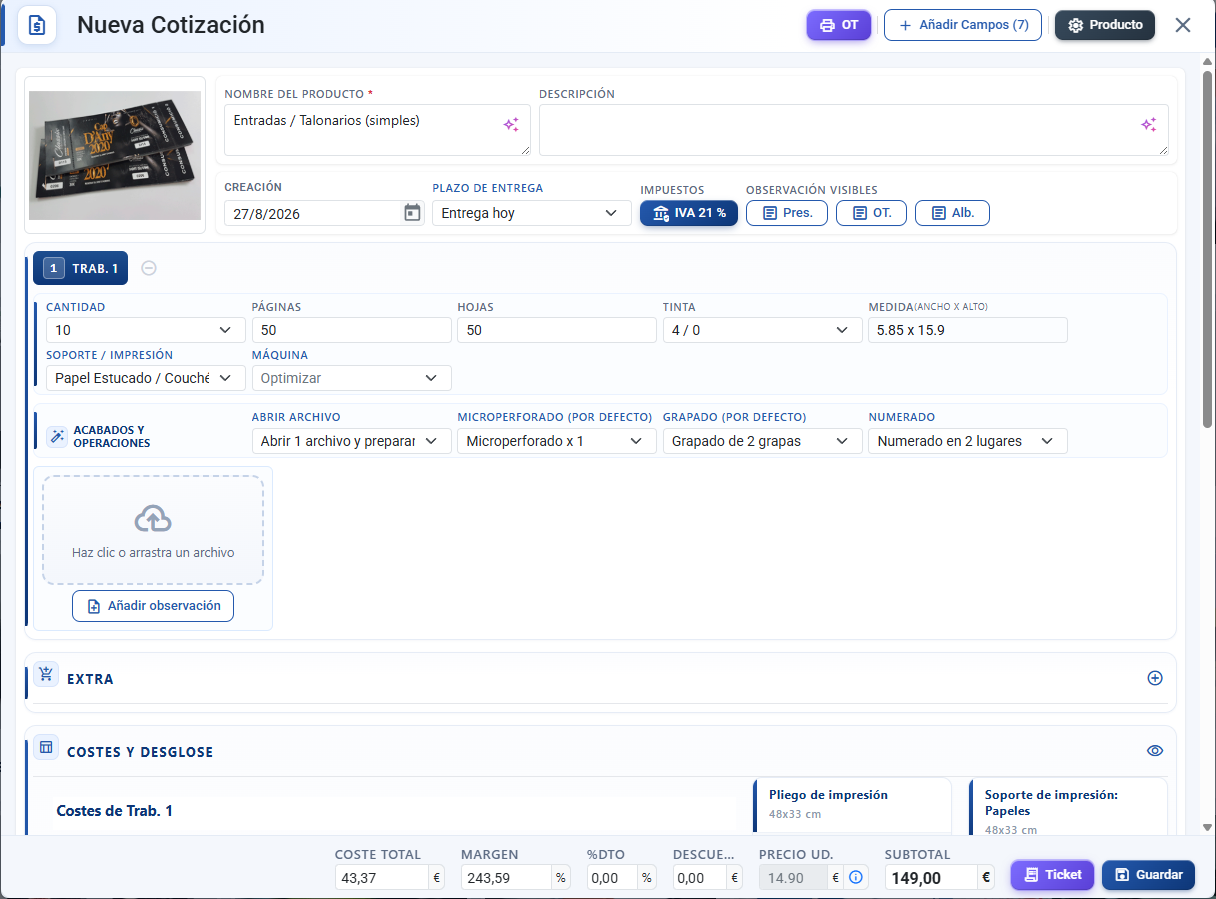
From top to bottom:
- Modal header — title "New Quote" or "Quote #ID". Buttons: Works order (print), Reload, Product (open its record).
- Product photo — small image in the corner if the product has one.
- General details — name, description, date, lead time, taxes, notes.
- Artwork selector — grey card holding the buttons for the artworks available on the product. Click them to switch them on.
- One card per active artwork — quantity, pages, size, substrate, ink, press, operations, notes.
- Extra card — manual additional costs (delivery, installation, whatever) with their own margin.
- Costs and breakdown — collapsible section with the full breakdown per artwork (press, substrate, ink, operations, guillotine) and imposition diagrams.
- Footer — totals (subtotal, total, margin, discount, taxes), Save / Quote / Duplicate / Ticket buttons.
General details
| Field | What it is for |
|---|---|
| Name | How the line appears on the quotation/invoice. Mandatory. AI button alongside to draft it. |
| Description | Free text detail. It appears on printed documents. AI button alongside to draft it. |
| Date | Date of the quote. |
| Delivery lead time | Dropdown with the configured lead times; if you choose "To be advised" three fields appear: days, surcharge %, surcharge €. |
| Taxes | Toggle buttons to switch VAT, IGIC or others on and off. Several can be active at once (they add up). |
| Notes | Three checkboxes (Quote, Works order, Delivery note). If you tick one, a text area appears for the note that will be printed only on that type of document (Note visible on Quote / on Works order / on Delivery note). Each one has an AI button to draft it. |
AI button on text fields
Several text fields in the quoting engine carry an AI button (violet→pink chip with a sparkles icon) next to their label: Product name, Description, Note visible on Quote / on Works order / on Delivery note and the Note for each artwork (above the delete button). Clicking it opens the AI Assistant, which suggests wording based on the data in the quote; you can ask for changes, rate it 👍/👎 and apply the result to the field.
Artworks
Each artwork is a side / sheet / page of the product that is printed independently. For example, a double-sided A5 flyer has 2 artworks (front and back); a magazine has one artwork per page or sheet.
- The available artworks appear as buttons on the grey card of the selector.
- An artwork that is not selected contributes nothing to the price.
- A yellow button = outsourced artwork (printed by an external supplier). The supplier's name is shown alongside.
- A blue button = in-house artwork.
- Click to switch it on; click the X on its card to switch it off.
Fields per artwork
| Field | Notes |
|---|---|
| Quantity | Units to print. If the product has "Individual quantity" switched off, only the first artwork accepts a quantity; the rest copy its value. If the product uses fixed quantities, the input is a dropdown with the predefined list. |
| Pages | Only where it applies (magazines, booklets). If the ink is double-sided and you enter an odd number, it is automatically rounded up to the next even number. |
| Sheets | Calculated automatically (pages ÷ printed sides). |
| Size | Width × height. Autocomplete with the sizes the product allows. If the size does not fit on the chosen substrate, the system clears the substrate and the press so you pick a valid combination. |
| Substrate | Material chosen from the product's catalogue (paper, board, vinyl, item...). Changing substrate clears the colour/variant/size of the previous one and replaces them with those of the new one. |
| Substrate size | If the substrate has several physical sizes (DIN A4, DIN A3...). You can pick one or leave "Optimise" and the quoting engine chooses the tightest fit. |
| Substrate colour | If the substrate has colours. The image is loaded automatically. |
| Variant | If the substrate has variants (matt, gloss, satin...). |
| Sizes | If the substrate is of the item type. They appear as a grid of tiles (one tile per size: XS, S, M, L, XL...) with their quantity; every tile with a quantity is highlighted in blue. The header shows how many sizes are active and the total number of units. The total is the sum of all sizes and the general "Quantity" field is ignored. |
| Press | Dropdown with the presses valid for the product. You can leave "Optimise" and the system picks the cheapest. |
| Ink | front/back format (e.g. 4/0 = four-colour front only; 4/4 = both sides). If you enter 0/0, a warning appears: the press is excluded from the calculation (service without printing). |
| Operations | One operation per dropdown (laminating, die-cutting, folding...). Each with its own options. Choose "No operation" to leave it out. If the product has 3 or more operations, they are grouped at the end of the artwork under the "Finishing / Operations" section (with a counter of how many are active); with fewer, they sit loose among the other fields. |
| Print run | The print run fields (Quantity, Pages, Sheets, Ink) are grouped at the start of the artwork under the "Print run" section when the product has pages (book/magazine). If the product has no pages, Quantity and Ink are folded into the "Material" group instead of having their own box. |
| Material | Group that brings together the material and printing fields (Size, Substrate, Substrate size, Colour, Variant, Press). If the product has no pages, it also includes Quantity and Ink; if there are fewer than 3 operations, it shows those here as well instead of in the "Finishing / Operations" box. |
| Notes for the artwork | Area for uploading images or attaching files. Photos of the substrate are added automatically when you choose it. |
Extra costs
Section for adding charges that do not fit into the automatic calculation:
| Extra field | What it is for |
|---|---|
| Reference | Name of the charge (delivery, installation, rush job...). |
| Cost | Amount. |
| Margin | Toggle: independent margin with its own %, or use the product's margin. |
| Total | Calculated automatically. |
As many rows as you need. Each with its own delete button.
Quantity: two models depending on the product
- Single quantity (individual quantity switched off on the product) — only the first artwork accepts a quantity; the rest copy it automatically. Grey notice alongside: "Individual quantity switched off".
- Individual quantity — each artwork accepts its own quantity.
- By size — if the substrate is an item with sizes, the general "Quantity" disappears and is replaced by a quantity per size. The total is the sum.
How the margin is applied
The system uses the margin formula configured on the product's artwork (Margin type 0–9, defined under Products). It is applied automatically according to the quantity entered:
- Fixed margin: a single percentage across all price breaks.
- By range (from/to): each range carries its own different %. The system picks the range that matches the quantity entered.
- By fixed price: the quantity determines the final price, without going through a % margin.
- Operations with an independent margin are applied separately and are not affected by the global one.
The user does not touch the formula; it comes from the product catalogue. If you want to change it, do so from the product record.
Live calculation
Any change in the form triggers a recalculation after a 500 ms pause (so the server is not hammered while you type). Exceptions:
- Name and description do not trigger a recalculation (they are metadata).
- If you change the manual lead time (the three "To be advised" fields), you then have to touch any other field to force the recalculation.
The result appears in the footer (subtotal, total, margin, taxes) and in the Costs and breakdown section if you have it expanded.

Cost breakdown
Collapsible section that shows, for each artwork:
| Column | Notes |
|---|---|
| Item | One row per element (press, substrate, ink, sizes, colours, guillotine, each operation). |
| Unit cost | Only visible with the view_global_coste permission. |
| Units | How many units of that cost are used (m², sheets, passes, etc.). |
| Cost | Total cost (unit × units). Visible with the permission. |
| Margin | Percentage applied. Visible with the view_global_margen permission. |
| Subtotal | Final amount for that element. |
It comes with imposition diagrams: how the product is laid out on the sheet and how the sheet fits onto the substrate. Useful for checking that the calculation makes physical sense.
Why not every up on the sheet is used
The quoting engine tries every way of laying the job out on the sheet and keeps the one with the lowest total cost, not the one that fills the paper the most. Fitting more ups saves paper and press passes, but it makes the operations charged per up more expensive (numbering, micro-perforating, certain programmes); if that increase outweighs the saving, an imposition with fewer ups wins.
When more ups would fit on the sheet than are actually used, a notice appears below the sheet details showing the extra cost of filling it completely, along with the See why button.
| Button / Action | What it is for |
|---|---|
| See why (Printing sheet block) | Opens Sheet imposition: the list of every imposition compared, with its Ups, Layout, Sheets, Cost, Difference against the chosen one and What makes it more expensive (the element causing the extra cost, normally an operation charged per up). The row marked Chosen is the one that has been applied. |
The detail is for information only and is recalculated with the price: it is not saved with the quote.
Applying a discount
The discount field in the footer accepts several modes:
- Discount % — you type 10 and it recalculates against the subtotal.
- Discount in € — you type €50 and that amount is deducted.
- Final subtotal — you set the price you want to come out; the discount is calculated backwards.
- Total including VAT — you set the final total (taxes included).
- Margin % — force a specific margin; the price is recalculated.
Actions
| Action | What it is for |
|---|---|
| Save | Persists the quote. If you came from a quotation, it is not linked yet (that is what Quote does). |
| Quote | Saves + creates the line on the sales document (quotation/order/delivery note/invoice). |
| Duplicate | Opens an identical copy as a new, unsaved quote. |
| Ticket <span style="display:inline-block;background:#fef3c7;color:#92400e;padding:2px 6px;border-radius:4px;font-size:.65rem;font-weight:600;">PRO</span> | Generates an invoice + direct ticket against the default customer. Requires view_global_coste. It does not ask for confirmation first: it goes straight to the "There is an amount outstanding" notice with Collect everything (collects the outstanding amount without opening the payment screen), Review the payments, Do not collect (issues the ticket without payment) and the red Do not generate ticket button, which cancels without creating the invoice. |
| Works order (print) | Generates the works order PDF with a selectable template. It includes the cost breakdown and the imposition diagrams. |
| Reload | Loads the product again from the database in case it was edited in another tab. |
| Product | Opens the product record so you can adjust its presses / substrates / operations. When you come back, it asks whether to update the quote with the changes. |
System warnings
| Warning | When it appears |
|---|---|
| Ink 0/0 | When you leave the ink empty. The press will be excluded from the calculation. |
| Size does not fit | When the chosen size exceeds the substrate. The system clears the substrate and the press. |
| Substrate missing | You must choose one before saving. |
| Individual quantity switched off | Information only. It tells you that this artwork does not accept its own quantity. |
| Independent margin | Indicates in the breakdown which elements have their own margin applied. |
Bleed, non-printable areas and guillotine
- Product Print bleed: when it is on, the press's non-printable areas are ignored (it prints right to the edge). In the breakdown, the press consumes the whole sheet with no margins deducted.
- Guillotine: if the product has cuts enabled, the cost is calculated automatically and appears as another row in the breakdown. There is no visual toggle to switch it off for a one-off.
Outsourcing
If an artwork is flagged as outsourced on the product, its card and its button appear in yellow with the supplier's name. Internally the cost is calculated in the same way, but the printed works order will show that this part is done by the external supplier.
Differences by plan
- TRY / STD — everything except the Ticket button.
- PRO — enables Ticket (instant direct invoice).
- FULL — no further differences here.
Key concepts
- Artwork: an independent side / page of the product. As many as you need.
- Individual quantity: if the product has it switched off, every artwork shares the quantity of the first one.
- Quantity sum (product Unit cost toggle, on the product record → "Quoting engine settings"): with Sum all on, the unit cost is spread across the sum of all the artworks and the quantity on the quote line is that sum; with Qty 1st artwork, it is spread only across the quantity of the first artwork and the line shows that quantity. This is not the same as the Quantity (Shared / Individual) toggle, which only decides whether the quantity is typed once and replicated.
- Optimise: an option on the press and on the substrate size that lets the system choose the cheapest combination.
- Bleed: printing right to the edge of the paper, ignoring the press margins.
- "To be advised" lead time: a manual lead time with custom surcharges.
- Independent margin: the cost carries its own margin percentage rather than the product's.
Frequently asked questions
Q: I changed the quantity and the price is not updating.
A: The quoting engine waits 500 ms after you stop typing before calling the server. Give it a second. If it still does not change, touch another field to force the recalculation.
Q: The system cleared my substrate when I changed the size. Why?
A: The new size did not fit on the previous substrate. To keep things consistent, the system clears the substrate and the press; you have to choose a valid combination.
Q: I set the lead time manually and the price did not update.
A: Changing the three manual lead time fields (days + surcharges) does not trigger a recalculation on its own. Touch any other field (the quantity, for example) and it will recalculate.
Q: How do I change the product from here?
A: You cannot. Close the quoting engine (the X on the modal) and choose another product from Categories or from "New quote" on the sales document.
Q: The price does not match my manual calculation. How do I check it?
A: Open Costs and breakdown. You will see, row by row, what goes in: press, substrate, ink, sizes, colours, guillotine, each operation, extras. Each one with its unit cost, units, total and margin applied.
Q: The price does not match the spreadsheet I have always used. What should I check first?
A: Before touching the final price, check the calculation data, which is almost always where the difference lies: quantity, size, substrate, ink and sides, press, operations, cost, margin, discount and the unit of calculation (per unit, per m², per thousand...). Open Costs and breakdown and compare element by element with your Excel. Do not force the final price or assume the system is wrong: as soon as the input data matches, the price matches.
Q: What is "Optimise" on the substrate size for?
A: It tells the system to choose the physical substrate size that fits the job most tightly, so you use less material. Useful when a substrate comes in several formats (A3, A4...).
Q: I set the ink to 0/0 and the press cost disappeared. Is that right?
A: Yes. Ink 0/0 means "no printing": the quoting engine excludes the press cost because the job is handling only (assembly, bagging, etc.).
Q: I built a quote, clicked Save, but it is not showing on my quote document.
A: Save persists the quote but does not link it. To add it to a quote / order, click Quote, which also creates the line on the sales document.
Q: I need to add a delivery charge. Where?
A: On the Extra card, below the artworks. Add a row with a reference, a cost and a margin.
Q: Why do some rows in the breakdown say "independent margin"?
A: Those elements have their own margin percentage configured on the product and are not affected by the global margin. It is useful for special operations (e.g. laminating with a different margin from the product).
Q: How do I generate the works order for production?
A: The Works order (print) button in the modal header. Choose a template and it generates a PDF with the technical breakdown and the imposition diagrams.
Q: I want to raise an invoice from this quote straight away without going through a quote document.
A: If you are on the PRO plan, click Ticket: it creates the invoice + line + PDF directly. It also requires the view_global_coste permission.
Q: Can I apply 21% VAT and a 15% withholding at the same time?
A: Yes. Taxes are independent toggles and they add up. Make sure it makes legal sense in your case; the system does not validate that.
Q: What is the green Update button for? I click it and it changes the price back to the original.
A: Update pulls the current product configuration into this quote, as if you were building it again from scratch (it recalculates everything). That is why it "loses" earlier manual changes. If you only want to update one part (say the substrate or the press, because its cost changed), do not use Update: go into Substrate/Printing or Press within the quote and, when you leave and save, it will ask whether to update that part only.
Q: Can I edit a quote that has already been saved / already accepted?
A: While it is at the quote or works order stage, yes: click the quote, change it and save. It is locked once the delivery note is generated. If it has already been delivery-noted/invoiced and you need to touch it, you have to delete the invoice and delivery note lines (or switch on the option to edit the quoting engine even when it is locked, under Sales settings).
Q: I edit a quote that has already been invoiced and the price reverts when I save.
A: An invoiced quote is locked: the price cannot be changed. To edit it, switch on "edit quoting engines even when they are locked" under Sales settings, or roll the status back by deleting the line on the invoice and the delivery note.
Q: I have a quote with two artworks, each with a quantity of 1, but the quote line shows 2 units (the sum) and I want it to be 1.
A: The quantity you see on the line is set by the product's Unit cost toggle. Yours is on Sum all (which is why it shows 1 + 1 = 2). Set it to Qty 1st artwork so the line takes only the quantity of the first artwork. That toggle is on the product record, "Quoting engine settings" card. Do not confuse it with the Quantity (Shared / Individual) toggle, which only decides whether the quantity is typed once and copied to the other artworks.
Q: The customer wants the same quote with 3 different quantities (100/300/500). Do I have to build 3?
A: No: use the Duplicate quote button inside the quote document (it appears when you hover over the quote) and change only the quantity in each copy. Save before duplicating so nothing is lost when it recalculates.
Q: On a 4+4 (double-sided) t-shirt/banner the printed area does not double.
A: For two sides with different sizes you need to create two artworks with the same quantity and independent sizes (one per side). In the per-m² quoting engine, double-sided with the same size already doubles the area; if you need different sizes per side, split them into separate artworks.
Q: I set sizes to 0 on a t-shirt and all the sizes come out at 0 on the quote.
A: Sizes with a quantity of 0 are hidden on the printed document; only those with a quantity appear. If you can see them, refresh to load the latest version.
Q: I changed an option and an image changed by itself.
A: When you change substrate (or substrate colour), the quoting engine automatically adds the photo of the new substrate to the artwork notes and removes the previous one. If you want to keep both, upload them yourself.
Q: How do I build my first quote?
A: Do not start from scratch. Go into Quote and choose a product from the catalogue that is similar to the one you are pricing (it comes pre-configured). Fill in the job details on the artwork: quantity, ink and sides, size, substrate, press and operations. Look at the cost breakdown to check that the calculation makes sense, adjust the price or the margin if you need to, and click Save. Adapting an existing product is far quicker and safer than building a new one from nothing.
Q: Are cost and price the same thing?
A: No. Cost is what it costs you to produce or buy the job (material, press, operations). Price is what you charge the customer. Margin is the difference between the two: your profitability. If you want to bring the cost down, adjust substrates, presses or operations. If you want to change what you charge, adjust the price or the margin on the product or here in the quoting engine. Confusing the two leads to selling below cost without realising it.
Q: When is it better to use a fixed price and when a margin?
A: Start with a fixed price to line up with the prices you already work with today: that way you start out selling at your usual rates. Once you understand your costs properly, move to working on margin: the price is recalculated automatically from the cost, so if material or press costs go up your profitability holds instead of falling behind.
Q: How do I load prices or quantity discounts?
A: Set up price points by quantity or by size (for example, 1 m² at one price and 10 m² at a lower one). The quoting engine works out the intermediate values between the points you have loaded automatically. If an intermediate price does not convince you, add more points to fine-tune the price breaks.
Q: What is Assisted Onboarding?
A: It is a guided session for trying CotizaPrint out with your real products, prices and print shop data. You do not need to have everything prepared. The aim is to leave you with a first working base and at least one useful quote you can already work with.
Q: How many products are set up during onboarding?
A: There is no fixed number promised. Ideally you end up with between 5 and 10 products if the case allows it; with very complex products it may be 1 or 2. What matters is finishing with your priority products working and useful, not filling a quota.
Q: Do I have to prepare all my data before the onboarding?
A: No. Having your logo, a sample quote, your spreadsheet or a materials price or invoice to hand helps, but it should not hold the session up. You can start with a single real product or with approximate data and refine as you go.
Q: Why is it better to do the onboarding within 24-72 hours?
A: Because the demo is still fresh and it is easier to make progress working with real products before day-to-day work pushes it back. It is a recommendation to make the most of the momentum, not an obligation.
Q: How is the gutter (the spacing between ups) taken into account in the imposition?
A: The gutter is the Extra margin for each up and it is configured on the product, not on the quote: open the product, go to the Guillotine section, and enter the centimetres you want to reserve around each up. The quoting engine adds them to the size of each piece when working out how many fit on the sheet, so a wider gutter means fewer ups per sheet and higher material consumption. There is no separate "Imposition" screen: the result is shown under Costs and breakdown in the quoting engine, with the imposition diagrams and the See why button.
Q: How do I change the margin on an Extra cost?
A: On the Extra card of the quote, in the row for that charge, use the Margin toggle: independent to give it its own %, or as per the product so it uses the product's. The Extra is a manual charge on the quote (delivery, installation, rush job, etc.) with its own Reference, Cost and Margin; it is not a catalogue operation, so its margin is not set from Operations.
Q: Why does the quoting engine not use the whole sheet? More ups would fit than it says.
A: Because it picks the cheapest combination, not the one that fills the sheet the most. Every additional up makes the operations charged per up more expensive (numbering, micro-perforating, etc.), and that can outweigh what you save on paper and press time. When that happens, you will see a notice under the sheet details showing the extra cost it would carry; click See why to see all the options compared and which element makes them more expensive.
Q: Can I force the quoting engine to use more ups?
A: It cannot be forced from the quote: the choice comes out of the cost. If you think the option with more ups ought to win, check the costs on the product for the operation shown under What makes it more expensive — if a time intended for the whole sheet has been entered as a per up cost, the calculation penalises it too heavily.