
What it is
A unified screen that lists everything you can buy and hold in stock in one place: the sizes of sheet and roll substrates and, on top of that, the variants of item substrates (their colour, size and variant). Stock used to exist by size only; now it is also tracked by colour, size and variant.
What it is for
- See at a glance how much material you have (Balance) and what it is worth (Valuation) across the whole company.
- Spot what needs replenishing: anything below the minimum stock.
- Correct or add stock without opening each substrate one by one: Adjust and Purchase straight from the row itself.
- Review the detail of stock in and stock out for any item with Movements, or its History with a running balance.
- See what is already on order and on its way (the Incoming column) and create the replenishment order with Generate order.
How to use it
Menu Purchasing → Purchase stock. It requires the Purchasing and Inventory module: it is included in the Full plan and, on any other plan, it is bought separately without changing plan (without it you see the module card with the Subscribe to Purchasing and Inventory button).
What the screen looks like
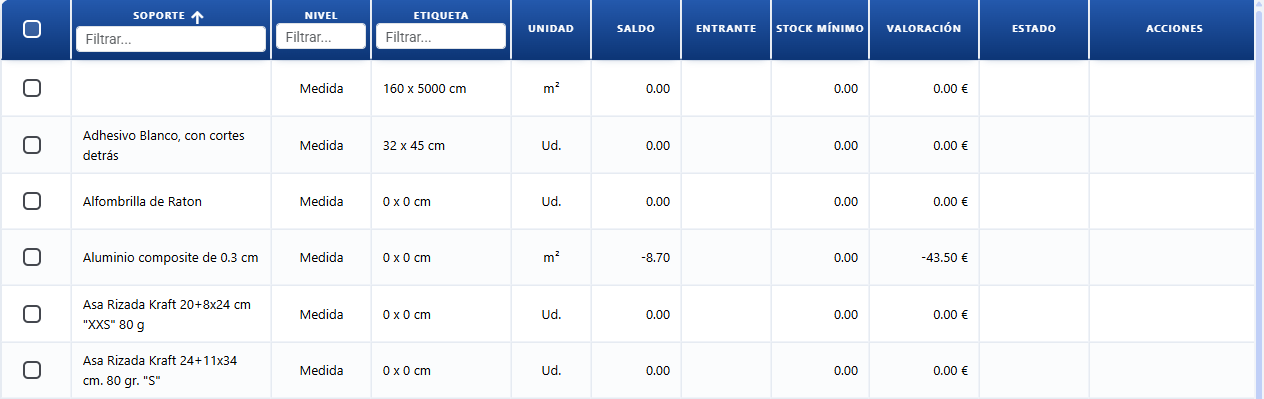
Purchase stock: one row per substrate and size. Balance is what you hold now, Incoming is what is on order and has not arrived yet, and Valuation is what that stock is worth.
| Column (text on screen) | What it shows |
|---|---|
| Substrate | The material the item belongs to (paper, vinyl, T-shirt, etc.). |
| Level | What the row refers to: Size, Colour, Size or Variant. Sizes come from sheet/roll substrates; colour, size and variant from item substrates. |
| Label | The specific identification of the item within the substrate (the size, or the name of the colour, size or variant). |
| Unit | The unit that item's stock is counted in (Unit, kg, m² or lm). Equivalent ways of writing the same unit are merged automatically (for example "unit" or "unidad" both count as Unit, and "m2" or "square metre" as m²), so the same item does not appear split across several rows. |
| Balance | Current stock = purchase stock in minus consumption stock out. |
| Incoming | Quantity ordered from suppliers and not yet received (purchase orders that are Sent or Partially received). The tooltip shows the expected availability (balance + incoming). Empty if there is nothing awaiting receipt. |
| Minimum stock | The level below which you should replenish. If it is 0, there is no warning. |
| Valuation | The monetary value of the stock = Balance × Cost. |
| Status | A red "Below minimum" badge when the balance drops below the minimum stock. |
Buttons and actions — what each one is for

Use the literal text you see on screen. For the toggle, both of its states are documented.
| Button / Control (text on screen) | What it is for |
|---|---|
| "N below minimum" badge | A warning in the header with the number of items below the minimum stock; pressing it switches on the Below minimum only filter. It does not appear if nothing is below minimum. |
| Below minimum only / All stock | Filter toggle: on Below minimum only the list shows just what needs replenishing (balance below the minimum stock); on All stock it shows every item that holds stock. |
| Adjust stock | Opens Adjust stock: it changes the item's Balance and records the reason (Stock in (+) to add a purchase or stock count, Stock out (−) to deduct, or Set balance to a given value). This is how you record manual stock in and stock out with a reason. |
| Movements | Opens the detail of stock in and stock out for that item (purchases and consumption), with its history. |
| Generate order | Creates replenishment purchase orders automatically: it takes the selected items (or, with no selection, those below minimum with a shortfall) and opens a modal with the quantity to order (by default what is missing up to the minimum, counting the incoming) and the proposed supplier for each item (preferred price list → the only price list → Supplier on the substrate record). The modal has a Supplier filter (a dropdown with an All option) to keep only one supplier's rows: Create orders generates orders from the visible rows only. Pressing Create orders creates one Draft purchase order per supplier and offers to take you to the Purchase Orders list. Items with no supplier assigned are flagged and left out. |
| History (row action) | Opens the item's movement history: stock in and stock out sorted by date with Date, Type, signed Quantity, Source (Purchase invoice, Purchase order, Work order consumption, the adjustment reason, or Adjustment) and the running balance. It shows the 500 most recent movements. |
| Minimum stock (row action) | Opens the Minimum stock window to change that item's minimum without leaving the inventory. It shows the item, its Current balance and the Minimum stock field with its unit (note: 0 = no low stock alert). Save applies the value; Cancel closes without changes. |
| Minimum stock report | Opens the Minimum stock report, which works out a recommended minimum stock per item from its consumption: Recommended = daily average consumption × (days of cover + supplier delivery lead time) × (1 + safety buffer). It lets you choose the Consumption method (average, peak week or peak month), respect the supplier minimum order quantity, filter the table by Status and Item, and apply the recommendation item by item (Apply) or all at once (Apply all). |
| ? (help icon, next to the screen title) | Opens the Visual inventory guide in a new tab: it explains the inventory → consumption → purchasing cycle, what each section is for and the 7 steps to get it up and running. It is on all three screens of the purchasing module (Purchase stock, Purchase Orders and Purchase Invoices). |
Minimum stock report (replenishment recommendation)
It opens with the Minimum stock report button on the top bar. For each item that holds stock, it works out the recommended minimum stock from its actual consumption:
Recommended = daily average consumption × (days of cover + supplier delivery lead time) × (1 + safety buffer)
- The daily average depends on the Consumption method you choose: with Period average it is the consumption over the Analysis period (days) divided by those days; with Peak week or Peak month it is the daily rate of the week (7 days) or the month (30 days) with the highest consumption inside the period.
- The lead time is the delivery lead time in days from the preferred price list of the item's supplier (if there is no preferred one, the only price list; if there is none at all, 0).
- The safety buffer adds an extra percentage on top of the result as a margin for the unexpected.
- The result is rounded up. With the Respect supplier minimum order quantity toggle on, if the supplier's price list has a minimum quantity, the recommendation does not go below it.
Calculation conditions (report controls)
| Control (text on screen) | What it is for |
|---|---|
| Analysis period (days) | How many days back consumption is looked at (90 by default). |
| Days of cover | How many days of consumption you want the minimum stock to cover (15 by default). |
| Safety buffer (%) | The extra percentage added to the recommendation as a safety margin (0 by default). E.g. with 20%, a recommendation of 100 becomes 120. |
| Calculation basis | Which consumption counts: Actual stock out (only what was really deducted from stock, including manual stock-out adjustments), Quoted or above (consumption from any quote), Work order or above (quotes that are already an order, delivery note or invoice), Delivery note or above (delivered or invoiced) or Invoiced (invoiced only). |
| Consumption method | How the daily average is worked out: Period average (total consumption over the period divided by its days), Peak week (the daily rate of the busiest week in the period) or Peak month (that of the busiest month). The peaks protect you against irregular or seasonal demand: they size the minimum for the worst stretch, not for the average. |
| Respect supplier minimum order quantity / No supplier minimum order quantity | Toggle: when on, if the supplier's preferred price list has a minimum quantity, the recommendation does not go below it (only on items that have a recommendation; it does not create minimums where there is no consumption). |
| Items with consumption only / All items | Toggle: hides or shows the items with no consumption in the period. |
| Recalculate | Recalculates the table with the current conditions (instant, without reloading data). |
| Status | Table filter: shows only the All, Increase, Decrease or OK rows. It only affects what you see — Apply all still applies every pending recommendation, including the ones hidden by the filter. |
| Item | Table text filter: type part of the item's name (or of its level/label) to see only the matching rows. It can be cleared with the X in the field. Like Status, it only filters the view. |
Recommendations table
Columns: Item, Unit, Period consumption, Daily average (its tooltip states the consumption method applied), Lead time (days), Current minimum, Recommended and Status — an OK badge (the minimum already matches), Increase (the recommendation is higher) or Decrease (it is lower). The section header shows how many items are visible out of the total (according to the Status/Item filters) and how many have a proposed change.
- Apply (per row): saves the recommendation as that item's minimum stock.
- Apply all (at the foot of the report): applies every pending recommendation at once, after confirmation — including the rows hidden by the Status/Item filters (the number in brackets on the button is the total number of changes). If the same element appears in several rows with different recommendations, the highest one is applied (a conservative cover criterion).
- Close: closes the report; if changes were applied, the stock list reloads.
Key concepts
Users ask "what is X / what is X for?" using these exact words.
- Balance: an element's current stock = purchase stock in minus confirmed consumption stock out. It is the real stock available.
- Theoretical vs actual consumption: when a quote is saved, the material it would need is reserved (theoretical consumption), but it does not come off the Balance — it is only a forecast. The real deduction happens when the invoice for that sale is issued: the consumption becomes confirmed and only then does it come off the stock. If the invoice is credited (or amended), that consumption goes back to theoretical and stops being deducted. That way stock reflects what has actually been invoiced, without deducting for quotes that never close.
- Valuation: the monetary value of an element's stock = Balance × Cost. The total valuation of everything listed is shown at the bottom.
- Minimum stock: the stock level below which you should replenish. When the Balance drops below that value, the element shows a red "Below minimum" badge. A value of 0 switches the warning off. It is edited from the row itself with the Minimum stock action.
- Recommended minimum stock / Recommended: the value proposed by the Minimum stock report = daily average consumption × (days of cover + supplier delivery lead time) × (1 + safety buffer). It covers the expected consumption while the replenishment order is on its way.
- Calculation basis: which consumption counts in the report — from actual stock out only, through quoted, work order, delivered or invoiced only.
- Consumption method: how the report obtains the daily average — Period average (the average over the whole period), Peak week or Peak month (the daily rate of the busiest 7 or 30-day stretch). With irregular or seasonal demand, the peaks stop you falling short by sizing for the worst stretch.
- Peak week / Peak month: within the analysis period, the week (7 days) or the month (30 days) with the highest consumption. The report uses its daily rate as the daily average for the calculation.
- Daily average: the daily consumption the report uses; depending on the method, the average over the period or the rate of the peak stretch.
- Safety buffer: the extra percentage added to the recommendation as a margin for the unexpected (supplier delays, peaks not seen in the period).
- Minimum order quantity / supplier minimum quantity: the minimum purchase quantity on the supplier's price list. With Respect supplier minimum order quantity on, the recommendation does not go below that quantity.
- Days of cover: the days of consumption you want the minimum stock to guarantee.
- Lead time (days): the supplier's delivery days (preferred price list) that the report adds to the cover, because you keep consuming during that time.
- Level: what the row refers to. Size (sheet/roll substrates), Colour, Size or Variant (item substrates).
- Below minimum / replenishment: the state of an element whose balance has dropped below its minimum stock; the signal that material needs buying again. With Generate order the replenishment purchase order is created straight from this screen (or with Automatic replenishment inside a purchase order, see Purchase Orders).
- Proposed supplier / automatic supplier: the supplier the system assigns to each item when replenishing. The decision chain: the item's preferred price list → the item's only active price list → the Supplier field on the substrate record → no supplier (the item is flagged and left out of the order).
- Supplier filter (Generate order modal): a dropdown above the modal table with the suppliers present (plus All); it limits the rows shown, and Create orders only generates orders from what is visible.
- Incoming / incoming stock: the quantity ordered from suppliers and not yet received (purchase orders in Sent or Partially received status). It is not part of the Balance; the expected availability = Balance + Incoming.
- Movement history: the chronological detail of an item's stock in and stock out with its source (purchase invoice, purchase order, work order consumption or adjustment) and the running balance after each movement. Each movement is shown in its original unit (unconverted) and the running balance is kept per unit.
- Equivalent units / unified unit: the different ways of writing the same unit count as one — "unit", "unidad" or "Ud." are Unit; "m2" or "square metre" are m²; the same goes for kg and lm. The inventory adds up all of the item's stock in a single row even if its movements were written in different ways.
- m² ↔ Unit conversion (sizes with dimensions): on sizes that have a width and height defined, the inventory converts automatically between m² and Unit using the area of the size (width × height). If the same material has stock recorded in both units, it is consolidated into a single row with its natural unit, and the Incoming, the Valuation and the consumption in the Minimum stock report are worked out on that consolidated total. Sizes without dimensions (or units with no equivalence, such as kg or lm) are not converted and are shown as they are.
Features by plan / role
- FULL: screen available.
- Without the module, the screen shows the "Inventory module" card (what the module does, a Full badge and a Subscribe to Purchasing and Inventory button that takes you to
/subscription?planes=MOD&extra=comprasInventario). It can be bought from Standard, Pro or Full. The menu is visible and clickable for everyone.
Frequently asked questions
Q: Where do I see how much material I have and what I need to replenish?
A: In Purchasing → Purchase stock. It lists everything you can buy and hold in stock (sheet/roll sizes and item colour/size/variant) with its Balance, Minimum stock and Valuation. Switch on the Below minimum only toggle to see just what needs replenishing (a red "Below minimum" badge).
Q: How do I see an item's stock by colour or by size?
A: In Purchase stock. The Level column states whether the row is a Size, Colour, Size or Variant. Item substrates appear with their colours, sizes and variants, each one with its own Balance and Valuation.
Q: What are the Balance and the Valuation on the screen?
A: The Balance is the current stock (purchase stock in minus consumption stock out). The Valuation is its monetary value = Balance × Cost. The total valuation of everything listed is added up at the bottom.
Q: My stock is wrong, how do I correct it?
A: Press Adjust on the element's row. Adjust stock opens, where you change the Balance and record the reason (stock count, breakage, spoilage, correction).
Q: How do I add stock after buying material?
A: Press Purchase on the row. Add purchase opens and the quantity is added straight to the element's Balance (stock in).
Q: What is Movements for?
A: It opens the detail of stock in (purchases) and stock out (consumption) for that element, with its history.
Q: What does the "Below minimum" badge mean?
A: That the element's Balance has dropped below its Minimum stock and it should be replenished. It is shown in red in the Status column.
Q: What is the Incoming column?
A: The quantity you have already ordered from suppliers and that has not arrived yet (purchase orders that are Sent or Partially received). It does not add to the Balance until you record the receipt; the tooltip shows the expected availability (Balance + Incoming). That way you do not reorder material that is already on its way.
Q: How do I order the material that is below minimum?
A: Press Generate order (with rows selected it uses those; with no selection it takes the ones below minimum with a shortfall). Check the quantity to order and the supplier for each item in the modal (preferred price list → the only price list → Supplier on the substrate record) and press Create orders: one Draft purchase order is created per supplier and you can go straight to the Purchase Orders list to send them. Items with no supplier are flagged and left out. You can also do it the other way round, from a purchase order: the Automatic replenishment button adds everything below minimum for that supplier to the order.
Q: Can I generate the order with one supplier's items only?
A: Yes. In the Generate order modal, use the Supplier dropdown above the table: choose a supplier to see only its rows (All shows them all). Create orders generates orders from the visible rows only — what you see is what gets ordered.
Q: Where does the supplier that Generate order proposes come from?
A: From the chain: the item's preferred supplier price list (the star); if there is none, its only active price list; failing that, the Supplier field on the substrate record (the dropdown in the Identity section, see Print substrates). With none of the three, the item is flagged and left out of the order.
Q: What is History on a row for?
A: It opens that item's movement history: every stock in and stock out with its date, type, signed quantity, source (Purchase invoice, Purchase order, Work order consumption, or Adjustment with its reason) and the running balance after each movement. It shows the 500 most recent.
Q: How do I change an item's minimum stock?
A: Press the Minimum stock action on the item's row. A window opens with its Current balance and the Minimum stock field in its unit; type the value and press Save. With a value of 0 the item does not raise a low stock alert.
Q: What minimum stock should I set? / How do I calculate the minimum stock?
A: Use the Minimum stock report button: for each item it works out a Recommended value = daily average consumption × (Days of cover + supplier delivery lead time) × (1 + Safety buffer (%)). Adjust the Analysis period (days), the Days of cover, the Safety buffer (%), the Calculation basis and the Consumption method, press Recalculate and apply the recommendation with Apply (per row) or Apply all.
Q: What are Peak week and Peak month in the report? / My consumption is irregular, how do I calculate the minimum?
A: They are options of the Consumption method in the Minimum stock report. Instead of the average over the whole period (Period average), they take the week (7 days) or the month (30 days) with the highest consumption and use its daily rate. With irregular or seasonal demand they stop you falling short: the minimum is sized for the worst stretch, not for the average.
Q: What is the Safety buffer (%) for?
A: It adds an extra percentage to the report's recommendation as a margin for the unexpected (supplier delays, demand peaks). E.g. with 20%, a recommendation of 100 becomes 120. It is 0 by default.
Q: What does Respect supplier minimum order quantity do?
A: It is a toggle in the Minimum stock report: when on, if the supplier's preferred price list has a minimum quantity, the recommendation does not go below it (so the minimum is never lower than what you can actually buy). It only acts on items with a consumption-based recommendation — it does not create minimums on items with no demand.
Q: How do I filter the report table? / I only want to see what needs increasing.
A: With the Status (All, Increase, Decrease, OK) and Item (text by name or label) filters in the Calculation conditions section. They only filter what you see: Apply all still applies every pending recommendation, including the hidden ones (the number on the button is the total number of changes).
Q: What is the Calculation basis in the report?
A: It decides which consumption counts towards the daily average: Actual stock out (only what was really deducted, adjustments included), Quoted or above (any quote), Work order or above, Delivery note or above or Invoiced. The earlier the basis, the more forward-looking the calculation.
Q: The same item used to show in two rows with the stock split, why?
A: It happened when the movements had the unit written in different ways ("unit" and "Ud.", "m2" and "m²"). Equivalent units are now merged automatically and the item's stock is added up in a single row. On top of that, on sizes with a width and height the inventory converts between m² and Unit using the area of the size, consolidating stock recorded in both units into one row. In the History you still see every movement exactly as it was recorded, with its unit.
Q: Does the inventory convert square metres to units?
A: Yes, on sizes that have a width and height defined: the area of the size (width × height) makes it possible to go from m² to Unit and back, and the row shows the consolidated total in the material's natural unit. If the size has no dimensions, or the unit is kg or lm, there is no conversion and each unit is shown separately.
Q: Not all of my items show in the report.
A: The Items with consumption only toggle hides the ones that have had no consumption in the analysis period. Switch it to All items to see them all.