
What it is
Browser for the files and resources uploaded to the system (images, PDFs, logos, and so on).
It is a hierarchical browser: a navigation bar (Breadcrumb) at the top and two levels of selection. You choose a folder (document type) and then a subcategory or a specific document; the cards of the matching files then appear, each with its preview, its name, a button to open it and a list of tags showing which records use that file.
What it is for
- Viewing and organising the files you have uploaded.
- Downloading files or referencing them in other parts of the system.
- Knowing where each file is used: which customers, quotes, quotations, work orders, delivery notes, invoices, products, categories or substrates it is linked to.
- Spotting Unclassified files (not linked to anything) so you can clean them up.
How to use it
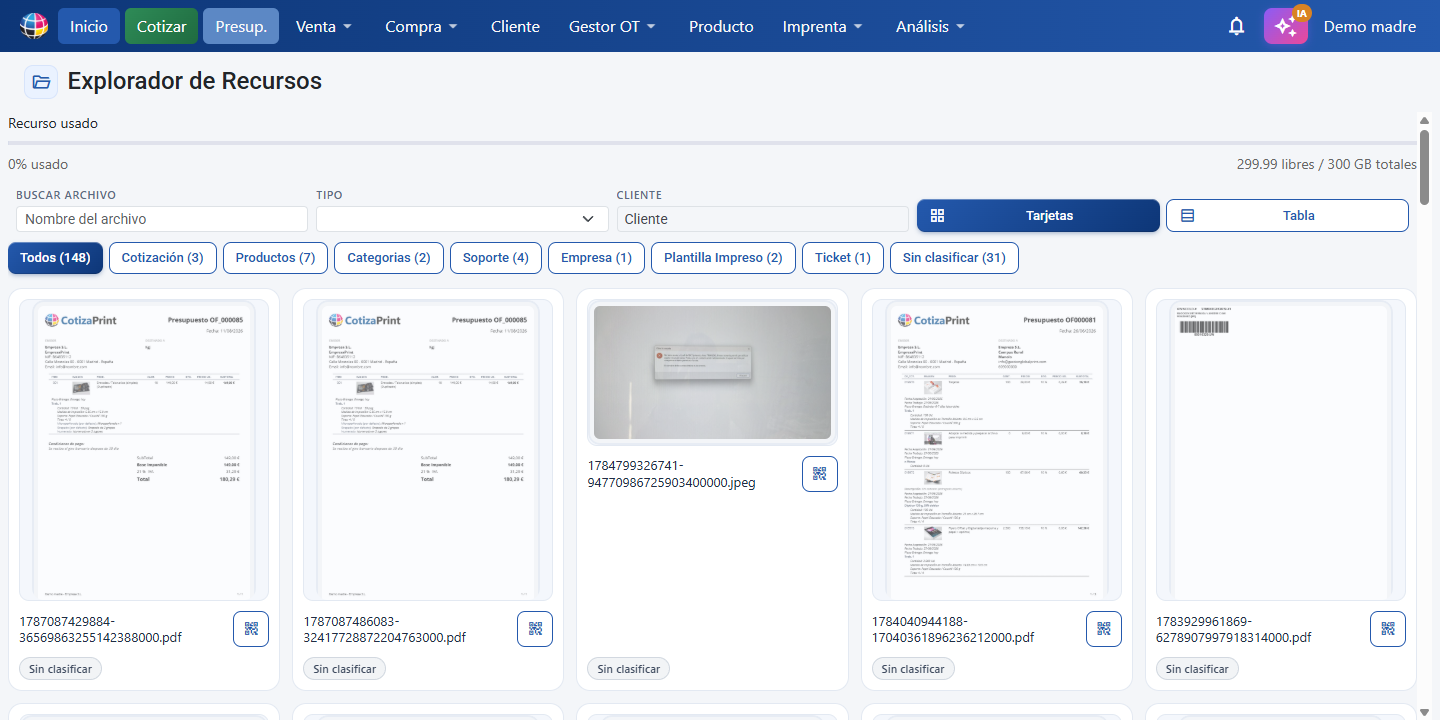
- Go to
/resource. - In the folders panel (left), click the category you want to explore: Customer, Quote, Quotation, Work order, Delivery note, Invoice, Products, Categories, Substrate, and so on.
- The subcategories or documents of that folder appear in the centre / on the right. Click one to filter.
- The cards of the resources matching that selection are rendered.
- To open a file in a new tab, click Open resource on its card.
- To go back, use the Breadcrumb at the top: every level is clickable; the Resource Browser icon takes you back to the start.
Buttons and actions — what each one is for
Literal text as it appears on screen. The folders panel has three levels: the first six are sales documents (level 0), then the catalogue (level 1) and then settings (level 2).
| Button / Control (text on screen) | What it is for |
|---|---|
| Resource Browser (icon / title) | Main heading of the page. The Breadcrumb icon is the root: clicking it resets the selections and takes you back to the start of the browser. |
| Find a file | Text field that instantly filters the resources shown by file name. Type part of the name and the list narrows to the matches. If nothing matches, "No files match your search." appears. |
| Cards / Table | Switches the resource view between cards (cards with a preview) and table (compact list). Both views show the same information: file name, the tags showing where it is used (with their comment if they have one) and the QR button; the table also adds the customer and the date. |
| Open a resource | In the cards view, click the View button on the file preview. In the table view, click the file row. In both cases the file opens in a new browser tab. |
QR (icon qr_code_2, Full plan only) | Available on every card and on every table row. It generates a QR code linking to a public page showing only that resource (the image or the PDF), designed to be used as an online catalogue. Clicking it opens a modal with the QR code and three actions: Copy link (copies the address), Print (prints the QR code) and Access (opens the link). The link does not reveal the real address of the file. This feature is available on the Full plan only; on lower plans the button looks exactly the same and clicking it opens the Resource QR notice with the plan required and the Upgrade plan button. |
Has comment (icon comment) | Appears on a tag when that link has a comment attached, both in cards and in the table. Clicking it shows a tooltip with the text of the comment, respecting its paragraphs and line breaks (if the comment was saved with formatting, it is shown as readable text without code tags). |
| Customer | Selects the Customer folder: shows the resources linked to customer records. |
| Quote | Selects the Quote folder: resources linked to quotes. |
| Quotation | Selects the Quotation folder: resources linked to quotations. |
| Work order | Selects the Work order folder: resources linked to orders in production. |
| Delivery note | Selects the Delivery note folder: resources linked to delivery documents. |
| Invoice | Selects the Invoice folder: resources linked to invoices. |
| Products | Selects the Products folder: images and files from product records. |
| Categories | Selects the Categories folder: category images. |
| Substrate | Selects the Substrate folder: preview images of the substrates (materials). |
| Substrate Colour | Selects the Substrate Colour folder: images of the colour variants of a substrate. |
| Substrate Garment Size | Selects the Substrate Garment Size folder: references and images of the size variants of a substrate. |
| Company | Selects the Company folder: logos and company settings files. |
| SMTP | Selects the SMTP folder: files linked to the mail settings. |
| Print Template | Selects the Print Template folder: resources used in the print templates. |
| Ticket | Selects the Ticket folder: resources linked to tickets. |
| Unclassified | Selects the Unclassified folder: resources that are not linked to any record in the system (orphan files). |
Key concepts
- Resource Browser: the hierarchical navigation interface itself, where the stored files are explored, organised by document type (Customer, Quote, Quotation, Work order, Delivery note, Invoice, Products, and so on). Its icon/title is also the root of the Breadcrumb.
- Resource: a file or image saved in the system (identified by its URL). Each resource can be linked to several records at once (customers, sales documents, products, categories, substrates, templates, and so on).
- Breadcrumb: the navigation path at the top (
Resource Browser > [Folder] > [Subfolder]). Every level is clickable so you can step back without losing your place. - Folder: each category that groups resources. There are three levels: sales documents (Customer, Quote, Quotation, Work order, Delivery note, Invoice), catalogue (Products, Categories, Substrate, Substrate Colour, Substrate Garment Size) and settings (Company, SMTP, Print Template, Ticket, Unclassified).
- Metadata / tags: the labels (chips) on each resource card showing which documents or records use it (for example "Quotation: DOC-001", "Customer: ACME", "Products: T-shirt"). If a tag has a comment, it shows the Has comment icon.
- Unclassified: the state of a resource that is not linked to any record (it does not appear on any customer, document, product, and so on). It is there to help you find orphan files.
- Work order: the order seen in production format. The Work order folder groups the resources linked to customer orders.
- Delivery note: document confirming the delivery of goods or services. The Delivery note folder groups the resources from despatch or delivery records.
- Substrate: the material or physical base you print on (paper, fabric, plastic, and so on). Its resources are preview images of the substrate.
- Substrate Colour: a colour variant of a substrate; each colour has its own preview images.
- Substrate Garment Size: a size variant of a substrate (S, M, L, XL, and so on); with its own references and images.
- Thumbnail: reduced copy (maximum 900 px) that the system saves alongside every image you upload. Every preview in the application (category and product menu, quoting engine, task manager, resource browser, tables with an image column, file upload box) shows the thumbnail, not the original image, so that screens with many images load far faster and use less data. The full-resolution image is only downloaded when you click View or Copy, when you zoom in with the mouse, or when you open the resource. If an image does not yet have a thumbnail, the original is shown (you never get a gap) and the system generates it in the background: next time it loads lighter. Images that are already small (900 px or less) do not need a thumbnail and are served as they are.
Frequently asked questions
Q: How do I open a file or view it at full size?
A: In the cards view, click the View button on the file preview. In the table view, click the file row directly. The file opens in a new browser tab.
Q: How do I know which documents or products use an image?
A: Look at the tags (tags / chips) on its card: each one indicates a record that uses the file (for example "Quotation: DOC-001", "Customer: ACME", "Products: T-shirt"). If a tag carries the Has comment icon, click it to see the comment attached to that link.
Q: What is the Unclassified folder for?
A: It gathers the resources that are not linked to any record in the system: they do not appear on any customer, document, product or substrate. It is the way to find orphan files you may want to review or clean up.
Q: I selected the wrong folder, how do I go back?
A: Use the Breadcrumb at the top. Every level of the path is clickable; click the level you want to return to. The Resource Browser icon / title takes you to the root and resets the selection.
Q: What is the difference between Substrate, Substrate Colour and Substrate Garment Size?
A: Substrate is the preview images of the material itself (paper, fabric, and so on). Substrate Colour is the images of each colour variant of that substrate. Substrate Garment Size is the references and images of each size variant (S, M, L, XL, and so on). Each one is a separate folder in the browser.
Q: What is the Work order folder?
A: The work order is the order in production format. The Work order folder groups the resources linked to customer orders.
Q: Where do I see the files linked to an invoice or to a delivery note?
A: Click the Invoice or Delivery note folder in the folders panel and then select the specific document; the cards of the resources linked to it will appear.
Q: What does the Has comment icon on a tag mean?
A: That the link has a comment saved. Clicking the comment icon shows a tooltip with the text of the comment.
Q: I uploaded a company logo, which folder do I find it in?
A: In the Company folder, which groups logos and company settings files.
Permissions
- Requires
access_resource.