
You send the quote as a link by WhatsApp or email, or with the printed QR code. Your customer opens it on their phone, accepts it with one button and it arrives as a work order. Afterwards, with the same link, they follow their job and download their documents. 5 steps, one image per step. See it as your customer will in the sample quote.
Direct at a glance
Step 1 · Choose Direct in Share
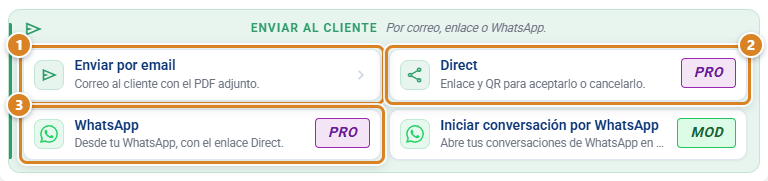
For the email to also carry the View quote online button, turn on Direct button on quotes in Email templates.
Step 2 · Send the link or the QR code
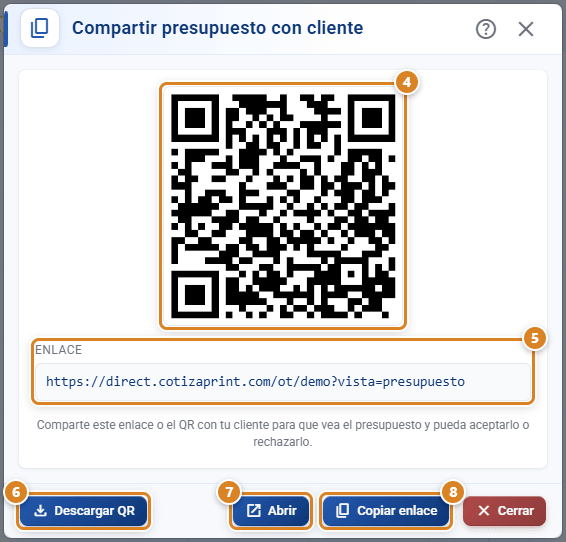
The QR code also appears on the quote PDF if its template has QR de seguimiento (tracking QR) turned on (Header tab → Tracking, see Print templates).
Step 3 · Your customer reviews the quote on their phone
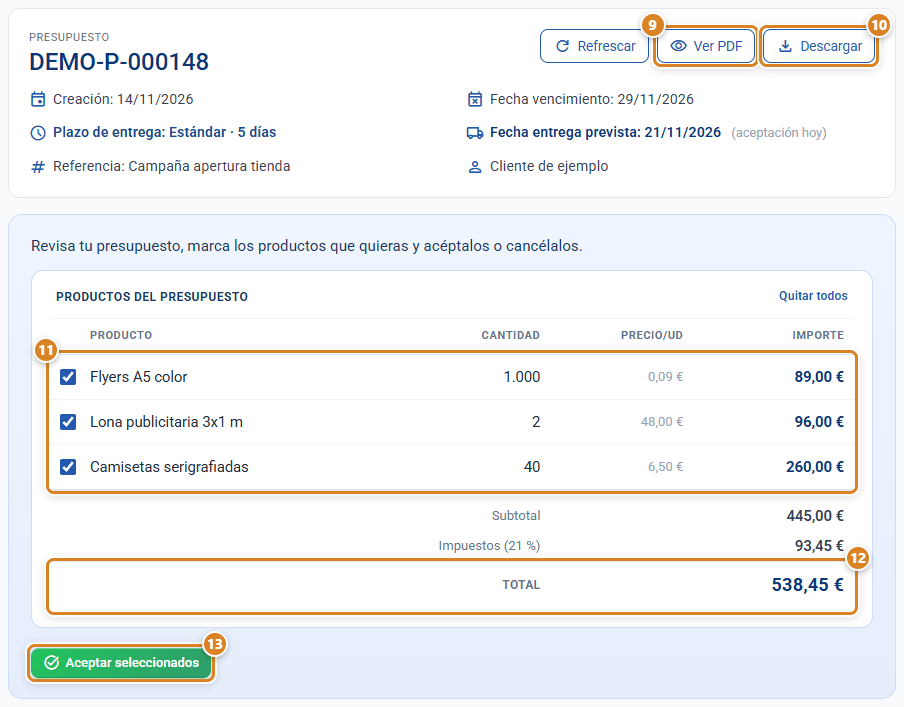
Step 4 · They accept it and it arrives as a work order
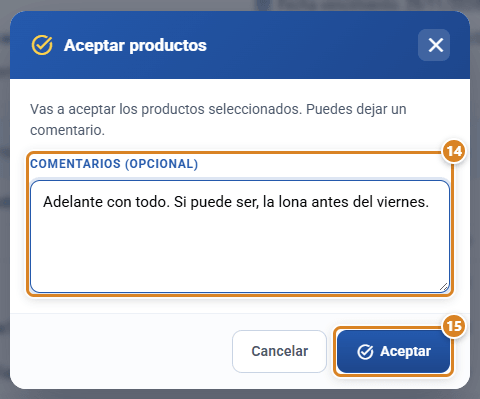
In the quoting engine of each accepted line, Note visible on the quote stores "Aceptado por el cliente desde DIRECT el…" (accepted by the customer from DIRECT on…) with the date, the time and their comment. If their contact has an email address, they receive the confirmation.
Step 5 · They follow their job and download their documents
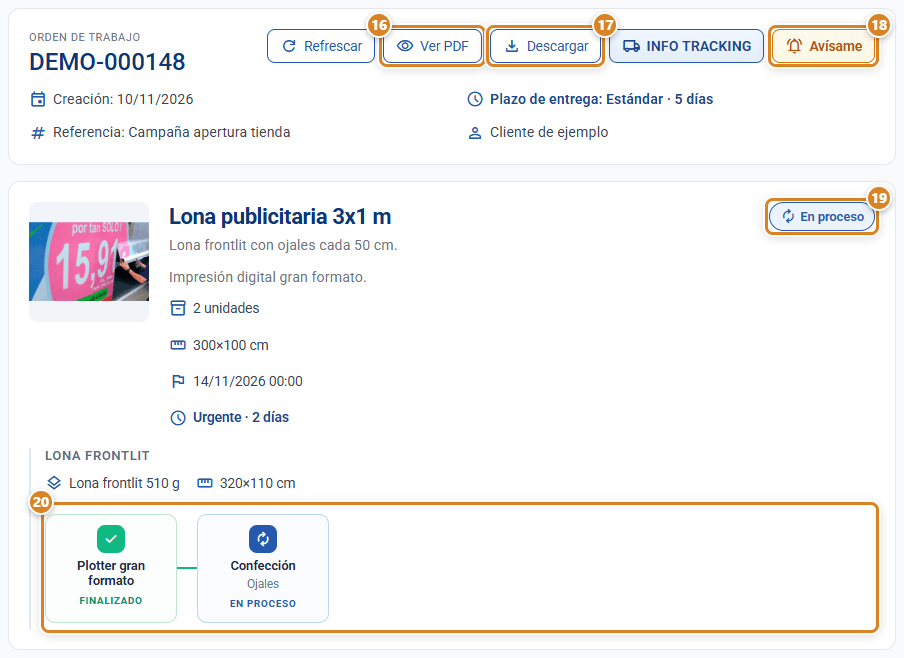
The steps are updated when your shop floor moves them forward in the Job manager; the customer only has to click Refresh.
If something does not add up
| Symptom | Solution |
|---|---|
| Direct is greyed out: "Select a single quote, work order or delivery note." | Tick a single document in the list. |
| Direct has the PRO badge and opens the Direct — comparte con tu cliente page (Direct, share with your customer) | Your plan does not include it: Subscribe to Direct (see Which plan you need). |
| Warning "The default quote template doesn't have the customer QR enabled…" | The link works anyway. For the QR code to appear on the PDF, turn on QR de seguimiento (tracking QR) in that template. |
| Warning "Some company details shown in the view shared with the customer are missing:" | Fill in what is missing (logo, trading name, email or website) under Settings → Company. |
| Your customer sees "Invalid or expired link" | The link arrived cut off: copy it again with Copy link. |
| The quote email does not carry the View quote online button | Turn on Direct button on quotes in the email template. |
Which plan you need
| Feature | Plan |
|---|---|
| Direct: link, QR code, WhatsApp, online acceptance, tracking and Notify me | Included in Pro and Full. With Standard, you subscribe separately to the Portal del cliente Direct module (Direct customer portal), without changing plan |
| Send by email with the PDF attached | All |
Frequently asked questions
Q: Does my customer have to install anything or sign up?
A: No. They open the link in the browser on their phone or computer and see it in their browser's language (they can change it with the globe selector at the top).
Q: Can they accept only part of the quote?
A: Yes. They tick only those products and click Accept selected: only those go to the work order and the rest stays in the quote, unchanged.
Q: And if they do not want it?
A: They click Deselect all, then Cancel quote, write the Reason for cancellation and click Confirm cancellation. The whole quote is cancelled and the reason is stored in the note on each line.
Q: Can I see it before I send it?
A: Yes, with Open (Step 2). Do not click Accept selected yourself: you would accept the quote for real. To show it without any risk, use the sample quote.
Q: Does the link expire?
A: No. It keeps working even if you stop having Direct later; you only need the module to create new links.
Q: Which PDF does my customer download?
A: With a quote link, the quote. With a work order link, the work order or, once they have one, their latest delivery note.
Q: Can I also share a work order or a delivery note?
A: Yes, with Share → Direct from Work Orders or Delivery notes: your customer follows the status of their job or of their delivery. See Sales.