
What it is
The screen for keeping control of the money you take. You open the register at the start of the shift, stating the money you are starting with, payments are recorded as they come in during the shift, and at the end you close the register by counting the real money. The screen tells you how much there should be and, if it does not match, it saves the difference.
Each register is defined by the payment methods it collects, so you can run the cash register, the card terminal register and the bank register separately. Each payment goes only into the register that holds its payment method.
You will find it under the Sales menu → Cash register shift (/caja), with the Full plan badge next to it. It is included in the Full plan and, on any other plan, it can be added as a separate module without changing plan: pressing Cash register shift without it opens the "Cash register module" page, which explains what it does and offers Subscribe to the cash register module. It is not a blocked option: it can be subscribed to from Standard, Pro or Full.
What it is for
- Knowing at any moment how much money there should be in each register.
- Separating money by where it comes in: cash in the drawer, cards on the terminal, transfers at the bank.
- Seeing the payments taken during the shift broken down by payment method.
- Spotting discrepancies at close: if money is short or over, it is recorded with the exact difference.
- Recording money that comes in or goes out without being a sale: withdrawals, expenses paid out of the register, top-ups.
- Consulting the close history, with a weekly and monthly summary.
How to switch it on
The module comes switched off out of the box:
- Go to Cash register shift from the Sales menu (
/caja). If your plan is not Full and you do not have the module yet, the "Cash register module" page opens with the Subscribe to the cash register module button, which takes you to Plans and pricing with the module already selected. - On the Full plan (or once the module is subscribed to), the page shows the "Cash register module" screen with the Enable cash register button.
- Press it and the module is live.
You can also switch it on from Settings → Cash register, with the Enable the cash register module option.
How to use it
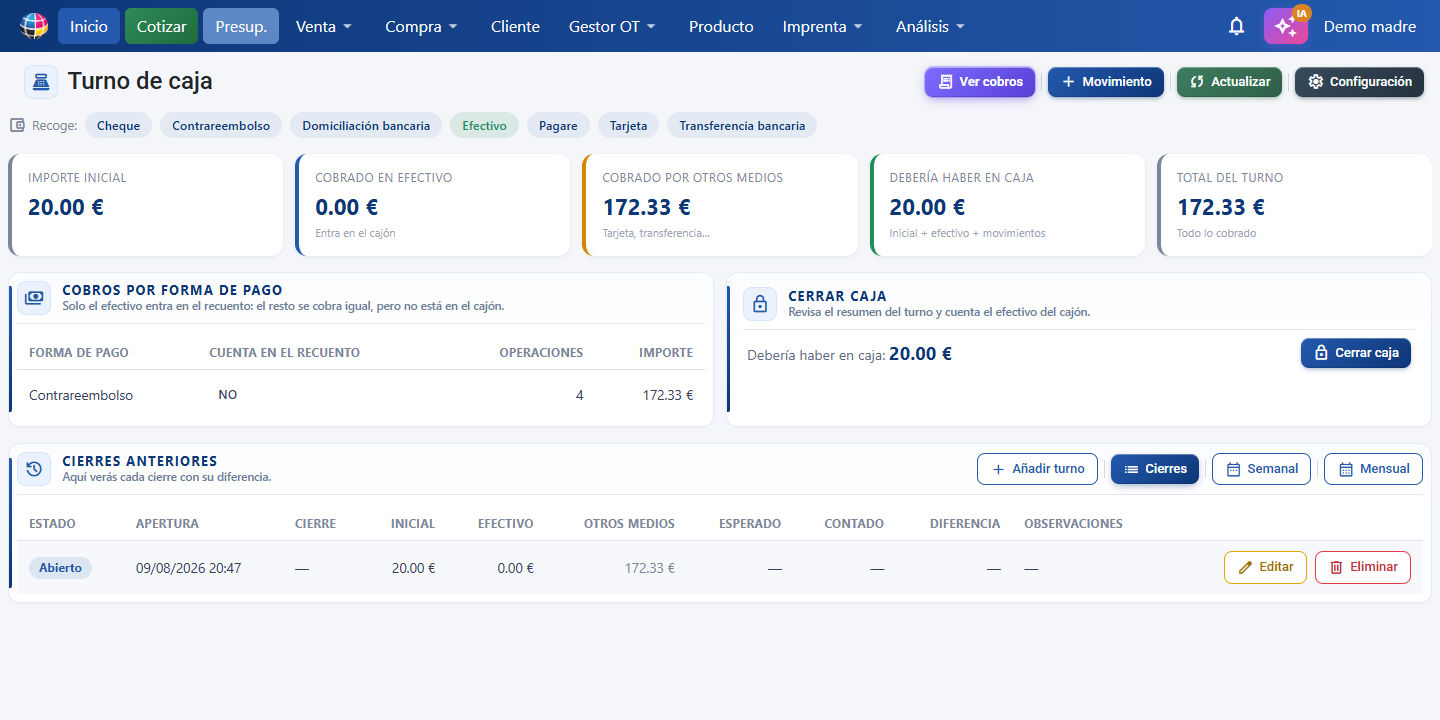
1. Create the registers and tell them what they collect
Press Settings. Everything is managed there in one place:
- Press Create register (next to the section title), type the Register name and confirm. The usual set-up is one per type of money: "Cash", "Card terminal", "Bank".
- In each register, tick the payment methods it collects. Payments made with those methods will go into it and count towards its total.
- If you assign a payment method that another register already collected, you are offered the chance to move it: a payment method can only sit in one register, or the same payment would be counted twice.
If a payment method is left without a register, the screen warns you: its payments will not go into any count.
2. Open the register
At the start of the shift, type into Opening float the money you are starting with (the change you leave in the drawer) and press Open register.
3. During the shift
Take payments as normal from the sales screens: there is nothing to state, each payment goes on its own into the register that holds its payment method. At the top you will see four figures that keep updating:
- Opening float — what you opened with.
- Taken during the shift — everything taken with this register's payment methods.
- Movements — the balance of manual cash in and cash out.
- Expected in the register — what you have to find when you count.
Below that, the Payments by payment method table breaks down each payment method with its number of transactions and its amount.
If you take a payment with the register closed, that payment is not lost: it is picked up by the next shift of its register when it opens, and the screen warns you. The money is in the drawer, so it has to show up in some count.
4. Record a movement (optional)
If you take money out or put money in without it being a sale, press Movement, choose Cash out (withdrawal, expense) or Cash in (top-up), enter the amount and a description, and save. The movement adjusts what should be in the register.
5. Close the register
Count the money in the drawer and type it into Counted cash. Below it you will see straight away whether it balances, whether it is over or short, and by how much. Press Close register and confirm.
The shift closes even if it does not balance: the difference is saved as a discrepancy and stays visible in the history. You can add Notes to explain why.
6. Look at previous closes
At the bottom of the screen, Previous closes lists every shift of that register, whether it is open or closed. Each line starts with its Status, so you can see at a glance how the day ended:
| Status | What it means |
|---|---|
| Balanced | What was counted matched what was expected. |
| Over | There was more money than expected. The difference shows as positive. |
| Short | There was less money than expected. The difference shows as negative. |
| Open | This is the shift in progress, not counted yet. |
Next to the status you can see the opening, the close, the opening float, the expected amount, the counted amount, the difference and the notes written at close. The header sums up how many closes there are and how many had a difference.
Each row has an Edit and a Delete button:
- Edit opens the shift so you can correct its dates, amounts and notes. On the open shift, only the opening can be edited.
- Delete removes the shift and its movements (with confirmation). If the shift has payments in it, you are asked what to do with them: move them into the open shift (if it is the shift immediately after), keep them for the next shift (the next opening with nearby dates picks them up) or leave them out of the counts. If there are other shifts between the deleted one and the current one, the payments are left out and the period can be rebuilt with Add shift. Payments are never deleted: they stay on their documents.
With Add shift (in the history header) you record a manual close for any date: opening and closing date and time, opening float, expected, counted and notes. The difference is worked out for you.
What counts towards the total
Everything taken with that register's payment methods. If the card terminal register collects Card and instant bank payments, its total is the terminal total, which you check against its settlement; if the cash register collects Cash, its total is the money in the drawer.
That is why which payment methods each register is assigned matters: it is what decides where each payment lands. It is set up under Settings, inside the Cash register screen itself.
If you keep getting a large discrepancy at close and always in the same direction, check that register's payment methods: it is the most common cause.
On top of that, each payment method can be marked as cash directly in the Cash register settings, in the Payment methods section (also from Settings → Parameters → Payment method, with the Is cash option). It is there to tell physical money from digital money in the breakdown: only cash counts towards the drawer total.
The payment method a new payment starts with
In the Payment methods section of the Cash register settings you choose which payment method a new payment is pre-filled with:
- The one on the customer record — uses the usual method saved on the customer record. If the customer has no method set, the last one used on this device is used.
- The last one used on this device — repeats the last method a payment was taken with from this device/browser.
The preference applies to the whole company; the last method used is remembered on each device/browser. When you edit a payment that is already saved, its original method is always kept.
Hiding a register
If a register is no longer in use, you do not delete it: you hide it. In the Cash register settings, each register has a Hide button (it asks for confirmation):
- The register disappears from the Cash register screen, but its close history is kept.
- It releases its payment methods, so you can assign them to another register.
- A register with an open shift cannot be hidden: close the shift first.
- The hidden register stays visible in Settings with the Hidden badge, and the Show button brings it back whenever you want.
A register with no shift recorded at all can be deleted outright with the Delete button (with confirmation). If it has shifts, the app blocks it and points you to Hide.
Daily summary by email
Under Settings → Cash register you can switch on sending the cash register close by email at the end of each working day, with the breakdown of the day's payments:
- Email the cash register close at the end of each working day — switches the sending on.
- End of working day time — what time it goes out.
- Working days — Monday to Friday, Monday to Saturday or Every day. Nothing is sent on the other days.
- What to include in the summary — tick whether you also want to see the quotes, orders, delivery notes and invoices closed that day. You can tick all four.
This section used to sit under Settings → Notifications; it now lives alongside the rest of the cash register options.
Button / Action → what it does
| Button / Action | What it does |
|---|---|
| Enable cash register | Switches the module on for the first time. |
| Settings | Opens the single window where all the registers, their payment methods and the email alert are managed. |
| New register / Create register | Creates another register (for example one for cash and one for the card terminal). |
| Rename | Changes a register's name. |
| Hide | Disables the register without deleting it: it stops being shown, releases its payment methods and keeps its history. |
| Show | Brings a hidden register back. |
| Delete (in Cash register settings) | Deletes a register with no shifts recorded outright. With shifts, use Hide. |
| Cash payment methods (Cash register settings section) | Marks which methods count as physical money; the ones marked show "· Cash". |
| Payment method for a new payment (Cash register settings section) | Chooses which method a new payment is pre-filled with. |
| Add shift | Records a manual close for any date, with its amounts and notes. |
| Edit (in Previous closes) | Corrects a shift's dates, amounts and notes. |
| The one on the customer record | The new payment starts with the customer's usual method; if they have none, with the last one used on this device. |
| The last one used on this device | The new payment repeats the last method a payment was taken with from this device. |
| Closes / Weekly / Monthly | Changes the history view: close by close, grouped by week or by month. |
| Open register | Starts the shift with the opening float stated. |
| Opening float | The money you start the shift with. |
| Movement | Opens the form for recording money in or out that is not a sale. |
| Cash in (top-up) | Money you put into the register. Adds to the expected amount. |
| Cash out (withdrawal, expense) | Money you take out of the register. Subtracts from the expected amount. |
| Refresh | Reads the shift's payments again and recalculates. |
| Counted cash | What you have actually counted at close. |
| Notes | Free text for explaining a discrepancy. |
| Close register | Closes the shift and saves the discrepancy if there is one. |
| Delete (in Previous closes) | Removes that close from the history, with confirmation. The shift's payments are left untouched. |
| Is cash (in Payment method) | Marks whether that way of taking money physically goes into the register. |
Glossary / Key concepts
- Shift — the period between opening and closing the register. It usually matches the working day, but you can open and close several times a day.
- Opening float (or register base) — the money the shift starts with.
- Expected in the register — opening float + cash payments + cash in − cash out.
- Counted cash — what is really there when you count the drawer.
- Discrepancy — the difference between counted and expected. Positive = over; negative = short.
- Cash movement — money in or out that does not come from a sale.
- Is cash — the mark on a payment method that says whether that payment physically goes into the register.
Frequently asked questions
Q: Can I close the register if it does not balance?
A: Yes. The shift closes just the same and the difference is saved as a discrepancy, stating whether it is over or short. Use Notes to record the reason.
Q: Why does the total taken not match what should be in the register?
A: Because the expected amount adds the opening float and the manual movements (cash in and cash out) on top of the payments.
Q: I took a payment and it does not appear in any register.
A: That payment method is not assigned to any register. Tick it under Settings, inside the Cash register screen.
Q: I took a payment with the register closed. Is that money lost?
A: No. That payment is picked up by the next shift of its register when it opens, and you will see a warning when you open it.
Q: Can I have two registers open at the same time?
A: Yes. Each register runs its own shift and its own count, so you can have the cash one and the card terminal one open at the same time.
Q: Can a payment method sit in two registers?
A: No: the same payment would be counted twice. If you assign it to another register, you are offered the chance to move it.
Q: How do I see how the week or the month went?
A: In the closes section, with the Weekly and Monthly buttons.
Q: Can I delete a close from the history?
A: Yes, the open shift too. Each row has a Delete button (it asks for confirmation). If the shift has payments, you choose whether they move to the open shift, stay for the next one or are left out of the counts; payments are never deleted from their documents.
Q: I made a mistake on a close, can I correct it or recreate it?
A: Yes. Edit corrects dates, amounts and notes. Add shift creates a manual close for whatever date you need.
Q: How do I delete a register I no longer use?
A: You do not delete it: you hide it from the Cash register settings, with the Hide button. It keeps its history and you can bring it back with Show. If it has an open shift, close the shift first.
Q: Can I choose which payment method a new payment starts with?
A: Yes, in the Payment methods section of the Cash register settings: the one on the customer record (if they have none, the last one used) or the last one used on this device.
Q: Where do I set up the cash register close email?
A: Under Settings → Cash register. It used to be under Settings → Notifications.