
What it is
Full management of the company's customer base.
The module is called "Customers and Suppliers" because one and the same record can be a customer, a supplier, or both at once. It has three levels: the list of customers, the edit dialogue for each record (with its tabs) and the activity log for leads.
What it is for
- Create, edit and look up customer records.
- Store contacts and addresses for each customer.
- Record activities and interactions.
- Flag customers as a lead for sales follow-up (PRO).
How to use it
- Go to
/clientes. - Use the search box and the column filters (for example Sales rep or Status) to find a customer.
- Click Customer and Supplier to create a new one, or click a row to edit it.
- The dialogue is organised in tabs: General, Finance, Sales, Activities and Statistics (each one appears depending on the type of record and on your plan).
- Click Save to keep your changes or Cancel to leave without saving.
How the screen is laid out
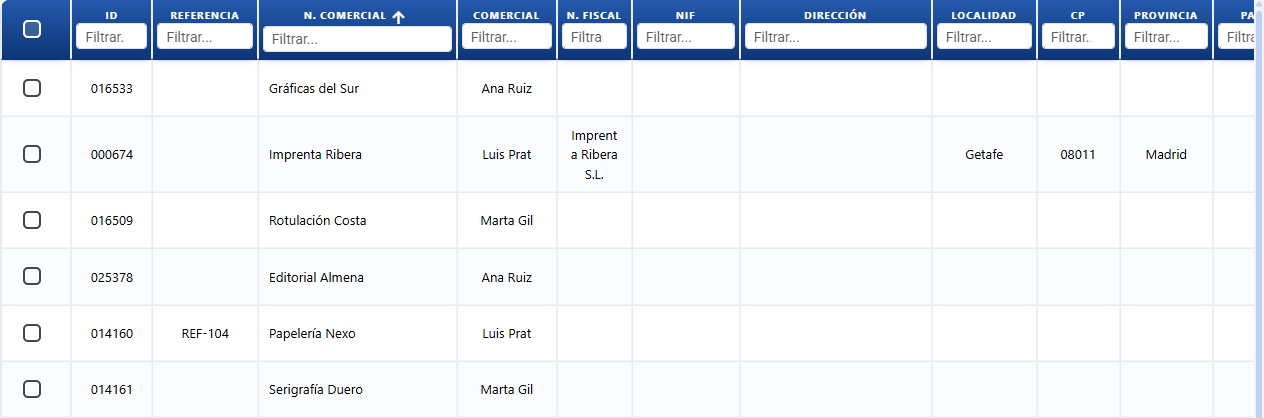
- "Customers and Suppliers" list: a table with every record. Sorted by ID descending by default. It lets you select several rows and apply bulk actions (Duplicate, Status, Delete).
- "Customer / Supplier" dialogue: the full record, organised in tabs.
- Activity log: a sub-application inside the Activities tab for recording calls, emails, meetings and visits (leads only, PRO plan).
The tabs and buttons in the dialogue change with the record:
- Finance and the Payments button only appear if the record is ticked as a Customer.
- Activities only appears if it is ticked as a Lead (CRM), the customer already exists and the plan is PRO.
- Statistics only appears if the customer already exists and you have the statistics permission.
- The Delete and Payments buttons only appear once the record has been saved (it has an ID).
Payment terms and payment day for a customer
Each customer can be given payment terms and a payment day, which define how and when they are invoiced. You set them on the Finance tab, in the Payment Terms section.
- When you pick the customer on a sale (quote, work order, delivery note or invoice), their payment terms and payment day are filled in automatically on the document. You can change them on that particular document if you need to.
- When you edit a customer and change their payment terms or payment day, the system asks whether you want to apply the change to that customer's open documents (pending quotes, work orders and delivery notes). Answer Yes to update them all at once, or No so that the change only affects future sales.
Buttons and actions — what each one does

Wording exactly as it appears on screen.
"Customers and Suppliers" list
| Button / Control (wording on screen) | What it does |
|---|---|
| Customer and Supplier | Opens the blank dialogue to create a new customer and/or supplier record. |
| AI Assistant | Opens the AI agent (centred window) to create or edit customers by describing them in plain language, along with their contacts and addresses. You can paste free text (an email, an email signature, a business card, loose details or a list) or simply ask for what you want ("create the customer Acme with this VAT number and address"). The agent shows a summary of the customers it is going to create or edit and only saves them when you click Run. To edit one, name the customer; if there are several matches it asks you which one. See AI Assistant. |
| Import / Export | Opens the menu to import or export data in bulk. |
| Import / Export → Customer | Imports or exports the customer list. |
| Import / Export → Contact | Imports or exports the contacts. |
| Import / Export → Address | Imports or exports the addresses. |
| Duplicate (actions menu) | Creates a copy of the selected customers. |
| Status (actions menu) | Changes the status (Enabled / Disabled) of the selected customers. |
| Delete (actions menu) | Deletes the selected customers. |
| ID column | Unique identifier of the customer. Sorts the table (descending by default). |
| Sales rep column | Filters the list by the sales rep assigned. |
| Reference column | Your own number or code for the customer. Filterable by text. |
| Status column | Filters by Enabled or Disabled customers. |
"Customer / Supplier" dialogue — footer buttons
| Button / Control (wording on screen) | What it does |
|---|---|
| Enabled (header) | Status of the customer when they are active (tick icon, green background). Click to switch. |
| Disabled (header) | Status of the customer when they are inactive (cancel icon, grey background). Inactive customers do not show up in the normal lists. |
| Save | Saves the whole record: customer details, contacts and addresses. |
| Cancel | Closes the dialogue without saving any changes. |
| Delete | Deletes the customer. Only appears once the record exists. |
| Up to date | The payments button, in green, when the customer has no outstanding payments. |
| Payments | The payments button when the customer does have an amount outstanding; it shows the total and opens the payment. |
Tabs in the dialogue
| Tab (wording on screen) | What it does |
|---|---|
| General | Basic details, contacts, addresses and billing details. |
| Finance | Payment terms, bank details, direct debit mandate and outstanding payments. Customers only. |
| Sales | The customer's discount and the notes that appear on sales documents. Customers only. |
| Activities | Log of the sales rep's interactions. Leads on the PRO plan only. |
| Statistics | Statistical data on the customer. Only if the record exists and you have the permission. |
General tab
| Field / Button (wording on screen) | What it does |
|---|---|
| Customer (tick box) | Marks the record as a customer (buys from the company). |
| Supplier (tick box) | Marks the record as a supplier (sells to the company). |
| Lead (CRM) (tick box) | Marks the record as a lead for follow-up. Requires the PRO plan. |
| Trading name | The commercial name the customer trades under. |
| Reference | Your own number or code for the customer (your internal filing number, for instance). It can be printed on quotes and work orders in front of the name by switching on Customer reference in the template. |
| Sales rep | Selects the sales rep in charge. |
| Activity | The customer's line of business (autocomplete). |
| How did you hear about us? | The channel the customer came to the company through. |
| Web | The customer's website. |
| Notes | Free-text notes about the customer. |
| Contact name | Name of the contact person (mandatory). |
| Mobile / Telephone / Fax | The contact's phone numbers. |
| The contact's email. | |
| Job title / Category | The contact's position and category. |
| Contact (button) | Adds another contact to the record. |
| Delete (button, on a contact) | Removes that contact from the record. |
| Legal name | Registered company name used for invoicing. |
| Billing address / Postcode / Town / County / Country | The billing address. |
| VAT number | VAT number for invoicing. If you leave it empty (or it is not a valid Spanish VAT number), that customer's invoices are issued as a Simplified invoice: in the Invoices list the Type column shows them in magenta and the printed document carries the SIMPLIFIED INVOICE stamp. Fill it in so they come out as ordinary invoices. |
| Tax | The customer's default tax. |
| Address name | Label for an additional address. |
| Street type | Type of street (Street, Avenue, and so on). |
| Address / Number / Postcode / Town / County / Country | The address details. |
| Address (button) | Adds another address to the record. |
| wrong_location icon | Removes that address from the record. |
Finance tab
| Field / Button (wording on screen) | What it does |
|---|---|
| Payment terms | The payment method agreed with the customer. |
| Payment day | The day of the month the payment falls due. |
| Language | The customer's language. |
| Bank account number | The customer's IBAN or account number. |
| BIC/SWIFT | The bank's international code. |
| Bank name | The customer's bank. |
| Currency | The transaction currency. |
| Mandate reference | Identifier of the SEPA mandate. |
| Mandate type / Mandate payment type | Details of the direct debit mandate. |
| Expiry / Signature date | Dates of the mandate. |
| Customer risk | The credit risk level assigned to the customer. |
| DIR3 Accounting Office / DIR3 Managing Body / DIR3 Processing Unit | The FacturaE section: DIR3 codes of the public body (council, provincial authority and so on) so you can invoice it electronically. The body itself provides them. They are needed for the Sign FacturaE button in e-invoicing. |
| Collect | Opens the payment screen with the customer already selected (Outstanding payments section). |
Sales tab
| Field (wording on screen) | What it does |
|---|---|
| Customer discount | The discount percentage applied by default on their sales. |
| Note shown on the Quote | Text that appears on the customer's quotes. |
| Note shown on the Work order | Text that appears on the work orders. |
| Note shown on the Delivery note | Text that appears on the delivery notes. |
| Note shown on the Invoice | Text that appears on the invoices. |
Activities tab (Lead, PRO)
| Control (wording on screen) | What it does |
|---|---|
| Type (all) | Filters the activities by type (call, email, meeting, visit). |
| Search text... | Searches for text inside the activities. |
| Add a new activity... | Field for typing a new activity. |
| Add | Saves the activity you have typed. |
Key concepts
- Customer and Supplier: one and the same record can act as a customer (buys from the company) and/or a supplier (sells to the company). You set this with the Customer and Supplier tick boxes.
- Lead (CRM): a prospect or potential customer for sales follow-up. Requires the PRO plan and enables the Activities tab.
- Trading name: the name the customer trades under in the market.
- Legal name: the registered company name that appears on invoices and official documents.
- Reference (customer): your own number or code for each customer (internal numbering, filing number). You fill it in on the General tab, you can load it through Import / Export → Customer, and it can be printed in the header of quotes and work orders in front of the name (
referencia - nombre). - VAT number: the customer's tax identification number. A customer with no VAT number has their invoices issued as a Simplified invoice.
- Simplified invoice: an ordinary invoice (not a credit note, not an amended invoice) that CotizaPrint flags as simplified on its own because the customer on the document has no VAT number or is the generic / cash customer set in Settings → Sales. You see it in the Type column of the Invoices list (magenta) and as the SIMPLIFIED INVOICE stamp on the printed document. See Sales.
- Billing details: legal name, billing address, VAT number and default tax. This is what is carried over to sales documents. It is kept apart from the Basic block for clarity.
- Sales rep: the user in charge of the relationship with the customer.
- Payment terms / Payment day: how and when the customer is invoiced. They are carried over automatically to the customer's open documents.
- Direct debit mandate: the customer's authorisation to collect their invoices by SEPA direct debit.
- BIC/SWIFT: the bank's international code for transfers.
- Outstanding payments: the total value of the customer's documents that have not been paid in full.
- Customer discount: the percentage applied automatically on the customer's quotes and orders.
- Activity: the customer's line of business (retail, industry, services and so on), for segmenting.
- How did you hear about us?: the channel the customer came to the company through.
- Activities: the history of the sales rep's interactions with the customer (calls, emails, meetings, visits). Leads only (PRO).
- Street type: the classification of a street in an address (Street, Avenue, Square, Road and so on).
- Status (customer): Enabled (active) or Disabled (inactive; does not show up in the normal lists).
- Customer risk: the credit risk level assigned to the customer for financial control.
Features by plan
- PRO: the Lead (CRM) tick box and the Activities tab are enabled.
Permissions
- Requires
access_cliente. - The Statistics tab also requires the statistics permission (
access_stat).
Frequently asked questions
Q: Can I set a default discount for a customer, even zero?
A: Yes. On the customer record, Sales tab, Sales Conditions section, fill in Customer discount (as a %). That discount is applied automatically to new lines on their quotes and sales. If you want a customer to have no discount, leave Customer discount at 0. When you change the customer on a document, only the discount on lines that were at 0% is recalculated (lines with a manual discount are left alone).
Q: Can I create customer categories or group customers by category?
A: There is no system of customer categories or groups as such. The nearest thing is the Activity field on the record (to note the customer's sector or line of business) and the filters and search box on the list for segmenting (by sales rep, status and so on). If you need to group customers by a category of your own for reporting or filtering, open a ticket describing your case: it is an improvement we can look at.
Q: How do I create a new customer?
A: On the list, click Customer and Supplier. The blank dialogue opens; fill in at least the Trading name and the Contact name details, tick Customer and/or Supplier, and click Save.
Q: Can I create or edit customers with AI?
A: Yes. Click AI Assistant on the list (or the AI button in the header, the sparkles icon ✨) to open the AI agent. Describe in plain language what you want: create one or several customers (you can paste emails, email signatures, business cards or loose details and it picks them apart one by one, with their contacts and addresses), or edit an existing one by naming it. The agent shows a summary and only creates or edits when you click Run; if you name a customer and there are several matches, it asks you which one. See AI Assistant.
Q: This customer's invoices come out as a "Simplified invoice". Why?
A: Because the customer has no VAT number: the VAT number field on their record (Billing details block) is empty or is not a valid Spanish VAT number. When that happens, CotizaPrint flags their ordinary invoices as a Simplified invoice — a magenta label in the Type column of the Invoices list and a SIMPLIFIED INVOICE stamp on the printed document, even if you do not use electronic invoicing. To have them come out as ordinary invoices, open the customer record, fill in the VAT number, click Save and generate the printed document again. The same happens with the generic / cash customer set in Settings → Sales, even if it does have a VAT number. See Sales.
Q: How do I make one record both a customer and a supplier?
A: On the General tab, tick both boxes: Customer and Supplier. The same record will then work for both purchases and sales.
Q: What is the "Customer and Supplier" button for?
A: It opens the empty "Customer / Supplier" dialogue so you can add a new record.
Q: Can I give each customer my own customer number and have it printed on the work order or the quote?
A: Yes. On the customer record, General tab, fill in the Reference field with your number; you can also load it in bulk with Import / Export → Customer. To have it printed, go into the template for the document or the work order, Header tab, and switch on Customer reference in the recipient block: it will appear in front of the name in the format referencia - nombre. See Print templates.
Q: How do I import or export my customers?
A: Click Import / Export on the list and choose what you want to move: Customer, Contact or Address.
Q: What is a "Lead" and how do I switch it on?
A: A lead is a potential customer for sales follow-up. Tick the Lead (CRM) box on the General tab. It requires the PRO plan and enables the Activities tab.
Q: Why can I not see the "Finance" tab?
A: The Finance tab and the payments button only appear if the record is ticked as a Customer. Tick the Customer box and save.
Q: Why can I not see the "Activities" tab?
A: It only appears once the record is ticked as a Lead (CRM), the record has been saved and the plan is PRO.
Q: What is the "Payments" (or "Up to date") button in the dialogue for?
A: It shows where the customer stands on payments. If it says Up to date (green) there is nothing outstanding; if it says Payments there is an amount outstanding and, when you click it, it opens the payment with the customer already selected. It only appears on customers that have been saved.
Q: I changed the customer's payment terms, does that affect their open work orders?
A: Only if you answer Yes to the question that appears when you save. If you answer No, open work orders and documents keep their previous payment terms and day, and the change only applies to new sales.
Q: I changed the payment terms on one particular sale, does the customer record change?
A: No. Changing the payment terms or the payment day inside a document affects that document only; the customer record does not change.
Q: How do I apply a fixed discount to a customer?
A: On the Sales tab, fill in Customer discount with the percentage. It will be applied automatically on their quotes and orders.
Q: Where do I put a text that always appears on a customer's invoices?
A: On the Sales tab, use Note shown on the Invoice (and its equivalents for the Quote, the Work order and the Delivery note).
Q: How do I add several contacts or addresses to a customer?
A: On the General tab, click the Contact button to add another contact and the Address button to add another address. To remove them use Delete (contact) or the wrong_location icon (address).
Q: How do I deactivate a customer without deleting them?
A: Open their record and click the status in the header to leave it as Disabled, or select it on the list and use the Status action. Disabled customers do not show up in the normal lists but they keep their history.
Q: What is the "Direct debit mandate" for?
A: It is the customer's authorisation to collect their invoices by SEPA direct debit. On the Finance tab you fill in Mandate reference, Mandate type, Signature date and the rest of the bank details.
Q: Where does the bank account number that appears on the quote or invoice come from?
A: From the note text of the payment terms assigned to the customer, not from a field on the customer record. If you want your own account to appear for bank transfers and the customer's account for direct debits, set that up in the text of each set of payment terms. See Payment terms.
Q: It will not let me choose the customer's payment terms, only "direct debit 30 days" appears.
A: You have to create the types of payment terms you use first; until then only the default option appears. Create them in Payment terms and then pick the right one on the customer record.
Q: I changed a customer's address and a different one, or the old one, appears on the documents.
A: This is usually because you have duplicate customers and the document was made with the other record. Check the list, avoid duplicates and make sure you are editing the right customer (the same id as the one on the document).
Q: How do I pick the right contact for a customer who has several?
A: A customer can have several contacts (you add them with the Contact button on the General tab). When you are about to generate or send a document, check in three places which contact is being used: the contact selected on the quote (or on the sale), the one on the customer record and the one on the particular document you are about to send. Some documents take the details of the customer's main contact if no other contact has been specified. If you select a contact and the document ends up using a different one, open a ticket with a screenshot so we can look into it.
Q: Where do I set up the email notifications (alerts for work orders, delivery notes, invoices, status or payments)?
A: Look in the notifications / settings section of CotizaPrint. Email notifications can depend on several levels: the organisation, the user, the customer or the job status, so the exact option varies with the alert. If you cannot find where to switch on the alert you are after, open the assistant or a ticket saying which notification you want (for example: work order, delivery note, invoice, status change or payment) so we can point you to the right place.
Q: How do I create a customer and leave them linked to the quote?
A: Before creating one, search for the customer on the list so you do not duplicate them; if they do not exist, create them (the Customer and Supplier button), fill in their basic details and save. So that it shows in their history, select that customer on the quote when you price the job: the sale is then tied to their record. (You select the customer on the document from the quote or sale, see sales.)
Q: Where do I see a customer's quotes and documents?
A: From the Quotes / Sales module, filtering by that customer, you see their history: quotes, work orders, delivery notes and invoices. From the customer record, the Up to date / Payments buttons show what is outstanding and the Statistics tab shows their figures. The list of sales by customer lives in sales.
Q: If I change the customer on a quote, does it change on the work order too?
A: It depends on the flow. If the quote has already generated the work order, changing the customer on the quote may mean the work order has to be updated as well. If you see that it is not updating and it should be, document the case with a screenshot and open a ticket. (Not to be confused with carrying over the payment terms and day, which does have its own logic when you save the customer.)
Q: Which email address is a quote or invoice sent to, and can I choose it?
A: Sending uses the contact's email on the customer. Check on the record that the right contact has their email filled in, and select that contact when sending if the screen lets you. If the customer has several contacts and you cannot choose the address when sending, that may be an improvement to the experience: say so in a ticket. (Documents are sent from sales; this is a different thing from automatic email notifications.)