
What it is
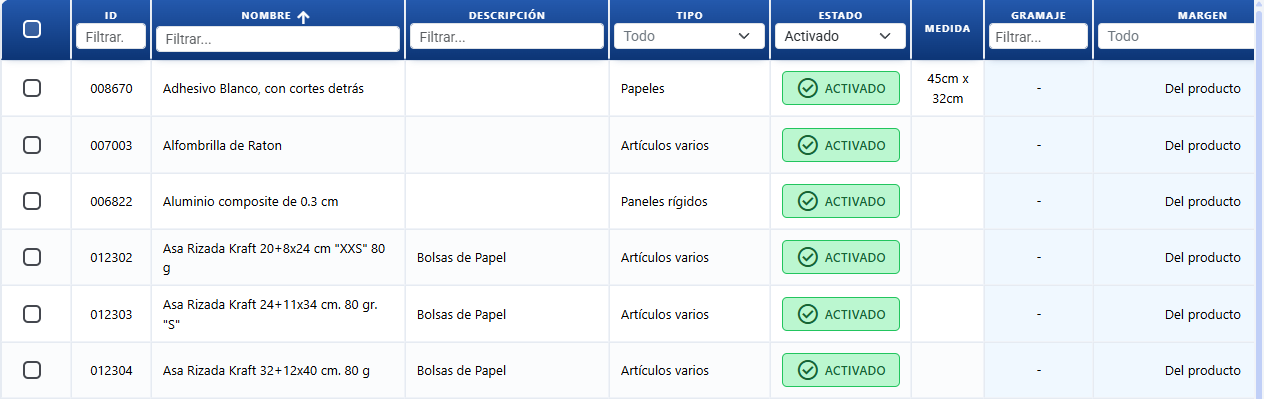
Catalogue of the materials your company prints on: paper, board, vinyl, banner, textiles and so on. Each substrate is broken down into sub-entities (sizes, colours, sizes and variants) and that is where the real costs are entered.
What it is for
- Defining every material you have available.
- Setting the cost of the material per size, colour, size or variant.
- Giving the substrate its own margin if you do not want to use the one from the product.
- Linking substrates to products so that the quoting engine can use them.
- Keeping the inventory of the material: recording purchases and seeing consumption on work orders.
Substrate types
| Type | When it is used | Particulars |
|---|---|---|
| Sheet | Cut sheets of paper or board | Accepts gsm and thickness. |
| Roll | Vinyl, banner, paper on the reel | No gsm or thickness; size in metres. |
| Item | Finished products (T-shirts, mugs, etc.) | Works with sizes and colours. |
The type is chosen when you create the substrate and cannot be changed afterwards.
What is set at each level
Substrate (general details)
These are the fields of the substrate's main form, grouped into sections. The substrate itself carries no cost: the cost goes on its sub-entities (size / colour / size / variant).
| Section / Field | Editable | Notes |
|---|---|---|
| Identity | — | Section that groups Name, Description, Supplier and Reference. |
| Name | Yes (required) | How it appears in the quoting engine and on printed documents. It has an AI Assistant button that suggests a short, recognisable name for the material. Available from the Pro plan. |
| Description | Yes (required) | Further detail about the substrate. It has an AI Assistant button that writes the description from the substrate's type, gsm and supplier, without making anything up. Available from the Pro plan. |
| Supplier | Yes | Dropdown with autocomplete (only customers flagged as suppliers): the substrate's default supplier. It is used as the last link in the chain when proposing a supplier for automatic replenishment and for Generate order when the item has no supplier price list of its own. |
| Supplier (text — do not use) | Yes | Old free-text field. It still works but will be withdrawn shortly: use the Supplier dropdown above. |
| Reference | Yes | Reference shown on the quote alongside the image. |
| Material | — | Section of physical properties (sheet type only): Gsm and Thickness. |
| Gsm | Yes (sheet only) | Weight of the paper in g/m². |
| Thickness | Yes (sheet only) | Thickness of the material in cm. It determines the guillotine cut. Minimum 0.01 cm. |
| Image | Yes | Section for uploading an image or PDF of the substrate. |
| Margin and visibility | — | Section with the PDF and Independent margin toggles. |
| PDF (Hide / Show) | Yes | Toggle that controls whether the substrate appears on the quote PDF. |
| Independent margin (Margin per product / Independent margin) | Yes | On "Independent margin" the substrate uses its own margin %; on "Margin per product" it inherits the one from the product. |
| Margin | Yes (only if independent margin is on) | The substrate's own margin percentage. |
| Status (Enabled / Disabled) | Yes | Shows whether the substrate is available for use on quotes. |
The cost field is NOT at this level. If you are looking for where to enter the cost of a paper, go to the List of sizes (SoporteMedida) below.
Bulk actions (on the substrates you select)
| Button (text on screen) | What it is for |
|---|---|
| Bulk edit substrates | Opens a modal for imposing common values (Status, PDF visibility, Description, Supplier, Reference, Cost, Waste, Independent margin, Margin, Gsm, Thickness) on every selected substrate at once. Only the fields you switch on are applied; the rest are left alone. Gsm and Thickness only affect sheet-type substrates. |
| Bulk edit sizes/variants | Opens a modal where you choose the child table (Sizes, Variants, Colours or Sizes), tick the rows and apply common values (Cost, Reference, etc.) to all of them at once. Only the tables that apply to the type of the selected substrates are shown. |
| Modify Cost | Opens a modal for applying a % increase to every cost (sizes, colours, sizes, variants) of the selected substrates. |
| Status | Opens a modal for changing the status (Enabled / Disabled) of the selected substrates. |
| Duplicate | Opens a modal for duplicating the selected substrate, with confirmation. |
| Where it is used | Opens a modal with the products linked to the substrate. |
| Delete | Opens a confirmation modal and deletes the selected substrates. |
List of sizes (SoporteMedida) — costs per size
Every width × height combination of the substrate has its own cost. This is where the cost of the material is actually entered. You can add, edit, delete and reorder (the Move up arrow on each row); the order is respected in the quoting engine's dropdowns.
| Field | Editable | Notes |
|---|---|---|
| Reference | Yes | Identifier for the size. |
| Width | Yes | In cm. |
| Height | Yes | In cm (only if the type needs it). |
| Cost type | Yes | How it is worked out: per unit, per metre, and so on. |
| Cost | Yes | Amount for the size. |
| Waste percentage in cost | Yes | Extra percentage of material that is discarded. |
| Fixed waste quantity | Yes | Its own box with two equivalent fields — Weight in kg and Quantity (in the unit of the Cost type: unit, m², kilo, linear metre) —: you type into whichever suits you and the other one works itself out, in both directions. This is the material lost on every job regardless of the print run (the press make-ready) and it is added to the percentage. What is saved, and what the system quotes with, is Quantity; Weight is a calculation aid and is not saved. The equivalence is shown underneath (1 kg = 6.35 Unit). The Weight field appears if the material has a Gsm and its cost is not already per kilo (if the cost is already per kilo, the Quantity is the kilos); with no width/height or no gsm the box tells you what is missing and leaves only Quantity editable. |
| Weight | — (calculated) | Column of the List of sizes (sheet only): weight of ONE sheet of that size in kg, worked out from the material's Gsm and the width × height of the size (gsm × width × height). With no gsm it comes out blank. It is not saved: it is recalculated when the gsm or the size changes. |
| Minimum stock | Yes | The stock level below which you are warned to replenish. It is edited in the size's modal (Add/edit size button). A value of 0 switches the warning off. |
| Balance | — (calculated) | Column of the list: current stock of that size (purchase stock in minus consumption stock out). It is shown in red with a warning icon if it drops below the Minimum stock. |
| Valuation | — (calculated) | Column of the list: Balance × Cost for that size (the monetary value of the stock). |
Below the list you get the substrate's Total stock valuation (the sum of the valuation of all its sizes). If any size is below its minimum stock, the message "There are sizes below minimum stock. Check replenishment." is shown.
List of colours (SoporteColor) — extra cost per colour
Applies to item-type substrates, or sheet substrates with distinct colours. You can add, edit, delete, reorder (the Move up arrow) and mark one as the default; the order is respected in the quoting engine's dropdowns.
| Field | Editable | Notes |
|---|---|---|
| Colour name | Yes | Name of the colour (e.g. "Pantone 186 Red", white, ivory, kraft). |
| Colour image | Yes | Upload an image or photo of the colour. |
| Supplier reference | Yes | The supplier's code, used to match purchase invoices. |
| Cost | Yes | The extra amount this colour costs. |
| Minimum stock | Yes | The stock level for the colour below which it is worth replenishing. Its stock is managed and displayed in Purchase stock (Purchasing menu → Purchase stock). A value of 0 switches the warning off. |
Add several quantities (SoporteTalla) — extra cost per size
Table of sizes (different quantities) for the substrate. You can add, edit, delete, reorder and mark one as the default. It applies above all to item-type substrates (T-shirts, mugs, etc.).
| Field | Editable | Notes |
|---|---|---|
| Size name | Yes | Identifier for the size (e.g. XS, S, M, L, 250 ml). |
| Image | Yes | Image specific to that size. |
| Add image to the quoting engine (Quantity>0 / Always) | Yes | Toggle: "Always" shows the image at all times; "Quantity>0" only when the quantity of that size is greater than zero. |
| Supplier reference | Yes | The supplier's code. |
| Cost | Yes | The extra amount for this size. |
| Minimum stock | Yes | The stock level for the size below which it is worth replenishing. Its stock is managed and displayed in Purchase stock (Purchasing menu → Purchase stock). A value of 0 switches the warning off. |
| Order | Yes (drag) | How it is sorted in the list. |
List of variants (SoporteVariante) — extra cost per variant
Alternative variants within the same substrate (matt, gloss, textured, etc.). You can add, edit, delete, reorder (the Move up arrow) and mark one as the default; the order is respected in the quoting engine's dropdowns.
| Field | Editable | Notes |
|---|---|---|
| Variant name | Yes | Name that identifies the variant. |
| Supplier reference | Yes | The associated code. |
| Cost | Yes | The extra amount. |
| Minimum stock | Yes | The stock level for the variant below which it is worth replenishing. Its stock is managed and displayed in Purchase stock (Purchasing menu → Purchase stock). A value of 0 switches the warning off. |
Supplier price lists (the Suppliers button)
Every element of the substrate (a size, a colour, a size or a variant) can have price lists from several suppliers: which supplier sells it, at what price, under what reference of theirs, what minimum quantity they require and what lead time they give. The edit modal of each element has the Suppliers button in its footer (visible when you are editing an element that has already been saved), and it opens the price list modal:
| Field / Control (text on screen) | What it is for |
|---|---|
| Supplier | The supplier for the price list. You have to pick it from the list that drops down as you type (only customers flagged as suppliers and active appear): if you type a name that is not on the list, the field is cleared when you leave it and warns you with "Choose an option from the list" — that way a price list is never saved without a supplier. If the supplier you want does not appear, create it first in Customers and flag it as a supplier. |
| Reference | The code that supplier uses to identify the item. It is used to match their purchase invoices automatically. |
| Price | The purchase price that supplier offers. |
| Min. qty | That supplier's minimum order quantity. |
| Lead time | Delivery days. It is used to propose the expected date when you place a purchase order. |
| Preferred (star) | Marks the item's default supplier: the one proposed when purchase orders are generated. There can only be one preferred supplier. |
| Edit / bin icon | Edits or deletes the price list (deleting asks for confirmation and keeps the price history). |
| Close / Add price list / Save price list | Closes the modal / creates the new price list / saves the changes to the price list you are editing (the button reads Save price list while you are editing an existing one). |
One supplier, one price list per item. If you pick a supplier that already has a price list for that same item, the application warns you with "This supplier already has a price list for this item" and, if you accept, it opens the price list that already exists with what you have just typed on top: you check it and press Save price list. Nothing is saved until you confirm it, so the details it already had (reference, minimum quantity, lead time) are not lost just because you did not type them in again. Two price lists from the same supplier would leave it undecided which price to take when ordering, unless one of them is marked as preferred.
The price lists feed the Purchase Orders (they fill in price, reference and expected date when you order the item, see Purchase Orders), the Generate order button of Purchase stock (which proposes the preferred supplier) and the matching of purchase invoices (the supplier's reference is also looked up in the price lists). When you receive an order or record an invoice with a different price, the price list can be updated with the real price.
Inventory: Purchase and Consumption
The substrate keeps track of stock through movements: purchases add material (stock in) and consumption takes it away (stock out on work orders).
The stock of an item-type substrate (by colour, size and variant, as well as by size) is managed and displayed on the Purchase stock screen (Purchasing → Purchase stock menu), which brings together in a single list every purchasable stock line with its Balance, Minimum stock and Valuation. See Purchase stock.
The Substrate Movements modal shows the history with these columns: Date (when the movement was created), Type (Purchase or Consumption), ID (identifier of the movement), Quantity (positive on a purchase, negative on consumption), Unit (as defined on the substrate's size) and Reason (why the manual movement was made). The totals are shown at the bottom: Total Purchase, Total Consumption and Total General (purchase − consumption). The footer has three actions: Export (downloads the history), Compact history (consolidates the movements into one without changing the balance) and Adjust stock (the main action: records a stock in, a stock out, or sets the balance to a value, always with a reason). There is no separate "Add Purchase" button: a manual stock in is done with Adjust stock → Stock in.
If the substrate has no movements, "No records" appears with the subtext "There are no movements for this substrate yet."
Substrate Stock Control
The substrate's Purchasing button opens the Substrate Stock Control screen, which lists every size of the substrate with its Balance, Unit, Minimum stock and Valuation, and highlights in red the sizes that are below minimum stock. From there:
| Button / Control (text on screen) | What it is for |
|---|---|
| Add Purchase | Records a stock in and adds stock to the size (balance +). |
| Adjust stock | Changes the balance of the size by hand while recording why (stock in, stock out, or setting the balance to a value). It opens a form with Adjustment type (Stock in (+) / Stock out (−) / Set balance to), Quantity and Reason. Use it to correct stock levels. |
| Compact history | Does not change the balance. It consolidates all the live movements of the size into a single one (clearing the noise from the history while keeping the same stock). Use it to tidy up the listing, not to correct quantities. |
| Substrate Movements | When you edit a size, it opens the detail of stock in/out for that size with the Total General (balance) and the Reason for each movement. |
Adjust stock (manual correction with a reason)
The Adjust stock action (in the movement detail of a size) corrects the balance by hand and saves the reason:
- Adjustment type:
- Stock in (+): adds the quantity you enter to the stock.
- Stock out (−): subtracts the quantity you enter.
- Set balance to: you enter the final balance you want and the system works out the difference against the current balance and generates whatever movement is needed (stock in if it goes up, stock out if it goes down).
- Quantity: the quantity to add or subtract, or the final balance if you choose "Set balance to".
- Reason: why you are making the adjustment. Options: Stock count (physical count), Breakage, Spoilage, Correction, Other (with a "Reason details" field to write it in). The reason stays visible in the movements list.
Adjust stock vs Compact history (do not mix them up): Adjust stock changes the balance (it corrects the stock and records the reason). Compact history does not change the balance: it only consolidates the live movements into one to tidy up the listing. If what you want is to correct the real quantity, use Adjust stock.
How it is used
the cost when quoting
When the quoting engine uses a substrate:
- It takes the base cost of the size being used.
- It adds the extra costs of the colour, size and variant selected.
- It applies the size's Waste percentage in cost and adds its Fixed waste quantity.
- It applies the margin: the substrate's own one if it has "Independent margin" on, or the product's one if it is on "Margin per product".
Buttons and actions — what each one is for

Use the literal text you see on screen. For toggles, both states are documented.
| Button / Control (text on screen) | What it is for |
|---|---|
| Substrate | Creates a new printing substrate or opens the list of substrates available to add. |
| AI Assistant | Opens the AI agent (centred window) to create or modify a substrate (material) by describing it in plain language. The agent shows a summary of what it is going to do and only applies it when you press Run. To modify one, name the substrate; if there are several matches it asks you which one. See AI Assistant. |
| Bulk edit substrates | Bulk action: imposes common values (status, PDF, cost, margin, gsm, thickness, etc.) on every selected substrate. Only the fields you switch on are applied. |
| Bulk edit sizes/variants | Bulk action: edits in one go the child tables (sizes, variants, colours, sizes) of the selected substrates. You choose the table, tick the rows and apply common values. |
| Add to products | Bulk action (select one or several substrates in the listing): opens a listing of products/artwork with tick boxes to link the selected substrates to several products in one go, without going into each product one by one. Only products compatible with the type of the selected substrates appear; when you tick the artwork you want and press Save, they are linked to those substrates (without duplicating relationships that already existed). |
| Purchasing | Opens the Substrate Stock Control screen: it lists every size of the substrate with its Balance, Unit, Minimum stock and Valuation, highlighting in red the ones below minimum stock. From there you use Add Purchase, Regularise Movement and Substrate Movements. Requires the access_stat permission. |
| Statistics | Opens the substrate's statistics modal (consumption). Requires the access_stat permission. |
| Settings | Opens the purchasing settings for the module. Requires the compra_edit permission. |
| Import / Export | Opens a dropdown menu for importing or exporting Substrate data, sizes, colours, sizes and variants. |
| Enabled | Shows that the substrate is active. Press it to change the status to disabled. |
| Disabled | Shows that the substrate is inactive. Press it to change the status to enabled. |
| PDF (Hide / Show) | Toggle: on Show the substrate appears on the quote PDF; on Hide it is not printed (but it is still used in the calculation). |
| Independent margin (Margin per product / Independent margin) | Toggle: on Independent margin the substrate uses its own margin %; on Margin per product it inherits the one from the product. |
| Add image to the quoting engine (Quantity>0 / Always) | Toggle on the size: on Always it always shows the image in the quoting engine; on Quantity>0 only when the quantity of that size is above zero. |
| Suppliers (footer of the size / colour / size / variant modal) | Opens the supplier price list modal for that element: which suppliers sell it, at what price, under what reference, minimum quantity and lead time, and which one is the preferred one (star). Visible when you are editing an element that has already been saved. |
| Save | Saves the substrate's changes to the database. |
| Cancel | Closes the modal without saving changes. |
| Delete | Removes the substrate from the system (only if it already exists). |
| AI Assistant (next to "Name", Identity section) | Opens the AI Assistant to suggest a short, recognisable name for the material. When you apply it, the text is dropped into the Name field. Available from the Pro plan (with a "AI module available from the Pro plan" notice on lower plans). |
| AI Assistant (next to "Description", Identity section) | Opens the AI Assistant to write the substrate's description from its type, gsm and supplier, without making anything up. When you apply it, the text is dropped into the Description field. Available from the Pro plan. |
| Adjust stock (row action in Substrate Stock Control) | Opens the Adjust stock modal directly on that size, without going into the detail: it changes the Balance with Adjustment type (Stock in (+) / Stock out (−) / Set balance to), Quantity and Reason. This is how you record manual stock in and stock out. |
| Weight / Quantity (the "Fixed waste quantity" box, size modal) | The two fields say the same thing in different units and convert between each other as you type: put the kilos you lose in Weight and you will see the Quantity in the unit you charge that material in; type into Quantity and you will see the kilos it represents. That way you set up the make-ready with whatever figure you have to hand, without doing the sum. Quantity is the one that is saved. The material's Gsm is needed for the conversion (substrate record → Material section). |
| Compact history | Consolidates the live movements of the size into a single one without changing the balance (it tidies up the history). It asks for confirmation. |
| Minimum stock (field in the size modal) | Sets the level below which you are warned to replenish: the Balance column is shown in red with a warning icon and the message "There are sizes below minimum stock. Check replenishment." appears. A value of 0 switches the warning off. |
| Export | Downloads the movements table (Purchase / Consumption) as Excel. |
Key concepts
The user asks "what is / what is X for?" using these exact words.
- Printing substrate: the substrate or material you print on (paper, board, banner, vinyl, etc.). Each substrate can have its own sizes, colours, sizes and variants.
- Substrate with no direct cost: the cost field is not on the main substrate. It goes on each sub-entity (size, colour, size, variant).
- Substrate size (List of sizes): a specific dimension of the substrate. It includes width/height (for sheets), reference, cost type and price. This is where the base cost lives.
- Substrate colour (List of colours): a colour variation of the substrate (white, ivory, kraft...). It includes name, image and cost.
- Substrate size (Add several quantities): a predefined quantity or grouping of quantities (XS, S, M, L). Different from the physical size.
- Substrate variant (List of variants): an extra option or finish for the substrate (matt, gloss, textured). It adds cost and is shown on the quote.
- Substrate type: the substrate's category: sheet (paper/board in sheets), roll (continuous material) or another configured type. It is not changed after creation.
- Independent margin: the substrate's own margin percentage, applied regardless of the product's one. On "Margin per product" it uses the product's margin.
- PDF / PDF visibility (Hide / Show): the control that decides whether the substrate is rendered on the quote PDF.
- Reference: internal or supplier code that identifies the substrate/colour/size/variant. It is shown on quotes alongside the image.
- Supplier reference: the supplier's code, used to link purchase invoices to the substrate's elements.
- Supplier price list: the price, reference, minimum quantity and lead time that a particular supplier offers for an element of the substrate (size, colour, size or variant). The same item can have price lists from several suppliers; they are managed with the Suppliers button in the element's modal.
- Preferred supplier: in an element's price lists, the one marked with the star. It is the default supplier when purchase orders are generated for that item. There can only be one.
- Substrate supplier (the Supplier dropdown in the Identity section): the default supplier for the whole material. Replenishment uses this chain to decide who to order each item from: the item's preferred price list → the item's only price list → the substrate's Supplier → no supplier (the item is flagged and left out of the order).
- Supplier (text — do not use): the substrate's old free-text field, being phased out. It plays no part in orders or replenishment; the one that counts is the Supplier dropdown.
- Default: the option marked as the default in the list of colours, sizes or variants. It is preselected when quotes are created.
- Cost type: the way the element's cost is worked out (per unit, per metre, etc.).
- Cost: unit price of the substrate or of its variation (colour, size, size). The basis for working out margins and quote totals.
- Waste percentage in cost: the extra percentage of material lost in cutting, assembly or set-up. It is added to the cost so that it reflects the real cost.
- Fixed waste quantity: the amount of material lost on every job whatever the print run (the make-ready paper in offset, for instance). It goes in the same unit as the size's Cost type and is added to the percentage.
- Weight / Quantity (the fixed quantity box): two ways of expressing the same make-ready waste. The conversion uses the width and height of the size and the gsm of the material, and it works in both directions: from kilos to the cost unit and back. Only Quantity is saved, in the unit of the Cost type.
- Gsm: weight of the paper/board in grams per square metre (g/m²). Sheet only.
- Thickness: thickness of the material in cm. It is used to set up the guillotine cut. Sheet only. The minimum allowed is 0.01 cm.
- Purchase (CompraSoporte): an inventory stock-in movement; the quantity of material bought for a substrate.
- Consumption (ConsumoSoporte): an inventory stock-out movement; the quantity of material used on a work order.
- Total General: the net sum of the substrate's movements (Total Purchase − Total Consumption).
- Stock balance (Balance column): the current stock of a size = purchase stock in minus consumption stock out. It is the real stock available for that size.
- Stock valuation (Valuation column): the monetary value of a size's stock = Balance × Cost. The substrate's Total stock valuation adds up the valuation of all its sizes.
- Minimum stock: the stock level below which the substrate warns you to replenish. It is set per size; when the Balance drops below that value, the size is highlighted in red with a warning icon. A value of 0 switches the warning off.
- Replenishment: the warning that a size is below its minimum stock and that it is worth buying more material. It is shown with the message "There are sizes below minimum stock. Check replenishment."
- Status (Enabled / Disabled): shows whether the substrate is available for new quotes (Enabled) or hidden (Disabled).
Permissions
- Requires
access_soportto enter the section. - Purchasing and Statistics require
access_stat. - Settings (purchasing settings) requires
compra_edit.
Frequently asked questions
Q: When I go into Substrate a tips window appears. What is it and how do I get rid of it?
A: It is the "Tip: manage substrates" advice that CotizaPrint shows to trial accounts. It reminds you of two things: "Do not delete Substrates: rename them" (rename and reuse instead of deleting, so that you keep the configuration) and "Material costs are global" (when you change the cost of the paper, the vinyl or the banner, the change applies to every product that uses it). So that it does not appear again, tick "Do not show this notice again" and close the window. Only trial accounts see it.
Q: How do I create a new substrate?
A: Press the Substrate button. Fill in the Identity section (Name and Description are required), choose the type and, if it is a sheet, complete Material (Gsm and Thickness). Then add its sizes, colours, sizes or variants as you need them and press Save.
Q: Can I create or modify a substrate with AI?
A: Yes. Press AI Assistant (or the AI button in the header, the sparkles icon ✨) to open the AI agent. Describe in plain language the substrate you want to create, or name an existing one to modify it. The agent shows a summary of the actions and only applies them when you press Run; if you name a substrate and there are several matches, it asks you which one. See AI Assistant.
Q: Can I have the AI write the substrate's name or description?
A: Yes. In the Identity section, next to Name and to Description there is an AI Assistant button. The Name one suggests a short, recognisable name for the material; the Description one writes the description from the type, gsm and supplier, without making anything up. When you apply it, the text is dropped into the field. Available from the Pro plan.
Q: Where do I enter the substrate's cost? I cannot find it on the main form.
A: The substrate itself carries no cost. The cost is entered on its sub-entities: List of sizes (cost per size, the main one), List of colours, Add several quantities (sizes) or List of variants, each with its own Cost field.
Q: I have a paper in two different sizes with different costs. How do I do it?
A: Create the substrate once and, in the List of sizes, add two entries with their own width, height, cost type and Cost.
Q: How do I link one or several substrates to several products without going into each product?
A: In the substrates listing, select the substrates you want (one or several) and use the Add to products action. A listing of products/artwork opens with tick boxes, showing only the products compatible with the type of the selected substrates. Tick the artwork you want and press Save: the substrates are linked to those products in one go (relationships that already existed are not duplicated). It is the reverse of linking the substrate from each product.
Q: What is the Purchasing button for?
A: It opens the Substrate Movements modal with the history of purchases and consumption: columns Date, Type, ID, Quantity and Unit, plus the totals (Total Purchase, Total Consumption, Total General). Requires the access_stat permission.
Q: How do I record a purchase of material?
A: In the Substrate Movements modal use Adjust stock and choose type Stock in (+), enter the quantity and the reason: it adds that quantity to the stock and appears in the history with Type "Purchase". From the Substrate Stock Control screen there is also the Add Purchase button for adding stock to a size.
Q: Where do I see the stock of a substrate and what it is worth?
A: In the substrate's List of sizes each size shows two columns: Balance (current stock = purchase stock in minus consumption stock out) and Valuation (Balance × Cost). Below the list is the substrate's Total stock valuation. To see it per size in more detail, press Purchasing and open the Substrate Stock Control screen.
Q: How do I get a warning when a material is running out?
A: In the size's modal (Add/edit size button) fill in Minimum stock. When the stock drops below that value, the Balance column is shown in red with a warning icon and the message "There are sizes below minimum stock. Check replenishment." appears. Put 0 to switch the warning off.
Q: What is the Substrate Stock Control screen for?
A: It opens with the substrate's Purchasing button. It lists every size with its Balance, Unit, Minimum stock and Valuation, and highlights in red the ones below minimum stock. From there Add Purchase adds stock, Regularise Movement adjusts the balance and Substrate Movements (when you edit a size) shows the detail of stock in/out with the Total General.
Q: My stock balance is wrong, how do I correct it?
A: Use Regularise Movement (in Substrate Stock Control or in the size's movements modal) to adjust that size's stock balance to the real figure. It asks for confirmation.
Q: What is Regularise Movement for?
A: It sets consumption to 0 and cancels every active movement of the substrate. It asks for confirmation because it wipes the current movement history. Use it to start stock control from scratch.
Q: How do I export the movements to Excel?
A: With the Export button inside the movements modal: it downloads the Purchase / Consumption table as Excel.
Q: How do I set a margin on an expensive substrate that differs from the product's?
A: In the Margin and visibility section set the Independent margin toggle to "Independent margin" and enter the percentage in Margin. That margin is applied instead of the product's margin when quoting that material.
Q: What is the PDF toggle (Hide / Show) for?
A: It decides whether the substrate appears on the quote PDF. On Show it is printed; on Hide it does not appear on the document, but it is still used to work out the price.
Q: I have T-shirts with a different cost depending on the size. Where do I set that up?
A: In Add several quantities (sizes). Create one entry per size with its Size name and its Cost. The quoting engine adds that extra to the base cost of the size.
Q: What is the size's Add image to the quoting engine toggle (Quantity>0 / Always) for?
A: It controls when that size's image is shown in the quoting engine. On Always it is always shown; on Quantity>0 only when the quantity of that size is greater than zero.
Q: How do I mark a colour or a size as the default?
A: In the List of colours, Add several quantities or List of variants, mark the element as the default. It is preselected automatically when quotes are created.
Q: What is the Waste percentage in cost for?
A: It adds an extra percentage to the cost to reflect the material lost in cutting and set-up. If you buy at €1 per sheet but throw away 5%, put 5 and the real cost adjusts itself.
Q: Is the waste deducted from stock?
A: Yes. When you save the quote, the consumption recorded against the stock includes the material for the job plus the waste — both the Waste percentage in cost and the Fixed waste quantity. In other words, the stock balance drops by everything that is really used up, not just by what ends up in the finished product. The machine's Waste (overs) is a different thing: it charges printing passes, not material, so it does not deduct paper; if you want the make-ready sheets to come out of the warehouse, put them in the size's Fixed waste quantity.
Q: The sheets I throw away at start-up are the same whether I print 1,000 or 2,000. How do I charge for them, if the percentage goes up with the print run?
A: With the size's Fixed waste quantity, in the List of sizes (add/edit size button). You enter the quantity lost on every job — 100, for instance — and it is charged the same whatever the print run. It goes in the same unit as that size's Cost type: if the cost is per unit, they are sheets; if it is per m², they are square metres; if it is per kilo, kilos. It is added to the Waste percentage in cost, so you can combine the two: the fixed quantity for the make-ready and the percentage for the spoilage that grows with the print run. This covers the material; the cost of the press passes for that make-ready is set separately, in the machine's fixed start-up Waste (overs).
Q: Where do I see what one sheet of a paper weighs?
A: In two places, and in both it is worked out from the material's Gsm and the dimensions of the size alone. (1) In the substrate's List of sizes there is a Weight column with the kilos of one sheet of each size — you can see it without opening anything, as long as the substrate is of type Sheet and has a gsm. (2) Inside the size's modal, the Weight field in the Fixed waste quantity box converts kilos and quantity in both directions. If the column comes out blank, the material is missing its Gsm (substrate record → Material section).
Q: My paper is charged in kilos, but I count the waste in sheets. Do I have to do the conversion myself?
A: If your cost is already per kilo, the Quantity is the kilos directly and there is nothing to convert. In every other case (unit, m², linear metre) the Fixed waste quantity box has two fields — Weight in kg and Quantity —: you type in the kilos and the Quantity fills itself in using the width, the height and the Gsm of that material. To know how many sheets those kilos are, the List of sizes shows the Weight of one sheet of each size. What is saved is Quantity.
Q: What I know is the kilos that are lost. Can I enter those and have the quantity come out?
A: Yes, the conversion works both ways. Type the kilos into the box's Weight field and the Quantity that is going to be saved fills itself in. The same the other way round: if you type straight into Quantity, you are shown the kilos it represents. Underneath you have the equivalence being used (1 kg = 6.35 Unit).
Q: Can I set the waste in sheets inside each quote?
A: No: the waste is set on the material (and on the machine), not on each quote. It is done once per size and from then on it applies to every quote that uses it. If you need to change the make-ready for one particular job, the way to do it is an operation with a start-up cost on that product. So that you do not have to work the kilos out by hand when setting it up, use the Weight field in the size's Fixed waste quantity box.
Q: Why will it not let me change a substrate's type?
A: The type (sheet / roll / item) is fixed when you create it and cannot be changed afterwards because it governs the whole configuration of sizes and costs. Create a new one of the right type.
Q: How do I disable a substrate without deleting it?
A: Press the Enabled button to change it to Disabled. Existing quotes will still show it, but it will not appear on new ones.
Q: What is Import / Export for?
A: It opens a menu for importing or exporting in bulk the Substrate data and its sub-entities (sizes, colours, sizes, variants). Useful for loading large catalogues in one go.
Q: How do I add sizes and costs to a substrate?
A: Go into Printing substrates, open the substrate and go to the List of sizes. Add an entry with its Width, Height, Cost type, Cost and Waste percentage in cost. If a substrate close to what you need already exists, do not delete it: adapt its name, its size and its cost instead of creating one from scratch.
Q: Why should I not delete all the substrates?
A: Many substrates are already connected to configured products. Deleting them without checking breaks a useful working base and forces you to redo the configuration of those products. Better to go through the existing substrates, rename them and adjust their costs; create a new one only when the material really does not exist.
Q: Where do I change the cost of a paper or a vinyl?
A: On the substrate/material itself: Printing substrates → open the material → List of sizes and edit the Cost field (and the Waste percentage in cost if it applies). A word of warning: if that substrate is shared by several products, the change of cost affects all of them at once.
Q: What does it mean for a substrate to be shared?
A: It is a material used on several products at once (a coated paper or a vinyl that goes into business cards, flyers and labels, for example). The advantage is that, by updating its cost properly just once, you keep every product that uses it up to date without repeating the work. The trade-off is that any change of cost spreads to all those products.
Q: When do I create a new substrate instead of adapting an existing one?
A: Create a new one only when the material does not exist yet or follows a different logic: another unit, another base size or a different cost type. Also when renaming the existing one would affect other products that share it (a paper specific to one country, say, that must not touch the base paper). If all that changes is the trade name or the cost, adapt a similar substrate first by editing its name, size and cost.
Q: What materials can I set up as a substrate?
A: Any material you print on or that you sell: paper, card, board, vinyl, banner, reel/roll, rigid board, items such as T-shirts or mugs, and so on. Depending on the material, the substrate works with sizes, colours, sizes or variants and their own costs.
Q: Can I rename a substrate that already exists?
A: Yes, if it represents the material you use. But first check with Where it is used whether it is connected to other products: renaming it changes the name on all of them and can cause confusion where it should not. If the change would affect products where it does not belong, better to duplicate it or create a new one.
Q: When is it worth duplicating a substrate?
A: Duplicate when you need a real variant very close to another one: another size, another cost, another gsm, another supplier or country. The Duplicate button creates the copy; after that change only what you need and check Where it is used before touching shared costs.
Q: How do I set up vinyl or banner on the roll / reel?
A: Use a Roll-type substrate when the material is worked out by linear metre or by reel width. In the List of sizes enter the width of the reel, the Cost (per metre / per linear metre according to your Cost type) and the Waste percentage according to how you buy and use the material.
Q: How do I set up paper in sheets?
A: Use a Sheet-type substrate: it accepts Gsm and Thickness. In the List of sizes enter width, height, Cost type (per unit / per sheet as appropriate) and the Cost of the sheet. The quoting engine works out how many sheets it needs from the size, the ups and the quantity.
Q: I buy the same material from several suppliers at different prices. Where do I set that up?
A: On the substrate's element (its size, colour, size or variant), press Suppliers in the footer of the edit modal. There you create a price list per supplier with its price, reference, minimum quantity and lead time, and mark the preferred one with the star. Purchase orders and the inventory's Generate order button use those price lists to propose supplier and price.
Q: I press Add price list in Suppliers and it gives an error / the price list is not saved. What is happening?
A: Almost always the Supplier has not been picked from the list: you have to type and select the supplier from the dropdown, not leave the name typed in by hand. If the name does not match any of your suppliers, the field is cleared when you leave it and warns you with "Choose an option from the list". Check as well that the supplier is in Customers, flagged as a supplier and active — only those appear in the dropdown. With the supplier picked from the list and the Price entered, the price list saves normally.
Q: Can I have two price lists from the same supplier for the same item?
A: There is no need and the application stops you: when you save it warns you that "This supplier already has a price list for this item" and, if you accept, it opens the one that already exists with your new details on top so that you can check it and save it. For several prices for the same material use a different supplier per price list; if what changes is the quantity (volume price), set the Min. qty of the order you are really going to place. And if you buy the same material in two formats, those are two sizes of the substrate, each with its own price list.
Q: What is the substrate's Supplier field and how does it differ from Supplier (text — do not use)?
A: The Supplier dropdown (Identity section) sets the material's default supplier: it is a customer flagged as a supplier and it is used to propose who to order from in the automatic replenishment of Purchase Orders and in Generate order in Purchase stock when the item has no price list of its own. Supplier (text — do not use) is the old free-text field: it is still saved but will be withdrawn shortly and plays no part in orders — move its value to the dropdown.
Q: What is the point of marking a price list as Preferred?
A: The preferred supplier is the one proposed by default when you order that item (in Purchase Orders and in Generate order in Purchase stock). When you mark one, the previous one is unmarked.
Q: What are a substrate's gsm and thickness for?
A: The Gsm (g/m², sheet only) describes the paper/board. The Thickness (sheet only) can affect the guillotine cut and the display of the job. Not every substrate needs both figures.