
What it is
A single module that handles the whole commercial document chain: Quote → Order (work order) → Delivery note → Invoice. It is the core of the system: this is where jobs are created, accepted, delivered, invoiced and paid.
All four types share the same form; what changes is the level in the chain, the numbering prefix, the status colour and which actions are available.
What it is for
- Quoting customers and turning those quotes into orders once they accept.
- Keeping track of what is pending, what is in production, what has been delivered and what has been invoiced.
- Issuing invoices (ordinary, credit notes and amended invoices), sending them to the tax authority through TicketBAI (the Basque Country electronic invoicing regime) and recording payments.
- Sharing the status of an order with the end customer through a public link.
The four document types
| Type | Route | Numbering | Colour | What for |
|---|---|---|---|---|
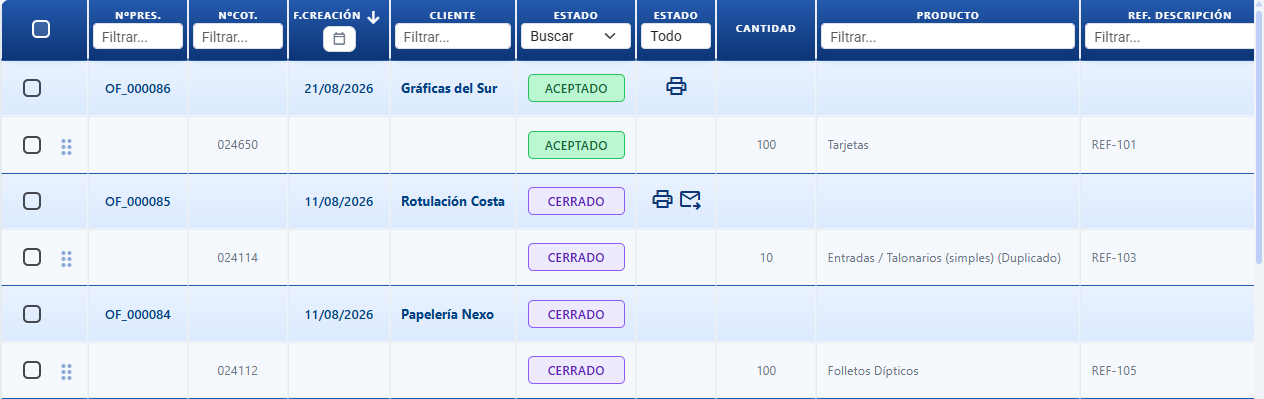
| Quote | /ggpOferta | NºPres. | Green, quoted | Initial price proposal |
| Order / work order | /ggpPedido | NºOT | Orange, accepted | Customer accepts → the job goes into production |
| Delivery note | /ggpAlbaran | NºAlb. | Blue, delivered | Confirmation of physical delivery |
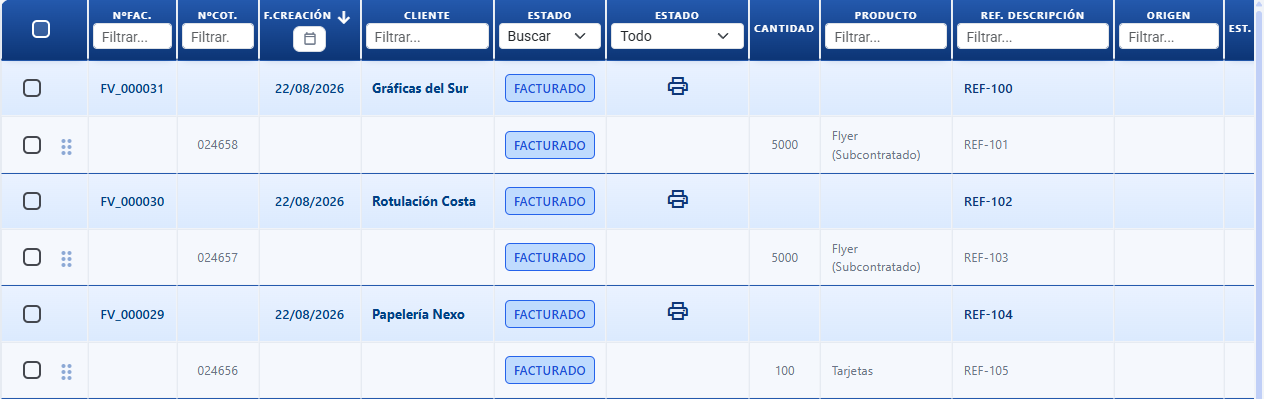
| Invoice | /ggpFactura | NºFac. | Red, invoiced | Final legal document |
The general order is Quote → Order (work order) → Delivery note → Invoice, but the flow is NOT rigid and not every level is compulsory: each company decides whether it uses Work orders and/or Delivery notes. Any level that is switched off is skipped automatically throughout the flow. See the next section.
Active levels per company
In Settings → Customisation → "Document flow" there are two switches:
| Option | Values | What it does |
|---|---|---|
| Do you use Work orders? | Yes / No | Set to No, the Order (work order) level disappears: no menu, no route, no columns, no work order actions, and that step is skipped when a document moves forward. |
| Do you use Delivery notes? | Yes / No | Set to No, the Delivery note level disappears in the same way. |
By default both are switched on (Yes), so the full four-level flow is the standard behaviour.
When a level is switched off:
- It does not appear in the menu, nor its list, nor its route, nor its columns or actions.
- It is skipped when moving forward. Example: if a company switches off Delivery notes, pressing Accept on a work order creates the Invoice straight away, with no delivery note in between.
This lets you adapt the system to each business: a shop that only invoices can stay on Quote → Invoice; a shop that needs production and delivery uses all four levels.
How to use it

Creating a quote
- Go to
/ggpOferta→ press New. - Choose the customer (autocompleted by trading name).
- Check the sales rep, contact and delivery address (they are filled in from the customer record).
- Add lines:
- New quote — opens the quoting engine, works out the price and creates the line.
- Add existing quote — pick quotes you have already saved.
- Add empty line — a manual line: name, description, quantity, price.
- Adjust the discount and taxes per line if needed.
- Save. The system assigns the quote number.
Accepting a quote → order
- Open the quote (or select several in the list) and press Accept.
- If an order already exists for the same customer with lines that came from this quote, the system asks whether to combine it with the existing order or create a new one. This prevents duplicates.
- The order inherits the customer, contact, sales rep, reference, observations and every accepted line.
- The delivery date is recalculated automatically from the delivery lead time of each quote.
Partial acceptance
If the quote has several lines and the customer only confirms some of them:
- Tick only the lines that have been accepted.
- Press Accept → only those lines move forward.
- The ones left unticked stay on the quote as Pending: you can accept them later or cancel them.
Moving to the next level
The Accept button takes the document to the company's next active level:
- From a quote → it generates the next active level (work order, delivery note or invoice, depending on what is switched on).
- From an order → it generates a delivery note (or an invoice, if delivery notes are switched off).
- From a delivery note → it generates an invoice.
Accept respects the active levels: a level that is switched off is skipped. For example, with Delivery notes switched off, accepting a work order creates the invoice directly.
There are also two shortcuts:
- Create delivery note from a quote or an order — jumps straight to the delivery note (only visible if delivery notes are active).
- Invoice from any level — jumps straight to the invoice (creating the intermediate documents that are active in the background).
Combining with an existing document when moving forward
When you move lines forward and other sibling lines (from the same source document) are already linked to a document at the next level, the system can combine them into that document instead of creating a new one. You decide the behaviour in Settings → Sales, option "When moving to the next stage, if sibling lines are already linked to another document":
| Option | What it does |
|---|---|
| Always create a new one | Never combines; always generates a new document. |
| Always combine with the existing one | Combines automatically with the document already linked, without asking. |
| Ask every time | Opens a dialog showing the whole chain of documents related to the line, colour-coded by type (quote, work order, delivery note, invoice). Next-level documents are grouped under From the same document and From another branch (same quote), and those are the ones you can choose to combine with. The rest are shown below as traceability (information only, not mergeable). Buttons Create new and Cancel. |
Automatic progression on acceptance ("On accept")
In Settings → Customisation the "On accept" option decides how far a document goes when you accept it:
| Value | Meaning | Result |
|---|---|---|
0 | First document only | Accept creates only the next level; you move the rest forward by hand. |
1 | Up to the intermediate document | Accept goes as far as the intermediate level (delivery note). |
2 | Up to the final document (invoice) | Accept cascades all the way to the invoice. |
Automatic progression acts only on the company's active levels: a level that is switched off does not count. With usaOT and usaAlbaran at their default of Yes, the behaviour is exactly as it has always been, so customers with "On accept" set to 1 or 2 need no changes at all.
Document fields
Header (common to all four types)
| Field | Required | Default | Notes |
|---|---|---|---|
| Customer | Yes | — | Search by trading name; choosing one autocompletes the contact, address, discount and their payment terms and payment day (see "Payment terms and payment day"). Clicking the "Customer" label opens the record of the selected customer so you can edit it (the same details, contacts and addresses as in Customers); on saving, the document picks up the changes (payment terms and day, discount, contacts). This is different from the Change customer button (magnifier with a person) next to it, which changes the customer on the whole document and its chain. |
| Sales rep | Yes | Current user | The person responsible. In the list, the Sales rep column is filtered with a dropdown listing the users (option All to clear the filter), not by typing the name. |
| Attended by | No | — | The user who handled the job. Editable under More fields, next to Sales rep. In the list you can show the Attended by column (hidden by default, switched on from the column selector) and filter it with a dropdown listing the users (option All to clear the filter). |
| Contact | No | The customer's default contact | — |
| Delivery address | No | — | The physical address for delivery. |
| Document date | Yes | Today | The issue date. |
| Delivery date | No | Today + 30 days | On acceptance it is recalculated using the lead time of each quote. |
| Payment terms | No | The customer's | The payment terms of the document (cash, bank transfer, etc.). When you choose them, if the document's Bank account is empty, the default account for those payment terms is preloaded. |
| Bank account | No | The one from the payment terms | The bank account this document is to be collected into (alias + IBAN). Option No account to leave it unassigned. It is preloaded on its own when you choose the payment terms, but you can change it by hand; whatever you choose by hand wins and is not overwritten. Only active accounts from the account catalogue are listed. |
| Reference | No | Empty | Free text: the customer's own number, a short note, and so on. It has an AI Assistant button that writes or improves the text with artificial intelligence. |
| Observations / attachments | No | — | Files and images are attached here and notes are written; they travel to the next level. Each observation has an AI Assistant button that writes or improves the text with artificial intelligence. |
To keep the screen uncluttered, the header shows only the four main fields to begin with — Customer, Contact, Reference and Creation date — and hides the rest (Sales rep, Attended by, Completion date, Delivery method, Payment terms, Payment day, Bank account). The More fields button unfolds them; Fewer fields tucks them away again. The hidden fields still fill themselves in (for instance the payment terms and payment day inherited from the customer, and the bank account from the payment terms) even when they are out of sight.
Fields exclusive to Invoices
| Field | What for |
|---|---|
| Type | A coloured button showing the invoice type, styled like the statuses (Accepted/Pending): Invoice (blue), Simplified invoice (fuchsia), Credit note (orange) or Amended invoice (indigo/violet). The document number of credit notes and amended invoices is painted in the same colour. Filterable with the column dropdown. An ordinary invoice marks itself as a Simplified invoice when the document's customer has no VAT number (CIF/NIF) or when it is the generic / cash customer set in Settings → Sales (see "Simplified invoice"). Credit notes and amended invoices do not change label. |
| Commission (list column) | Only with the commissions module active and the Full plan: it summarises the commission accrued on the invoice as a coloured tag — green "Settled" with the amount when the whole commission has already been paid to the sales rep, amber with the total amount and "Pending" plus what is still to be settled (including commission not yet collected). It shows "-" if the invoice carries no commission. It only has data if Commissions is set to commission per invoice or per payment (with per order/per delivery note, commission is not attributed to invoices). The detail and the settlement are handled on the Commissions screen. |
| Source invoice | For a credit note or an amended invoice, the original invoice it is linked to. |
| Locked | Once ticked, the lines cannot be edited. |
| Invoice status | Shows whether the line has been collected / closed. When they all are, the invoice is closed. |
There is no separate "Work order" button at the foot of the form. The foot has a single "Share" button (share icon) that opens the Share dialog with every output of the document (printed document, work order, ticket, email, Direct). On the Invoice form the Print work order option comes up disabled ("Not available for invoices."); to print the work order of an invoice, use the Share action on the list toolbar and choose Print work order. The button used to be called "Print". If you are looking for the Print button at the foot of the form or the Print action in the list, it is now Share: same place, same dialog, and with the Direct option on top.
Simplified invoice (automatic detection)
An ordinary invoice (not a credit note, not an amended invoice) is treated as a Simplified invoice automatically, with nothing to tick and no switch anywhere: CotizaPrint detects it from the document's own customer. Only one of these two conditions has to be met:
| Condition | When it happens |
|---|---|
| The customer has no VAT number (CIF/NIF) | The CIF/NIF field on the customer record is empty or is not a valid Spanish tax number (NIF). |
| The customer is the generic / cash customer | The document's customer is the one you have assigned in Settings → Sales, section Default customers, field "Default customer for ticket printing (generic / cash customer):". |
Where you notice it:
| Where | What you see |
|---|---|
Invoice list (/ggpFactura), Type column | Instead of Invoice it reads Simplified invoice, with a fuchsia marker. Credit notes and amended invoices still show Credit note and Amended invoice as always. |
| Printed PDF of the invoice | Below the document number comes the SIMPLIFIED INVOICE stamp in amber, in the same place where the CREDIT NOTE and AMENDED INVOICE stamps already appeared. It comes out even if your organisation does NOT use electronic invoicing: it is no longer a notice confined to the QR box. |
To stop an invoice coming out as simplified, fill in the CIF/NIF on the customer record (or issue it to a customer who does have one, instead of to the generic / cash customer) and generate the printed document again.
Document lines
Each line represents a product or service. It can come from:
- A quote from the quoting engine (one to one: each quote = a single line).
- A manual entry with no quoting engine.
Fields on each line
| Field | Notes |
|---|---|
| Name | The product title. On editable manual lines it has an AI Assistant button that generates a short name for the item from the line. Available from the Pro plan upwards. |
| Description | Extra detail. On editable manual lines it has an AI Assistant button that writes a sales description of one to three sentences for the item. Available from the Pro plan upwards. |
| Quantity | Units / copies. |
| Base price | The price before discount (from the quoting engine). |
| Discount (%) | Per line. It is filled in with the customer's default discount when the line is created. |
| Subtotal | Base price × (1 − discount). Calculated. |
| Taxes (%) | Rate selectable per line. |
| Total taxes | Subtotal × tax %. |
| Total | Subtotal + taxes. |
| Status | Active or cancelled. Cancelled lines do not count towards the totals. |
Actions on a line
- Edit in the quoting engine (pencil): opens the quoting engine to adjust the price or cost. On saving, the changes are synchronised into the line.
- Duplicate line: copies it (including the quote attached to it). Available in two places: inside the document form and, in the Quotes list (
/ggpOferta), by hovering over the line's Status — the Duplicate button creates the copy inside the same quote. - Delete line: deletes it (if it is new) or unlinks it (if it had already been saved).
- Change tax: a selector per line.
- Attach files: adds observations / references.
- Reorder: drag and drop.
- Move to another document: drag a line between documents of the same customer and level — the line is unlinked from the source and linked to the destination, it is not duplicated.
What happens when you change the customer
If you change the customer once lines have already been created:
- Only the discounts on lines that were at 0 % are updated (to the new customer's default discount).
- Lines with a manual discount are left alone.
- Taxes and prices are not touched.
Totals and calculations
The system recalculates instantly with every change:
- Taxable base = the sum of the subtotals of the active lines.
- Global discount % = the percentage the total discount represents against the price before discount.
- Taxes = the sum of the taxes on each line (each line can have its own rate).
- Total = taxable base + taxes.
- Margin (only if you have permission to see it): the percentage between total cost and subtotal.
The amounts shown are rounded to two decimal places; full precision is kept internally.
Payment terms and payment day
When you choose the customer
When you select a customer on a sale, the system fills in their payment terms and payment day automatically. There is no need to type them: they are inherited from the customer record.
The document's bank account
Next to Payment terms sits the Bank account selector: the account (alias + IBAN) this document will be collected into. When you choose payment terms, if the document's account is still empty it is filled in automatically with the default account for those payment terms. You can change it by hand at any time with the No account option or by picking another one; the account you set by hand wins and is not overwritten again when the payment terms change. The selector only shows the active accounts from the bank account catalogue.
When you change a customer's payment terms or payment day
If you edit a customer and change their payment terms or payment day, the system asks whether you want to apply that change to that customer's open quotes, work orders and delivery notes. That way you do not have to go document by document.
Payment forecast on the work order
On the sales form of a quote, work order or delivery note (not on an invoice), if the document has payment terms and a payment day, a notice appears with the "Payment forecast (estimated)": the date on which it would be collected.
It is for information only. The real payment instrument, with its final due date, is created when you invoice.
Actions on the document
From the list
| Action | Available on | What for |
|---|---|---|
| New | Always | Creates an empty document. |
| Edit | Double-click on a row | Opens the form. |
| Accept | Quote and Order | Moves to the next level. |
| Mark as pending | Quote and Order | Returns accepted lines to pending. |
| Revert | An accepted quote, already turned into a delivery note or cancelled, with no invoice | Returns a quote to Pending. If it has been accepted or already turned into a delivery note, it deletes the documents generated (work order and delivery note), asking for confirmation with their numbers, and goes back to Pending. A document with other jobs inside it is not deleted: only the line you are reverting is unlinked. If it has been cancelled, it is reactivated to Pending. Not available as soon as there is an invoice: at that point you issue a credit note or an amended invoice. |
| Cancel | Quote and Order | Marks lines as cancelled (they do not count towards the totals). |
| Close / Invoice | Invoice | Closes the invoice; if a balance is left, it asks whether to record the payment now (see "Payment on closing/invoicing"). |
| Reopen invoice | A closed invoice | Removes the lock so it can be edited. It does not work if the invoice has already been sent to electronic invoicing (locked, it warns you when you press it): in that case use Create amended invoice to correct it, or Void from Electronic invoicing. |
| Create amended invoice | Invoice (including a closed one; not on a credit note) | It asks how, with three options. Amend the invoice (in full or in part): a single editable negative document, labelled AMENDED INVOICE and using the amended invoice series (prefix "RF" by default) — you leave in it only the difference you are correcting; the original invoice is kept and stays closed. Create a credit note: the same as the previous one but labelled CREDIT NOTE and using the credit note series (prefix "AB"), without marking it as an amended invoice — for straightforward refunds. Redo the invoice: it generates a closed credit note that voids the whole invoice (credit note series) and a new editable invoice that opens so you can set the correct amount and issue it — with no difference document at all. In every case the negative document references the original invoice and can be signed through electronic invoicing. There is no need to reopen the invoice. With Amend the invoice and Create a credit note, nothing is created until you press Save on the screen that opens: if you close it without saving, no document is left behind and the original invoice is untouched. |
| Create delivery note | Quote and Order | Shortcut to the delivery note. |
| Invoice | Any level except Invoice | Shortcut to the invoice. |
| Pay | Always | Records a payment. |
| Share (share icon; formerly called "Print") | Always | Opens the Share dialog so you can choose the output of the document: print, download, send by email or share through Direct (see the next table). It replaces the separate printing buttons. It also includes "Send by email" and the Direct option. |
| Share work order with customer (on the action bar it appears as Share work order) <span style="display:inline-block;background:#fef3c7;color:#92400e;padding:2px 6px;border-radius:4px;font-size:.65rem;font-weight:600;">PRO</span> | Order | Generates a public link + QR for Direct. From an order/work order, the link shows the status of the job and allows you to Notify contacts. It is the direct route from the list; the other route is the Direct option in the Share dialog. |
| Direct option (inside the Share dialog) <span style="display:inline-block;background:#fef3c7;color:#92400e;padding:2px 6px;border-radius:4px;font-size:.65rem;font-weight:600;">FULL</span> | Quote and Order | It replaces the old "Direct" button at the foot of the form. It opens the same dialog with the Direct link and QR. From a quote, the link opens the quote view so the customer can accept or reject it (accepting turns it into a work order); from an order/work order, the link shows the status of the job and allows you to Notify contacts. |
| Notify contacts (inside the Direct / Share work order dialog) <span style="display:inline-block;background:#fef3c7;color:#92400e;padding:2px 6px;border-radius:4px;font-size:.65rem;font-weight:600;">PRO</span> | Order | Manages the contacts who receive an email notice when the status of the job/work order changes. If the order has several lines, you pick the Job in the dropdown. You can add an existing contact of the customer or use Quick contact to create a new one (name + email, designed for external contacts) for the order's customer. When a customer signs up on their own from the Direct link, they are shown as "signed up by the customer" and the order's sales rep is notified by email. Status change notices are sent grouped together (a single email per contact every few minutes). |
| Duplicate | Always | Copies the document with its lines and quotes. In Quotes, if you select only lines (without ticking the document), it creates a new quote in Pending status with those lines. Lines from several quotes of the same customer are grouped into a single new quote (the header details are copied from the first one selected); if there are different customers, one quote is created per customer. It is the way to pull one or more lines out into a separate quote. |
| Change customer | Always (toolbar action) and inside the form (icon next to the Customer field) | Changes the customer of the document and of its whole related chain: every quote, work order, delivery note and invoice connected by the same lines (levels above and below) moves to the new customer. Before applying it, it shows a visual summary with the number of each document affected (NºPres./NºOT/NºAlb./NºFac.) grouped by level, plus the total, for you to confirm. In the dialog you can Search for an existing customer or Create new (Name + VAT number + Address), and also Fill in with AI (paste the customer's details and the AI creates the record with its contacts and addresses). It is not allowed if there are closed invoices in the chain. |
| Change date | Always | Changes the document date. |
| Delete | Documents that have not been accepted (with permissions) | Deletes the document. It is not allowed if there are accepted documents (ones that have already generated a work order/delivery note/invoice): you have to Revert or Mark as pending first. If the selection has no later levels, it deletes the document and its payment instrument (see "Cascade delete"). |
The "Share" dialog — printing types, download, email and Direct
Pressing Share opens the Share dialog with the options grouped together. Any that do not apply to the current selection appear disabled, with a tooltip explaining why. This dialog used to be called "Print"; the options inside keep their names.
Partial printing by line: if in the list you tick only some lines of a document (without ticking the header checkbox), every option in the dialog produces the printed document/PDF with those lines only (the totals on the printed document add up only the lines chosen). If you tick the header, the whole document is printed. You can mix the two: some headers in full and, from others, only some lines, even across several documents at once.
| Option | What for | When it is available |
|---|---|---|
| Print separately | Each document with its lines on its own printed document (with a preview before printing/sending). | Always. |
| Print merged | Joins the lines of the selected documents into a single printed document, with one header and one single total (subtotal/VAT/total added up), as if it were one document. It opens the same preview as "Print separately" (not a direct download). Different from "Download single PDF", which keeps each document and its totals separate. | If you select two or more documents from the same customer (if they belong to different customers the option is disabled: "Select at least 2 documents from the same customer."). |
| Print work order | The quoting engine's work order with the production detail. It respects the line selection: if you tick a single line of a document with several quotes, it prints only the work order for that quote, not all of them. If you tick the header (or tick no lines), it prints the work orders for every line of the document. | Always (it warns you if there is no quote attached). |
| Print ticket | The printed document in ticket format. | On invoices only. |
| Download printed document | Generates and downloads the PDF of each document separately (one file per document). | Always. |
| Download single PDF | All the selected documents merged into a single PDF (one document per page, each with its own totals), downloaded directly. | If you select two or more documents. |
| Download ZIP | One PDF per document, packaged into a single ZIP file to download in one go. | If you select two or more documents. |
| Send by email | Generates the PDF of the printed document and opens the email to the customer ("Send email to the customer") already preloaded with recipients, PDF attachments and subject. It requires a print template to be set up. | Documents belonging to the same customer. |
| Direct <span style="display:inline-block;background:#fef3c7;color:#92400e;padding:2px 6px;border-radius:4px;font-size:.65rem;font-weight:600;">FULL</span> | "Link and QR so the customer can view the document and approve it online." It opens the Direct dialog with the public link and the QR: from a quote the customer accepts or rejects it online (accepting turns it into a work order); from an order/work order they see the status of the job. It replaces the old "Direct" button at the foot of the form. | By selecting a single quote or work order ("Select a single quote or work order."). It requires the Full plan: on another plan you are shown the locked module notice explaining what it does, with the option to upgrade your plan. |
Inside the form
The same as in the list, plus:
- More fields / Fewer fields: unfolds or hides the secondary header fields (Sales rep, Completion date, Delivery method, Payment terms, Payment day, Bank account). To begin with you only see Customer, Contact, Reference and Creation date.
- Save (floppy disk): persists the changes.
- Share (share icon, a single button; tooltip "Print, send by email, download or share through Direct."): saves the document and opens the Share dialog so you can choose the output. This button used to be called "Print", and it replaces the old separate buttons Printed document, Ticket, Work order and Direct at the foot of the form. Options in the dialog (any that do not apply come up disabled, with the reason):
| Option | What for | When it is available |
|---|---|---|
| Print document | The printed document with its lines (preview before printing/sending). | Always. |
| Print work order | The quoting engine's work order with the production detail. | If the document has accepted lines with a quote and is not an Invoice ("Not available for invoices." / "The document has no accepted lines with a quote."). |
| Print ticket | The printed document in ticket format. | Always. |
| Send by email | Generates the PDF and opens the email to the customer, already preloaded with recipients, attachment and subject. | With the document already saved ("Save the document before sending it."). |
| Direct <span style="display:inline-block;background:#fef3c7;color:#92400e;padding:2px 6px;border-radius:4px;font-size:.65rem;font-weight:600;">FULL</span> | "Link and QR so the customer can view the document and approve it online." It opens the Direct dialog with the public link and the QR: on a quote the customer accepts or rejects it online; on an order/work order they check the status of the job. This is where the "Direct" button at the foot of the form used to be, now removed. | On saved quotes and work orders only ("Available for saved quotes and work orders."). It requires the Full plan: on another plan you are shown the locked module notice explaining what it does, with the option to upgrade your plan. |
The options that work on several documents at once (Print merged, Download single PDF, Download ZIP) do not appear here: inside the form there is only one document. For those, use the Share action on the list toolbar.
- Generate SEPA (bank icon, on the Invoice form only): saves the invoice, creates its payment instrument if it did not exist yet and opens the wizard to download the SEPA file (Spanish direct debit format "Cuaderno 19") for that invoice. It only appears if the invoice has already been saved and the company has a default bank account set up in Settings → Finance. If you cannot see it, the usual reason is that no bank account has been marked as the default in Settings → Finance.
- INVOICE: issues the invoice and leaves the document closed. If an amount is still outstanding, it first asks what to do about the payment (see "Payment on closing / invoicing / moving forward"). It used to be called "Invoice and Close".
- TICKET: it only appears when the customer pays cash (the document's payment terms and payment day are 0 days, immediate payment). It does exactly the same as INVOICE — it asks about the outstanding payment, invoices and closes — and it also opens the ticket printout before closing the document, so you can hand it to the customer there and then. If you cannot see it, check the document's payment terms: with a due date in days it is not shown.
- Accept all (violet button): accepts every pending line of the document and moves it to the next level. It used to be called "Save Accepted".
- Save: saves the document and its lines. If you have ticked some lines as accepted or cancelled (partial acceptance), Save applies that selection: it accepts the ticked ones, cancels the ones you have marked as cancelled and moves only those to the next level. If you tick all of them as accepted (or all as cancelled), Save simply saves — for that case use Accept all or Cancel. This partial selection used to have a button of its own, "Manage Partial", which has been withdrawn because it did the same thing.
- Next step (arrow): accepts every line (or only the ticked ones if there is a selection).
- Cancel (red button; it used to show the name of the document, "Cancel Quote/Work order/Delivery note/Invoice"): only visible when there are lines still to be accepted. It asks for confirmation, stating how many pending lines are about to be cancelled; if the document has lines that have already been accepted, it warns you that those are left unchanged (only the pending ones are cancelled). On confirmation it marks only the pending lines as cancelled, saves and closes the form without moving to the next level or opening any other document.
- Add empty line / new quote / existing quote — the three ways of creating lines.
- Collect (the Payments card): opens the payment dialog to record a payment against the document. It used to be called "Payment and Collection"; the old "Collect everything" button has been removed (the dialog itself lets you collect the whole outstanding amount).
- In the line table, the Discount on a line with a quote is edited by clicking on it: the Line discount dialog opens, a calculator with the undiscounted price and three linked fields — Discount (%), Discount amount and Total after discount — you fill in whichever you prefer, the other two recalculate themselves and Apply saves the discount on the line. The Tax on a free line is changed by clicking on its amount and percentage box, which opens the Change taxes dialog (on lines with a quote the tax is not clickable).
Payment on closing / invoicing / moving forward
On "INVOICE", on "TICKET", on "Close" for an invoice with an outstanding amount, or when you press TICKET in the quoting engine, the system asks first — "There is an amount still to be collected" — and offers three options:
- Collect everything — collects the whole outstanding amount without opening the payment screen: it is recorded on its own and closes.
- Review the payments — opens the dialog with the outstanding amount spread out, so you can adjust it before saving.
- Do not collect — no payment is recorded; the document is invoiced all the same. (This option used to be called "Cancel".)
- Cancel (red button at the foot) — closes the notice without doing anything. When the notice comes from the TICKET button in the quoting engine, this button is called Do not generate ticket: pressing it creates neither the invoice nor the ticket.
Details:
- If the customer pays cash (payment terms of 0 days), the notice says so and the dialog preselects the outstanding amount so you can collect it all in one go.
- If the customer pays on terms, the dialog opens with nothing preselected, so you can record a partial deposit or whatever amount you want.
- If the invoice is already 100% paid, nothing is asked.
The same applies when moving a work order forward to a delivery note or an invoice when the customer pays cash and has not paid yet: the system asks whether to record the payment.
Deposits
You can record payments (deposits) against a work order or order before invoicing. When you invoice, that deposit is automatically counted as collected on the invoice's payment instrument (the line keeps its identity as it moves from work order to invoice), so there is no need to record it again.
Cascade delete
The Delete action is no longer blocked because the document has generated later levels.
When deleting, the system cascade-deletes the equivalent documents downstream (the delivery note and/or the invoice derived from it) and their payment instrument:
- If there are payments recorded, it asks for an extra confirmation before deleting.
- It respects the TicketBAI lock: an invoice already sent to the tax authority is not deleted.
- It respects the "Allow invoice deletion" permission.
Statuses
Status per line
| Status | Colour | When |
|---|---|---|
| Pending | Grey | A quote line not yet accepted. |
| Quoted | Light green | An active line on a quote. |
| Accepted | Orange | It has moved to an order. |
| Delivered | Blue | On a delivery note. |
| Invoiced | Red | On an invoice. |
| Closed | Dark grey | Invoice collected. |
| Cancelled | Struck through | Voided, does not count towards the totals. |
Document status
It is worked out from the statuses of its lines:
- Pending — no line accepted.
- Partial — a mixture of accepted and pending.
- Delivered — every line has reached the delivery note.
- Invoiced — all of them on an invoice.
- Cancelled — all of them cancelled.
Differences by plan
- TRY / STD — everything described so far.
- PRO — no additional features in this section.
- FULL — the Direct option in the Share dialog (link + QR for Direct, for both the quote and the order/work order, from the list and from the form), Share work order with customer and the tracking QR on printed documents (if the template switches it on). On another plan, choosing Direct shows the locked module notice explaining what it does, with the option to upgrade your plan. Remember that Direct is no longer a button at the foot of the form: you get to it through Share → Direct.
Permissions
| Route | Permission |
|---|---|
/ggpOferta | access_oferta |
/ggpPedido | access_ot |
/ggpAlbaran | access_albaran |
/ggpFactura | access_bill |
| Accept / cancel / print | venta_edit |
| See cost columns | view_global_coste |
| See margin columns | view_global_margen |
| Import / Export the list | allow_Import / allow_Export |
Integrations
- Quoting engine — the natural source of lines with a calculated price.
- Customers — provides the contact, address, discount and payment terms.
- Payments and Collections — the Pay button opens the payment screen and reduces the outstanding balance.
- Payment instruments — each invoice generates a payment instrument with its due date (payment terms + payment day); they are consulted in Sales → Payment instruments.
- TicketBAI — when an invoice is issued, if the organisation has TicketBAI switched on, it is sent automatically to the regional tax authority.
- Direct (customer portal) — reached through Share → Direct: from a quote it generates the public link so the customer can accept or reject it (accepting turns it into a work order); from an order it generates the link so the customer can see its status.
- Tasks / Calendar — when an order is accepted, each line is given a scheduled work date based on the lead time of the quote; it appears in the Tasks section for the shop floor.
- Email — automatic notifications are sent on a status change if templates and recipients are set up.
Important rules
- One quote = one line. A quote is never split across several lines, and several quotes are never put into one.
- Configurable levels. The flow is not rigid: each company switches Work orders and Delivery notes on or off; the levels switched off are skipped throughout the flow.
- Cascade delete. Deleting a document also deletes the levels derived from it downstream and its payment instrument, with an extra confirmation if there are payments, and respecting the TicketBAI lock.
- A closed invoice is read-only. To edit it, use Reopen invoice (a record is kept). If it has also been sent to electronic invoicing, it cannot be reopened: it is corrected with Create amended invoice, or voided from Electronic invoicing.
- Automatic numbering. The document number is generated by the system, it is not assigned by hand.
- One single way out: Share. Printing, downloading, sending by email and sharing through Direct all come out of the Share button/action (formerly Print), both in the list and at the foot of the form. The separate Direct button at the foot of the form no longer exists: it is the Direct option inside that dialog, available for quotes and work orders and on the Full plan.
- Automatic simplified invoice. An ordinary invoice labels itself as a Simplified invoice (the Type column in fuchsia + the SIMPLIFIED INVOICE stamp on the printed document) when its customer has no CIF/NIF or is the generic / cash customer from Settings → Sales. There is nothing to switch on or tick, and it does not depend on electronic invoicing.
- Local drafts. If you add lines and close the browser without saving, the lines are kept in the browser itself and reappear when you come back. They are cleared when the document is saved.
- Combining orders. The system spots when accepting a quote would create an order for a customer who already has one, and offers to combine them instead of duplicating.
- Moving a line between documents unlinks it from the source and links it to the destination. It does not duplicate it.
- Changing the customer only recalculates the discounts on lines that were at 0 %.
Frequently asked questions
Q: I created a quote with 3 lines and the customer only accepts 2. How do I do that?
A: Tick only those 2 lines and press Accept. An order is created with those 2 lines; the third one stays on the quote as Pending. You can accept it later or cancel it if they turn it down.
Q: I changed the customer on a quote. Why did some discounts not change?
A: The new customer's discount is only applied to lines that were at 0 %. If a line had a manual discount, it is left alone so nothing that was negotiated is lost.
Q: The customer cancelled the job. How do I stop an order/job being "Accepted"?
A: Open the order (or the quote) and use Mark as pending to return the accepted lines to Pending, or Cancel if the job is not going to be done at all (cancelled lines are struck through and do not count towards the totals). Both actions are in the Quotes and Orders list and inside the form. If the work order or the delivery note has already been generated, use Revert in the Quotes list: it deletes those documents and returns the quote to Pending. If there is already an invoice and you want to undo the whole chain, use Delete, which cascade-deletes the derived levels (with an extra confirmation if there are payments, and respecting the TicketBAI lock). An invoice already sent to the tax authority is not cancelled by deleting it: you have to issue a credit note or an amended invoice.
Q: I accepted a quote by mistake. How do I undo it so it goes back to "Pending"?
A: In the Quotes list (/ggpOferta), select the quote and press Revert. If it had been accepted or already turned into a delivery note, it deletes the work order and the delivery note generated (asking for confirmation and showing their numbers) and the quote goes back to Pending; a document that has other jobs inside it is not deleted, only your line is unlinked. If you had cancelled it and want it back, Revert also returns it to Pending. It works as long as there is no invoice: once an invoice has been issued the option does not appear and you have to issue a credit note or an amended invoice (or use Delete to remove the whole chain if the document still allows it). "Revert" is not the same as "Cancel": Cancel voids; Revert undoes the acceptance or reactivates something cancelled.
Q: Can I see who prepared the quote / who created the invoice (the sales rep)?
A: Yes. Every document carries the Sales rep field (the user responsible), which defaults to whoever creates it. On the form it appears when you press More fields; in the list you can add or show the Sales rep column and filter by it, choosing the user in its dropdown (option All to clear the filter). If you have several people preparing quotes, that field tells you who to ask about each document. There is also the Attended by field (who handled the job), likewise under More fields and with its own column in the list (hidden by default, switched on from the column selector), with the same user dropdown for filtering.
Q: Why can I not edit an invoice?
A: It depends on its status. If it is only closed (collected/invoiced): press Reopen invoice, edit it and close it again. If it has already been sent to electronic invoicing (the tax authority): it cannot be reopened or edited — use Create amended invoice to correct the amount, or Void from Electronic invoicing if you want to invalidate it completely and issue a new one.
Q: I have already issued the invoice to the tax authority (TicketBAI/Verifactu) and I got it wrong. What is the right way round it?
A: An invoice declared to the tax authority is never edited. The route depends on what you want: to correct only the difference → Create amended invoice → Amend the invoice (in full or in part) (a negative document of −€2, for example; edit it, close it and sign it); to cancel it and issue it again with the right amount, with no difference document → Create amended invoice → Redo the invoice (a credit note that voids the invoice + a new editable invoice: sign the credit note, set the new one to the correct amount, close it and sign it); the invoice should never have existed (wrong customer, duplicated, etc.) → the Electronic invoicing screen → Void (it notifies the cancellation to the tax authority), then issue a new invoice if appropriate.
Q: I do not want a −€2 document; I want to cancel the €10 invoice and issue one for €8. How?
A: Create amended invoice → Redo the invoice: in one click it generates a −€10 credit note that voids the original invoice (it is left closed, ready to sign in Electronic invoicing) and a new editable invoice that opens straight away — change the amount to €8, close it and sign it like any ordinary invoice. The customer receives the credit note and the new €8 invoice.
Q: The customer wants to return a job, or an invoice needs correcting. What do I do?
A: From the invoice, press Create amended invoice and choose: Amend the invoice (in full or in part) creates a single editable negative document labelled AMENDED INVOICE — you leave in it only the part being returned or corrected (you invoiced €10 and it should have been €8 → you leave it at −€2) and the original is kept; Redo the invoice creates a credit note that voids the whole invoice plus a new editable invoice — you set it to the correct amount (€8) and issue it, with no difference document at all. It also works on a closed invoice, without reopening it.
Q: What is the difference between "Amend the invoice" and "Redo the invoice"? Which one do I use?
A: It changes what the customer receives. With Amend the invoice (in full or in part) the original invoice stays as it is and you add a negative document that corrects or voids it — use it for refunds, or when a difference document is good enough for you (you invoiced €10 and it should have been €8 → a −€2 credit; the customer files the €10 one and the credit). With Redo the invoice the original is voided by an automatic credit note and you issue a new, correct invoice — use it when the customer should receive one clean invoice (you cancel the €10 one and they get an €8 one) or when the invoice has several errors. Quick rule: is adding a correcting document enough for you? → Credit note. Do you want to replace the whole invoice? → Redo.
Q: When I create an amended invoice it asks me for a "Reason for the amendment". What do I put?
A: It is compulsory: the tax authority requires every amended invoice to state the reason behind it. Choose the one that fits from the list — Full or partial return of goods, Later discount or rebate, Later change in price, Error in quantity or price, Error in tax details, Termination or cancellation of the transaction, Bad debt, Insolvency proceedings or Other reason. The reason is saved in the document's Reference field (with its tax code at the end, e.g. "(R1)"), it is printed on the PDF ("Reason: …") and that R1–R5 code is what is declared when the electronic invoice is issued. You can extend the Reference text before saving, but keep the "(R…)" code at the end. If you cancel without choosing a reason, no document is created.
Q: Where is the Create credit note button?
A: It is the Create amended invoice → Create a credit note option: it creates an editable negative document using the credit note series (prefix "AB") and labelled CREDIT NOTE, without marking it as an amended invoice — for straightforward refunds. The other two options: Amend the invoice (in full or in part) creates the negative document using the amended invoice series (RF), and Redo the invoice automatically generates a credit note that voids the whole invoice along with the new invoice.
Q: I want my amended invoice to be a single negative document saying AMENDED INVOICE, not CREDIT NOTE. Can I do that?
A: Yes, that is the Create amended invoice → Amend the invoice (in full or in part) option: a single document with the amounts in negative, labelled AMENDED INVOICE and with its own numbering series (prefix "RF" by default, configurable in the counters). It references the original invoice and can be signed through electronic invoicing.
Q: How do I send the amended invoice to TicketBAI / electronic invoicing?
A: With Amend the invoice (in full or in part): first edit the negative document (leave only the part you are correcting) and close it with Close / Invoice — only then does it appear on the Electronic invoicing screen, where it is signed with Sign TicketBAI / Sign Verifactu. With Redo the invoice: the voiding credit note is born closed — sign it straight away in Electronic invoicing; the new invoice is signed like any ordinary invoice once you have it right and close it. A requirement in both cases: the original invoice must already be signed in electronic invoicing — if it is not, the submission warns you "The source invoice is not signed yet". Once submitted, each document is locked and cannot be edited.
Q: Does the printed document say that it is an amended invoice or a credit note?
A: Yes. The title of the PDF says Amended invoice or Credit note followed by the number, and below it a coloured stamp — CREDIT NOTE in orange or AMENDED INVOICE in indigo — reading "Credits/Amends invoice [number], dated [date]" to identify the original invoice. On the document screen, the CREDIT NOTE / AMENDED INVOICE field is highlighted in the same colour and clicking it opens the original invoice. The printed version of a negative document also hides the payment conditions, the company's bank account, the delivery method and the due date (there is nothing to collect or deliver); the customer's account, the electronic invoicing QR and the negative amounts are kept. Ordinary invoices do not change, unless they are simplified: in that same place they carry the SIMPLIFIED INVOICE stamp in amber (see "Simplified invoice").
Q: I have amended an invoice; what happens to its due dates (payment instruments) and the commissions?
A: They adjust themselves. The payment instrument of the original invoice is recalculated to the net figure: with a full amendment it disappears from the due dates (voided); with a partial one it stays for the remainder. The commissions on the original invoice are reversed in proportion to what was amended (see the Commissions document).
Q: I pressed Invoice from a quote. Were the order and the delivery note skipped?
A: The levels your company has switched on are created in the background. If you have Work orders and Delivery notes switched on, you will find them in /ggpPedido and /ggpAlbaran. If they are switched off, they are not created: it goes straight to the invoice.
Q: I do not want to use delivery notes (or I do not want to use work orders). How do I turn them off?
A: Go to Settings → Customisation → "Document flow" and set "Do you use Delivery notes?" (or "Do you use Work orders?") to No. That level disappears from the menu and from the actions, and it is skipped automatically on acceptance.
Q: I switched off delivery notes. When I accept a work order, what gets created?
A: The invoice, directly, with no delivery note in between. The system skips every level you have switched off.
Q: Levels could not be skipped before. Can they now?
A: Yes. The flow is no longer rigid. Each company decides whether it uses Work orders and/or Delivery notes; the ones you switch off are skipped throughout the flow. By default all four levels remain active.
Q: I deleted a quote that already had an invoice. What happened to the invoice?
A: Deletion is cascading: deleting the document also deletes the levels derived from it (delivery note and/or invoice) and its payment instrument. If there were payments recorded, the system asks you for an extra confirmation first. An invoice already sent to TicketBAI is not deleted.
Q: When I closed the invoice it asked me whether to record the payment. Is that normal?
A: Yes. Now, if a balance is still outstanding, the system asks before opening the payment dialog. If the customer pays cash, the dialog comes up with the outstanding amount preselected; if they pay on terms, it opens empty so you can record whatever you want. If it is already 100% paid, it does not ask.
Q: Can I take a payment before invoicing (a deposit)?
A: Yes. Record the payment against the work order or order. When you invoice, that deposit is automatically counted as collected on the invoice; there is no need to enter it again.
Q: I chose a customer and the payment terms and payment day filled themselves in. Why?
A: They are inherited automatically from the customer record when you select them. You can change them on the document if this particular case is different.
Q: I changed a customer's payment terms and it asked me whether to apply them to their open documents.
A: That is right. When you change a customer's payment terms or payment day, the system offers to propagate the change to their open quotes, work orders and delivery notes, so you do not have to edit them one by one.
Q: On the work order I see a "Payment forecast". Is that the real collection date?
A: No, it is estimated and for information only. It works out when the money would come in according to the payment terms and payment day. The real payment instrument, with its final due date, is created when you invoice.
Q: How do I send the customer the link so they can see the status of their order?
A: Two routes, both on the Full plan. In the list, select the order and use the Share work order action (Share work order with customer). Or, in the list or inside the order form, press Share and choose Direct. Both open the same dialog with the URL and the QR; copy or download them and send them by WhatsApp or email. Note: the separate Direct button at the foot of the form no longer exists, it is now the Direct option in the Share dialog.
Q: Can I send the customer the quote so they can accept or reject it online?
A: Yes. Save the quote, press Share and choose Direct (the Full plan is required): it generates a link and a QR that the customer opens in the Direct portal, where they see the quote and can accept or reject it. If they accept, the quote becomes a work order automatically; if they reject it, it is cancelled. It works the same from the quote form and from the list (there, select a single quote or work order).
Q: Where do I manage who receives the email notices when the status changes?
A: Inside that same dialog (reached through Share → Direct on the order, or through the Share work order with customer action) press Notify contacts. There you can see who receives notices, add a contact of the customer or use Quick contact to create a new one (name + email), which is handy for external contacts. It requires the Full plan.
Q: The total I can see does not match my own sum.
A: Check whether any line is cancelled (it does not count) or has a different tax rate. Taxes can vary line by line.
Q: Can I move a line from one order to another?
A: Yes, by dragging it between documents of the same customer and the same level. It is not duplicated, it is unlinked from the source.
Q: The delivery date changed by itself when I accepted the quote.
A: On acceptance, the system recalculates the date using the delivery lead time defined on each quote. Edit it by hand after accepting if you want a different one.
Q: I want a single PDF with several delivery notes.
A: Select the delivery notes in the list, press Share (the action formerly called Print) and choose Download single PDF: it downloads one PDF with all the documents (each document on its own page).
Q: I want to download several documents at once.
A: Select the documents, press Share and choose Download ZIP to get one PDF per document inside a single ZIP file, or Download single PDF if you want them merged into one PDF.
Q: An order was duplicated when I accepted two quotes from the same customer.
A: If the two quotes are accepted at the same time, the system spots the common customer and offers to combine them. If it offered to combine and you chose "create new", that is why there are two. Check it again when accepting.
Q: A closed invoice has been paid and it will not let me mark it as paid / the option to collect does not appear.
A: A closed invoice is locked against payments. Reopen it first (the Reopen invoice button), record the payment and close it again. The option to collect only appears with the invoice open.
Q: I want a single invoice with all the delivery notes for one customer (at the end of the month).
A: In the delivery note list, filter by that customer, select every delivery note that has not been invoiced and press Invoice (or Accept). A single invoice is generated grouping all those delivery notes.
Q: I deleted an invoice by mistake. Can I get it back or reuse its number?
A: The invoice cannot be recovered, but the delivery note/work order/quote it came from is still there: press Invoice on it again to redo it. The deleted number is not reused on its own; the counter does not go back. To reuse that number, go to Settings → Counters and adjust the counter, or use the counter editor. To prevent deletions, switch on the invoice deletion lock in Sales Settings.