
What it is
Catalogue of the physical machines in your shop with their technical limits and every cost of running them. Unlike substrates and operations, the costs sit directly on the machine (there are no sub-entities).
What it is for
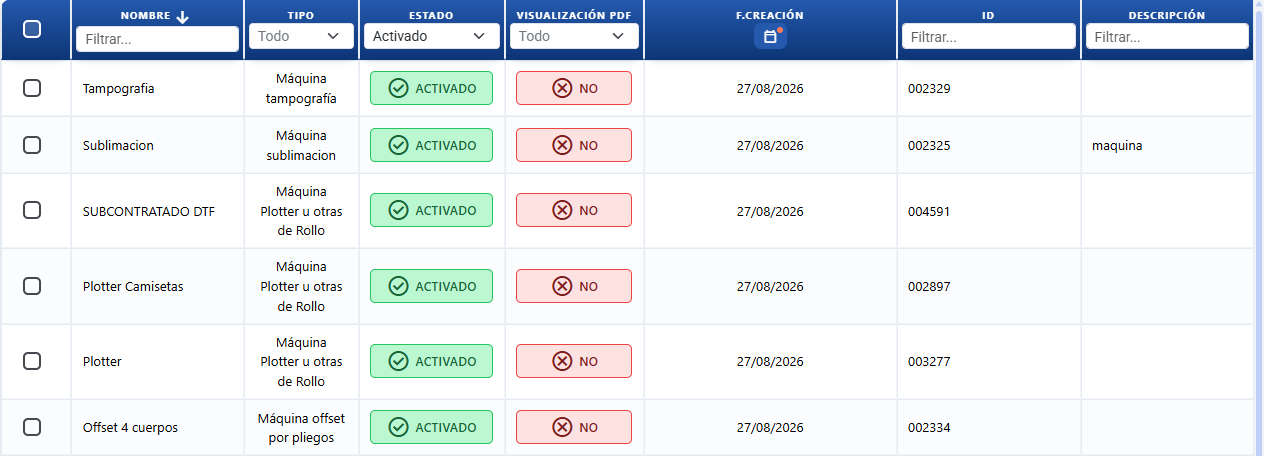
- Define each machine: type, maximum sizes, non-printable areas, spoilage.
- Set the running costs: per pass, per ink, per set-up, per plate, and so on.
- Let the quoting engine know which machine can print which substrate (sizes and type).
- Assign machines to products.
Machine types
Click "New machine" and a dropdown opens with the 8 available types. The type you pick decides which cost fields are then shown in the modal:
| Dropdown option (text on screen) | Type | Cost fields enabled |
|---|---|---|
| "Digital machine (Sheet)" | Digital | Colour pass, B/W pass, minimum pass cost, ink, minimums. |
| "Plotter or other roll-fed machine" | Plotter | Cost per m², set-up. (Maximum width is mandatory.) |
| "Sheetfed offset machine" | Sheetfed offset | Printing units, pass, plate, ink, minimums, set-up. |
| "Machine by unit (Copies)" | Copies | Cost per copy, set-up. |
| "Pad printing machine" | Pad printing | Cliché, printing per m², minimum printing cost, set-up. |
| "Screen printing machine" | Screen printing | Pass, screen, ink, minimums, set-up. |
| "Direct to garment machine (DTG)" | DTG | Cost per m², printing, set-up. |
| "Sublimation machine" | Sublimation | Cost per m², printing, set-up. |
The machine modal
The "Machine" modal (create or edit) has three tabs:
- "Basic" — identification, maximum paper area and settings (manager and display).
- "Costs" — the costs for the machine type, plus the notes and the spoilage.
- "Non-printable area" — the non-printable margins on all 4 sides. It does not appear on Copies machines.
"Basic" tab
| Section / Field (text on screen) | What it is for |
|---|---|
| "Identification" → "Machine name" | Name that identifies the machine. Mandatory, maximum 50 characters. It has an AI Assistant button that suggests a short name from the type and the data of the machine. Available from the Pro plan. |
| "Identification" → "Description" | Extra description. Maximum 250 characters. It has an AI Assistant button that writes the description from the type and the data of the machine, without making anything up. Available from the Pro plan. |
| "Number of printing units" | Selector 1–10. Sheetfed offset machines only. |
| "Maximum paper area" → "Maximum paper width the machine allows" | Maximum width in cm the machine accepts. Mandatory on Plotter and Offset. |
| "Maximum paper area" → "Maximum paper height the machine allows" | Maximum height in cm. Mandatory on Offset. It does not appear on Plotter or Copies. |
| "Settings" → "Machine manager" | The user responsible for the machine by default. Optional; leave "Not assigned" if you do not want to assign anyone. |
| "Settings" → "Show on the printed document" | Yes / No selector: whether the machine appears on the PDF of the printed document. |
| "Settings" → "Enable work and turn (turn the sheet)" | Yes / No selector. Sheetfed offset and Screen printing only. On Yes (the default value), the quoting engine can print both sides with the same set of plates by turning the sheet, which halves the number of plates when the inks are the same on each side (4/4, 1/1) and the number of ups is even. On No, the machine cannot turn the sheet and a set of plates is always worked out for each side. Below the selector there is a summary table of ups: even on one axis (2×3, 3×2, 4×4) allows work and turn; odd on both axes (3×3, 3×1) does not. |
"Costs" tab
The cost fields vary with the type you picked. These are all the possible ones:
| Field (text on screen) | Type it appears on | What it is for |
|---|---|---|
| "Colour pass cost (Pass)" | Digital | Cost of each colour pass. |
| "Black and white pass cost (Pass)" | Digital | Cost of each black and white pass. |
| "Pass cost (Pass)" | Sheetfed offset, Screen printing | Cost of each pass of the machine. |
| "Minimum pass cost" | Digital, Sheetfed offset, Screen printing | Floor cost per pass even if the calculation comes out lower. |
| "Ink cost (m²)" | Digital, Offset, Screen printing and others | Cost of the ink per square metre printed. |
| "Minimum ink cost" | Wherever ink applies | Floor cost for the ink. |
| "Plate cost (Unit)" | Sheetfed offset, Screen printing | Cost per plate. |
| "Screen cost (Unit)" | Screen printing | Cost per screen. |
| "Cliché cost (Unit)" | Pad printing | Cost per cliché. |
| "Cost per copy (Unit)" | Copies | Cost of each copy produced. |
| "Printing cost (m²)" | Pad printing and others | Cost of printing per m². |
| "Minimum printing cost" | Pad printing and others | Floor cost for the printing. |
| "Set-up and make-ready cost" | All | Fixed cost of set-up, calibration and make-ready. It is added once per job. |
| "Notes" | All | Internal notes about costs or settings. Maximum 255 characters. It is not printed. It has an AI Assistant button that writes the notes from the data of the machine. Available from the Pro plan. |
| "Spoilage" → "Spoilage (overs) on the printing machine" | All | Percentage (%) of material the machine wastes; it is used when working out the quantity of material. |
| "Spoilage" → "Fixed make-ready spoilage (overs)" | All | Fixed quantity of substrate lost when starting the machine, regardless of the run length. It is expressed in substrate units (sheets). It is added to the percentage, it does not replace it. Designed for offset, where make-ready waste is the same whether you run 1,000 or 2,000. |
"Non-printable area" tab
| Field (text on screen) | What it is for |
|---|---|
| "Top" | Non-printable margin on the top edge (cm). |
| "Bottom" | Non-printable margin on the bottom edge (cm). |
| "Left" | Non-printable margin on the left edge (cm). |
| "Right" | Non-printable margin on the right edge (cm). |
Notice on the screen itself: "It is not taken into account if the product has 'print bleed' enabled". In other words, if the product is printed to bleed, these margins are ignored.
How it is applied when quoting
When the quoting engine uses a machine:
- It checks that the substrate fits within the maximum sizes and respects the non-printable areas.
- It works out the number of passes from the size of the substrate and the usable width.
- It applies the pass / ink / plate / set-up costs that match the machine type.
- It adds the spoilage to the material.
- It applies the minimum if the calculated cost is lower.
The margin is not set on the machine; it comes from the product.
Buttons and actions — what each one is for

Main "Printing machines" page
| Button / Control (text on screen) | What it is for |
|---|---|
| "New machine" | Opens the dropdown with the 8 machine types to create a new one. |
| AI Assistant | Opens the AI agent (centred window) to create or edit a printing machine by describing it in plain language. The agent shows a summary of what it is going to do and only applies it when you click Run. To edit one, name the machine; if there are several matches it asks you which one. See AI Assistant. |
| "Import / Export" | Opens the modal to import or export the list of machines. Only visible if you have permission. |
Table actions (multiple selection)
Select one or several machines in the table and open the actions menu:
| Action (text on screen) | What it is for |
|---|---|
| "Add to products" | Bulk action: select one or several machines and link them in one go to the product artworks you choose, without going product by product. It opens a list of products/artworks with tick boxes; mark the ones you want, click Save and they are linked to the selected machines (without duplicating any that already existed). |
| "Change cost" | Opens a modal to raise or lower the costs of the selected machines by percentage, all at once. |
| "Duplicate" | Creates a copy of the selected machines. It adds " (Duplicate)" to the name. |
| "Status" | Changes the status (Enabled / Disabled) of the selected machines. |
| "Where it is used" | Opens a modal with the products that use the machine. |
| "Delete" | Deletes the selected machines after confirmation. |
Table columns
| Column (text on screen) | What it shows |
|---|---|
| "ID" | Unique identifier of the machine. |
| "Name" | Descriptive name of the machine. |
| "Type" | Machine type (Digital, Plotter and so on). It can be filtered. |
| "Description" | Extra description. |
| "Status" | Enabled or Disabled. It can be filtered. |
| "PDF display" | Yes / No: whether the machine appears on the PDF of the printed document. It can be filtered. |
| "Created" | Date the record was created. It can be filtered. |
In the column filters, the "All" option clears the filter and shows every machine.
Buttons of the "Machine" modal
| Button / Control (text on screen) | What it is for |
|---|---|
| "Enabled" / "Disabled" | Status button of the machine. "Enabled" = available for quoting; "Disabled" = not used in calculations. Click it to switch from one state to the other. |
| "Show on the printed document" (Yes / No) | Yes = the machine appears on the PDF of the printed document; No = it is hidden on the document. |
| "Save" | Saves the changes to the machine. |
| "Cancel" | Closes the modal without saving. |
| "Delete" | Deletes the machine. Only visible if the machine already exists (you are editing). |
| AI Assistant (next to "Machine name", Basic tab) | Opens the AI Assistant to suggest a short name for the machine. When you apply it, the text is dropped into the field. Available from the Pro plan (notice "AI module available from the Pro plan" on lower plans). |
| AI Assistant (next to "Description", Basic tab) | Opens the AI Assistant to write the description of the machine from its type and data, without making anything up. When you apply it, the text is dropped into the field. Available from the Pro plan. |
| AI Assistant (next to "Notes", Costs tab) | Opens the AI Assistant to write the internal notes of the machine from its data. When you apply it, the text is dropped into the field. Available from the Pro plan. |
| "Create or edit with AI" (button in the modal header, stars icon ✨, violet→pink gradient) | Opens the AI assistant to create or edit the whole machine by describing it in plain language: name, maximum sizes, costs (per m² / plate / pass and so on), non-printable areas and number of printing units. The AI fills in or edits all those fields of the form for you to check and save. Available from the Pro plan. |
Key concepts
- Printing machine: the physical equipment that prints on different substrates (paper, sheets, rolls, garments). Each machine has a type and its own costs and capacity.
- Machine type: classification by technology and use (Digital, Plotter, Sheetfed offset, Copies, Screen printing, Pad printing, DTG, Sublimation). It decides which cost fields are shown on the "Costs" tab.
- Pass cost: the price of each pass (one complete run through) of the machine. It applies to Offset, Screen printing and Digital (colour / B/W).
- Ink cost (m²): the price per square metre of ink used. It works out the cost from the printed area.
- Minimum cost: the floor cost applied even if the calculation per pass or per m² comes out lower. It guarantees a minimum chargeable amount on short jobs. There are variants: "Minimum pass cost", "Minimum ink cost", "Minimum printing cost". When the minimum kicks in, the cost breakdown of the quoting engine shows an information icon next to the machine line stating how much has been added to reach it (and the same on the work order PDF).
- Set-up and make-ready cost: the fixed cost that covers the set-up, the calibration and the start of the machine. It is added only once per job.
- Plate / screen / cliché cost: the cost per set-up unit for each type — plate (Offset), screen (Screen printing), cliché (Pad printing).
- Cost per copy: the unit price of each copy produced. Copies machines only (by unit).
- Maximum paper area: the maximum dimensions (width × height in cm) the machine can handle.
- Non-printable area: the margins around the edge where printing is not possible (Top, Bottom, Left, Right, in cm). The quoting engine deducts them unless the product has "print bleed" enabled.
- Number of printing units: how many printing units the machine has. Sheetfed offset only, range 1–10.
- Work and turn: the printing technique that prints both sides of the sheet with the same set of plates, turning it between passes. It saves half the plates. The quoting engine applies it automatically when the machine allows it (the "Enable work and turn (turn the sheet)" selector on Yes), the inks are the same on each side (4/4, 1/1) and the number of ups is even; when it is applied, the breakdown of the quoting engine shows the plate line as "Plates per colour (work and turn)".
- Machine manager: the user responsible for the machine by default. Optional field; the default value is "Not assigned".
- Show on the printed document: controls whether the machine appears on the generated PDF of the printed document.
- Spoilage (overs): the percentage of material lost during printing. It is used when working out the quantity of material needed.
- Fixed make-ready spoilage (overs): the fixed quantity of substrate lost when starting the machine, always the same whatever the run length. It is added to the percentage.
- Machine status: Enabled (available for quoting) or Disabled (not used in calculations).
Permissions
You need access_machine to enter the section.
Frequently asked questions
Q: A tips window opens when I go into Machines. What is it and how do I get rid of it?
A: It is the "Tip: managing machines" notice that CotizaPrint shows to trial accounts. It recommends "Do not delete machines: rename them": rename and reuse the machines instead of deleting them, so that you keep the setup that is already prepared. To stop it coming back, tick "Do not show this notice again" and close the window. Only trial accounts see it.
Q: How do I create a new machine?
A: Click "New machine" at the top of the page. A dropdown opens with the 8 types: "Digital machine (Sheet)", "Plotter or other roll-fed machine", "Sheetfed offset machine", "Machine by unit (Copies)", "Pad printing machine", "Screen printing machine", "Direct to garment machine (DTG)" or "Sublimation machine". Pick the type and the "Machine" modal opens with the cost fields of that type.
Q: Can I create or edit a machine with AI?
A: Yes. Click AI Assistant (or the AI button in the header, the stars icon ✨) to open the AI agent. Describe in plain language the machine you want to create, or name an existing one to edit it. The agent shows a summary of the actions and only applies them when you click Run; if you name a machine and there are several matches, it asks you which one. See AI Assistant.
Q: There is a "Create or edit with AI" button inside the machine modal. What does it do?
A: It opens the AI assistant so that you can create or edit the whole machine in your own words: name, maximum sizes, costs (per m², per plate, per pass and so on), non-printable areas and printing units. The AI fills in or changes all those fields of the form and you just check them and click Save. It is handy for putting a machine together quickly without going field by field, or for readjusting one you are editing. Available from the Pro plan.
Q: Where do I set the cost of a machine?
A: Go to Printing machines, open the machine and go to the "Costs" tab. Every running cost is there: the pass (colour and black and white), the ink cost, the set-up and make-ready cost, the printing cost and the chargeable minimums. The fields you see depend on the machine type: each type (digital, plotter, offset, screen printing, sublimation and so on) enables a different set of fields. If a field does not appear, it is because that machine type does not use it.
Q: Why does the "Pass cost (Pass)" field not appear on my machine?
A: Because the Type of machine does not use it. The "Costs" tab shows only the fields of the chosen type. Check the type: the pass only appears on Sheetfed offset, Screen printing and, in its colour / B/W version, on Digital.
Q: Why does a machine cost I was expecting to see not appear?
A: Check the machine type first. Each type enables different cost fields: digital (colour and B/W passes), plotter (cost per m²), offset (printing units, pass, plate), screen printing (pass, screen), sublimation (cost per m²), and so on. If a cost does not appear, it is nearly always because that type does not use it. If you believe the field should appear and it does not, raise a support ticket attaching a screenshot of the "Costs" tab so that we can look at it.
Q: What is the "Set-up and make-ready cost"?
A: It is a fixed cost added once per job, not per quantity. It covers all the preparation before you run: opening the file, preparing the machine, loading the material, running the proof and starting production. Use it when a job has a minimum set-up cost even if the run is small, so that the quoting engine does not fall below the real cost.
Q: My machine always charges €50.00 for make-ready. How do I model that?
A: Put that amount in "Set-up and make-ready cost" ("Costs" tab). It is added only once per job, whatever the quantity.
Q: What is "Minimum pass cost" for?
A: It is the minimum chargeable amount for the pass. If the calculated cost of the passes is lower (very short jobs), it is replaced by that minimum. There are equivalent minimums for ink ("Minimum ink cost") and for printing ("Minimum printing cost").
Q: Why is the machine cost on the quote higher than the one I have set per pass?
A: Because the job did not reach the minimum cost of that machine and it has been raised to it. In the cost breakdown of the quoting engine, next to the machine line, there is an information icon telling you exactly how much has been added to reach the minimum.
Q: What is the "Non-printable area"?
A: These are the margins the machine cannot print around the sheet: Top, Bottom, Left and Right (in cm). You set them on the "Non-printable area" tab. The quoting engine can deduct those margins from the substrate to work out whether the job fits in the machine. With "print bleed" enabled on the product, some margins may be treated differently depending on the setup: the notice on the screen itself states that "It is not taken into account if the product has 'print bleed' enabled".
Q: My machine has a non-printable margin of 0.5 cm at the top and at the bottom. Where do I set it?
A: On the "Non-printable area" tab, in the "Top" and "Bottom" fields (in cm). The quoting engine deducts that area from the substrate. Important notice: "It is not taken into account if the product has 'print bleed' enabled".
Q: What is "Spoilage (overs)" or machine spoilage?
A: It is the percentage of material lost during printing or while preparing the machine (waste, proofs, calibration). You set it in the "Spoilage" section of the "Costs" tab and the quoting engine adds it to the material needed so that the cost is more realistic. Do not use it to correct commercial prices or to increase your profit: that is the margin, which comes from the product, not from the spoilage of the machine.
Q: In offset the make-ready waste is the same whether I run 1,000 or 2,000. How do I set that, if the percentage always depends on the run length?
A: With the "Fixed make-ready spoilage (overs)" field, in the "Spoilage" section of the "Costs" tab. There you state how many sheets of substrate are lost when starting the machine (100 sheets, for example) and that quantity is charged whatever the quantity of the job. It is added to the percentage, so you can use both at once: the fixed part covers the make-ready and the percentage covers the waste that does grow with the run length. If you print both sides, the make-ready counts on both sides. Note: this field covers the machine cost; for the paper thrown away during that make-ready use the "Fixed spoilage quantity" of the substrate size.
Q: What happens if a machine goes in for maintenance?
A: Change its status to "Disabled" (the status button of the modal, or the "Status" action of the table). A disabled machine is not used in the calculations of the quoting engine.
Q: I have to raise all the costs of several machines by 5%. How do I do it in one go?
A: Select the machines in the table and use the "Change cost" action. It opens a modal that changes the costs of all the selected machines by percentage, without you having to edit them one by one.
Q: How do I know which products use a machine before deleting it?
A: Select the machine and use the "Where it is used" action. It opens a modal with the list of products that use it. That way you avoid deleting a machine that is still in use.
Q: How do I duplicate a machine similar to one I already have?
A: Select it in the table and use the "Duplicate" action. It creates a copy with " (Duplicate)" added to the name; then you edit it and adjust whatever is different.
Q: What is "Show on the printed document" for?
A: It controls whether the machine appears on the PDF of the printed document. On "Yes" it is shown on the document; on "No" it is hidden. You can see it in the table in the "PDF display" column.
Q: What is "Enable work and turn (turn the sheet)" and when is it applied?
A: It is the selector on the "Basic" tab (Settings section, Sheetfed offset and Screen printing only) that states whether the machine can turn the sheet to print both sides with the same set of plates. On Yes (the default value), the quoting engine applies it automatically when the job allows it: the same inks on each side (4/4, 1/1) and an even number of ups; in that case the plates are halved and the breakdown shows "Plates per colour (work and turn)". On No, a set of plates is always worked out for each side. It does not affect the paper or the passes: turning the sheet only saves plates.
Q: Why does the quoting engine work out half the plates I was expecting?
A: Because work and turn was applied: the job has the same inks on both sides (4/4, for example) and the ups allow the sheet to be turned, so both sides share the same set of plates. You can see it in the breakdown as "Plates per colour (work and turn)". If your machine cannot turn the sheet, set "Enable work and turn (turn the sheet)" to No in the machine modal.
Q: Why will it not let me set the "Maximum paper height the machine allows" on my plotter?
A: Plotter machines work from a roll, so they only ask for the "Maximum paper width the machine allows"; the height does not apply. The maximum height is only mandatory on Offset.
Q: Should I delete the machines that come pre-configured / as samples?
A: Not at the start. Before deleting a machine, check whether it can serve you as a starting point: many come with the type and the cost fields already prepared. Rename it and adjust its width, costs, spoilage and visibility instead of creating one from scratch. Only delete when you are sure it is not in use and is not linked to any product (check that with "Where it is used"). In CotizaPrint the rule is do not delete, adapt.
Q: How do I represent subcontracted work or an external machine?
A: You can create or adapt a machine (or a product) that stands for the external work and load the real cost of the supplier onto it. What matters is that the cost reflects what the supplier charges you and that the selling price comes from the margin of the product, rather than pretending there is in-house production when there is not. The cost is what it costs you to use the machine; what you charge the customer is set by the product, the quoting engine and the margin.
Q: What do I do if a product does not use a machine (the cost goes on the operation or on the product)?
A: There are processes where the machine is not relevant. In those cases you can use a generic machine of the "No machine needed here" type (or leave the cost off the machine) and control the cost through the operation or on the product itself. Only use it when the machine genuinely adds nothing to the calculation for that product.
Q: Where do I put the ink cost, and what if my machine does not use ink?
A: On the "Costs" tab, if the machine type uses it. Depending on the technology it may be per m² or per unit. If your machine does not use ink in that way, leave the cost at 0 and use the cost that best represents your reality (pass, copy, m² and so on).