
The complete procedure for squaring the bank with your invoices: from downloading the statement to having every payment received and every payment made recorded. It takes 5 minutes to read. The screen also has its own detailed document: Bank reconciliation.
The idea in one picture
The bank tells you what money has come in and gone out; CotizaPrint knows which invoices are outstanding. Reconciling means matching each transaction with its invoice.
The key point: CotizaPrint does not log in to your bank. You download the file and upload it; the app suggests the rest and you confirm it.
Which screen do I use for each thing
| If you want to… | Go to | Document |
|---|---|---|
| Upload the statement and match transactions | Sale → Bank reconciliation | Bank reconciliation |
| See what you are owed and when it falls due | Sale → Payment instruments | Payment instruments |
| See or correct a recorded payment | Invoice → payment modal | Payment modal |
| Record a supplier invoice so you can match it | Purchases | Purchasing — Purchase Invoices |
Step 1 · Download your bank statement
- Log in to your business online banking and open the account transactions.
- Choose the period (for example, the last month) and use the export or download option.
- Choose the Norma 43 format (it is also called Cuaderno 43 or CSB43). The bank generates a
.txtfile. - If your bank does not offer Norma 43, download it as Excel (
.xlsx) or CSV. That works too.
Watch out: do not open or save the .txt file with another program before uploading it; that can spoil the format. If the Norma 43 option does not appear, your branch can switch it on in your business banking contract (at Ibercaja, in the Banca Digital de Empresas).
Step 2 · Import the statement
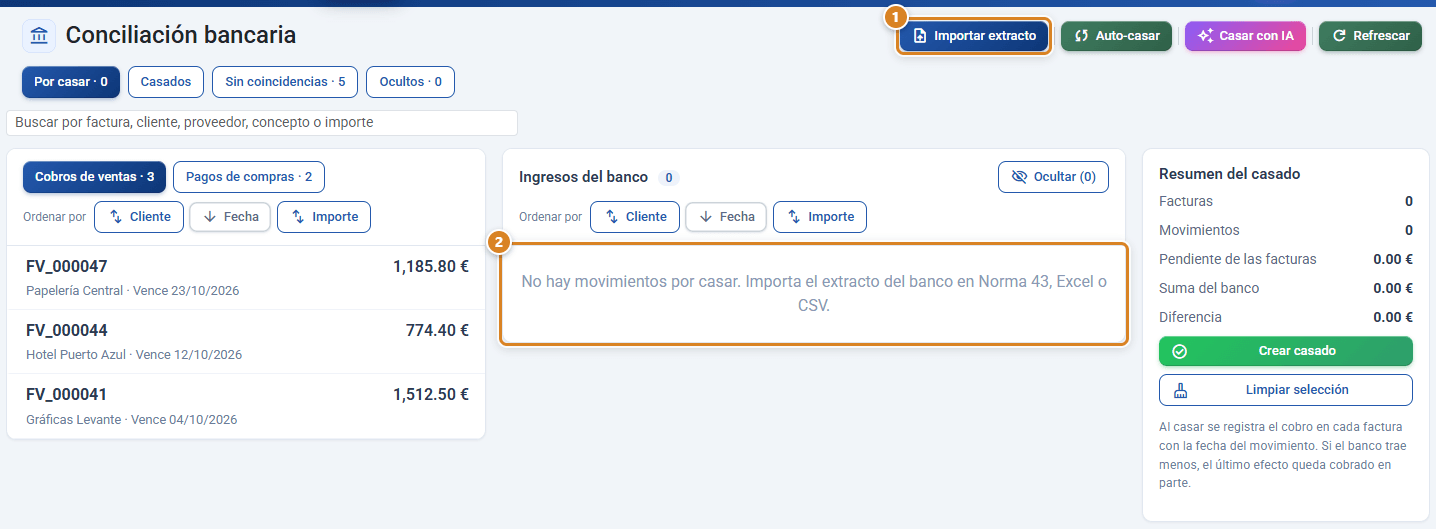
- Go to Sale → Bank reconciliation.
- Click Import statement (①) and choose the file. While there is none, the bank column reads There are no unmatched movements. Import the bank statement in Norma 43, Excel or CSV. (②).
- When it finishes you will see a message with the format and how many new movements, how many already imported and how many lines not recognised there are.
Shortcut: you can upload the statement for a month that overlaps the previous one, or the same month in Excel and in Norma 43: whatever was already there is not repeated.
Step 3 · Let it suggest the pairs
- Click Auto-match. A list of pairs (invoice ↔ transaction) opens and, next to each one, the reason: The bank description mentions the invoice, Same amount and the bank description includes their IBAN or tax ID, Same amount and the bank description mentions their name, Same amount and a similar name or Same amount, only match.
- Check the list. Click a pair to discard it if you are not convinced.
- Click Confirm matches. Each sales invoice is left collected with the bank date; each purchase invoice, paid.
- With whatever is left, try Match with AI: the AI reads the descriptions and recommends more pairs, each with its explanation. You confirm them the same way as in point 3.
Nothing is saved until you click Confirm matches. Auto-match only suggests a pair when there is no doubt; if two invoices fit a transaction equally well, it does not guess.
Step 4 · Match the remaining payments by hand
In the Unmatched tab, with Sales payments (③) selected on the left:
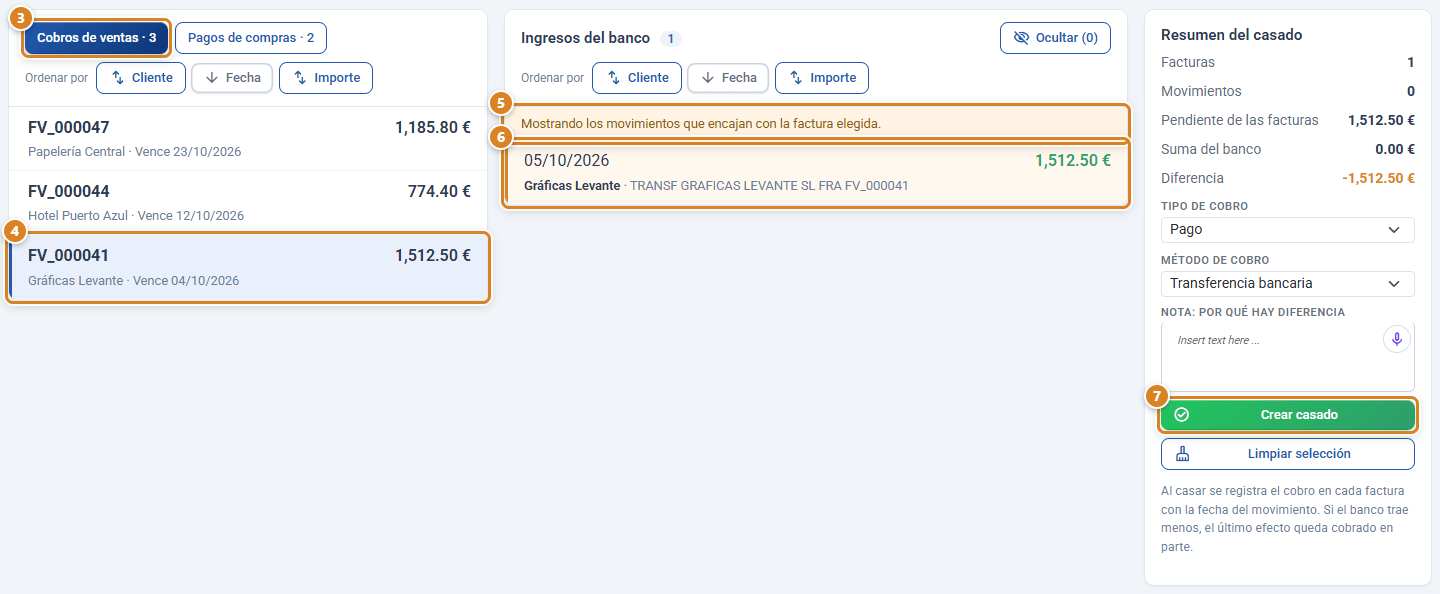
- Click the invoice (or invoices) on the left (④). The centre keeps only the credits that fit, marked in amber (⑥), with the message Showing the movements that match the chosen invoice. (⑤).
- Click the credit (or credits) in the centre.
- Look at the Match summary: what is outstanding on the invoices, the bank total and the Difference.
- Check Payment type and Payment method (by default, "Transferencia", bank transfer).
- If there is a difference (payment on account, bank fee…), write the reason in Note: why there is a difference; it is mandatory.
- Click Create match (⑦).
Shortcut: a transfer that pays several invoices is matched in one go: select all the invoices and the credit. The amount is shared out in due date order.
Step 5 · Match the supplier payments
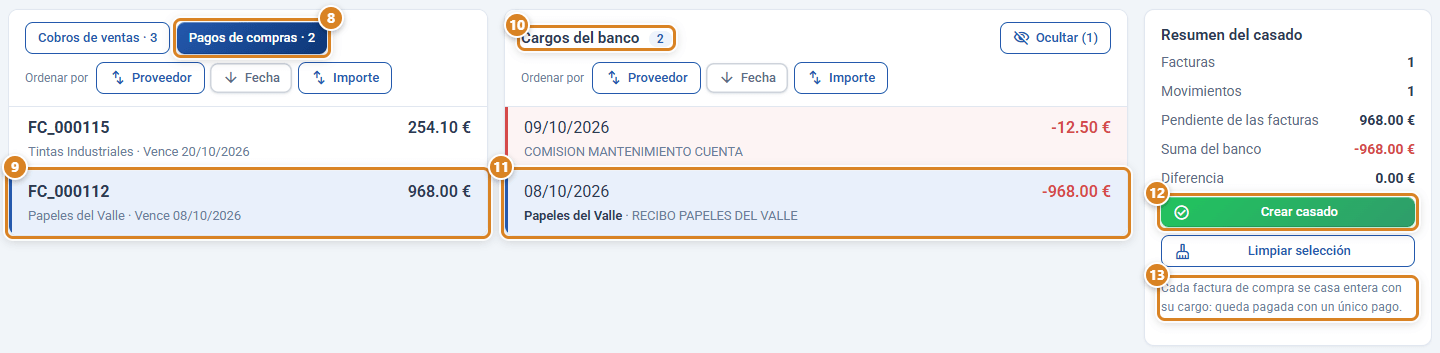
- On the left, switch to Purchase payments (⑧). The recorded purchase invoices that have not been matched yet appear.
- In the centre you will see the Bank charges (⑩), marked in red to tell them apart from credits.
- Select the invoice (⑨) and its debit (or debits) (⑪) and click Create match (⑫). As the text underneath reminds you (⑬), each purchase invoice is matched in full with its debit: it is left paid with a single payment.
Watch out: a purchase invoice is always matched in full (single payment). If you paid it in two debits, select both at once. For it to appear, the invoice has to be recorded in Purchases (not a draft).
Step 6 · A credit whose invoice does not appear
Sometimes a credit arrives for an invoice that is not on the list (for example, because it has no payment instrument):
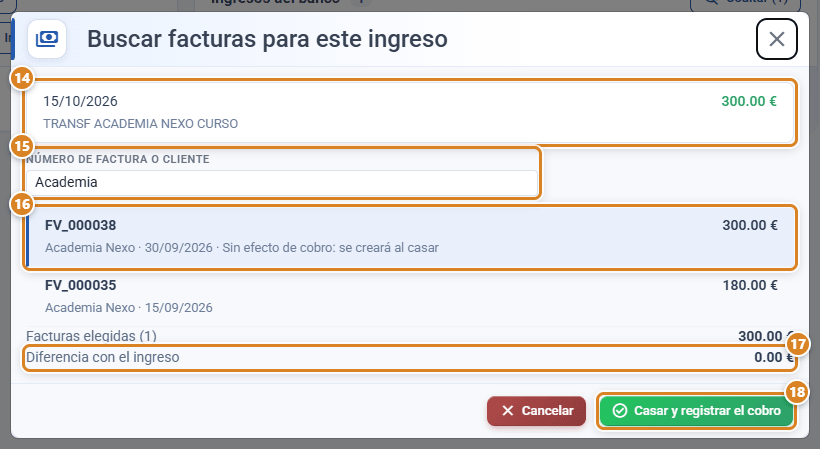
- Click only that credit in the centre.
- In the Match summary, click Find invoices for this deposit.
- Type part of the invoice number or the customer name in Invoice number or customer (⑮). It comes pre-filled with a word from the description. Only invoices with something still to collect appear.
- Select the invoice or invoices (⑯), check the Difference from the deposit (⑰) and click Match and record the payment (⑱). If the invoice had no payment instrument, one is created: the row warns you with No payment instrument: it will be created when matching. If there is a difference, it asks you for the note.
Step 7 · Set aside whatever is not an invoice
Bank fees, transfers between your accounts, payroll or taxes are not matched with invoices:
- Select them in the centre.
- Click Hide. They no longer appear in Unmatched and you find them in the Hidden tab (⑲), from where they come back with Show (㉑).

Step 8 · Review and correct
- In Matched you see everything reconciled, from newest to oldest, with its status (Automatic, Manual or With a difference) and its note.
- If you matched something wrongly, click Undo: the payment recorded on the sales invoice is deleted (or the purchase invoice goes back to pending) and the transactions return to Unmatched.
- In No matches you see the outstanding invoices with no bank transaction that fits: it is the list of what you have still not been paid (or have not paid).
The routine, once you are up and running
| Every… | Do this |
|---|---|
| Week or month | Download the statement for the period and import it (Steps 1 and 2). |
| After importing | Auto-match, then Match with AI, and confirm (Step 3). |
| Afterwards | Match whatever is left by hand and hide whatever is not an invoice (Steps 4 to 7). |
| At month end | Check No matches: those are the payments genuinely still due in and out. |
Vocabulary you will see on screen
| Word | What it means |
|---|---|
| Match / matched | Joining one or more bank transactions with one or more invoices. |
| Unmatched | Transactions and invoices not yet joined. |
| Difference | What the bank moves minus what is outstanding on the selected invoices. |
| Partly collected | A sales invoice for which the bank paid less than was outstanding; the rest stays outstanding. |
| Single payment | Purchase invoices are matched in full. |
| Norma 43 | The standard format Spanish banks use to export transactions. |
If something does not add up
| Symptom | Cause | Solution |
|---|---|---|
| "The file is not in Norma 43 format…" | It is not a Norma 43 file (a PDF, or a .txt file opened and saved with another program). | Download it from the bank again and upload it without opening it. |
| "The Date and Amount columns (or Debit and Credit) cannot be found…" | The Excel or CSV file does not have those headers. | Download in Norma 43, or keep the Fecha, Concepto and Importe columns (or Cargo and Abono). |
| Auto-match suggests nothing | The amounts do not match, or there are several identical invoices and the description does not say which one. | Try Match with AI or match by hand (Step 4). |
| A sales invoice does not appear | It has no payment instrument, or it is very old. | Step 6: Find invoices for this deposit. |
| A purchase invoice does not appear | It is a draft or it is already matched. | Record it in Purchases, or look for it in Matched. |
Which plan you need
Bank reconciliation is included in the Full plan. With the Standard or Pro plans it is bought as a separate module without changing plan. Supplier payments (Step 5) also need Purchasing and Inventory. Match with AI uses your plan's AI quota.
Frequently asked questions
Q: I have just got access, where do I start?
A: Download last month's statement in Norma 43 from your online banking and import it in Sale → Bank reconciliation with Import statement. Then click Auto-match.
Q: Does CotizaPrint connect to my bank?
A: No. You download the file and upload it. We do not store passwords or access your bank.
Q: How often do I have to reconcile?
A: Whenever you like: the usual thing is every week or every month. You can upload statements that overlap; anything repeated is skipped automatically.
Q: Is the payment recorded on the invoice?
A: Yes. When you confirm a match for a sales invoice, the payment is recorded on the invoice with the date of the bank transaction and the method you choose (by default, "Transferencia", bank transfer).
Q: Does the AI match things on its own?
A: No. Match with AI and Auto-match only make recommendations; you confirm each pair.
Q: I have made a mistake when matching.
A: In Matched, click Undo on that match. The recorded payment is deleted and the transaction goes back to Unmatched.
Q: The customer paid me three invoices in one transfer.
A: In Unmatched, select the three invoices and the credit, and click Create match. The amount is shared out in due date order.
Q: The customer paid short.
A: Match it anyway: the Match summary shows the Difference and asks you for a note. The last invoice is left partly collected and the rest stays outstanding.
Q: What do I do with bank fees?
A: Select them and click Hide. They are not matched with invoices.
Q: Can I upload the bank's Excel file instead of the Norma 43 one?
A: Yes. Norma 43, Excel .xlsx and CSV all work. An old .xls file has to be saved as .xlsx first.