
What it is
The screen for tracking the payment due dates on your invoices. Every invoice generates a payment instrument when it is invoiced, with its own due date (worked out from the customer's payment terms and payment day). Here you see at a glance what you still have to collect, what is overdue and what has already been collected.
It is in the Sales menu → Payment instruments (/efectosCobro).
What it is for
- Knowing how much you are owed and when each payment falls due.
- Spotting overdue items straight away (not collected and with a date in the past).
- Planning your cash flow: seeing what comes in today, this week, this month and in the months ahead.
- Opening the payment screen for an invoice with one click, without having to hunt for it in the invoice list.
How to use it
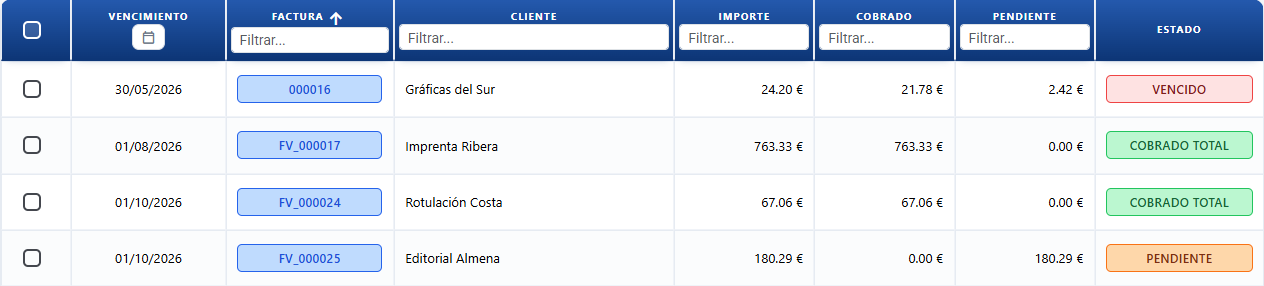
Payment instruments: one due date per row, with the amount Collected and what is left Outstanding. This is the screen you use to keep on top of what is still to be collected.
- Go to
/efectosCobro. - Look at the Payments / Due dates block at the top: each KPI card groups the instruments by how close their due date is. Click one to filter the list by that bucket only.
- Use the Outstanding / Collected / All toggle to narrow down which instruments you see.
- Fine-tune it with the status dropdown if you want one specific status (Outstanding (includes overdue), Overdue, Partly collected, Fully collected).
- Click a row → opens the payment modal for that invoice so you can record the payment.
- Click the button in the Invoice column → opens the corresponding invoice.
The "Payments / Due dates" block (clickable KPIs)
The cards at the top split the instruments up by when they fall due. Underneath each one you see the count (e.g. "5 instruments"). They are clickable: press one and the list is filtered by that bucket.
| KPI card | What it groups |
|---|---|
| Overdue | Due dates already in the past (date < today) that are still not fully collected. |
| Due today | Falling due today (date = today). |
| This week | Falling due before Sunday of this week. |
| This month | Falling due before the end of the current month. |
| Next month | Falling due before the end of next month. |
| Future | Falling due beyond next month. |
Outstanding / Collected / All toggle
| Option | What it shows |
|---|---|
| Outstanding | Everything that is not fully collected (outstanding + partial + overdue). |
| Collected | Only the instruments collected in full. |
| All | No filter on collection status. |
Status dropdown
| Option | What it includes |
|---|---|
| All statuses | No filter. Shows every instrument (the default option). |
| Outstanding (includes overdue) | Not fully collected. Includes overdue ones. |
| Overdue | Outstanding with a due date already in the past. |
| Partly collected | Collected in part (collected > 0 but less than the amount). |
| Fully collected | Collected in full (collected ≥ amount). |
Columns in the list
| Column | What it shows |
|---|---|
| Due date | The date the payment falls due (dd/MM/yyyy). |
| Invoice | Document / invoice number. Clickable: opens the sale. |
| Customer | The customer's trading name. |
| Amount | Total of the instrument (from the invoice). |
| Collected | How much has been collected so far (sum of the payments). |
| Outstanding | What is left to collect (amount − collected). |
| Status | Colour label with a single status by priority (Outstanding / Partly collected / Fully collected / Overdue). |
Status model
Each instrument shows one status only, chosen by priority: Collected > Overdue > Partial > Outstanding.
- Overdue = outstanding and past its date: it is not fully collected and its due date has already gone by.
- Outstanding covers everything that is not fully collected: outstanding + partial + overdue.
- An instrument only stops being "outstanding" once it is collected in full.
That is why an overdue instrument also appears under "Outstanding (includes overdue)" in the dropdown: overdue is a case of outstanding (the one that has also gone past its date).
Status colour
| Status | Colour | When |
|---|---|---|
| Outstanding | Grey | Not collected, due date still to come. |
| Overdue | Red | Not collected (or partial) and the due date has passed. |
| Partly collected | Orange | Collected in part, a balance is left. |
| Fully collected | Green | Collected in full. |
Buttons and actions — what each one is for
The exact wording as it appears on screen. The three collection buttons form a toggle: only one is active at a time.
| Button / Control (text on screen) | What it is for |
|---|---|
| Overdue (KPI card) | Filters the list by the instruments past their date (date < today) still to be collected. Press it and the table narrows down to that bucket. |
| Due today (KPI card) | Filters the list by the instruments falling due today. |
| This week (KPI card) | Filters by the instruments falling due before Sunday of this week. |
| This month (KPI card) | Filters by the instruments falling due before the end of the current month. |
| Next month (KPI card) | Filters by the instruments falling due before the end of next month. |
| Future (KPI card) | Filters by the instruments falling due beyond next month. |
| Outstanding (toggle) | Active: shows only the instruments that are not fully collected (Outstanding + Partial + Overdue). |
| Collected (toggle) | Active: shows only the instruments collected in full. |
| All (toggle) | Active: shows every instrument, with no filter on collection status. |
| All statuses (dropdown) | The dropdown's default option: no status filter. |
| Outstanding (includes overdue) (dropdown) | Filters the instruments that are not fully collected, including the overdue ones. |
| Overdue (dropdown) | Filters only the overdue instruments (date in the past and not fully collected). |
| Partly collected (dropdown) | Filters the instruments with a part payment (collected between 0 and the amount). |
| Fully collected (dropdown) | Filters the instruments collected in full. |
| Invoice (column, clickable) | Click the invoice number on a row to open that sale. |
| Manage payments (actions menu) | Option in the actions menu (payments icon), visible when there is 1 instrument selected. Opens the payment modal so you can record the payment for that invoice. |
| SEPA / Bank (actions menu) | Option in the actions menu (account_balance icon), visible when there are 1 or more instruments selected and none of them is collected in full. Opens the Generate SEPA file modal to create the bank batch file (for now Cuaderno 19, direct debits) with the selected instruments. If the selection includes an instrument with the status Fully collected, the button does not appear: a receipt that has already been collected cannot go into another batch. Take the collected ones out of the selection to see it again. |
| Bank account (selector in the SEPA modal) | Dropdown with your organisation's active bank accounts. When you choose one, its IBAN, BIC and SEPA Creditor Identifier are copied into the creditor fields. It is a shortcut: once you have chosen, you can still edit those fields by hand. Each option shows the alias and the full IBAN (e.g. "Main account · ES12 3456 7890 1234 5678 9012"). It only appears if there are accounts in the catalogue. |
| Cuaderno 19 (card in the SEPA modal) | The active SEPA file type: direct debit. It can be downloaded in two formats (see the two buttons below) to upload to your bank and charge the receipts to your customers. |
| Cuaderno 34 / Cuaderno 58 (cards in the SEPA modal) | Other SEPA types planned (transfers and confirming). They are marked Coming soon; they do not generate a file yet. |
| Cuaderno 19 (.q19) (button in the SEPA modal) | Downloads the batch in the classic Cuaderno 19 format: a text file (extension .q19) with the Norma 19 AEB structure that many Spanish banks and older invoicing programmes expect. This is the format to use if your bank does not accept XML. It is disabled if there are rows with errors (invalid IBAN, incomplete mandate, amount 0) or if creditor details are missing. |
| SEPA XML (.xml) (button in the SEPA modal) | Downloads the same batch in SEPA XML format (Cuaderno 19.14, pain.008.001.02), the modern SEPA standard. Use it if your bank accepts SEPA direct debits uploaded as XML. It is disabled under the same conditions as the .q19 button. |
| Cancel (SEPA modal) | Closes the modal without generating anything. |
| Default account (selector in Settings → Finance) | Dropdown at the top of the Finance modal with the accounts in the catalogue. You choose which one is the organisation's default account. When you change it, that account becomes the default and the rest stop being so automatically. It is the only place where the default is decided (it is not ticked inside each account). |
| Bank accounts (Settings → Finance) | Catalogue of your organisation's bank accounts. Each row shows the alias, the bank, the IBAN, the account holder and the BIC. |
| Add bank account (Settings → Finance) | Button in the account catalogue. Opens a modal to set up a new account with alias, bank, account holder, IBAN, BIC and SEPA Creditor Identifier. Which one is the default is decided in the Default account selector, not inside this modal. |
| Edit bank account (Settings → Finance) | Click a row in the catalogue to open the modal and change that account's details (alias, bank, account holder, IBAN, BIC, SEPA Creditor Identifier). |
| Delete account (delete icon on the row) | Removes the bank account from the catalogue. |
| Amount in red with a warning icon (row in the list) | A sign of a mismatch: the amount of the instrument does not add up against the lines of its invoice (or the invoice was reopened / ended up with no lines). It marks the "orphan" or out-of-balance instruments (the ones that show an amount in the list but come up as 0 when you open them). It is telling you that this instrument needs looking at. |
| Inconsistent payment instrument (warning when you press Manage payments) | Warning that appears when you press Manage payments on an instrument marked in red (inconsistent / orphan). Instead of opening an empty payment detail, it explains that the instrument no longer corresponds to a valid invoice (its invoice was returned/reopened/deleted or ended up with no lines), or that the amount does not add up (it shows the instrument amount against the invoice amount). It offers to delete the instrument (Yes/No); the decision is yours, nothing is deleted automatically. The payments already recorded are kept. |
| Delete the payment instrument as well (warning when reopening an invoice) | When you reopen an invoice that has a payment instrument, CotizaPrint asks whether to delete that instrument too. If the instrument already has payments recorded, the warning tells you how much has been collected; the payments recorded are kept even if you delete the instrument. |
| Reissue the instrument / Keep the previous instrument (warning when re-invoicing) | When you re-invoice a reopened invoice that already had an instrument, CotizaPrint asks whether to reissue the instrument with the current amount (recalculating it) or to keep the previous instrument as it is. |
Generate a SEPA file (Bank)
From this screen you can generate the bank batch file to collect several instruments through the bank in one go, without keying them into your bank's website one by one.
How to use it
- Select one or more instruments in the table (the checkbox on each row).
- In the actions menu press SEPA / Bank (account_balance icon).
- The Generate SEPA file modal opens. At the top you choose the SEPA type: for now only Cuaderno 19 (direct debit) is active; Cuaderno 34 and Cuaderno 58 appear as Coming soon.
- Check the creditor details (your company): name, IBAN, BIC (optional), SEPA Creditor Identifier, collection date and batch reference. The name comes from your company settings; the IBAN, BIC and SEPA Creditor Identifier come from the bank account chosen in the Bank account selector (the default one to begin with). You can change any field before generating.
- Check the table of debits: one row per instrument, with the debtor, their IBAN, BIC, mandate reference, signature date, sequence type, description and amount. Every field is editable.
- Rows with incomplete or incorrect details are marked in red (invalid IBAN, mandate with no reference or no date, amount 0). Correct them.
- Press the button for the format your bank accepts: Cuaderno 19 (.q19) (the classic Norma 19 text file) or SEPA XML (.xml) (pain.008 XML). The file is downloaded; upload it to your online banking to charge the receipts. If in doubt,
.q19is the format used by most Spanish banks and by traditional invoicing programmes.
Where the data comes from
- Debtor (each customer): IBAN (
bank account), BIC, mandate reference, mandate signature date and mandate type come from the customer record. If a customer does not have them filled in, their row will be marked in red: complete them in the customer record (or by hand in the modal before generating). If the customer has no mandate signature date, the row is filled with today's date by default; change it if the real signature was on another date. - Creditor (your company): the name and the VAT number come from your company details. The IBAN, the BIC and the SEPA Creditor Identifier come from the bank account chosen in the modal's Bank account selector (the catalogue in Settings → Finance); by default the account marked as the default one is pre-selected (if it has a valid IBAN; if not, the first account with a valid IBAN). You can switch account with the selector or edit any field by hand. If you do not yet have accounts in the catalogue, those fields come up empty and you fill them in by hand before generating.
Finance settings
Your company's bank accounts are managed in Settings → Finance (account_balance icon, next to Currency and Unit). The Finance modal has two parts:
- Default account (selector at the top): a dropdown with the accounts in the catalogue. You choose which one is the organisation's default; when you change it, the rest stop being the default automatically. It is the only place where the default account is decided.
- Bank accounts (catalogue): the list of the organisation's accounts (several, not just one).
It can also be opened from the Settings link inside the Generate SEPA file modal. On closing, the SEPA modal refreshes the creditor details.
The "Settings" button has been taken out of the header of the Payment instruments list. There is no longer any route to Finance from the /efectosCobro screen. Finance settings (bank accounts, default account, SEPA details) are handled from Settings → Finance, from the Manage bank accounts button in the Payment terms modal, or from the Settings link in the assistant that generates the SEPA file itself.
Bank accounts (catalogue)
The Bank accounts catalogue lists the organisation's accounts:
- Each row in the catalogue shows the alias, the bank, the IBAN, the account holder and the BIC.
- Add bank account: sets up a new account (alias, bank, account holder, IBAN, BIC and SEPA Creditor Identifier). The SEPA Creditor Identifier is stored per account, it is not a company-wide detail.
- Click a row to edit that account; use the delete icon to remove it.
- The default account is not ticked inside each account: it is chosen with the Default account selector at the top.
Key concepts
- Payment instrument: the financial record that represents the company's right to be paid by a customer, tied to an invoice. It has an amount and a due date, and it can be fully collected, partly collected or outstanding.
- Due date: the deadline by which payment of the instrument is expected. Instruments are split into buckets according to their due date relative to today (overdue, today, this week, this month, next month, future).
- Overdue: an instrument whose due date is earlier than today. It means the payment is running late.
- Instrument status: classification by how far collection has got: Outstanding (nothing has been paid), Partly collected (part has been paid), Fully collected (the whole amount has been paid), Overdue (outstanding and past its date).
- Amount: the total sum of money to be collected from the customer for the instrument.
- Collected: the part of the instrument already received (the sum of all the payments applied).
- Outstanding: the part of the instrument still to be received (amount − collected).
- KPI (card in the "Payments / Due dates" block): an indicator with the total amount and the number of instruments in a due date bucket. It is clickable, to filter.
- Bucket: a time grouping of instruments according to their due date (overdue, today, this week, this month, next month, future). Each bucket is clickable, to filter the list.
- SEPA: the European payments standard. Here it is used to generate the bank batch file that collects several instruments through the bank in one go.
- Cuaderno 19: the direct debit standard for charging receipts to customers who have signed a mandate. It is generated in two formats: classic Cuaderno 19 (a
.q19text file, fixed-width Norma 19 AEB, the traditional one accepted by most banks) or SEPA XML (pain.008.001.02, the modern SEPA standard, also called Cuaderno 19.14). The content (creditor, debtors, amounts) is the same; only the file format changes. Choose the one your bank accepts. - Batch: the set of debits (collections) sent to the bank together in a single file.
- Mandate: the authorisation signed by the customer that lets you charge receipts by direct debit. In Cuaderno 19 every debtor needs a mandate reference and a signature date (fields in the customer record).
- SEPA Creditor Identifier: your company's unique identifier as an issuer of receipts (format ES + check digits + ZZZ + VAT number). It is stored per bank account in the catalogue in Settings → Finance and can be edited in the SEPA modal before generating.
- Default account: the account from the catalogue that the SEPA modal pre-selects as the creditor. It is chosen with the Default account selector in Settings → Finance (it is not ticked inside each account).
- IBAN / BIC: the international account number and the bank code. The debtor's IBAN comes from the customer record; the creditor's, from the bank account chosen in the SEPA modal's selector.
- Mismatch / out-of-balance instrument: the situation where the amount of the instrument does not match the lines of its invoice, usually because the invoice was reopened or ended up with no lines. The list marks it with the amount in red and a warning icon. It is typical of the orphan instrument: it shows an amount in the list but comes up as 0 when you open it.
Permissions
- Requires
access_pay.
Frequently asked questions
Q: How do I record a payment from this screen?
A: There are two routes. Click the row of the instrument, or select the instrument and press Manage payments in the actions menu. The payment modal for that invoice opens: at the top the summary of the instrument (status, amount, collected, outstanding and due date) and below it the lines where you note the payment.
Q: What is Manage payments for?
A: It is the option in the actions menu (payments icon) that appears when you have 1 instrument selected. It opens the payment modal so you can record or adjust the payment for that invoice. If you cannot see it, check that you have selected only one instrument.
Q: Where does a payment instrument come from?
A: It is created automatically when you invoice. Every invoice generates its instrument with the due date worked out from the customer's payment terms and payment day.
Q: What are the Overdue, Due today, This week... cards for?
A: They are the KPIs in the Payments / Due dates block. Each card groups the instruments by how close their due date is and shows how many there are ("X instruments"). Press one to filter the list by that bucket only; press it again or change another filter to remove it.
Q: What is the difference between the Outstanding / Collected / All toggle and the status dropdown?
A: The toggle narrows things down into broad blocks: Outstanding (everything not collected in full), Collected (collected in full) or All. The dropdown fine-tunes by a specific status: Outstanding (includes overdue), Overdue, Partly collected or Fully collected. You can combine them.
Q: Why does an overdue instrument also appear under Outstanding (includes overdue)?
A: Overdue is an outstanding instrument that has also gone past its date. The Outstanding (includes overdue) option takes them all in; Overdue isolates them.
Q: I pressed a KPI card and the list was filtered. How do I remove it?
A: Press the same card again or change the status dropdown / the toggle. The list adjusts itself.
Q: How do I open the invoice from this screen?
A: Press the invoice number in the Invoice column. It opens the sale directly, without having to look for it in the list.
Q: What does each of the amount columns mean?
A: Amount is the total of the instrument, Collected is what you have already received (the sum of the payments) and Outstanding is what is left (amount − collected).
Q: Nothing comes up under Collected.
A: Collected only lists instruments collected in full. If you have part payments, you will see them under Outstanding / All with the status Partly collected.
Q: How do I generate a file for the bank / a Cuaderno 19?
A: Select the instruments you want to collect, press SEPA / Bank in the actions menu and the Generate SEPA file modal opens. Check the details (all editable), correct any rows in red and press the button for the format your bank accepts: Cuaderno 19 (.q19) (the classic text file) or SEPA XML (.xml). The file is downloaded for you to upload to your online banking.
Q: Why does it download a .q19 file and not an .xml one (or the other way round)? Which do I use?
A: They are two formats of the same Cuaderno 19: the Cuaderno 19 (.q19) button generates the classic text file (Norma 19 AEB) that most Spanish banks and traditional invoicing programmes expect; the SEPA XML (.xml) button generates the modern SEPA XML (pain.008.001.02). The content is identical; the format changes. Use the one your bank accepts for upload — if the .xml is rejected, try the .q19, and vice versa.
Q: What is SEPA / Bank for?
A: It is the option in the actions menu (account_balance icon) that appears when you have one or more instruments selected (and none of them collected in full). It creates the bank batch file (for now Cuaderno 19, direct debit) to collect those instruments through the bank in one go.
Q: The SEPA / Bank button does not appear even though I have instruments selected.
A: One of the selected instruments has the status Fully collected. A receipt that has already been collected cannot go into another batch: the option is hidden to stop it being charged twice. Deselect the collected instruments (or filter by Outstanding) and the button comes back.
Q: Can I put a receipt I have already collected into a batch?
A: No. Instruments with the status Fully collected are left out of the SEPA batch: the SEPA / Bank option is hidden if you select them. Only outstanding, partial or overdue instruments go into the batch.
Q: A row in the SEPA modal comes up in red, why?
A: A mandatory detail is missing or wrong: invalid IBAN, mandate with no reference or no signature date, or amount 0. Correct it in the modal, or better still in the customer record (IBAN, BIC and mandate details), so that it comes out right next time. The Generate button is enabled once there are no rows left in red.
Q: Where do the customer's IBAN and mandate come from?
A: From the customer record: bank account (IBAN), BIC, mandate reference and signature date. If they are empty, the row in the modal will come up in red.
Q: What is the SEPA Creditor Identifier and where does it come from?
A: It is your company's identifier as an issuer of receipts. It is stored per bank account in the catalogue in Settings → Finance, so it comes from the account chosen in the SEPA modal's selector. If your bank gave you a different one, edit it in the modal before generating.
Q: Can I change the amounts or descriptions before generating the batch?
A: Yes. The whole modal is editable: amount, description, collection date, IBAN, mandate and creditor details. What you change only affects the file generated, not the instruments or the customer record.
Q: Which account is the batch charged from? Can I choose another one?
A: In the SEPA modal, the Bank account selector lists your organisation's active accounts. By default the default one is used (the one you tick in the Default account selector in Settings → Finance), as long as it has a valid IBAN; if not, the first account with a valid IBAN. Change account in the selector and the IBAN, BIC and SEPA Creditor Identifier of that account are filled in. You can still edit those fields by hand. If you have no accounts in the catalogue, the selector does not appear and you fill in the creditor details by hand.
Q: There used to be a "Settings" button in Payment instruments and I can no longer see it. Where do I set up the bank accounts / the SEPA details?
A: That button has been taken out of the header of the Payment instruments list. Finance settings (bank accounts, default account, SEPA Creditor Identifier) are now handled in Settings → Finance. You can also reach the same place from the Manage bank accounts button in the Payment terms modal or from the Settings link in the assistant that generates the SEPA file.
Q: How do I decide which account is the default?
A: In Settings → Finance, with the Default account selector at the top: choose an account from the catalogue and it becomes the default (the rest stop being so). It is not ticked inside each account. That is the one the SEPA modal will pre-select as the creditor.
Q: The SEPA modal set the mandate signature date to today, why?
A: When the customer has no mandate signature date in their record, the modal fills it with today's date by default so that the row does not come up incomplete. If the real signature was on another date, edit it in the modal (or better, complete it in the customer record).
Q: Is there a Cuaderno 34 or 58?
A: They appear in the modal as Coming soon. For now only Cuaderno 19 generates a file.
Q: Why does an instrument come up with the amount in red and a warning icon in the list?
A: It is a mismatch warning: the amount of that instrument does not add up against the lines of its invoice, usually because the invoice was reopened or ended up with no lines. It is normally an orphan or out-of-balance instrument: it shows an amount in the list but comes up as 0 when you open it. Check the invoice it belongs to: invoice it again to reissue the instrument with the right amount, or delete the instrument if it no longer applies.
Q: An instrument shows an amount in the list but comes up as 0 when I open it, what is going on?
A: It is an out-of-balance (orphan) instrument. The amount in the list no longer matches the lines of the invoice (it was reopened or ended up with no lines). That is why the row marks it with the amount in red and a warning icon. Now, when you press Manage payments on it, instead of an empty payment detail you get the Inconsistent payment instrument warning, which offers to delete it. Invoice the invoice again to recalculate the instrument, or delete it if it no longer applies.
Q: I pressed Manage payments on an instrument in red and the Inconsistent payment instrument warning came up. What does it mean?
A: That instrument no longer corresponds to a valid invoice: its invoice was returned, reopened or deleted, it ended up with no active lines, or the amount of the instrument does not match the sum of the lines of its invoice (the warning shows the instrument amount against the invoice amount). That is why, instead of opening an empty payment detail, CotizaPrint warns you and offers to delete the instrument. The decision is yours (Yes/No): nothing is deleted automatically.
Q: If I delete the instrument from the Inconsistent payment instrument warning, do I lose the payments already recorded?
A: No. The payments already recorded are kept even if you delete the inconsistent instrument. Only the out-of-balance instrument is removed.
Q: I reopened an invoice that had a payment instrument and it asked me whether to delete the instrument. What should I do?
A: When you reopen an invoice with an instrument, CotizaPrint asks whether to delete that payment instrument as well. If the instrument already had payments recorded, the warning tells you how much has been collected. You can delete the instrument with confidence: the payments recorded are kept even if you delete the instrument.
Q: If I delete the instrument when reopening the invoice, do I lose the payments I had already recorded?
A: No. The payments recorded are kept even if the instrument is deleted. The reopening warning shows you how much has been collected before you decide.
Q: When I re-invoice a reopened invoice that already had an instrument, what does it ask me?
A: CotizaPrint asks whether to reissue the instrument with the current amount (recalculating it from the lines as they are now) or to keep the previous instrument as it is. Choose to reissue if the amount changed when you reopened it; keep the previous one if you want it left as it was.