
Build your own website with your own design: your logo, who you are, your contact details and your catalogue of products and services with their prices (in CotizaBeauty, your menu of services, packages and products), at your own address with its QR code, and download it as a PDF. It is not an online shop: your customers ask you for a quote or book with you by WhatsApp, phone or email. You do not need to be a designer: the design is done with AI.
Part of this window still appears in Spanish in the English version of the app. Those labels are quoted here exactly as you see them, in Spanish, with their meaning in brackets.
What it is
A module in Settings → Modules and integrations that builds your website and your public catalogues from what you already have in CotizaPrint: your categories, your products with a calculator, your services and your items, with their prices. Each catalogue has its own content, design and address (direct.cotizaprint.com/catalogo/<tu-empresa>), its QR code, its PDF and a button so your customer can order from you or book with you. You can have as many catalogues as you like.
What it is for
- Having your own simple website without setting up an online shop: your logo, who you are (the Description text, which the AI design can turn into an "About us" section), your contact details and your catalogue with prices, at an address Google can find.
- Showing your price list with prices by quantity without sending quotes one by one.
- Putting the QR code on the counter, on your business cards or on your social media so customers can order from their phone.
- Receiving orders and bookings by WhatsApp, phone, email or on your website.
- Having the price list as a PDF to print or send.
- Splitting catalogues by audience (shops, businesses, a campaign), each with its own address.
How to use it
- Click your name (top right) → Settings → Modules and integrations → Website and catalog. If your company does not have the module, the tile is in Settings → Available to add → "Website and catalog" and opens its page so you can subscribe to it.
- In Your company's address, check the one we suggest (it comes from your trading name) and click Save address.
- Click New catalog. In the Contents tab, tick the categories, products, services and items to include and, on each product with a calculator, the quantities that are shown (you can add others with Other quantity and Add).
- In Groups and order, next to the list, drag the products to sort them or move them to another group. If you change nothing, they are grouped by your categories.
- In AI design, choose a Style or ask an AI for the design and paste its response.
- In Publicar (Publish), enter the Name and the Title, choose your customers' button in How they contact you (WhatsApp, Call, E-mail, Website or Sin botón (no button)), click Generate to calculate the prices, switch the toggle to Published and click Save.
- Share the address with Copy link or Download QR, and use Download PDF (at the bottom of the Publicar tab) to print it.
Screen layout
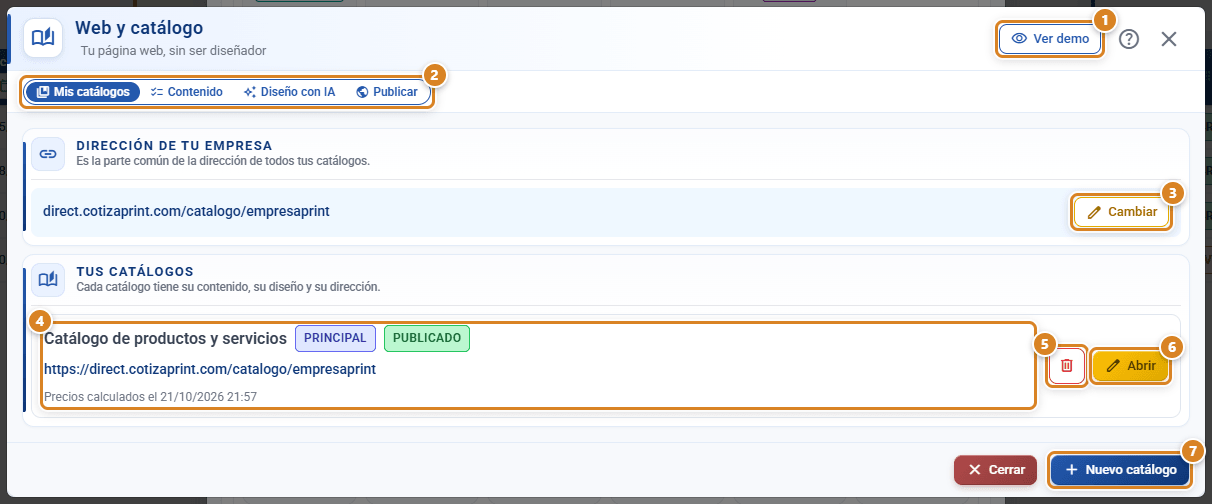
The Website and catalog window carries the tagline Your website, without being a designer and, at the top, View demo, which opens your sector's sample catalogue in another tab. Below it, always, the My catalogs, Contents, AI design and Publicar (Publish) tabs. From the list, Contents, AI design or Publicar open your main catalogue (or a new one if you do not have any yet); My catalogs goes back to the list. It has two views:
- List of your catalogues — opens when you go in.
- Your company's address (It is the common part of the address of all your catalogs.): the saved address with Change or, while you edit it, the Your company's address field with Cancel and Save address.
- Your catalogs (Each catalog has its own content, design and address.): one row per catalogue with its name, the Main and Published or Unpublished labels, its address (or No address), Prices calculated on … or No prices calculated, the bin to delete it and Open.
- Footer: Close and New catalog.
- Catalogue editor — opens with New catalog or Open. Contents, AI design and Publicar tabs; footer Delete (if it is already saved), Download PDF and Export HTML (only in Publicar), My catalogs (back to the list) and Save. If you leave with unsaved changes, it asks ¿Salir sin guardar? (leave without saving?) (Los cambios de este catálogo que no has guardado se perderán.: the unsaved changes to this catalogue will be lost).
Contents
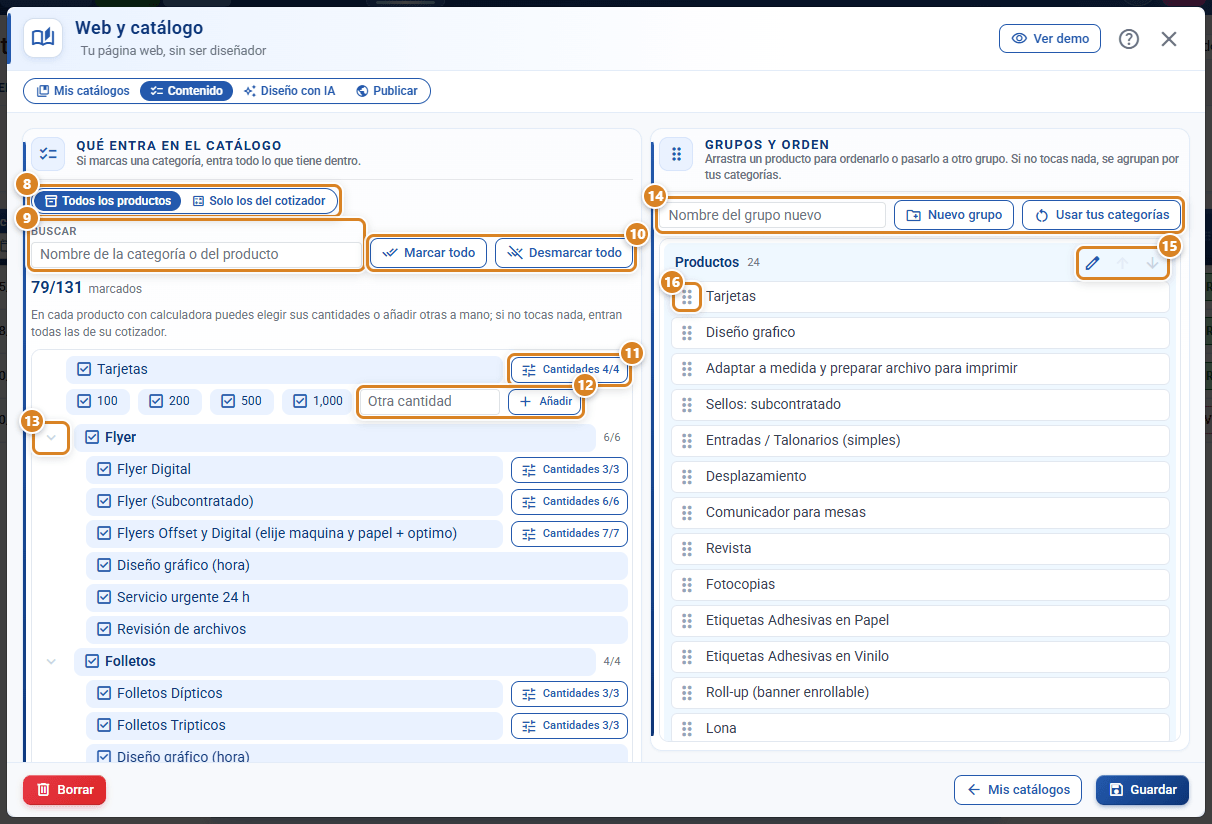
What goes into the catalog (If you check a category, everything inside it is included.). It is the tree of your categories with what they contain:
- In a print shop, the Quote sections (the ones you build with Configure catalog, see Catalogue categories) with their products, services and items and, as in Quote, the Services and items branch with your service and item categories and the ones that are For sale (those you already placed in a product section only appear there).
- In CotizaBeauty, the Services and products categories with the services, products and packages that are For sale (see Services and items).
In a print shop, if you have active products that are not in any Quote section, they appear at the end in the Fuera del cotizador (outside the quoting engine) category, and at the top you choose what to see: Todos los productos (all products) or Solo los del cotizador (only those in the quoting engine). Below, Search (Category or product name), Check all, Uncheck all and the n/m selected count. Each category opens and closes with its arrow (Desplegar / Plegar: expand / collapse) and shows how many of its items are ticked.
On each product with a calculator, even if it has a single quantity, the Quantities n/m button opens its list of quantities: by default they are all included; untick the ones you do not want to show. To show another one, type it in Other quantity and click Add (or Enter): it goes in ticked and its price is calculated with Generate / Actualizar precios (update prices); if you untick it, it is removed. A product allows up to 50 quantities. A product with the No price label cannot be ticked: it has no visible and open quoting engine, so its price cannot be calculated (see If something does not add up).
Groups and order (Drag a product to reorder it or move it to another group. If you don't change anything, products are grouped by your categories.), next to the list (below it on mobile), shows what is ticked as it appears on the page, by group:
- Drag a product by its handle to move it or drop it into another group; the crossed-arrows icon marks the ones you have moved out of their category (Moved from its category). If the target place or group is not visible, bring the product close to the top or bottom edge of the box and the list scrolls by itself.
- New group: type the name in New group name and click New group; it starts empty (Drop the products for this group here.) until you drag something into it. If it already exists: There is already a group with that name: drag the products into it.
- On each group: the pencil (Rename, with Apply and Cancel) and the Move the group up / Move group down arrows. If you give it the name of another group, they are merged.
- Use your categories (only if you have changed something) groups everything by your categories again, in their order.
Changes are kept with Save.
Watch out: what you tick are today's products. A product you add to a category later does not go in by itself: tick it and click Save.
Contact button
In the Publicar (Publish) tab, Contact button (Each product has a button so your customer can order it from you.). In How they contact you you choose one for the whole catalogue:
| Option | Field | What the button does |
|---|---|---|
| Número de WhatsApp (WhatsApp number), with the country code. Empty = the mobile number in your company details. | Opens WhatsApp with the message already written: Hola, quiero presupuesto de: <producto> (hello, I would like a quote for: <product>) (in CotizaBeauty, on a service: Hola, quiero reservar: <servicio> (<duración>), hello, I would like to book: <service> (<duration>)). | |
| Call | Telephone. Empty = the telephone in your company details. | Calls that number from the mobile. |
| E-mail. Empty = the email address in your company details. | Opens an email with the product name in the subject. | |
| Website | Dirección web (web address), which must start with https://. If you write {id}, it is replaced by each product's code. | Opens that page of your website. |
| Sin botón (no button) | — | The catalog is shown without a button: your customers only check the prices. |
The button text depends on the sector: in a print shop, Pedir presupuesto (request a quote) on products with a calculator and Pedir (order) on fixed-price items; in CotizaBeauty, Reservar (book) on services and Pedir on everything else. A new catalogue starts with WhatsApp if your company has a mobile number, with E-mail if it only has an email address, and otherwise with Sin botón.
Publish
On the left, what the catalogue says:
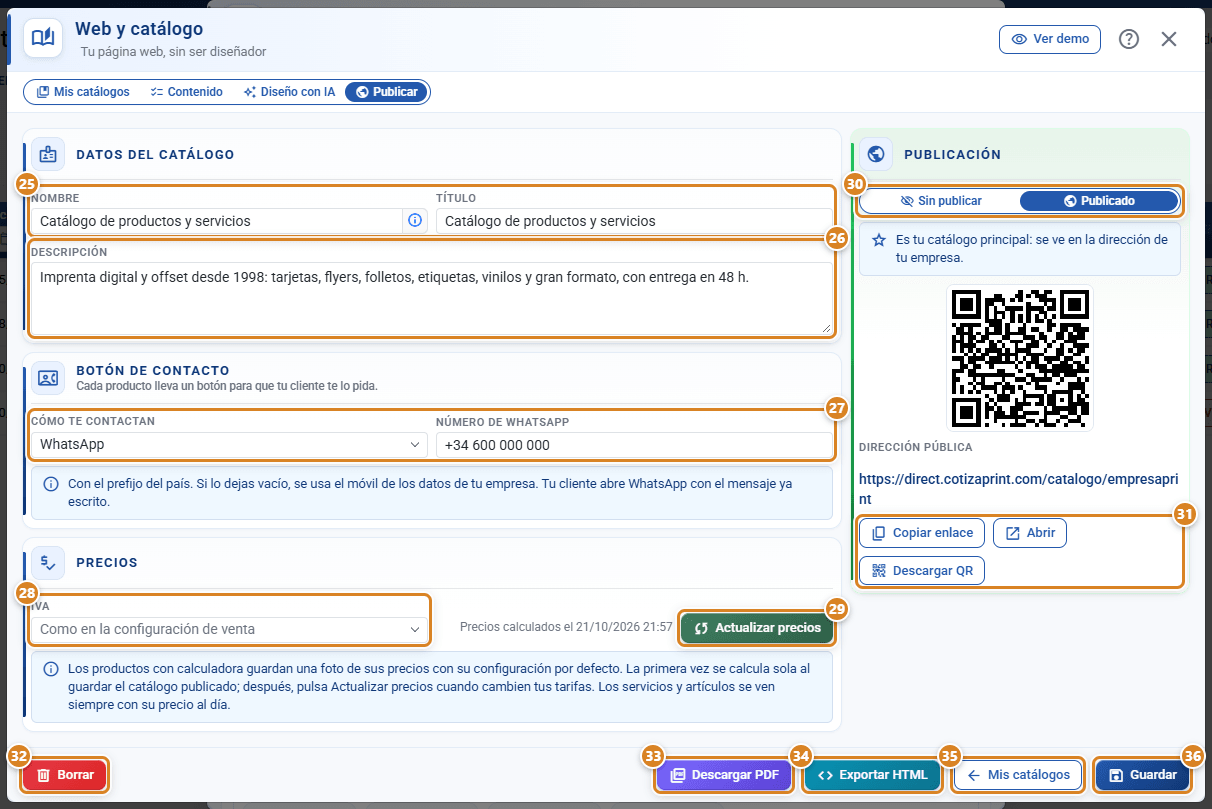
- Catalog details: Name (Only you can see it, in your list of catalogs.), Title (If you leave it empty, the name is used), on catalogues that are not the main one Catalog address with the Make it the main one box, and Description (Who you are and what you do: your introduction or your «About us».), which appears below the title or, if you ask the AI design for it, in an "About us" section.
- Contact button: How they contact you and its field (see Contact button).
- Prices: VAT offers Como en la configuración de venta (as in the sales settings), VAT included or Excluding VAT; next to it, Prices calculated on … and Generate / Actualizar precios (see Catalogue prices).
On the right, the Publishing card (below the header on mobile), which turns green when the catalogue is published:
- The Unpublished / Published toggle, which decides whether it can be seen.
- On the main catalogue: This is your main catalog: it is shown at your company's address.
- The QR code and the Public address (Save the catalog to get its address. while it is not saved). While it is unpublished it warns: Until you publish it, that address shows "Catalog not available".
- Copy link, Open and Download QR.
In the footer, Download PDF (Includes your logo and the QR code, in a fixed format for printing.) and Export HTML (Includes your design, so you can modify it later.) (see PDF, HTML and printing).
AI design
You do not need to be a designer: you choose a starting style, or ask an AI for the design and paste its response. The Preview on the right changes instantly and can be seen on Ordenador (computer) or Mobile.
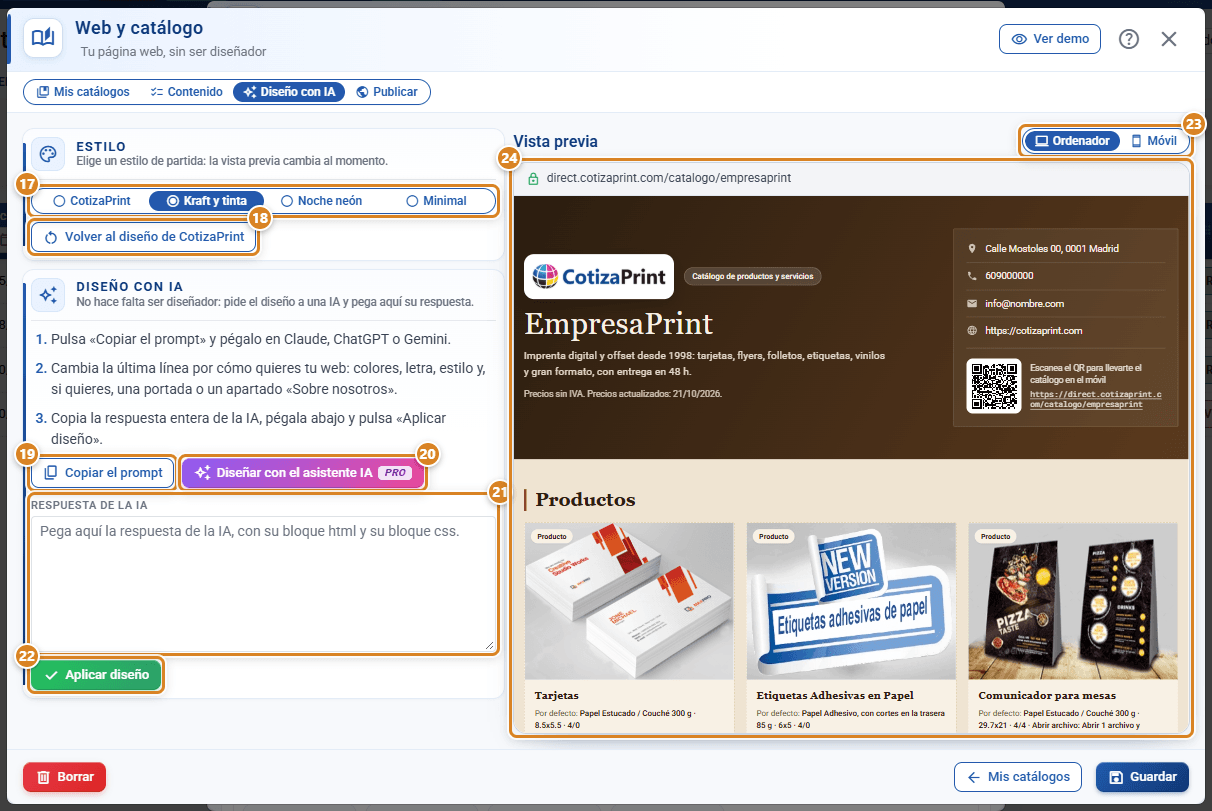
- Style (Choose a starting style: the preview changes instantly.): in a print shop CotizaPrint, Kraft y tinta (kraft and ink), Noche neón (neon night) and Minimal; in CotizaBeauty CotizaBeauty, Salvia y lino (sage and linen), Terciopelo y oro (velvet and gold) and Blanco clínico (clinical white). When you apply an AI design, Diseño propio (own design) appears. Volver al diseño de CotizaPrint (back to the CotizaPrint design; Volver al diseño de CotizaBeauty in beauty) restores the starting design.
- Copy the prompt and paste it into Claude, ChatGPT or Gemini. The prompt contains your current template and, on the last line, an example of how you want it.
- Replace the last line with how you want your website: colours, font, style and, if you like, a cover page or an "About us" section. The "About us" text comes from Description (Publicar tab): write it there, not in the design.
- Copy the AI's full response, paste it into AI response and click Apply design. You get Design applied: check it in the preview and press Save.
Shortcut: Design with the AI assistant does the same without leaving CotizaPrint: you describe how you want it and the response is applied automatically. It needs the Pro plan or higher.
What is accepted: the response contains two code blocks, one html (the template with the {{…}} placeholders for your data) and one css; a single block also works (it only changes that part), as does plain text. Only safe HTML and CSS are allowed:
- no JavaScript (script tags, on… attributes or javascript: links);
- no
styleoridattributes and no<style>tag: styles go in the CSS, with classes; @importonly from Google Fonts, andurl()only fordata:image/images, Google Fonts or the images you have already uploaded to CotizaPrint;- links and images with
https:,mailto:,tel:or a whole placeholder such ashref="{{boton.enlace}}"; - up to 200 KB of HTML and 100 KB of CSS.
If something does not pass, the warning says what to remove (for example La plantilla lleva JavaScript…, the template contains JavaScript, or Solo se aceptan @import de Google Fonts., only Google Fonts @import is accepted): ask the AI exactly that and paste again. The preview shows your products once the catalogue has been saved (Pulsa Guardar para ver la vista previa con tus productos.: click Save to see the preview with your products).
Catalogue prices
- Products with a calculator (print shop): Generate calculates the price of each ticked quantity with the product's default configuration and saves that snapshot. If the catalogue has no prices yet, the snapshot is calculated automatically when you click Save with the catalogue set to Published (you see Calculando precios…, calculating prices). From then on the button reads Actualizar precios (update prices): click it when you change your price lists, margins or costs. When it finishes you see Prices calculated: N and, if any fails, The price of these products could not be calculated: with the reason for each one.
- Services and items: always shown with their up-to-date price, with nothing to calculate.
- On the page, each product shows Desde (from: the price of its first quantity), its Por defecto: (default) configuration and the Cantidad · Precio · Por unidad (quantity · price · per unit) table, with the rest under Ver más cantidades (see more quantities). The cheapest row per unit is highlighted (only if a quantity really is cheaper). A product with no calculated price appears as Precio a medida (custom price; in the PDF, Precio a consultar, price on request). The public page shows these labels in Spanish.
- VAT (in Publicar → Prices): VAT included, Excluding VAT or Como en la configuración de venta (as in the sales settings), which follows Service and product prices: under the Sales Settings button (see Sales settings) and, if nothing is chosen there, the sector's default: excluding VAT in print shops and including VAT in beauty. The page states it in the header: Precios sin IVA. (prices excluding VAT) or Precios con IVA incluido. (prices including VAT), with the date of the prices (Precios actualizados: …, prices updated).
What the public page looks like
- Header: on the left, your logo (or your initials), the catalogue title, your company name, the description and the price note. On the right, in a card, your address, telephone, email and website, each on its own line with its icon and separated by a thin line, and below them the QR code with the catalogue address (Escanea el QR para llevarte el catálogo en el móvil: scan the QR code to take the catalogue on your phone). On mobile, the card goes below. The details come from Settings → Company; any empty one is left out.
- Footer: the same as on quote and tracking links: © year, your company name (linked to your website) and your email, and Powered by with the CotizaPrint logo (CotizaBeauty in beauty). CotizaPrint adds it below any design, including one made with AI, and it does not print.
Watch out: Generate, Download PDF and Export HTML save the catalogue first if it has changes.
PDF, HTML and printing
The PDF includes your logo and the QR code, in a fixed format for printing. The HTML includes your design, so you can modify it later.
- Download PDF: an A4 with your logo (or your initials), your name, the title and the description, your products in two columns with their prices and, at the foot of each page, the QR code, the address and your contact details. Its format is always the same: it does not follow the AI design.
- Export HTML: downloads the page with your design and your prices at that moment, in an
.htmlfile you can open, edit or upload to another website. It cannot be loaded back into the generator: to change the catalogue design, use AI design. - Print the page: the public page can also be printed from the browser. With the starting design and the sample styles it comes out as a clean A4, with no dark backgrounds or buttons and with all the quantities visible; the prompt asks the AI for the same in your own design.
- Download QR: the QR code as a PNG, ready for your printed materials.
The public page
- Address: the main catalogue lives at
direct.cotizaprint.com/catalogo/<tu-empresa>and the others atdirect.cotizaprint.com/catalogo/<tu-empresa>/<catálogo>. When you mark another one as main, the previous one keeps its own address. - Your company's address: 3 to 60 characters, in lowercase letters without accents, numbers and hyphens (no hyphen at the start or the end). It is unique: if another company already uses it, choose another. Some words are reserved, and addresses starting with
demo-belong to the demos. Changing it asks ¿Cambiar la dirección de tu empresa? (change your company's address?): the links and QR codes you have already handed out stop working. - Google: the published page can be found on Google; it carries its title, its description and the list of your products and services for search engines.
- AI assistants (ChatGPT, Claude, Perplexity and others): when they read your catalogue's address they get your company, your contact details and all your products and services with their prices, including the quantity tables, so they can answer anyone who asks them with your prices.
- Catalog not available: shown if the catalogue is Unpublished, if it was deleted, if the address does not exist or if your company does not have the module. It says The company may have removed it or the address may be incorrect. and, if you have them in your company details, For any questions, contact the company: with your Telephone, Email and Website.
- The catalog could not be loaded: a connection failure (Check your connection and try again.) or too many requests in a row (Too many requests in a row: wait a minute and try again.). Retry loads it again.
- If the module expires or you cancel it: your catalogues are kept with everything in them; their addresses show Catalog not available with your contact details and the tile moves to Available to add. When you subscribe again, the ones you had published can be seen again exactly as you left them.
- Demos: View demo opens
direct.cotizaprint.com/catalogo/demo-imprenta(print shop) ordirect.cotizaprint.com/catalogo/demo-beauty(CotizaBeauty).
Print shop and beauty: what changes
| CotizaPrint (print shop) | CotizaBeauty (beauty) | |
|---|---|---|
| What it publishes | Catalogue and price list: products with prices by quantity, services and items | Menu: services with their duration, packages and products |
| Where the content comes from | The Quote sections (Configure catalog); loose items at the root go to a Productos (products) section at the start | The Services and products categories; anything without a category goes to Otros (others) |
| Prices | Snapshot with Generate / Actualizar precios on products with a calculator; up to date on services and items | Always up to date |
| Default VAT | Excluding VAT | VAT included |
| Button | Pedir presupuesto / Pedir (request a quote / order) | Reservar / Pedir (book / order) |
| Styles | CotizaPrint, Kraft y tinta, Noche neón, Minimal | CotizaBeauty, Salvia y lino, Terciopelo y oro, Blanco clínico |
| Plan | Subscribed separately with any plan, including Full | Included in the Full plan; with Standard or Pro it is subscribed separately |
| Demo | catalogo/demo-imprenta | catalogo/demo-beauty |
Buttons and actions — what each one is for
| Button / Control (on-screen text) | What it is for |
|---|---|
| ① View demo (window header) | Opens your sector's sample catalogue in another tab. |
| ② My catalogs · Contents · AI design · Publicar (Publish) | The window tabs, always visible. From the list, the editor tabs open your main catalogue (or a new one); My catalogs goes back to the list. |
| ③ Change / Save address / Cancel | Edit Your company's address. When you save it you see Address saved. |
| ④ Catalogue row | Its name, the Main and Published or Unpublished labels, its address and Prices calculated on … or No prices calculated. |
| ⑤ Bin (Delete) | Asks ¿Borrar este catálogo? (delete this catalogue?) (Se borra con su contenido y sus precios, y su dirección pública deja de funcionar.: it is deleted with its content and prices, and its public address stops working) and deletes it: Catalog deleted. If it was the main one, the next one becomes the main one. |
| ⑥ Open | Opens the catalogue in the editor. |
| ⑦ New catalog | Creates a catalogue and opens the editor. It stays disabled until you save your company's address. |
| ⑧ Todos los productos / Solo los del cotizador (all products / only those in the quoting engine) | In Contents, also show the products that are not in Quote (Fuera del cotizador category) or only those in Quote. |
| ⑨ Search | Filters the tree by category or product name. |
| ⑩ Check all / Uncheck all | Tick or untick everything that can be ticked. |
| ⑪ Quantities n/m | Opens the product's quantities so you can choose which ones are shown. |
| ⑫ Other quantity + Add | Adds a quantity of your own to the product, already ticked (Enter a quantity greater than 0. if it is empty; A product allows a maximum of 50 quantities.). |
| ⑬ Desplegar / Plegar (expand / collapse) | Open or close a category in the tree. |
| ⑭ New group (with New group name) · Use your categories | New group creates an empty group in Groups and order so you can drag products into it. Use your categories (only if you have changed something) groups everything by your categories again, in their order. |
| ⑮ Rename · Move the group up · Move group down · Remove the group | Rename a group (if the name matches another one, they are merged), move it, or remove a new empty group. |
| ⑯ Each product's handle (Drag to sort or move to another group) | Moves the product to another place or group. |
| ⑰ Style | Starting designs; the preview changes instantly. |
| ⑱ Volver al diseño de CotizaPrint / Volver al diseño de CotizaBeauty (back to the starting design) | Removes your design and restores the starting one. Disabled if you already have it. |
| ⑲ Copy the prompt | Copies the brief for the AI: Prompt copied: paste it into Claude, ChatGPT or Gemini and change the last line to how you want it. |
| ⑳ Design with the AI assistant | Asks CotizaPrint's AI for the design and applies it. Pro plan or higher (PRO badge). |
| ㉑ AI response | Where you paste the AI's full response, with its html block and its css block. |
| ㉒ Apply design | Applies what you pasted to the preview: Design applied: check it in the preview and press Save. |
| ㉓ Ordenador (computer) / Mobile | Change the size of the Preview. |
| ㉔ Preview | Your catalogue with the chosen design, with your products once the catalogue has been saved. |
| ㉕ Name · Title | Only you see the Name, in the list; the Title is the one shown on the page (empty = the name). |
| ㉖ Description | Who you are and what you do: it appears below the title or in the "About us" section of your design. |
| ㉗ How they contact you (and its field) | Sin botón (no button), WhatsApp, Call, E-mail or Website, with its number, email or address (see Contact button). |
| ㉘ VAT (Como en la configuración de venta / VAT included / Excluding VAT) | Whether the catalogue prices include VAT. |
| ㉙ Generate / Actualizar precios (update prices; Calculando precios… while it works) | Calculate the prices of the products with a calculator. |
| ㉚ Unpublished / Published | Toggle: whether it can be seen at its address. |
| ㉛ Copy link · Open · Download QR | Copy the address (Link copied), open it in another tab or download the QR code as a PNG. |
| ㉜ Delete (editor footer) | Same as the bin ⑤ in the list; it only appears if the catalogue is already saved. |
| ㉝ Download PDF (Publicar footer) | Downloads the fixed PDF for printing, with your logo and the QR code. |
| ㉞ Export HTML (Publicar footer) | Downloads the page with your design and your prices, so you can modify it later. |
| ㉟ My catalogs (footer) | Goes back to the list, like the tab in ②. |
| ㊱ Save | Saves the catalogue: Catalog saved. |
| Website and catalog (Modules and integrations tile) | Opens the window. Without the module it is in Available to add with the MOD badge and opens its page. |
| More information · View demo · Contratar Web y catálogo (subscribe to Website and catalogue; module page) | Open this help page, your sector's sample catalogue and Plans and pricing on the Modules tab with the module highlighted. |
| Make it the main one (with Catalog address) | Only on catalogues that are not the main one: makes it the main one, shown at your company's address. |
| Close | Closes the window. |
Key concepts
- Your company's address: the part of the address shared by all your catalogues (
direct.cotizaprint.com/catalogo/<tu-empresa>). - Main catalogue: the one shown at your company's address, with nothing after it. There is only one; the first one you create is the main one.
- Catalogue address: what goes after your company's address on the other catalogues.
- Published / Unpublished: whether the address shows the catalogue or Catalog not available.
- Price snapshot: the prices of the products with a calculator, calculated with Generate using their default configuration and saved with their date (Prices calculated on …). They do not change until Actualizar precios (update prices).
- No price: a product with no visible and open quoting engine; it can be neither calculated nor ticked.
- Precio a medida / Precio a consultar (custom price / price on request): what the page and the PDF show for a product with no price.
- Style / Diseño propio (own design): a starting design, or the one you applied with the AI.
- Prompt: the brief you copy for the AI, with your current template and a last line where you say how you want it.
- Catalog not available: the page shown at an address with no published catalogue, with your contact details.
Features by plan / role
- Website and catalogue module: €10/month or €100/year (USD 10/month or USD 100/year), unlimited catalogues. In a print shop it is subscribed separately with any plan, including Full. In CotizaBeauty it is included in the Full plan; with Standard or Pro it is subscribed separately. You subscribe in Subscription → Plans and pricing → Modules or with Contratar Web y catálogo from its page (see Subscription and plans).
- Design with the AI assistant: Pro plan or higher. Copy the prompt works with any plan.
- Role permission: Configurar integraciones y automatizaciones (configure integrations and automations,
integracion_edit). Without it, the tile appears dimmed with "You don't have permission".
If something does not add up
| Symptom | Cause | Solution |
|---|---|---|
| A product shows No price and cannot be ticked | It has no internal quoting engine with Visibility set to Visible and Quoter set to Open | In Products, open its internal quoting engine and set it to Visible and Open; save and open the catalogue again (see Products). |
| A product appears under The price of these products could not be calculated: | The reason says why: the product no longer exists or is deactivated, it has no visible and open quoting engine, or it has neither a quantity list nor a default quantity | Fix the product and click Actualizar precios (update prices). |
| Every product appears as Precio a medida (custom price) | The catalogue has no price snapshot (No prices calculated) | In Publicar (Publish), click Generate; or set Published and click Save, which calculates it the first time. |
| I have changed prices and the catalogue is still the same | Products with a calculator show the price snapshot | Click Actualizar precios in Publicar. |
| A new product does not appear in the catalogue | Only what was ticked when saving goes in | Tick it in Contents, click Save and, if it has a calculator, Actualizar precios. |
| The address shows Catalog not available | It is Unpublished, the address is a different one or the module has expired | Set Published and click Save; check the address with Copy link. |
| The WhatsApp, Call or E-mail button does not appear | The field is empty and your company details have no mobile number, telephone or email | Type the number or the email in Publicar → Contact button, or fill them in under Settings → Company. |
| It will not let me save the address | It does not follow the format, it is a reserved word or another company already uses it | Use 3 to 60 lowercase letters without accents, numbers and hyphens, and try another one. |
| Apply design shows a warning | What you pasted contains something that is not allowed | Ask the AI to remove it exactly as the warning says and paste the full response again. |
| Design with the AI assistant has the PRO badge | Your plan is below Pro | Use Copy the prompt with Claude, ChatGPT or Gemini, or upgrade to Pro. |
Frequently asked questions
Q: Where is Website and catalogue?
A: Click your name (top right) → Settings → Modules and integrations → Website and catalog. If your company does not have it, it is in Settings → Available to add → "Website and catalog", which opens the page to subscribe to it.
Q: How much does it cost and which plan does it come with?
A: €10/month or €100/year (USD 10 or USD 100), with unlimited catalogues. In a print shop it is subscribed separately with any plan, including Full; in CotizaBeauty it is included in the Full plan, and with Standard or Pro it is subscribed separately.
Q: Can I use it as my company website?
A: Yes: it is your own simple website, with your logo, who you are, your contact details and your catalogue with prices, at your own address, which Google can find. Write your introduction in Description (Publicar tab, Publish) and, in AI design, ask for example "make it look like my company website, with a cover page and an About us section". If you already have a website, link to it from there or upload it with Export HTML.
Q: Is it an online shop?
A: No: it has no basket and no payment. Your customers see your prices and ask you for a quote or book with you through the contact button (WhatsApp, phone, email or your website).
Q: I am not a designer, how do I give it my look?
A: Choose a Style in AI design, or click Copy the prompt, paste it into Claude, ChatGPT or Gemini replacing the last line with how you want it, and paste its response into AI response → Apply design. With the Pro plan, Design with the AI assistant does it without leaving CotizaPrint.
Q: The AI gives me something that is not accepted.
A: The warning says what is left over (JavaScript, style or id attributes, an @import that is not from Google Fonts, an image or a link that is not https:). Ask the AI to remove exactly that and paste the full response again, with its html and css blocks.
Q: A product's price does not show.
A: If it has No price, it has no visible and open quoting engine: in Products, set its internal quoting engine with Visibility on Visible and Quoter on Open. If it already has one, click Generate or Actualizar precios (update prices) in Publicar: until it is calculated it appears as Precio a medida (custom price). The first snapshot is also calculated automatically when you save the catalogue as Published.
Q: I have changed prices but the catalogue has not.
A: Products with a calculator keep a snapshot of their prices: click Actualizar precios (update prices) in the Publicar tab. Services and items are always shown with their up-to-date price.
Q: Can I show only some of a product's quantities?
A: Yes. In Contents, click the product's Quantities n/m and untick the ones you do not want; by default they are all included. If you want one that is not there, type it in Other quantity and click Add. Then Save and Actualizar precios.
Q: Can I change the groups or the order of the products in the catalogue?
A: Yes. In Contents, under Groups and order, drag each product by its handle to sort it or drop it into another group, create groups with New group and rename them with the pencil. It does not touch Quote: it only changes this catalogue. Use your categories puts it back as it was. Then Save.
Q: Can I include a product that does not appear in Quote?
A: Yes. In Contents, with Todos los productos (all products), find it in the Fuera del cotizador (outside the quoting engine) category and tick it. On the page it appears under Productos (in CotizaBeauty, Otros) or in the group you drag it into.
Q: Does it show up on Google?
A: Yes. The published page can be found on Google with its title, its description and your products, and AI assistants (ChatGPT, Claude, Perplexity) read your whole catalogue with its prices. To get it found sooner, link to it from your website and your social media. While it is Unpublished it cannot be seen.
Q: How many catalogues can I have?
A: As many as you like. The main one is shown at your company's address and each of the others at its own address.
Q: How do I share the catalogue with my customers?
A: In Publicar (Publish), click Copy link to send the address or Download QR to put it on your printed materials or on the counter. Download PDF gives you the version for printing.
Q: Why does the PDF not have the design I made with the AI?
A: The PDF always has the same format so that it prints well, with your logo and the QR code. The public page and Export HTML do carry your design, and the page can also be printed on A4 from the browser.
Q: Do the prices include VAT?
A: You choose it in Publicar → Prices → VAT: VAT included, Excluding VAT or Como en la configuración de venta (as in the sales settings). If you do not change it, print shops show prices excluding VAT and beauty businesses with VAT included.
Q: Can I change my company's address?
A: Yes, with Change in Your company's address. The links and QR codes you have already handed out stop working, so change it before you print them.
Q: What happens to my catalogues if the module expires?
A: They are kept with everything in them. Their addresses show Catalog not available with your contact details and, when you subscribe again, the ones you had published can be seen again exactly as they were.
Q: Can I see it before subscribing?
A: Yes: View demo on the module page opens a real sample catalogue from your sector.