
This document works both as end-user help and as technical rules for development.
What it is
The e-Invoice section (/facturacion-electronica), where you register your company with the electronic invoicing systems (TicketBAI, Verifactu, FacturaE), follow the status of each registration and send your invoices to Hacienda, the Spanish tax authority. The registration and the certificate are handled through the electronic invoicing provider; you only see the status and complete the steps from here.
Coverage: it is not only TicketBAI
CotizaPrint electronic invoicing is not limited to the Basque Country. It covers three areas:
- TicketBAI — the provincial tax authorities (Hacienda Foral) of the Basque Country: Bizkaia, Gipuzkoa and Araba / Álava.
- Spanish electronic invoicing — Facturae / Verifactu and invoicing to Public Administrations (B2G); the national B2B regime as it becomes applicable.
- Electronic invoicing in many South American and Latin American countries — for example Mexico, Chile, Brazil, Colombia, Peru, Argentina, Ecuador, Uruguay, Paraguay, Bolivia, Costa Rica, Panama and the Dominican Republic, each with its own national system.
The coverage actually available to your organisation depends on your country, your plan and your configuration: if you need a specific country or regime, check with your sales rep to confirm that it is available to you.
What it is for
- Creating the registration for an electronic invoicing regime (TicketBAI / Verifactu). FacturaE needs no registration: it is signed on demand with the Sign FacturaE button.
- Seeing the validation status of each registration (pending signature, pending approval, approved, and so on).
- Sending invoices to Hacienda once the registration is approved, either in the test environment (Sandbox) or the real one (Production).
- Downloading the PDF / XML of each invoice issued and checking sending errors.
How to use it
- Click New registration and complete the wizard: choose the environment (Sandbox or Production), the regime (TicketBAI, Verifactu; the Latin American regimes are shown too — CFDI Mexico, DIAN Colombia, NF-e/NFS-e Brazil, SUNAT Peru, DTE Chile, ARCA Argentina, SRI Ecuador, CFE Uruguay, SIFEN Paraguay, SIAT Bolivia — marked "Ask your sales rep" if they are not available) and, for TicketBAI, the region / provincial tax authority. Check your company details.
- Click Create registration. You will receive an email with the link to complete the registration (signing / uploading the certificate at the provider).
- Once you have completed the link, use Refresh status so the card moves on to Approved. The page also checks the status by itself every minute.
- With an Approved registration, go to the invoice table and use Send to file an invoice with Hacienda.
What documents you are asked for when completing the registration
It depends on the regime you choose.
**VERI*FACTU** (the rest of Spain: Catalonia, Madrid, Andalusia… everything outside the Basque Country). The link in the email opens a wizard where you have to provide:
- The Agencia Tributaria (AEAT) representation agreement, signed. You can sign it with an FNMT digital certificate or by hand.
- If you sign it by hand, an identity document of the signatory (DNI, NIE or passport).
In Sandbox, approval is confirmed manually, so it can take a little longer than in Production, where verification is automatic. If the registration comes back Rejected, the usual causes are that the agreement was left unsigned, that the identity document was missing alongside a handwritten signature, or that the agreement was incomplete: you have to deregister and start again.
TicketBAI (Basque Country). The wizard asks for your digital certificate and the provincial tax authority you chose when registering (Bizkaia, Gipuzkoa or Araba/Álava).
VERI*FACTU will be mandatory for companies from 1 January 2027, and for all other taxpayers from 1 July 2027. You can register earlier and test in Sandbox without anything being reported to Hacienda.
Buttons and actions — what each one does
Literal on-screen text.
Page header
| Button (on-screen text) | What it does |
|---|---|
| New registration | Opens the "New electronic invoice registration" wizard. Active while you are still missing a TicketBAI environment: with no registration at all, with only the Sandbox one (to create the Production one) or with only the Production one (to create the Sandbox one). Once both environments are registered, the button is greyed out (disabled). Only visible if you have subscribed to the electronic invoicing module. |
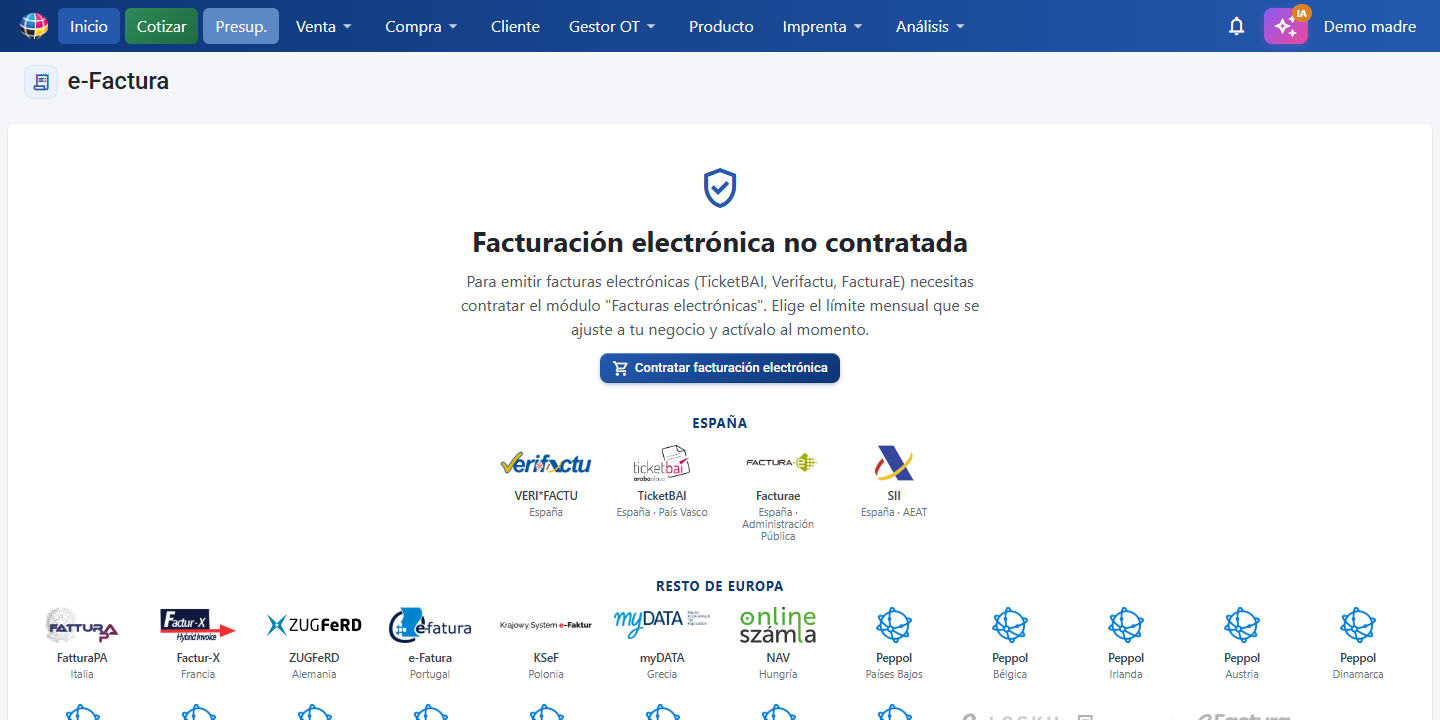
| Subscribe to electronic invoicing | Appears when you do NOT have the "Electronic invoices" module: it takes you to Subscription → Plans and prices → Modules with the module options open (Start 60, Basic 100, Medium 150 or High 300 invoices/month) so you can subscribe. Until you do, the screen only shows this card (no registrations, no table, no Refresh/Settings buttons), together with the logos of every electronic invoicing system supported, each with its country and grouped in two zones — Europe (VERI*FACTU and TicketBAI, Spain) and South America (CFDI Mexico, DIAN Colombia, NF-e/NFS-e Brazil, SUNAT Peru, DTE Chile, ARCA Argentina, SRI Ecuador, CFE Uruguay, SIFEN Paraguay, SIAT Bolivia). The zone of your company's country is shown first. |
| Refresh | Reloads the registrations and the invoice table with the latest status. Only visible with the module subscribed. |
| Settings | Takes you to the Integration section (/integration). Only visible with the module subscribed. |
| Invoices {month} (bar) | Usage indicator: invoices issued this month against your plan limit. |
Card for each registration ("E-INVOICE Validation Status")
| Button (on-screen text) | When it appears | What it does |
|---|---|---|
| Complete registration | Registration not approved and with a link available | Opens the provider link in another tab so you can sign the registration / upload the certificate. |
| Refresh status | Registration not approved | Asks the provider for the current status of that registration and updates the card. |
| Resend email | Registration not approved and with a link available | Resends the email with the link to complete the registration. |
| Deregister | Registration neither deregistered nor rejected | Asks Hacienda to cancel the regime registration. Once confirmed, the registration disappears from the list. |
Invoice table (actions on the selected rows)
The issuing/signing actions (Sign TicketBAI / Sign Verifactu and Sign FacturaE) are highlighted on the main row, above the rest. Below them come the management actions (Cancel, Reset test, Ignore, Reactivate) and the document ones (Generate document, Send by email, Download PDF/XML).
| Action (on-screen text) | What it does |
|---|---|
| Sign TicketBAI / Sign Verifactu (formerly "Send") | Signs the selected invoice(s) and files them with Hacienda. The button name tells you which regime you have registered and approved (TicketBAI or Verifactu; with no approved registration it reads "Send"). If you have registrations in both Sandbox and Production, it asks which environment to use. In Production it asks for confirmation (irreversible). |
| Cancel | Cancels an invoice that has already been signed (status Signed). Hacienda is notified. |
| Reset test | Sandbox only: cancels the test at the provider and deletes the test record so you can start again. |
| Ignore | Marks invoices as ignored so they are not sent to Hacienda. |
| Reactivate | Re-enables invoices that were marked as ignored. |
| Send by email | Only with a Signed invoice and a PDF available: it opens the printed invoice and, when you click Send email, sends an email to the customer with two PDF attachments: your printed invoice and the electronic invoice (TicketBAI). |
| Download PDF | Downloads the PDF of the electronic invoice. |
| Download XML | Downloads the XML of the electronic invoice. |
| Sign FacturaE | For invoices to Public Administrations (town councils, provincial councils): it generates the Facturae file for the invoice and signs it with your certificate through AutoFirma (which must be installed on your computer). It downloads the .xsig file, ready to upload to the body's platform (FACe or the council's own). If the customer has no DIR3 codes, it asks whether you want to sign anyway or go to the customer record to fill them in. |
"New electronic invoice registration" wizard
| Step / Control (on-screen text) | What it does |
|---|---|
| 1. Environment (Sandbox / Production) | Sandbox = a test with no tax effect, the invoice is not locked. Production = real filing with Hacienda. Starting with Sandbox is recommended. |
| 2. Regime (TicketBAI / Verifactu / CFDI / DIAN / NF-e / SUNAT / DTE / ARCA / SRI / CFE / SIFEN / SIAT) | The electronic invoicing system to register with: Spain (TicketBAI, Verifactu) and Latin America (CFDI Mexico, DIAN Colombia, NF-e/NFS-e Brazil, SUNAT Peru, DTE Chile SII, ARCA Argentina, SRI Ecuador, CFE Uruguay, SIFEN Paraguay, SIAT Bolivia). The ones not available are dimmed and show "Ask your sales rep" on hover. FacturaE does not appear here: it needs no registration, it is signed with Sign FacturaE. |
| 3. Region (provincial tax authority) | TicketBAI only: Bizkaia, Gipuzkoa or Araba / Álava. |
| Company details | A summary of your tax details. If any are missing, you have to complete them in Settings → Company before continuing. |
| Create registration | Launches the registration. Once created, you receive an email with the link to complete it. |
| Cancel | Closes the wizard without creating the registration. |
Key concepts
- Registration: the record of your company within an electronic invoicing regime. Until it is Approved you cannot send invoices under that regime.
- Regime: the electronic invoicing system. TicketBAI (Basque provincial tax authorities), Verifactu and FacturaE.
- Geographical coverage: electronic invoicing is not limited to the Basque Country. It covers TicketBAI (Basque Country), Spanish electronic invoicing (Facturae / Verifactu, and invoicing to Public Administrations) and that of many South American and Latin American countries (Mexico, Chile, Brazil, Colombia, Peru, Argentina and others). The country and regime available depend on each organisation's plan and configuration; confirm them with your sales rep.
- Environment: Sandbox (testing, no tax effect, the invoice is not locked) or Production (real filing with Hacienda; the invoice is locked once approved).
- Provincial tax authority (TicketBAI only): the Hacienda Foral the invoices are signed and filed with — Bizkaia, Gipuzkoa or Araba / Álava.
- Complete registration: the signing / certificate upload step carried out through the provider link (it arrives by email). The certificate is held by the provider; it is never uploaded to or stored inside CotizaPrint.
- Registration statuses: Pending signature (the link still has to be opened and signed) → Pending approval (filed with Hacienda, usually 5 to 30 minutes) → Approved (operational, you can now issue) · Rejected · Revoked.
- Facturae (.xsig): the official electronic invoice format for Public Administrations in Spain (B2G). The .xsig file is the electronically signed Facturae; it is what you upload to the body's platform (FACe or the council's own). It is generated with the Sign FacturaE button. It does not replace TicketBAI: the same invoice is declared to Hacienda (TicketBAI) AND delivered to the body as Facturae.
- AutoFirma: the free Spanish Government application for signing with your digital certificate. It must be installed on your computer to use Sign FacturaE; signing happens on your machine and your certificate never leaves it.
- Simplified invoice: an ordinary invoice (not a credit note, not an amended invoice) issued without the customer's full tax details. CotizaPrint detects it by itself, with nothing to switch on, when the customer on the document has no NIF (the Spanish tax number; empty or not valid as a Spanish NIF) or when it is the generic / cash customer set in Settings → Sales → "Default customer for ticket printing (generic / cash customer):". It is identified by the Simplified invoice tag (fuchsia) in the Type column of the Invoices list and by the SIMPLIFIED INVOICE stamp on the printed document. It is not exclusive to electronic invoicing: the stamp is printed even if your organisation does not use it. It can be signed and filed with Hacienda like any other invoice.
- Generic / cash customer: the default customer for counter sales, set in Settings → Sales. Its invoices are issued as a Simplified invoice.
- DIR3 codes: the official identifiers of the units of a Public Administration. Every invoice to a public body has to state three of them: Accounting Office, Managing Body and Processing Unit (the body itself gives them to you). They are stored in the customer record, Finance tab, Facturae section.
Features by plan / role
- Available from TRY. The number of electronic invoices per month depends on your plan limit (the "Invoices {month}" bar).
- Requires the
auto_editpermission.
Frequently asked questions
Q: Do you have electronic invoicing? Is it only TicketBAI / the Basque Country, or outside it too?
A: It is not only TicketBAI. CotizaPrint covers three areas: TicketBAI (Basque Country: Bizkaia, Gipuzkoa, Araba/Álava), Spanish electronic invoicing (Facturae / Verifactu, and invoicing to Public Administrations) and electronic invoicing in many South American and Latin American countries (for example Mexico, Chile, Brazil, Colombia, Peru, Argentina, Ecuador, Uruguay, Paraguay, Bolivia, Costa Rica, Panama or the Dominican Republic). Which regimes are available to your organisation depends on your country, your plan and your configuration; if you need a particular country or regime, check with your sales rep.
Q: Do you have electronic invoicing in my Latin American country?
A: CotizaPrint electronic invoicing covers many South American and Latin American countries, as well as Spain (TicketBAI, Facturae / Verifactu). To confirm whether your country and your particular regime are available to your organisation, check with your sales rep, who has the current coverage for your case.
Q: How do I register for TicketBAI (or electronic invoicing)?
A: In e-Invoice, click New registration. Choose the environment (start with Sandbox), the regime (TicketBAI) and, for TicketBAI, the provincial tax authority. Check your company details and click Create registration. You receive an email with the link to complete the registration. Once you have completed it, click Refresh status until it moves to Approved.
Q: I already have the Sandbox registration, how do I create the Production one?
A: Click New registration again and choose the Production environment in the wizard. The button stays visible while either of the two TicketBAI environments is missing; it only disappears once you have both.
Q: I created the registration but it is still on "Pending signature". What do I do?
A: We sent you an email with the link to sign the registration. Open it and complete that step (that is where the certificate is signed / uploaded). If you cannot find the email, click Resend email on the registration card. Then click Refresh status.
Q: What does "Pending approval" mean?
A: Your registration has already been filed with Hacienda and is waiting for approval. It usually takes between 5 and 30 minutes. The page checks the status every minute; you can also click Refresh status.
Q: What is Verifactu?
A: One of the electronic invoicing regimes you can register for from New registration, alongside TicketBAI and FacturaE. If it shows as unavailable ("Ask your sales rep"), contact your sales rep to have it enabled.
Q: What is Sandbox and what is it for?
A: It is the test environment: the invoice has no tax effect and is not locked, so you can create it, correct it and send it again as many times as you like (you receive the PDF and XML by email). We recommend always starting with Sandbox before launching the real registration against Hacienda in Production.
Q: How do I send an invoice to Hacienda?
A: You need an Approved registration. In the invoice table, select the invoice(s) and click Send. If you have registrations in both Sandbox and Production, you are asked which environment to use. In Production you are asked to confirm, because it is irreversible.
Q: I made a mistake on a test invoice. How do I reset it?
A: In Sandbox, select the invoice and use Reset test: it cancels the test at the provider and deletes the record so you can start again.
Q: I do not want certain invoices to be sent to Hacienda.
A: Select them and click Ignore. If you change your mind later, select them and click Reactivate.
Q: Where do I upload my digital certificate?
A: It is not uploaded inside CotizaPrint. The certificate is handled by the electronic invoicing provider through the link you receive by email when you create the registration (the Complete registration button). CotizaPrint does not store the certificate.
Q: How do I email the electronic invoice to the customer?
A: Two ways. 1) In e-Invoice, select a Signed invoice and click Send by email: the printed invoice opens and, when you click Send email, the message goes out with the printed invoice and the electronic invoice PDF attached. 2) From an invoice document (the Print / Document button), when you use Send email, if the invoice already has a signed electronic invoice, its PDF is attached automatically alongside the printed document.
Q: How do I invoice a town council / public administration? How do I generate the .xsig file?
A: 1) In the customer record (Finance tab, Facturae section), fill in the three DIR3 codes the body gives you: Accounting Office, Managing Body and Processing Unit. 2) Create and save the invoice as usual (and declare it with Send if you use TicketBAI). 3) In e-Invoice, select the invoice and click Sign FacturaE: AutoFirma opens, you pick your certificate and the signed .xsig file is downloaded. 4) Upload that file to the body's platform (FACe or the council's own). Requirement: AutoFirma installed on your computer.
Q: When I click Sign Facturae I get a warning saying it cannot connect to AutoFirma.
A: That warning comes from AutoFirma: it means it is not installed on your computer, or it could not be reached. Install it from the Spanish Government electronic signature portal (firmaelectronica.gob.es) and click Retry operation. If you already have it installed, open it and use Tools → Restore installation.
Q: What are the DIR3 codes and where do I enter them?
A: They are the identifiers of the units of the public body receiving the invoice: Accounting Office, Managing Body and Processing Unit. The body itself gives them to you (its website, the tender documents or the contract). They are stored once in the customer record, Finance tab, Facturae section. Without them, the body's platform usually rejects the invoice.
Q: It will not let me send an invoice: it says I have reached the monthly limit.
A: Your "Electronic invoices" module has a monthly issuing limit according to the tier you subscribed to (Start 60, Basic 100, Medium 150, High 300). Once you reach the limit, filing with Hacienda in Production is blocked until the following month. To keep issuing this month, move up a tier in Subscription → Plans and prices → Modules → Electronic invoices. You can see your usage in the "Invoices {month}" bar on the e-Invoice screen. Sandbox tests do not count towards the limit.
Q: I want to stop using TicketBAI.
A: On the registration card, click Deregister. The cancellation is reported to Hacienda and, once confirmed, the registration disappears from the list.
Q: Does Assisted Activation include electronic invoicing?
A: Assisted Activation focuses on getting you up and running with the basics: quoting, products, prices and the initial use of CotizaPrint. Electronic invoicing is a separate case: it depends on your country, on the plan you have subscribed to, on your tax settings and on the applicable legislation, so it is neither confirmed as included nor is any tax obligation validated by support. If you need electronic invoicing enabled, contact your sales rep or open a ticket so your particular case can be reviewed.
Q: Can I create an electronic invoice from a ticket (direct sale)? How is it done?
A: Yes. The direct sale ticket produces a normal invoice, and any invoice can be filed with Hacienda as an electronic invoice if your organisation has an Approved registration. Steps: 1) Generate the invoice from the ticket — in the quote, click the TICKET button (a direct invoice to the CASH customer), or in the quote document choose the CASH customer and click Invoice and close. 2) With the invoice saved, go to e-Invoice, select it and click Send (if you have both Sandbox and Production, choose the environment). The invoice is signed and filed with Hacienda. Requirement: having the regime (TicketBAI / Verifactu / FacturaE) registered and Approved; if you do not, register first from New registration. (Do not confuse filing with Hacienda with the default bank account button at the foot of the invoice: that one generates the SEPA collection file, not the electronic invoice.)
Q: Can I issue a cash / counter invoice?
A: Yes. Set the generic / cash customer in Settings → Sales, the Default customers section, the field "Default customer for ticket printing (generic / cash customer):" (PRO plan required). From then on, the TICKET button in the quote — or Invoice and close in the quote document with that customer selected — produces the counter invoice. Those invoices are issued as a Simplified invoice, just like those of any customer without a NIF. If your country or regime has specific tax conditions on the use of simplified invoices, check them with your sales rep or by opening a ticket.
Q: Is the simplified invoice something to do with electronic invoicing / TicketBAI?
A: No. The Simplified invoice is a tag on the document itself: CotizaPrint applies it by itself to any ordinary invoice whose customer has no NIF, or which uses the generic / cash customer from Settings → Sales, whether or not you use electronic invoicing. You can see it in the Type column of the Invoices list (fuchsia tag) and as the SIMPLIFIED INVOICE stamp on the printed PDF, below the document number. That notice used to appear only inside the electronic invoicing QR box; now it is always printed. What electronic invoicing does do is declare that invoice under the regime you have registered.
Q: Can I file a simplified invoice with Hacienda (a customer with no NIF / a cash customer)?
A: Yes, it is sent like any other invoice: you need an Approved registration for the regime you use, you select the invoice in e-Invoice and click Sign TicketBAI / Sign Verifactu. The Simplified invoice tag does not block the filing; it only indicates that the document is issued without the customer's full tax details.
Q: How many electronic invoices do I have available?
A: The number of electronic invoices per month depends on your plan (and can be extended with an extra you can subscribe to). Inside the system you can see your usage in the "Invoices {month}" bar (used against the limit). For the exact figure in your case — how many your plan includes, the conditions or an extension — do not take this page as final: check with your sales rep, who has the current terms.