
What it is
Catalogue of quotable products and, inside each one, its artworks: the price formulas. It is the most complete part of the configuration because each product can have several artworks and each artwork links substrates, inks, sizes, machines and operations.
What it is for
- Define every product the company quotes.
- Set up the price formulas (artworks) that the quoting engine uses.
- Link the product with substrates, machines, operations, taxes and delivery lead times.
- Allow jobs to be outsourced to external suppliers.
Layout of the screen
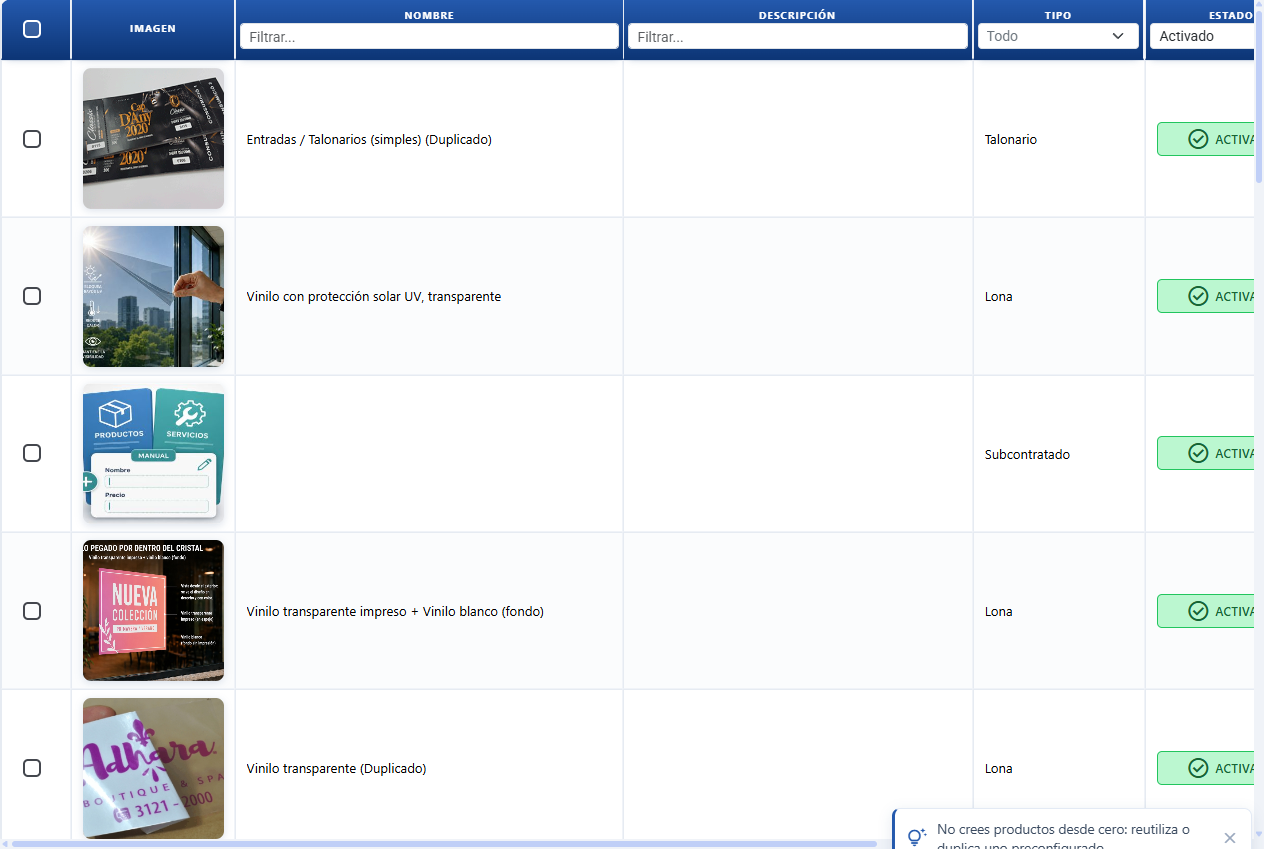
A product is made up of:
Producto
├── Gráfica 1
│   ├── Medidas (ProductoGraficaMedida)
│   ├── Soportes (ProductoGraficaSoporte)
│   ├── Tinta (ProductoGraficaTinta)
│   ├── Operaciones (ProductoGraficaOperacion)
│   └── Máquina (ProductoMaquina)
├── Gráfica 2
│   └── ...
├── Impuestos (ProductoImpuestos)
└── Plazos de entrega (ProductoPlazoEntrega)
What is set up at each level
Product (general details)
| Field | Editable | Notes |
|---|---|---|
| Product image | Yes | Photo of the product. |
| Product name | Yes | Public name. It includes an AI button that opens the AI Assistant · Name to suggest one. |
| Product description | Yes | Long description. It includes an AI button that opens the AI Assistant · Description to write it. |
| Product type | Only when creating | Item, service, etc. |
| Status (Enabled / Disabled) | Yes | Button in the header. Switches the product on or off in the catalogue. |
The product carries no cost or margin of its own. The price formula sits in its artworks. What the product level does decide is how several artworks combine, through the "Quoting engine settings" and "Guillotine" toggles (below).
Quoting engine settings (product toggles)
These are the switches on the "Quoting engine settings" card inside the product record. Each one has two states; the text in brackets is the one that appears on screen.
| Toggle (text on screen) | States | What it is for |
|---|---|---|
| Margin (Individual / Global) | Individual = each artwork uses its own margin · Global = the margin of the first artwork is applied to all the artworks of the product | This is the "global margin" button. Tooltip: "Apply global margin to all artworks". Use it when you want a single margin for the whole product instead of setting it artwork by artwork. Do not confuse it with "Independent margin", which is a different thing and lives at the level of each artwork (see Key concepts). |
| Quantity (Shared / Individual) | Shared = every artwork copies the quantity of the first one · Individual = each artwork accepts its own quantity | Decides whether the quantity is typed once in the quoting engine (first artwork) and replicated, or whether each artwork carries its own figure. |
| Bleed (Ignore / Print) | Ignore = respects the non-printable areas of the machine · Print = prints right to the edge | Switches on bleed printing: it ignores the non-printable margins of the machine. |
| Unit cost (Qty 1st artwork / Sum all) | Qty 1st artwork = the unit cost is spread over the quantity of the first artwork only · Sum all = it is spread over the sum of the quantities of every artwork | Defines which quantity base the unit cost is worked out on when the product has several artworks. |
| Artwork (Several / Single) | Several = you can have several artworks open at once in the quoting engine · Single = only one artwork may be open; opening one automatically closes the previous one | Limits the quoting engine to a single open artwork. Useful when the product is a single-variant one (the customer chooses one finish only, not several at once). |
Guillotine (at product level)
| Field / Toggle (text on screen) | What it is for |
|---|---|
| Guillotine settings (Guillotine cuts) | Number of cuts. 0 switches the guillotine calculation off; 1+ switches it on. Available if the product is an item and is not a banner. |
| Extra margin for each up (Up margin) | Extra physical margin reserved for each up (in cm). |
| Mode (Separate / Joined) | Separate = the cut is worked out per artwork · Joined = it is worked out for the whole product. Tooltip: with the guillotine joined and no independent margin, the margin of the first quoting engine is taken. |
ProductoGrafica — the price formula
Each artwork is a variant with its own price structure. A product can have several (e.g. "single-sided business card" and "double-sided business card").
| Field | Editable | Notes |
|---|---|---|
| Name | Yes | How it appears in the quoting engine. |
| Margin type | Yes | Formula to use (1–9): by passes, by quantity, by m², stepped, etc. |
| Default quantity | Yes | Quantity proposed when quoting. |
| Fixed quantity (list) | Yes | If it is switched on, the user picks from a closed list; if not, they type freely. |
| Default page | Yes | Page/sheet proposed when quoting. |
| Include operation cost | Yes | If it is switched on, operations add to the base cost. |
| Variable type | Yes | "Smart" (regression) or "Simple" (stepped). |
| Hide on printed document | Yes | Do not show the artwork on the document. |
| Outsource | Yes | If it is switched on, the job is done by an external supplier. |
| Supplier | Yes (if outsourced) | External supplier assigned. |
| Visibility | Yes | Show / hide in the quoting engine. |
| Checked / Expanded | Yes | Whether the artwork is expanded by default when quoting. |
| Independent margin | Yes | If it is switched on, the artwork uses its own margin without inheriting from the product. |
| Margin value (%) | Yes (if independent margin) | Percentage. |
| Dynamic margin table | Yes | Table with price breaks: from / to / cost / margin / price. It lets you step the margin according to volume. |
This is where how the price is worked out is defined. There is no "fixed cost"; the cost comes out of the formula and of the components linked to it.
Price formula — the 11 formulas explained
The artwork's "Price formula" selector decides which piece of the job is compared against the table and how the selling price is set. There are two families:
- Fixed Margin: the table stores a margin % per break. Selling price = real cost of the job × (1 + margin). As the cost rules, the price does vary with the ink, the substrate, the pages, and so on.
- Fixed Price: the table stores the selling price per break for the default options of the artwork (the ink, the size and the substrate ticked in the catalogue, the machine on Optimise and the default lead time). With those options you charge exactly what the table says. If the customer chooses another ink, another substrate, another size (in the by-quantity formulas) or a lead time with a surcharge, the price is adjusted in the same proportion as the cost: a 4/4 job costs more than a 4/0 one and is therefore sold dearer, with the same margin %. The margin % in the breakdown is for information only (it is worked out from the real cost).
| Formula | What it looks at | Family | When to use it |
|---|---|---|---|
| Single margin | Nothing (one single %) | Margin | A flat percentage for everything, with no table and no breaks. |
| Machine passes - Fixed Margin | Number of machine passes | Margin | Offset/screen printing where the real effort is the passes. |
| Machine passes - Fixed Price | Number of machine passes | Price | A closed selling rate by passes. |
| Quantity - Fixed Margin | Number of copies | Margin | Margin discount by volume, the price follows the cost. |
| Quantity - Fixed Price (Digital, Offset, Screen printing, etc.) | Number of copies | Price | Selling price list by quantity (100 units = X, 1,000 units = Y). |
| Simple Price List (Quantity + Cost) | Quantity | Price | Product with no machine/substrate: you enter quantity, cost and price by hand. |
| m² - Fixed Margin | m² printed | Margin | Wide format when you want a margin per surface break. |
| m² - Fixed Price (Plotter, etc.) | m² printed | Price | Wide format with a rate per m² (e.g. 70,000/m² → 1.5 m² = 105,000). |
| Machine operation - Fixed Margin | The multiple you choose (substrates, sheets, ups...) | Margin | Margin per break of one specific production multiple. |
| Machine operation - Fixed Price | The multiple you choose | Price | Selling price per break of that multiple. |
| Use the profit margin of the 1st quoting engine | — | Inherits | The artwork uses the margin worked out for the first artwork of the product. |
In the table of breaks, the Price m² column (or unit price) and the Total column write the same piece of data: Total = unit price × the value of the break. The Margin column of the table recalculates itself as you type the price (it is the margin over the reference Cost column).
Smart / Simple step — how the price behaves between breaks
The Step toggle (Smart / Simple) decides what happens when the quantity falls between two rows of the table (an intermediate quantity, an "intermediate break"):
- Smart: it brings the unit price down gradually and continuously from one row to the next (a smooth transition). The total always goes up as the quantity goes up: it never stays flat and there are never two different quantities at the same price.
- Simple: it keeps the unit price of the lower row until the next row is reached, and never charges more than the total amount of the row above (that upper row acts as a ceiling).
For quantities that match a row of the table exactly, both options charge the exact amount of that row.
| Situation | Smart (smooth transition) | Simple (stepped, with a ceiling) |
|---|---|---|
| Between two breaks | It interpolates: on Fixed Margin it interpolates the %; on Fixed Price the total grows continuously between the two rows and the unit price comes down little by little until it reaches that of the next row (example: rows 500 u → 49 and 1,000 u → 65: 700 u come out at 56.20, neither 49 nor 65) | It applies the unit rate of the lower break (on Fixed Margin, its %), with the total amount of the upper break as a ceiling: it never charges more than the row above |
| Exactly on a row | The exact value of that row | The exact value of that row |
| Above the last row | The value of the last row (on Fixed Price, its unit price × quantity) | The same |
| Below the first row | On Fixed Margin, the % of the first row. On Fixed Price, proportional (unit price of the first row × quantity) | The same |
The ceiling on Simple is what stops a quantity slightly below a row (for example 499 units when the row of 500 is already cheaper) from ending up costing more than that very row of 500: the amount never exceeds the total of the upper row.
View chart — price, margin and cost together
The "View chart" button (last line of the table of breaks) plots how the rate develops with three overlaid lines and a double axis (currency on the left, % on the right):
| Line | Colour | What it shows |
|---|---|---|
| Price | Solid blue | Unit price charged at each point (in Fixed Margin formulas this line is the margin). |
| Margin | Dashed orange | Margin % of the break. |
| Cost | Dotted grey | Reference cost of the table. |
The curves are plotted using the same criteria as the real calculation: with the Smart step they transition smoothly between rows and with Simple they keep the rate of the lower row until the next one, never going above the total amount of the row above (its ceiling). The pink dots mark the rows of your table. It is there to let you see at a glance whether the rate goes up or down where you expect it to and whether the margin gets too tight in any break.
If two consecutive rows have the same unit price, Smart and Simple give the same result — there is nothing to transition. They only differ inside breaks whose rows have a different unit price (or %). Example with a table of 0.5 m² → 80,000/m² and 1 m² → 70,000/m²: for 0.75 m², Smart gives 55,000 (transition) and Simple 52,500 (70,000 × 0.75).
ProductoGraficaMedida — sizes the artwork accepts
| Field | Editable | Notes |
|---|---|---|
| Width | Yes | In cm. |
| Height | Yes | In cm. |
Size assignment only. It carries no cost: the cost comes from the SoporteMedida of the substrate used.
ProductoGraficaTinta — inks per side
| Field | Editable | Notes |
|---|---|---|
| Front | Yes | Number of inks on the front side (e.g. 4 = four-colour). |
| Back | Yes | Number of inks on the back (0 if it is single-sided). |
Ink setup; the cost per ink is carried by the machine.
ProductoGraficaSoporte — substrates accepted
Assignment of substrates to the artwork. It has no cost fields of its own: the cost comes from the substrate and its sub-entities (Size / Colour / Size / Variant).
ProductoGraficaOperacion — operations that apply
Assignment of operations. It has no cost fields of its own: the cost and the margin come from the options of the operation.
ProductoMaquina — machines that apply
Assignment of machines. It has no cost fields of its own: the costs come straight from the machine.
ProductoImpuestos — taxes applied
Assignment. The rates come from the Taxes catalogue (Administration). The product's Taxes row is clickable: click on the row to edit the value of the tax without leaving the record.
ProductoPlazoEntrega — delivery lead time
Assignment. The days come from the Lead times catalogue (Administration). The product's Delivery lead time row is clickable: click on the row to edit the days and the surcharges of the lead time directly.
How a job is quoted (summary)
- The quoting engine takes an artwork of the product.
- It works out the cost: the combination of substrate (size + colour + size + variant chosen), machine (passes + ink + plate + make-ready), operations (options + costs with their multipliers).
- It applies the operations factor if there are surcharges.
- It applies the margin:
- If the artwork has an independent margin → that one.
- If not, it looks at the substrate and the operation (their independent margins if they are switched on).
- If none is switched on, it uses the general margin of the product / the dynamic table of the artwork.
- If there are guillotine cuts, it adds their cost (set up under Guillotine).
- It returns the final price.
Buttons and actions — what each one is for

Buttons on the product record (literal text on screen):
| Button (text on screen) | Where | What it is for |
|---|---|---|
| AI Assistant | New product screen (type selector) | Opens the AI agent (centred window) to create or modify a product of the catalogue by describing it in plain language. The agent shows a summary of what it is going to do and only applies it when you click Run. To modify one, name the product; if there are several matches it asks you which one. See AI Assistant. |
| "Create or edit with AI" (sparkle icon ✨, violet→pink gradient) | Product modal (product record) | Opens the AI assistant to create or edit the product by describing it in plain language. The AI fills in or modifies the name, the description and the options of the product: margin per up, guillotine cuts, print bleed, sum quantities and single artwork. You review the form and click Save. Available from the Pro plan. |
| Enabled / Disabled | Header | Switches the product on or off in the catalogue. |
| AI | Next to the "Product description" field | Opens the AI Assistant · Description: you type an instruction (e.g. sales tone, what to highlight), the AI writes a draft with the product data, you rate it (👍 good / 👎 bad) and decide on Apply (it pours the text into the field) or Cancel. |
| Add quoting engine | Foot of the artworks | Creates a new artwork (another price formula) inside the product. |
| Update Price List | Foot of the artworks | Recalculates and refreshes the product's price list with the current setup. |
| Save | Footer | Saves all the changes to the product and its artworks. |
| Cancel | Footer | Closes without saving. |
| Delete | Footer (where it exists) | Deletes the product. |
| Modify selected | Bulk artworks modal ("Bulk modify artworks") | Opens the bulk form for the artworks that are ticked. Inside there are scalar fields (Name, Visible, Default, etc.) and a Margin section. Only the fields whose Apply is switched on are applied. |
| Margin (section + Apply margin toggle) | Inside "Modify selected" | You define a margin type and its table once; when you switch on Apply margin and save with Apply changes, it is imposed on every selected artwork, overwriting their current margin. The type and the table always go together. The final price may vary per artwork according to the substrate/size of each product. |
| Delivery lead time row (click on the row) | Product modal | The product's Delivery lead time row is clickable: by clicking on the row you can edit the days and the surcharges of the lead time without leaving the record. |
| Taxes row (click on the row) | Product modal | The product's Taxes row is clickable: by clicking on the row you can edit the value of the tax without leaving the record. |
For the Margin (Individual/Global), Quantity (Shared/Individual), Bleed (Ignore/Print) and Unit cost (1st artwork/Sum all) toggles see the "Quoting engine settings" table further up.
Key concepts
- Product with no direct cost: the cost is built up by combining substrate + machine + operations + guillotine.
- Unit cost: the price that comes out for one unit of the product. It is obtained by spreading the total cost over the quantity. With several artworks, the Unit cost toggle decides whether the base for that split is only the quantity of the first artwork ("Qty 1st artwork") or the sum of them all ("Sum all"). That same toggle determines the quantity that appears on the quote line: with "Sum all" the line shows the sum of the quantities of every artwork; with "Qty 1st artwork" it shows only the first one's. Do not confuse it with the Quantity (Shared / Individual) toggle, which only decides whether the quantity is typed once and copied to the rest of the artworks.
- Global margin (Margin toggle → Global): applies the margin of the first artwork to all the artworks of the product. It is a product level setting. Tooltip in the UI: "Apply global margin to all artworks".
- Independent margin (at artwork level, not to be confused with "global margin"): one particular artwork uses its own margin percentage without inheriting the product's. It is switched on inside each artwork. Key difference: global unifies the margin of all the artworks by taking the first one's; independent isolates the margin of one artwork.
- Margin type (1–9): the specific formula for working out the price according to quantity / m² / passes.
- Dynamic margin table: lets the margin vary by quantity or cost break (volume discounts).
- Break / row of the price table: each line of the table of breaks (from / to / cost / margin / price) marks a quantity anchor with its exact price. Between two rows (lower anchor and upper anchor) there is an intermediate quantity, and the Step toggle decides how its price is worked out (see "Smart / Simple step" further up). At a quantity that matches a break, the price is always the exact one of that row.
- Subtotal warning (ceiling break): in the quoting engine, a warning appears next to the Subtotal when the price has been capped at the amount of the upper break (the ceiling of the Simple step). It states the amount that would have applied, which break is acting as the ceiling and the total that is finally charged.
- Outsource: marks the artwork as a job subcontracted to an external supplier (it shows on the shared work order and in production).
- Print bleed (Bleed toggle → Print): cancels the non-printable areas of the machine (useful for bleed printing).
- Shared vs individual quantity (Quantity toggle): with several artworks, decides whether the quantity is typed once and replicated (Shared) or whether each artwork carries its own (Individual).
- AI Assistant · Description (AI button): a window that writes the product description. You type an instruction, the AI generates a draft using the product data, you rate it (👍 good / 👎 bad) and choose Apply (it pours the text into the Description field) or Cancel. You can Regenerate as many times as you like before applying.
- Do not delete, adapt (a rule that runs right across CotizaPrint): before creating a product from scratch or deleting one you do not use, look for one that is already similar and adapt it (rename it, change the image, substrates, sizes and prices). Creating from scratch and deleting should be the second option, not the first instinct: a product created from scratch brings nothing preconfigured, and deleting removes the setup for good. The same rule applies to substrates, machines and operations.
Permissions
Requires access_product to get into the section.
Frequently asked questions
Q: Can I create or modify a product with AI?
A: Yes. On the new product screen click AI Assistant (or the AI button in the header, the sparkle icon ✨) to open the AI agent. Describe in plain language the product you want to create, or name an existing one to modify it. The agent shows a summary of the actions and only applies them when you click Run; if you name a product and there are several matches, it asks you which one. See AI Assistant.
Q: Inside the product modal there is a "Create or edit with AI" button. What does it fill in?
A: It opens the AI assistant to create or edit the product in your own words. The AI fills in or modifies the name, the description and the options of the product: margin per up, guillotine cuts, print bleed, sum quantities and single artwork. You review the form and click Save. Available from the Pro plan.
Q: How do I change the days or the surcharges of a product's delivery lead time?
A: In the product modal, click on the Delivery lead time row: the row is clickable and opens the editing of the days and the surcharges of the lead time. There is no need to go to another screen.
Q: How do I edit the value of a product's tax?
A: In the product modal, click on the Taxes row: the row is clickable and lets you edit the value of the tax right there.
Q: When I go into Products a tips window appears. What is it and how do I get rid of it?
A: It is the "Tip: set up products quickly" notice that CotizaPrint shows to trial accounts. It recommends that you do not create products from scratch: reuse or duplicate a preconfigured product and adapt it, because it already carries months of studied print shop logic. So that it does not come back, tick "Do not show this notice again" and close the window. Only trial accounts see it.
Q: Why am I told not to create products from scratch?
A: Because preconfigured products already come with their artworks, substrates, machines and operations properly set up. Creating an empty one from scratch would take you far longer and it is easy to miss something. The quick way is to duplicate or adapt a similar one and change only what you need.
Q: What is the product's "global margin" button for?
A: It is the Margin toggle (Individual / Global) on the "Quoting engine settings" card. On Global it applies the margin of the first artwork to all the artworks of the product, so you do not have to set the margin one by one. On Individual each artwork keeps its own margin. It is different from "independent margin", which isolates the margin of a single artwork.
Q: What is "unit cost" for?
A: It is the cost per one unit of the product. When the product has several artworks, the Unit cost toggle decides how it is worked out: "Qty 1st artwork" spreads it over the quantity of the first artwork only; "Sum all" spreads it over the sum of the quantities of every artwork. Use "Sum all" if the job is made up of several artworks that go together.
Q: What is the difference between "global margin" and "independent margin"?
A: Global margin (a product level toggle) unifies: it takes the margin of the first artwork and applies it to them all. Independent margin (at the level of each artwork) isolates: that artwork uses its own percentage without inheriting the product's. One unifies all the artworks, the other separates one.
Q: How do I make my product have the same quantity on every artwork?
A: On the "Quoting engine settings" card set the Quantity toggle to Shared. That way the quantity is typed on the first artwork and the rest copy it. On Individual each artwork carries its own quantity.
Q: How do I make it so that only one artwork can be open at a time in the quoting engine?
A: On the "Quoting engine settings" card set the Artwork toggle to Single. With that option, opening an artwork in the quoting engine automatically closes whichever one was open, so there is never more than one active. On Several you can have several artworks open at once. Use it when the product is a single-variant one (the customer chooses one finish only).
Q: Where do I put the price of the product?
A: The product itself has no price. The price is worked out in its Artwork, combining substrate cost, machine cost and operations cost, multiplied by the margin type chosen and the dynamic margin table.
Q: Does the artwork allow an independent margin?
A: Yes. In the artwork, switch on Independent margin and enter the percentage. If you do not switch it on, it inherits the margin of the product or of the components (substrate / operation).
Q: I want a volume discount. How do I do it?
A: In the artwork, use the Dynamic margin table: add breaks with their quantity range and the applicable margin. The quoting engine interpolates between breaks.
Q: How do I assign a substrate to a product?
A: Inside the product editor, in the artwork open the Substrates section and select the substrates that can be used. Each substrate brings its own sizes, costs and colours.
Q: How do I charge for different inks?
A: In ProductoGraficaTinta you state how many inks the artwork has per side. The cost per ink is set up on the machine that prints, not on the product.
Q: My product has 2 artworks and it only charges me for the first one. Why?
A: You have the Unit cost toggle on Qty 1st artwork. Set it to Sum all so that the quoting engine spreads the unit cost over the sum of the two artworks.
Q: I have a quote with two artworks, each one with quantity 1, but on the quote line it shows quantity 2 (the sum) and I want it to be 1.
A: The quantity you see on the quote line is the one defined by the product's Unit cost toggle. You have it on Sum all (which is why it shows the sum: 1 + 1 = 2). Set it to Qty 1st artwork so that the line takes only the quantity of the first artwork (1) instead of the sum of them all. It is the Unit cost toggle on the "Quoting engine settings" card in the product record. Do not confuse this with the Quantity (Shared / Individual) toggle: that one decides whether the quantity is typed once and replicated, not which figure appears on the line.
Q: Is the quantity on the quote line the sum of the artworks or the first one's? Where do I change it?
A: It is controlled by the product's Unit cost toggle ("Quoting engine settings" card): Sum all = the line shows the sum of the quantities of every artwork; Qty 1st artwork = the line shows only the quantity of the first artwork. It is not the Quantity (Shared / Individual) toggle, which only decides whether the quantity is typed once and copied to the rest of the artworks.
Q: I want a product to print with bleed (no margins).
A: Switch on Print bleed on the product. That tells the quoting engine to ignore the non-printable areas of the machine.
Q: I want to outsource the printing of a product to another supplier.
A: In the artwork switch on Outsource and choose the supplier. The artwork will be charged as a subcontracted job and will be flagged on the work order.
Q: What is the "Margin type"?
A: It is the calculation formula: by passes, by quantity, by m², stepped, etc. Each type applies the cost and the margin in a different way. If in doubt, start with the stepped one (quantity).
Q: I want an outsourced product / one with no machine or substrate, where I just enter a cost and a margin.
A: Use the Simple price list (quantity + cost) price formula. It does not depend on a machine or a substrate: you enter quantity, cost, margin and price by hand. It is the option designed for outsourced or resale products. If you set a simple margin with no substrate on other types, the calculation has no cost base and will give 0 or will lock up.
Q: I have an operation with its own margin (e.g. Artwork) and it sets the price at 0.
A: On the "simple list (cost + margin)" margin the cost of the operation is ignored by default. Switch on IGNORE OP. COST so that the operation comes out with its own margin added, or use INCLUDE OP. COST depending on the result you are after.
Q: I created a new Magazines/Books product from scratch and it does not bring the operations (cover, inside pages, binding).
A: A product created from scratch brings nothing preconfigured: its artworks and operations have to be set up manually. If you need the base ready-built, duplicate a similar existing product or talk it through with your agent.
Q: The operations / materials come out in alphabetical order and not in the order I want.
A: Use the Move up arrow that appears on each row of the product's lists: Printing substrate, Inks, Printing sizes, Miscellaneous operations, Machine, Taxes and Delivery lead time. That order is also respected in the quoting engine dropdowns. The order is unique per element, not independent per artwork/product.
Q: I set up the paper cost per kg but when I go back in it is still per unit.
A: Check that you are saving the right cost type on the substrate (size). If it goes back to unit after saving, refresh and check it again; quotes made before the change keep the cost they were worked out with.
Q: I enabled/disabled a product and another wide format product could no longer be set up.
A: It is a one-off display glitch when the setup is locked; refresh the page. If it persists, mention it to support quoting the product.
Q: Why will a product not let me change the type?
A: The type (item, service, etc.) is fixed when it is created. To change it you have to create a new product of the right type.
Q: How do I change the margin of several artworks at once?
A: Select the products → Bulk modify artworks → tick the artworks → Modify selected. On the form, go to the Margin section: define a margin type and its table, switch on Apply margin and save with Apply changes. That margin is imposed on every ticked artwork and overwrites whatever they had. The final price may vary per artwork according to the substrate and the size of each product.
Q: I changed the cost of a substrate. Does it affect existing quotes?
A: No. Saved quotes keep their historical price. Only new ones use the updated cost.
Q: How do I use the AI to write the product description?
A: Click the AI button next to the "Product description" field. The AI Assistant · Description opens: type an instruction (for example "sales tone, highlight finishes and uses"), click Generate and the AI writes a draft with the product data. You can rate it (👍 good / 👎 bad) and Regenerate if it does not convince you. When you like it, click Apply to pour it into the field, or Cancel to discard it.
Q: What is the Configure/Edit button of Categories and Products for?
A: That button is for sorting or editing the VISUAL catalogue screen: categories, images, visibility and the tiles that are on show. It is NOT the same as setting up the internal calculation of a product. To change substrates, machines, operations, inks or prices of a product, go INSIDE the product and edit its artworks; that is where the price formula lives. The catalogue button only changes how it looks, not how it is worked out.
Q: When is it worth duplicating a product?
A: Duplicate when you already have a similar product and you need a real variant: another size, another material, another finish, another family or a version you are going to sell separately. Do not build everything from scratch if there is already a base that will do: adapt what you have first; if the variant justifies a separate product, then duplicate it and adjust only what changes. A product created from scratch brings nothing preconfigured (artworks, operations), so starting from a duplicate saves you building the base all over again.
Q: I have a product with many variants or sizes and it is getting complicated. How do I organise it?
A: Organise it by family + simple variants: set up a clear base (one well-built product) and then duplicate/adapt it for each variant, changing only what is needed. Group the variants under a common category so they are browsed together. If when quoting you find the sizes, machines or operations blend together visually and are hard to tell apart, that is not a calculation error but a possible UX improvement: open a ticket with a screenshot so that support can look at it.
Q: How do I group A4, A3, colour and black and white photocopies?
A: Create or adapt a base photocopy and get it properly set up. Once it works, duplicate it for each variant (A4, A3, colour, black and white) changing only what is needed: name, image, size, ink and price. Then group all those variants under a "Photocopies" category to keep them together in the catalogue. That way you reuse the base and only adjust the differences of each copy.
Q: Should I delete the products I do not use?
A: Not as a first step. Before deleting, check whether the product resembles something you do sell: if it will do, adapt it (rename it, change the image, substrates, sizes and prices) instead of removing it. Deleting removes the setup for good and a new product from scratch brings nothing preconfigured. At CotizaPrint the rule is do not delete, adapt; deleting is a conscious decision, not the first instinct.
Q: Do I start with a fixed price or with a margin?
A: To get going, use a fixed price and line it up with the prices you already work with today: that way you sell at your usual rates without wrestling with costs. The most direct way is the Simple price list (quantity + cost) formula, where you set the price by hand. Once you have the substrate, machine and operation costs properly loaded, move to working on margin (Margin type + table): the price is recalculated automatically from the cost, so if material goes up your profitability holds instead of falling behind.
Q: I load prices by quantity and the quoting engine gives me an intermediate price I do not want (how do I "pin" a break?).
A: The quoting engine interpolates between the points you load: if you set 100 units at one price and 1,000 at another, it works out the intermediate values on its own. For a break not to interpolate and to keep a fixed price (to pin it), load the start and the end of the break at the same unit price. For example, if from 100 to 500 units you always want to charge the same, load 100 and 500 at the same price; from 500 upwards load another point so that it starts coming down. Those points/price ranges by quantity are defined in the artwork's table.
Q: How do I handle different prices for end customers and for resellers?
A: Work with two price levels by duplicating: either you duplicate the artwork/quoting engine inside the product, or you duplicate the product, and in each copy you adjust the margin (or the fixed price) according to the type of customer. Name each one clearly (e.g. "... end customer" / "... reseller") so as not to mix them up. If the reseller list becomes complex and recurrent, it is worth designing it properly under Product/Substrate rather than by hand.
Q: How do I set up an outsourced or externally purchased product?
A: Reflect the real supplier cost and your selling margin. You have two routes: 1) tick Outsource on the artwork and choose the supplier (it is flagged on the work order); 2) use the Simple price list (quantity + cost) formula, entering the purchase cost and the margin by hand, without depending on a machine or a substrate. If you sell it regularly, it is worth creating a product of its own so that it appears in the catalogue instead of loading it as a manual line every time.
Q: I do not sell photocopies, I sell digital tabloid printing (or another product that is not there). Do I create it from scratch?
A: Start from the most similar base product in the catalogue and adapt it: change the name, image, sizes, papers (substrates) and prices. If the calculation flow is similar, there is no need to build it all from scratch. Only create from scratch if there is no base that will do.
Q: I have several artworks / quoting engines active on a product and the price comes out odd or is doubled.
A: Each artwork is a variant with its own price structure. If you leave several artworks active at once, they may be added together (depending on the Unit cost → Sum all toggle) or shown where you did not expect. Check which artworks are really active/visible and the Quantity (Shared/Individual) and Unit cost toggles. If you only want one variant per quote, leave only that one active.
Q: How do I change the image of a product?
A: Go into the product setup and, in the Product image field, upload or drag the photo in. If the image does not sit well on the catalogue tile, adjust its format/proportion before uploading it so that it shows correctly.
Q: Why is it worth putting images on products?
A: Because the image helps the salesperson and the customer recognise the product at a glance. In small print shops, the visual catalogue works as counter help: it makes it easier and quicker to choose between business cards, banners, vinyls, stamps, photocopies or other products. A catalogue with good photos sells itself.
Q: What is the manual product / manual line for?
A: To load a quick line or a special job that has no product set up, straight into the quote. It is a very handy temporary way out for a one-off sale. Rule: if the job repeats, it is worth creating or adapting a preconfigured product instead of entering it as a manual line every time (that way it appears in the catalogue and quotes itself).
Q: What is the difference between Fixed Margin and Fixed Price in the price formula?
A: Fixed Margin: the table stores a margin % and the price = real cost × (1 + margin), so the price varies with the ink, the substrate or the pages. Fixed Price: the table stores the selling price and the price comes straight out of the table — the cost does not move it; the margin % in the breakdown is for information only. If you want to charge exactly what your rate card says (e.g. 70,000/m²), use Fixed Price. See the section "Price formula — the 11 formulas explained".
Q: What is the difference between the Smart step and the Simple one?
A: They decide what happens when you ask for an intermediate quantity, one that falls between two rows of the table. Smart brings the unit price down gradually from one row to the next. Simple keeps the unit price of the lower row until it reaches the next row, and never charges more than the total amount of the row above (that row acts as a ceiling). For quantities that match a row exactly, both options charge the exact amount of that row — they only differ on the intermediate quantities.
Q: I ask for a quantity between two breaks of the table and it charges me differently depending on the step. Why does the price jump?
A: Because you are between two rows and the Step toggle decides how that "intermediate price" is worked out. With Smart the unit price comes down little by little from one row to the next. With Simple it sticks with the unit price of the row below until the next row, with the amount of the row above as a cap: you never pay more than that upper row. At a quantity that matches a row of the table, the price is the same with both options.
Q: The price does not follow the table / the margin changes on its own every time I recalculate.
A: This is now fixed: in the Fixed Price formulas (passes, quantity, m², operation) the selling price comes straight out of the table and the margin shown is derived from the real cost, stable on every recalculation. If you still see a price that does not match your table, check that the artwork has the right Fixed Price formula (not the Fixed Margin one) and that the rows of the table have the total price set correctly.
Q: What happens if the quantity is above the last row or below the first one?
A: Above the last row the unit price of the last row is applied (a flat rate, with no further volume discount). Below the first one, on Fixed Price the price is proportional (unit price of the first row × quantity) and on Fixed Margin the % of the first row is used. If you want a minimum price, add a row with the minimum quantity you accept.
Q: How is the gutter (spacing between ups) taken into account when making up the sheet?
A: With the Extra margin for each up field in the product's Guillotine section: these are the cm reserved around each up. The quoting engine adds them to the size of each piece before working out how many fit, so widening the gutter reduces the ups per sheet and makes the material dearer. It is set per product, not per quote.
Q: How are the margins of a product entered?
A: The margin is not on the product: it lives on each artwork. Open the product, go into the artwork and choose the Margin type (the formula) and its table of breaks (from / cost / margin / price). If you want a single margin for the whole product, use Single margin. With the product's Margin toggle on Global, the margin of the first artwork is applied to them all; on Individual, each artwork uses its own. And inside an artwork, Independent margin isolates it from the rest.