
Note on wording: the Planes y precios page (plans and pricing) is still shown in Spanish even with the app in English. It is written here exactly as you will see it, with its meaning in brackets.
What it is
The module for recording purchase invoices (the ones your company receives from its suppliers). Every purchase invoice has a header (supplier, dates, tax categories) and one or more lines (description, quantity, price, tax, deductible %).
Invoices can be entered by hand or uploaded (PDF or photo) so that the AI extracts the data automatically and leaves a draft for you to review.
It requires the Purchasing and Inventory module: it is included in the Full plan and, on any other plan, it can be bought separately without changing plan. If your company does not have the module, the Purchasing menu does not appear: you will find it in Settings → Available to add → "Purchasing and Inventory", which opens its card with the Subscribe to Purchasing and Inventory button. If you go in through the screen's direct address, that card is shown too.
What it is for
- Keeping a record of your expenses and purchases from suppliers.
- Classifying each invoice by Tax category (type of transaction for VAT purposes) and Expense category (accounting heading).
- Working out the taxable base, input VAT and income tax withholding for each invoice.
- Uploading the PDF or photo of the invoice and letting the AI fill in supplier, dates, amounts and lines.
- Matching invoice lines with substrates in your catalogue so the purchase cost of those substrates is updated with the price you actually paid.
- Feeding the tax reports (input VAT ledger) in the Analysis section.
How the screen is laid out
List

A table with one row per purchase invoice. Columns:
| Column | What it shows |
|---|---|
| ⑦ Source | How it was created: Manual, PDF (AI), Photo (AI) or XML. |
| ⑧ Status | Badge: Draft / Recorded / Voided. |
| ⑨ Payment | For recorded invoices: Paid with its date, or Pending payment. Bank reconciliation fills it in when it matches the invoice with its bank charge, or you do it with Mark as paid or Payment date. |
| Supplier | Trading name of the supplier. |
| Invoice No. | The supplier's invoice number. |
| Date | Invoice date. |
| Due | Due date, if there is one. |
| Tax | Tax category (type of VAT transaction). |
| Category | Accounting expense category. |
| Base | Aggregate taxable base of the lines. |
| VAT | Aggregate input VAT. |
| Total | Total of the lines. |
At the top of the list you have the Upload invoices and New invoice buttons. Double-click a row to open the form for that invoice. When you tick invoices, the Cancel (void) and Delete actions appear and, on recorded invoices that are unpaid, Mark as paid.
Invoice form (modal)
It opens when you create or edit an invoice. It has three blocks:
- Header — supplier, invoice number, reference, dates (invoice, receipt, due), Tax category, Expense category, % IRPF withholding and IRPF amount.
- Lines — one card per line with description, details, quantity, unit price, tax and deductible %. Lines created with Add substrate purchase are linked to a catalogue item and show a link icon next to the line number (the tooltip says which item they are linked to).
- Totals — taxable base, VAT, withholding (if there is any) and total.
If the invoice is an AI draft, a banner appears reading "Draft extracted by AI. Review the details and confirm it to record it." along with an AI draft label. If the draft was created by Invoice from a purchase order, the label is Draft and the banner reads "Borrador creado desde el pedido de compra. Revisa los datos y confírmalo para registrarlo." (draft created from the purchase order; review the details and confirm it to record it).
If the supplier on the invoice has outstanding purchase orders (sent or received and not yet invoiced), the form shows a notice with how many there are and the Link button, which opens the list of those orders (number, date and total) so you can attach the one you choose to the invoice; the order then becomes Invoiced. Orders already linked are shown in a green notice with their numbers. While the invoice has not been saved yet, the notice tells you to save it first. To link several orders, use Link again. See Purchase Orders.
"Upload purchase invoices" modal
An area where you drag or select one or more invoices (PDF or photo), with a queue showing the status of each file and the Process with AI button.
"Update substrate costs" modal
It appears after you save or confirm an invoice whose lines match substrates in the catalogue. It lists every match (Exact or Partial) with the current cost → new cost and lets you update the cost of those substrates.
Matches are detected through the supplier reference stored on the substrate and also through the supplier price lists of the invoice's supplier (their own reference per item): if the line matches a price list entry, updating the cost also updates the price on that price list. If the invoice has purchase orders linked, the modal warns you with "What was received on the order already entered stock when it was received: here only what was invoiced but not received is added": each line proposes adding only the difference between what was invoiced and what was received (Received on the order says how much arrived), and if everything was received it says Already in stock: it entered when the order was received. A line that has already added its stock with this invoice says Already added to stock with this invoice and is not added again. The add-to-stock toggle is left unticked, so you do not duplicate stock that already came in when the order was received.
For matches of the Size type there is also an Add to stock toggle that shows the quantity and unit that will be recorded. If you leave it ticked, applying it does not only update the substrate cost: it also adds that quantity to the stock of the size (stock in). It only applies to sizes; matches on colour, variant or garment size only update the cost. It does not duplicate the entry if that invoice line already produced the stock movement.
Buttons and actions — what each one does
Wording exactly as it appears on screen.
List

| Button / Action (text on screen) | What it does |
|---|---|
| ① ? (icon on the screen title; hovering over it shows the question mark) | Opens the Visual inventory guide in a new tab: it explains the inventory → consumption → purchasing cycle, what each section is for and the 7 steps to get it running. It is on all three screens of the purchasing module (Purchase stock, Purchase Orders and Purchase Invoices). |
| ② Upload invoices | Opens the modal for uploading invoice PDFs or photos and processing them with AI. Visible with the Purchasing and Inventory module (included in Full or bought separately). |
| ③ New invoice | Creates an empty purchase invoice by hand. Visible with the Purchasing and Inventory module (included in Full or bought separately). |
| ④ Cancel (voids the invoice; actions for the ticked invoices) | Marks the selected invoices as Voided and deducts from stock anything those invoices had added (the stock in created by "Add to stock" or by what was invoiced without being received). What entered when the order was received stays in stock. It asks for confirmation. Reinstating the invoice afterwards does not add the stock back: you have to apply "Add to stock" again. |
| ⑤ Delete (actions for the ticked invoices) | Deletes the selected invoices and their lines. It also deducts from stock anything they had added (not what was received with the order, which stays in stock). If the invoice came from purchase orders, those orders go back to Received or Partly received, without an invoice, so that they can be invoiced again. It asks for confirmation. |
| ⑥ Row tick box | Selects the invoice for actions ④ and ⑤ (and Mark as paid), which appear on the left of the list. |
| Mark as paid (actions for the ticked invoices) | Marks the selected recorded invoices that were still pending as paid today (cash, card…). It only appears if one of the ticked invoices is recorded and unpaid. For another date, open the invoice and change Payment date. |
| Subscribe to Purchasing and Inventory | Appears instead of the list when you do not have the module (the "Purchases module" card with the Full badge): it takes you to Planes y precios (plans and prices, /subscription?planes=MOD&extra=comprasInventario) so you can add it without changing plan. |
| Double-click on a row | Opens the form for that invoice. |
Invoice form
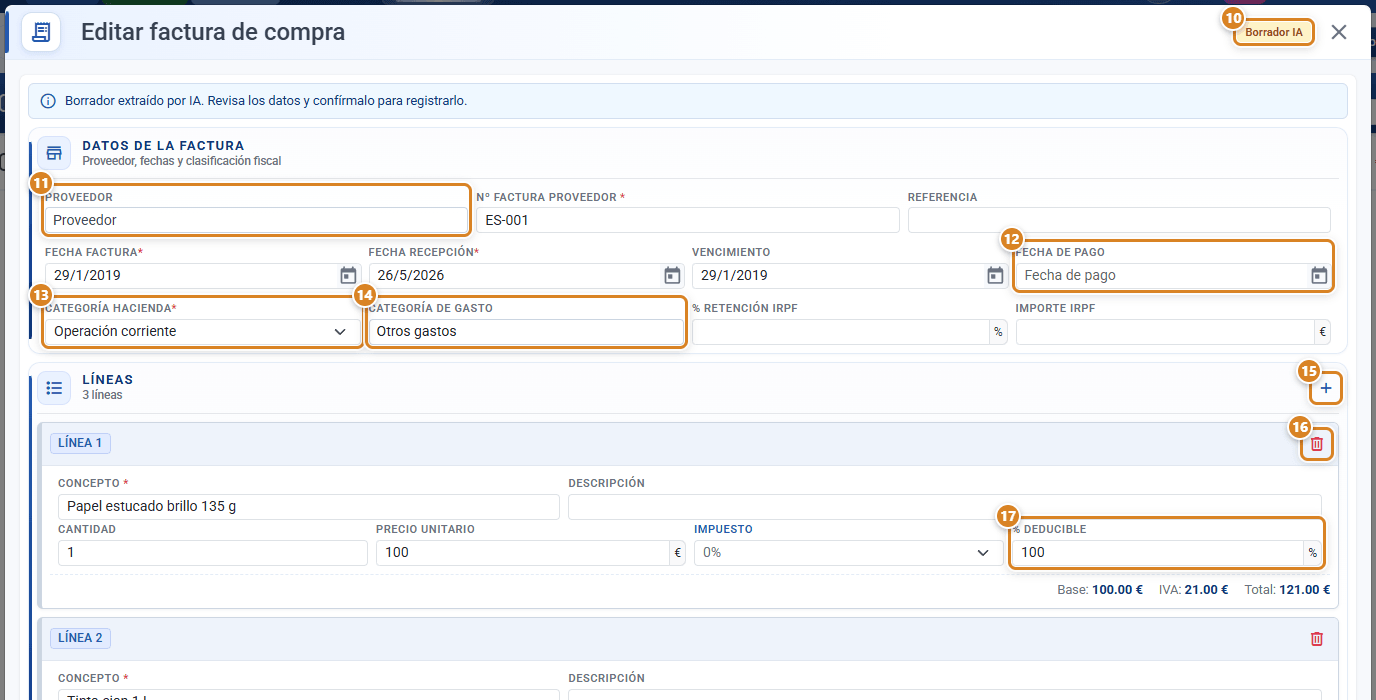

| Button / Action (text on screen) | What it does |
|---|---|
| ⑩ AI draft (label in the header) | Shows that the invoice was extracted by the AI and has not been reviewed yet. A draft invoice created from an order shows Draft. It disappears when you press Confirm and record. |
| ⑪ Supplier | The invoice's supplier (only customers flagged as suppliers). You have to choose it before Add substrate purchase. |
| ⑫ Payment date | The day you paid the invoice; empty = Pending payment. Pending ones appear in Bank reconciliation → Purchase payments. If bank reconciliation marked it as paid, use Undo in Matched to clear it. |
| ⑬ Tax category | Type of transaction for VAT purposes (required). See Key concepts. |
| ⑭ Expense category | Accounting classification of the expense (optional). |
| ⑮ + icon (heading of the Lines block) | Adds a new line, the same as ⑳ Add line in the footer. |
| ⑯ Bin icon on a line | Deletes that line. |
| ⑰ % Deductible | Percentage of that line's VAT that is deductible (100 by default). |
| ⑱ Open in tab | Opens the invoice's attached file in a new tab. |
| ⑲ Remove file (bin icon) | Detaches the attached file from the invoice. |
| ⑳ Add line | Adds a new line to the invoice (also with the ⑮ icon in the heading of the lines block). |
| ㉑ Add substrate purchase | Opens a modal for adding a line linked to a catalogue item: you choose the Substrate and its Size / colour / variant / garment size, the quantity and the unit price (pre-filled with the supplier's price list if there is one; if not, with the catalogue cost). You have to choose the invoice's supplier first. The line created carries the supplier reference and a link icon. |
| ㉒ Upload file / Change file | Attaches (or replaces) the PDF, image or XML of the invoice. The wording changes to "Change file" once there is one. |
| ㉓ Delete | Deletes the whole invoice (only when editing an existing one), just like Delete in the list: it takes out of stock what the invoice added, leaves what was received with the order and returns the order to Received or Partly received. It asks for confirmation. |
| ㉔ Cancel | Closes the form without saving. |
| ㉕ Confirm and record | Only on AI drafts: it saves, marks the invoice as Recorded and treats it as reviewed. It replaces the Save button while the invoice is a draft. |
| Size / colour / variant / garment size | Selector in the "Add substrate purchase" modal: choose the specific level of the substrate (its size, colour, variant or garment size) you are buying. |
| Link (outstanding orders notice) | Opens the list of the supplier's outstanding purchase orders (number, date and total) so you can attach one to the invoice; the order then becomes Invoiced. Repeat to link several. The invoice has to be saved first. |
| Save | Saves the invoice and its lines. After saving it looks for matches with substrates. |
"Upload purchase invoices" modal
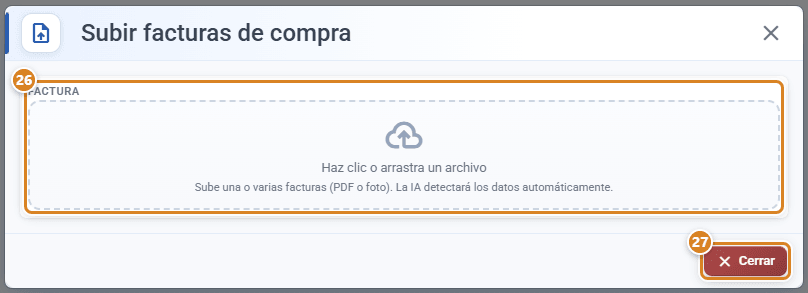
| Button / Action (text on screen) | What it does |
|---|---|
| ㉖ Invoice (upload area: "Click or drag a file") | Drag or select one or more files (PDF or photo). It takes several at a time. |
| ㉗ Close | Closes the modal. It reloads the list if anything changed. |
| Process with AI | Starts the AI extraction of the queued files that are "Uploaded". It only appears if there are any pending. |
| × icon on a file in the queue | Removes that file from the queue (only while it is still "Uploaded"). |
"Update substrate costs" modal
| Button / Action (text on screen) | What it does |
|---|---|
| Tick/radio icon on each row | Ticks or unticks that match for updating. |
| Add to stock (toggle, Size matches only) | Shows the quantity and unit that will be recorded. If you leave it ticked, applying the match adds that quantity to the stock of the size (stock in) as well as updating the cost. It only appears on sizes; it does not duplicate the entry if that line already produced the movement. With a linked order, the quantity is only what was invoiced but not received and Received on the order appears beside it. Instead of the toggle you may see Already added to stock with this invoice, Already in stock: it entered when the order was received, Received on the order in a different unit: it is not added. If needed, adjust the stock manually. or Nothing to add to stock. |
| Update (per row) | Applies the new cost to that one substrate straight away (and adds stock if Add to stock is ticked). |
| Update costs (N) | Applies the new cost to every ticked match (N = number ticked). |
| Cancel | Closes without applying the outstanding ones. |
Key concepts
- Purchase invoice: a document your company receives from a supplier. This is what you record here; you do not issue it, you record it to keep control of your expenses and input VAT.
- Document source (Source): how the invoice was created — Manual (by hand), PDF (AI), Photo (AI) or XML.
- Purchase status: Draft (extracted by AI, not confirmed), Recorded (confirmed and valid) or Voided.
- AI draft: an invoice the AI extracted from a PDF or photo that is waiting to be reviewed. You have to open it and press Confirm and record for it to become Recorded.
- Tax category: the type of transaction for VAT purposes. Options: Ordinary transaction, Capital goods, Intra-EU acquisition, Import (non-EU), Reverse charge, Not deductible.
- Expense category: the accounting classification of the expense. Options: Goods for resale, Raw materials, Other supplies, Work by other companies, Rent, Repairs and maintenance, Independent professionals, Transport, Insurance, Bank services, Advertising, Utilities, Office supplies, Software and licences, Vehicle and fuel, Travel and subsistence, Taxes and levies, Other expenses.
- % Deductible (per line): the percentage of that line's VAT that is deductible (100% by default). Use it for partly deductible expenses.
- Income tax withholding: if the supplier applies a withholding, you enter the % IRPF withholding (which works out the amount on the base) or the IRPF amount directly. The withholding is taken off the total.
- Line linked to an item (link icon): a line created with Add substrate purchase, attached to a substrate in the catalogue (to its specific size, colour, variant or garment size). When you save, its match with the substrate is direct and exact (it does not depend on comparing text) and it lets you update the purchase cost, the supplier's price list and add stock using the real price and quantity from the invoice.
- Exact / Partial match: when you save, the system compares the description of free-text lines with the supplier reference stored on the substrates. Exact = the text matches in full; Partial = the text contains the reference. Exact matches come ticked. Lines linked to an item do not go through this comparison: they produce their exact match directly.
- Add to stock: an option in the "Update substrate costs" modal for matches of the Size type. When applied, as well as updating the cost it adds the quantity on the invoice line to the stock of that size (stock in). Sizes only; it does not affect colour, variant or garment size. It does not duplicate if that line has already booked the stock in.
- Voiding an invoice (and reversing stock): when you void or delete a purchase invoice, the stock that invoice had added to the substrate (through "Add to stock") is deducted automatically so that no phantom stock is left behind. What entered when an order was received is not touched: the goods did arrive. If you later reinstate the voided invoice, the stock is not added back on its own; you have to apply "Add to stock" again from the "Update substrate costs" modal.
How to use it
Creating an invoice by hand
- In Purchase invoices press New invoice.
- Choose the Supplier (autocomplete by trading name; only customers flagged as suppliers).
- Fill in Supplier invoice no., Invoice date and Receipt date, all required, and, if it applies, the Due date.
- Choose the Tax category (required) and, optionally, the Expense category.
- Add lines with Add line (description, quantity, unit price and tax) or with Add substrate purchase (a line linked to a catalogue item, with the supplier's price list pre-filled).
- Save.
Uploading invoices and letting the AI read them
- Press Upload invoices.
- Drag or select one or more PDFs or photos into the Invoice area.
- Press Process with AI. Each file goes through the states: Uploaded → AI processing → AI draft ready / Draft created / Duplicate / Error.
- Close. The list refreshes and the invoices appear as Draft.
- Open each draft, check the data and press Confirm and record.
Features by plan / role
- FULL: the complete module (upload, extract with AI, record, match substrates).
- Included in the Full plan and available separately on any plan (Standard, Pro or Full). Without the module, the screen shows the "Purchases module" card (what the module does, the Full badge and the Subscribe to Purchasing and Inventory button that takes you to
/subscription?planes=MOD&extra=comprasInventario). - The Purchasing menu (Orders, Invoice and Inventory) only appears if your company has the module. Without it, it is in Settings → Available to add → "Purchasing and Inventory", which opens the card to subscribe. Once you subscribe, the Purchasing menu returns to the header.
Frequently asked questions
Q: Where do I enable the Purchasing module? I cannot see it.
A: Purchasing does not have an "enable" switch: what unlocks it is the Purchasing and Inventory module, included in the Full plan and available separately on any other plan. If your company does not have it, the Purchasing menu does not appear in the header: go to Settings → Available to add and click Purchasing and Inventory. Its card opens with the Subscribe to Purchasing and Inventory button, which adds it from /subscription without upgrading your plan. Once you subscribe, the Purchasing → Invoice menu appears in the header. When consumption is deducted and the hourly cost are set separately in Purchasing Settings (that is not the module activation).
Q: How do I upload a purchase invoice instead of typing it in?
A: In Purchase invoices press Upload invoices, drag the PDF or photo into the Invoice area and press Process with AI. The AI creates a draft with the extracted data. Then open the draft, check it and press Confirm and record. It requires the Purchasing and Inventory module.
Q: I uploaded an invoice with AI. Why does it show as "Draft"?
A: Invoices extracted by AI stay in Draft status until you review them. Open it, check that supplier, dates, amounts and lines are correct and press Confirm and record so that it becomes Recorded.
Q: The supplier on the invoice I uploaded did not exist. What happens?
A: When you open the draft, if the AI found a VAT number that is not among your suppliers, the system asks whether to create that supplier with the extracted details (name, VAT number, address, contact). If it already existed as a customer, it flags it as a supplier and assigns it automatically.
Q: How do I match an invoice line with a substrate to update its cost?
A: Two ways. The direct one: create the line with Add substrate purchase — you choose the substrate and its Size / colour / variant / garment size, and the line is linked to that item (link icon), so when you Save its match in the Update substrate costs modal is exact and comes ticked. The automatic one: on lines typed by hand, the system compares the description with the supplier reference stored on the substrate and with that supplier's price lists. Either way, tick the matches in the modal and press Update costs.
Q: How do I add an item from my catalogue to the invoice with its supplier price?
A: Choose the invoice's Supplier first and press Add substrate purchase. In the modal you select the Substrate and its Size / colour / variant / garment size, the quantity and the unit price — pre-filled with that supplier's price list if there is one (and their reference), or with the catalogue cost if not. The line created is linked to the item (link icon next to the line number) and when you save it updates its cost, the price list and, if it is a size, the stock directly.
Q: Can I add stock when I record a purchase invoice, not just update the cost?
A: Yes, for lines that match a size of a substrate. In the Update substrate costs modal those matches have the Add to stock toggle (which shows the quantity and unit that will be recorded). If you leave it ticked, pressing Update updates the cost and adds that quantity to the stock of the size (stock in). It only applies to sizes; colour, variant and garment size only update the cost. It does not duplicate the entry if that invoice line has already produced it.
Q: I received the invoice for a purchase order I placed with the supplier. How do I connect them?
A: Two ways. From the order: in /pedido-compra use Invoice, which creates the purchase invoice as a draft with its lines. From the invoice: when you choose the supplier, if they have outstanding orders a notice appears with the Link button for attaching them (the invoice has to be saved). Either way the order becomes Invoiced, what was received is already in stock and the substrates modal only proposes adding what was invoiced but not received, so you do not duplicate stock. With Invoice, what was invoiced but not received goes into stock at that moment.
Q: I deleted the purchase invoice of an order. Do I lose what I had already received?
A: No. When you delete the invoice, only what the invoice itself added leaves stock (what was invoiced but not received, or what you ticked in Add to stock); what entered when you pressed Receive on the order stays in stock. The order goes back to Received or Partly received, without an invoice, and you can invoice it again.
Q: Does the invoice update the supplier price lists as well?
A: Yes. Lines are also compared with that supplier's price lists (their reference per item); when you press Update costs in the modal, matches with a price list also update the price on the list with the one on the invoice.
Q: What is the difference between an "Exact" and a "Partial" match in the substrates modal?
A: Exact means the text on the line matches the substrate's supplier reference in full; it comes ticked. Partial means the text only contains that reference; it does not come ticked, you tick it yourself if you want to apply it.
Q: How do I record an income tax withholding on a purchase invoice?
A: In the header, fill in % IRPF withholding (which works out the amount on the taxable base) or type the IRPF amount directly. The withholding is taken off the invoice total.
Q: What is the "% Deductible" field on a line for?
A: It says what percentage of that line's VAT is deductible (100% by default). Use it on partly deductible expenses.
Q: What is the "Tax category" and why is it required?
A: It is the type of transaction for VAT purposes (ordinary transaction, capital goods, intra-EU acquisition, import, reverse charge or not deductible). It is required because it classifies the invoice for the input VAT reports.
Q: I uploaded the same invoice twice. What happens?
A: When processing with AI, if it detects that it already exists, the file is marked as Duplicate and no second invoice is created.
Q: Can I attach the PDF to an invoice I am entering by hand?
A: Yes. In the form press Upload file (it becomes "Change file" once there is one). You can then use Open in tab to view it or Remove file to detach it.
Q: It will not let me use Purchasing. Why?
A: You need the Purchasing and Inventory module: it is included in the Full plan and, on any other plan, it can be bought separately. Without it, the Purchasing menu does not appear; in Settings → Available to add, the Purchasing and Inventory card opens the card with the Subscribe to Purchasing and Inventory button.