
The CotizaPrint invoicing reports module: seven ready-to-use reports on your invoices and delivery notes, with filters by period and customer, instant totals and export to PDF and Excel. You open it from the Analysis menu → Invoicing Report, and it is exclusive to the Full plan.
If your plan is Standard or Pro, clicking Invoicing Report opens the module card with two buttons: Upgrade plan (takes you to Plans and pricing) and More information (opens this guide). The screenshots on this page show each report with made-up data, so you can see exactly what each one gives you before you decide.
What it is
A window with seven report types shown as cards. You pick one, adjust the period or the customers with Filters, and the report recalculates instantly: the totals at the top (number of invoices, Net, Taxes, Total, Collected, Outstanding) and the table of documents below. Everything you see can be downloaded as PDF or Excel.

What it is for
- Closing the month: see what you have invoiced, with net, taxes and total, in one click.
- Sending the paperwork to your accountant: the quarter's invoice list, in PDF or Excel, without copying anything by hand.
- Preparing VAT: Modelo 303 gives you output VAT, input VAT and the result per quarter or per month, broken down by VAT rate.
- Keeping track of payments: which invoices are Paid, which are Partly paid and which are Pending, and how much money each group adds up to.
- Leaving no work uninvoiced: the delivered delivery notes that have not been turned into an invoice yet.
- Opening the document from the report: the document number and the customer are links that open the invoice or delivery note in another tab.
How to use it
- Go to the Analysis menu and click Invoicing Report. It opens on Invoices for the month for the current month.
- Click the card of the report you want. The report is generated automatically.
- Click Filters to choose Years, Months or Quarters (depending on the report) and Customers. In the date-based reports, use From and To.
- Read the totals in the chip bar and the table. Click the Document or the Customer to open it.
- Click Export PDF or Export Excel to download it. Close closes the window.
The seven reports
Invoices for the month
Everything invoiced in one or more months of one or more years. By default it shows the current month. With Filters you can tick several months (for example January, February and March) and several years at once to compare; the report only includes the months you ticked, even if they are not consecutive.
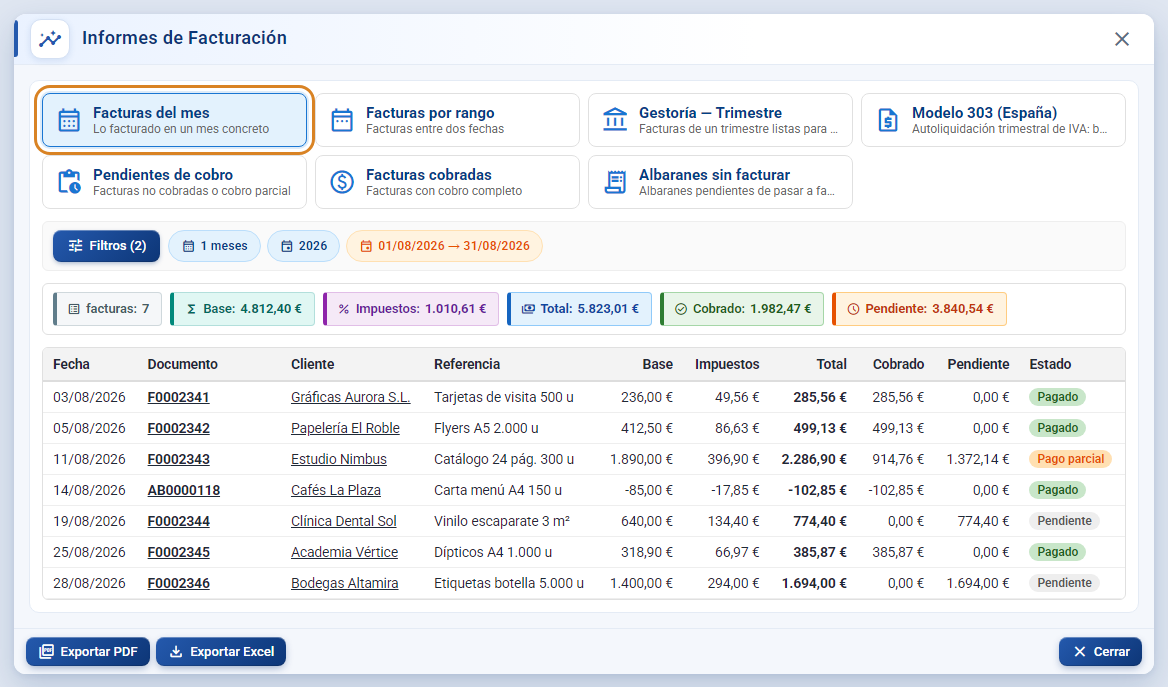
- Available filters: Years, Months, Customers.
- Chips: how many months you have ticked, which years, and the date range the report covers.
- Table: Date, Document, Customer, Reference, Net, Taxes, Total, Collected, Outstanding, Status.
- Credit notes and amended invoices appear with negative amounts and are subtracted from the totals.
Invoices by date range
Invoices issued between any two dates, without being tied to whole months: a fortnight, a calendar year, from the 15th to the 15th… You choose the range with the From and To pickers, which appear next to the Filters button.
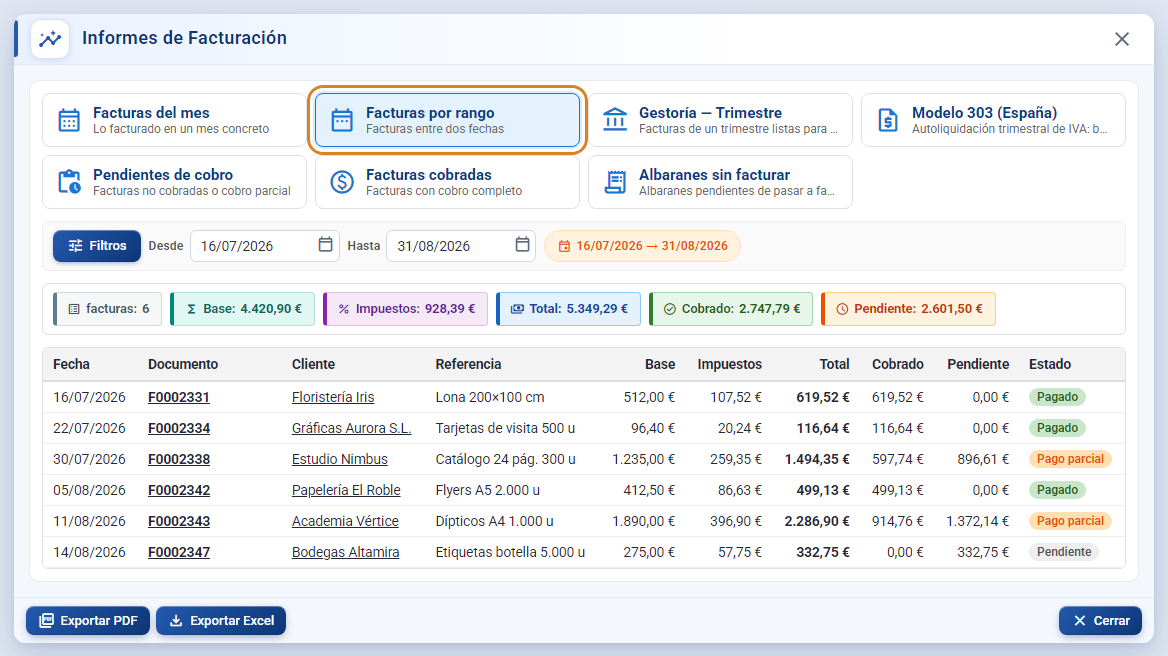
- Available filters: From, To, Customers.
- When you switch to this report, the range of the previous report is kept; change it in From / To and the table updates instantly.
Accountant — Quarter
The invoice list for a whole quarter, designed to be sent to your accountant or tax adviser as it is. By default it opens on the previous quarter (in January, February or March, the fourth quarter of last year, which is the one due for filing). With Filters you can tick several quarters and several years.
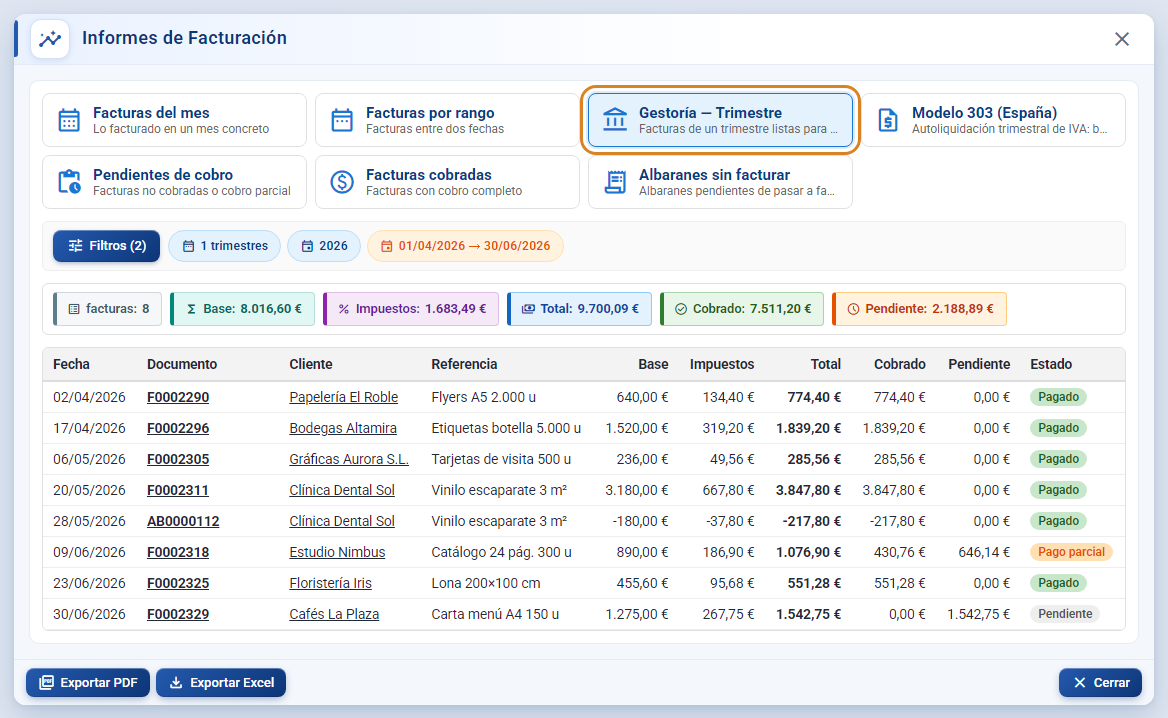
- Available filters: Years, Quarters (Q1 (Jan-Mar), Q2 (Apr-Jun), Q3 (Jul-Sep), Q4 (Oct-Dec)), Customers.
- Tip: Export PDF for your accountant and Export Excel if they want to work with the data.
Modelo 303 (Spain)
A summary for the Spanish VAT return: for each period, the output VAT (the VAT on your sales invoices), the input VAT (the VAT on your purchase invoices) and the VAT result (output minus input). Below it, two breakdowns by VAT rate: Sales — output VAT by rate and Purchases — input VAT by rate, each with its tax base, its tax amount and the number of lines.
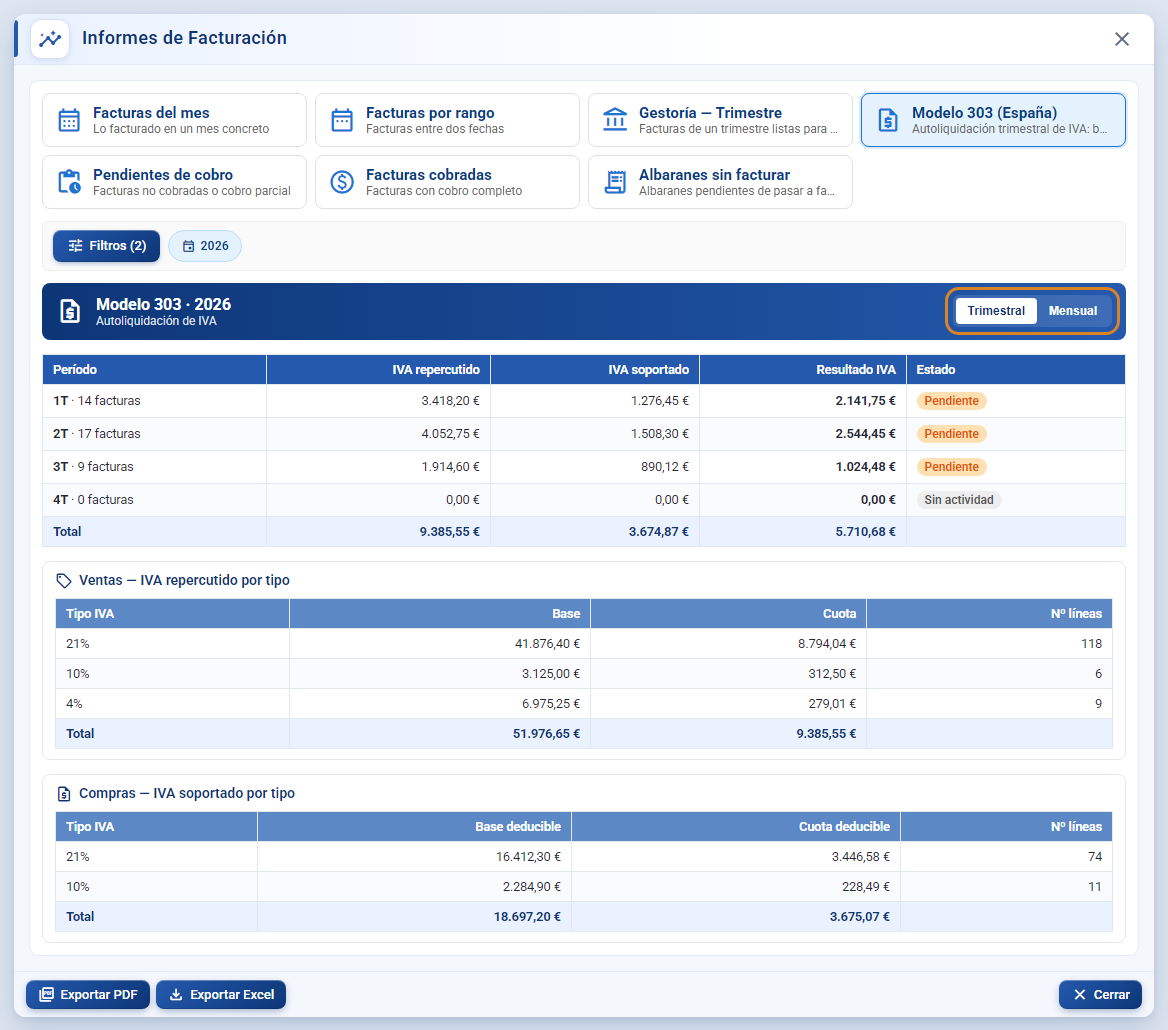
- Quarterly / Monthly: the switch in the header changes the frequency (4 rows or 12 rows).
- Year: the year ticked in Filters → Years is used. Modelo 303 always shows the whole year; the quarter filter does not trim it.
- Period Status: Pending if there is activity (sales invoices or input VAT) and No activity if there is none.
- On the purchases side, only posted purchase invoices count, those marked as non-deductible are excluded, and the deductible percentage of each line is applied.
- Credit notes already come in as negative amounts, so output VAT is netted without you doing anything.
- This report does not show the invoice totals bar: its totals are in the footer of each table.
Outstanding payments
Invoices in the chosen range that have not been fully paid yet: those with no payment at all (Pending) and those with a partial payment (Partly paid). The Outstanding column and the Outstanding chip tell you how much you are owed.
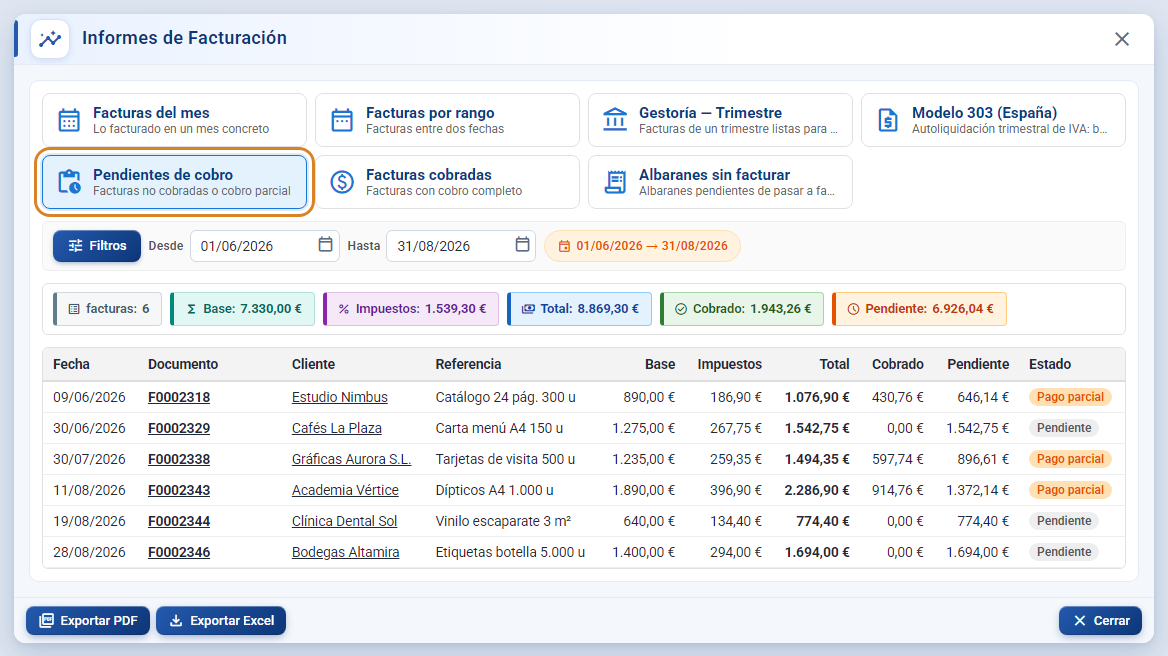
- Available filters: From, To, Customers.
- Filter by Customers to prepare a payment reminder with what each one owes.
- Click the Customer to open their invoice list from the report's From date.
Paid invoices
Invoices in the chosen range that are 100% paid (status Paid). It is the mirror of the previous report: here Outstanding is always zero.
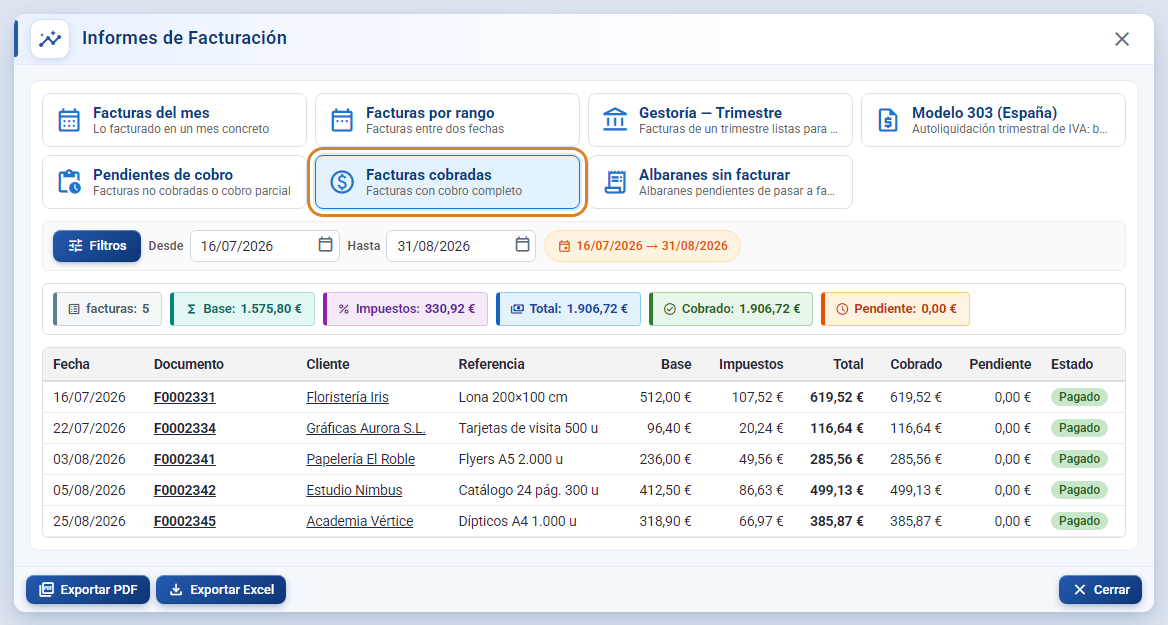
- Available filters: From, To, Customers.
- An invoice counts as paid when the sum of its payments reaches the total; a one-cent rounding difference does not leave it out.
Uninvoiced delivery notes
Delivery notes with delivered lines that have not been invoiced yet, from any date. The amounts on each row are only those of the uninvoiced lines, so if a delivery note is partly invoiced you only see what is left. Every row has the status Not invoiced.
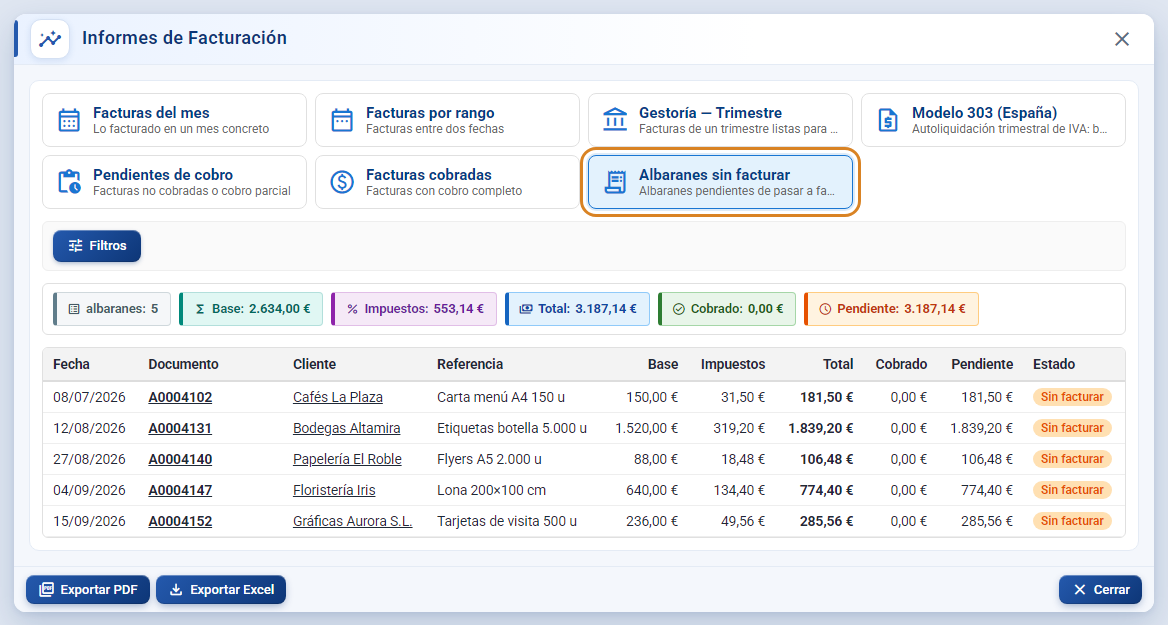
- Available filters: Customers. There is no date filter: it shows everything outstanding.
- Click the Document to open the delivery note and invoice it from there.
Filters
The Filters button opens the Report filters window, with sections that change depending on the report:
| Report | Filters sections | Date pickers |
|---|---|---|
| Invoices for the month | Years, Months, Customers | — |
| Invoices by date range | Customers | From / To |
| Accountant — Quarter | Years, Quarters, Customers | — |
| Modelo 303 (Spain) | Years, Quarters (no effect: the report is annual), Customers | — |
| Outstanding payments | Customers | From / To |
| Paid invoices | Customers | From / To |
| Uninvoiced delivery notes | Customers | — |
- Every section allows multiple selection. Customers has a search box to find one among many.
- The Filters button shows in brackets how many options you have ticked, for example Filters (3).
- The blue chips on the right summarise your selection (3 months, 2026, 2 customers) and the orange chip shows the date range the report covers.
- Years offers next year, the current year and the three previous ones.
Report totals
Above the table, a chip bar summarises the report (in all of them except Modelo 303):
- invoices / delivery notes: number of rows in the table.
- Net: sum of the tax bases.
- Taxes: sum of the taxes.
- Total: net plus taxes.
- Collected: what you have already collected on those invoices.
- Outstanding: what is still to be collected.
Credit notes and amended invoices are subtracted; if in one month you issue a €1,000 invoice and a €200 credit note, the Total is €800.
Export
- Export PDF: generates the report with your company logo, the report name as the title, the date range and the number of records as the subtitle, the full table, the totals and page numbers. It is the format for your accountant or for filing.
- Export Excel: downloads an .xlsx file with the same columns as the table (Date, Document, Customer, Reference, Net, Taxes, Total, Collected, Outstanding, Status), ready to filter or add up.
- If the report is empty, exporting shows the message "No data to export".
Buttons and actions — what each one is for
| Button / Control (on-screen text) | What it is for |
|---|---|
| Invoicing Report (Analysis menu) | Opens the Invoicing Reports window. With the Standard or Pro plan it opens the module card with Upgrade plan and More information. |
| Invoices for the month | Invoices for the months and years ticked in Filters. By default, the current month. |
| Invoices by date range | Invoices between the From and To dates. |
| Accountant — Quarter | Invoices for the ticked quarters and years. By default, the previous quarter. |
| Modelo 303 (Spain) | VAT summary for the year: output, input and result per period, with a breakdown by rate. |
| Outstanding payments | Invoices in the range that are unpaid or partly paid. |
| Paid invoices | Invoices in the range that are fully paid. |
| Uninvoiced delivery notes | Delivery notes with delivered lines that are not yet on any invoice. |
| Filters | Opens Report filters (Years, Months or Quarters, Customers depending on the report). In brackets, how many options are ticked. |
| From / To | Start and end dates of the report in Invoices by date range, Outstanding payments and Paid invoices. |
| Quarterly / Monthly toggle (Modelo 303) | Quarterly = four periods (Q1 to Q4). Monthly = twelve periods, one per month. |
| Document (in the table) | Opens the invoice or delivery note in another tab. |
| Customer (in the table) | Opens that customer's invoice (or delivery note) list from the report's From date. |
| Export PDF | Downloads the report as a PDF with logo, totals and page numbers. |
| Export Excel | Downloads the report as .xlsx. |
| Close | Closes the window. |
| Upgrade plan (module card) | Takes you to Plans and pricing to move to the Full plan. |
| More information (module card) | Opens this guide in the help manual. |
Key concepts
- Net: the amount before taxes of the document lines.
- Taxes: the VAT (or other configured tax) on those lines.
- Total: net plus taxes.
- Collected: the sum of the payments recorded against the invoice.
- Outstanding: total minus collected.
- Paid / Partly paid / Pending: the payment status of the invoice. Paid = 100% collected; Partly paid = it has some payment but does not reach the total; Pending = no payment at all.
- Credit note: a negative invoice that cancels another one in full or in part. It is subtracted from the totals.
- Amended invoice: an invoice that corrects another one already issued. It is shown as its own type and is also subtracted if it is negative.
- Output VAT: the VAT you charge on your sales invoices.
- Input VAT: the VAT you pay on your purchase invoices and can deduct.
- VAT result: output minus input. Positive = to pay; negative = to offset or reclaim.
- Deductible base / Deductible tax: the part of a purchase's tax base and tax amount that can be deducted, according to the line's deductible percentage.
- No activity: a Modelo 303 period with no sales invoices and no input VAT.
- Uninvoiced delivery note: a delivery note with at least one delivered line that does not yet belong to any invoice.
Features by plan / role
- FULL: full module. With TRY (trial), STD or PRO the menu shows the Full badge and clicking it opens the module card with Upgrade plan and More information. The trial account has Full access while the trial lasts.
- Role permissions: the Analysis menu requires
access_stat. Without that permission the entry is not shown.
Frequently asked questions
Q: Where is the invoicing report?
A: In the Analysis menu → Invoicing Report. It requires the Full plan.
Q: I have the Pro (or Standard) plan and a window tells me the module is not in my plan. What do I do?
A: That is the module card. Upgrade plan takes you to Plans and pricing to move to Full; More information opens this guide so you can see what it includes before you decide.
Q: How do I get the quarter's invoice list for my accountant?
A: Click the Accountant — Quarter card, check the quarter and the year in Filters, and click Export PDF (or Export Excel).
Q: How do I know how much VAT I have to pay this quarter?
A: In Modelo 303 (Spain), with Quarterly selected, the VAT result column in the quarter's row is output VAT minus input VAT.
Q: Modelo 303 does not change when I tick a quarter in Filters.
A: That is normal: Modelo 303 always shows the whole year with its four quarters (or twelve months). What does change it is the year and the Quarterly / Monthly switch.
Q: Can I see several months at once?
A: Yes. In Invoices for the month → Filters → Months, tick the ones you want; you can also tick several Years. Only the ticked months are included.
Q: What is the difference between Outstanding payments and Paid invoices?
A: Outstanding payments lists the invoices with something still to collect (Pending or Partly paid); Paid invoices lists those that are Paid 100%. Between the two you have every invoice in the range.
Q: Why does a credit note show as negative?
A: Because it is subtracted from what you invoiced. That way the report totals reflect what you really invoiced in the period.
Q: What are uninvoiced delivery notes?
A: Jobs delivered with a delivery note that do not have an invoice yet. The report lists all of them, from any date, with the amount still to be invoiced on each one.
Q: Why is there no date filter in Uninvoiced delivery notes?
A: Because what matters is that nothing is left uninvoiced, whenever it dates from. You can narrow it down by Customers.
Q: Can I open the invoice from the report?
A: Yes. Click the number in the Document column and it opens in another tab. Clicking the Customer opens their invoice list.
Q: When I export it says "No data to export".
A: The report is empty with the current filters. Check the period (Filters, From / To) or the ticked customers.
Q: Does the PDF include my company logo?
A: Yes. Export PDF generates the report with your logo, the report title, the date range, the totals and page numbers.
Q: Do the reports include purchase invoices?
A: Only Modelo 303, which needs the input VAT from posted purchases. The rest work with your sales invoices and delivery notes.