
What it is
The way into the quoting engine. From here you pick a product and start quoting.
What it is for
- Get to the quoting engine quickly.
- See featured or frequently used products.
How to use it
- Go to
/cotizar. - Select a product (by search or from the selector).
- Move on to the Quoting engine v2 with the product loaded.
What you see on screen
On screen, this panel is titled "Categories and Products".
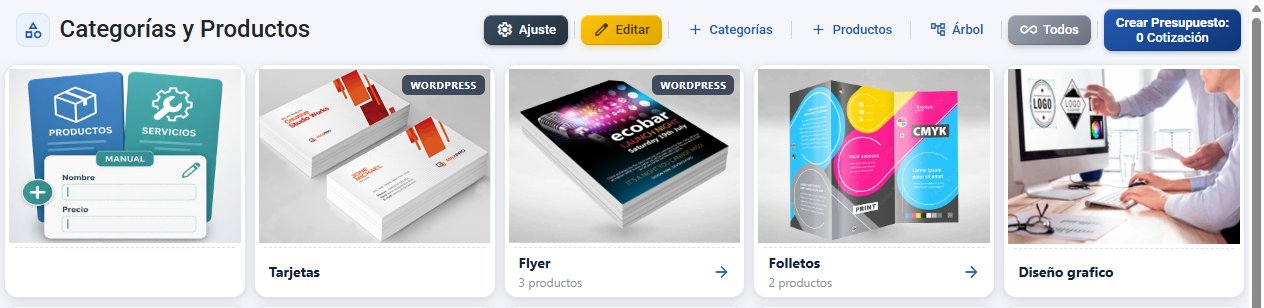
The dashboard has two blocks:
- Getting started card (trial accounts only): the "Getting started has never been easier" card with the description "Set up your account to start working with CotizaPrint.". It is a guide with buttons that take you to each setup step. Once your account is no longer a trial, this card disappears.
- Catalogue of categories and products: your categories with their products inside. You can see them as a grid or in Tree view (a hierarchical structure). Pressing a product opens the quoting engine. Everything you quote adds up in the basket, and the Create Quote button takes you on to generate the sale.
Buttons and actions — what each one is for

Getting started card (onboarding)
Only visible on trial accounts. Each button opens the screen or window for completing that setup step.
| Button / Control (text on screen) | What it is for |
|---|---|
| My company | Add your company's trading name, logo and basic details. |
| Billing details | Set the legal name, VAT number and registered address that will appear on your invoices. |
| Currency and unit | Set the currency symbol, the decimal places and the number separators. |
| Mail server | Set up SMTP so that emails (quotes, invoices) go out from your own account. |
| Taxes | Define the VAT rates you apply. |
| Print template | Choose and customise the template your PDFs are generated with. |
| Guillotine | Takes you to define sheet dimensions and guillotine cuts. |
| Create a product | Takes you to create your first product so that you can start quoting. |
| Set up substrates | Takes you to set up your paper types and substrates. |
| Set up operations | Takes you to define production operations and finishing. |
| Create a machine | Takes you to create your printing machines. |
| Check our FAQ documentation | Opens the platform's help documentation in a new window. |
Catalogue and category view
| Button / Control (text on screen) | What it is for |
|---|---|
| Create Quote: [N] Quote / Quotes | Opens the sales form with every quote in the basket. The number [N] counts the items in the basket; the button turns green when there are quotes pending. |
| Edit | Switches on sort mode: you can drag to reorder, change visibility and delete categories and products. While it is on, it is highlighted in orange. Press it again to leave. |
| Categories | Opens the modal for creating a new category. |
| Products | Opens the modal for adding products to the category. |
| Tree | Switches between the grid view and the Tree view (a hierarchical structure with parents and children). |
| Settings | Opens the sales settings (the settings icon). Visible if you have the sales editing permission. |
Action icons (visible in Edit mode)
| Control (text/icon on screen) | What it is for |
|---|---|
| edit | Edit the category. It only appears on rows that are a category, not on products. |
| Visible / Hidden (visibility / visibility_off) | Shows or hides the category or product in the public catalogue. Visible (blue icon) = it appears in the catalogue; Hidden (grey icon) = it does not appear. |
| delete | Removes the category or the product from the list. |
Category modal (create / edit)
| Button / Control (text on screen) | What it is for |
|---|---|
| Name | Type the name of the category. |
| Category image | Upload the image that represents the category. |
| WordPress Module (Deactivate / Activate) | Publishes or removes the category on your WordPress site. Activate = the category is published on WordPress; Deactivate = it is not published. It only appears if you have the WordPress module enabled. |
| Save | Saves the changes to the category. |
| Cancel | Closes the modal without saving. |
| Delete | Removes the category. It only appears when editing a category that already exists. |
Key concepts
- Getting started / Onboarding: the initial setup guide for trial accounts. The "Getting started has never been easier" card brings together the setup steps (company details, billing, currency, email, taxes, templates, guillotine, products, substrates, operations and machines). It disappears once your account is no longer a trial.
- Category: a grouping of products in your catalogue. It can have subcategories and form a tree several levels deep. Each category has a name, an image, a status (visible or hidden) and can be published on WordPress.
- Product: the final item in the catalogue, which lives inside a category. In the tree it appears as a leaf node with the Product label. Pressing it opens the quoting engine.
- Tree view: a hierarchical representation of categories and products that shows what hangs from what. It expands and collapses so that you can navigate the structure. It is the alternative to the grid view, and is switched on with the Tree button.
- Edit / Sort mode: the state switched on by the Edit button. While it is on you can drag the cards to reorder them, change visibility, set up WordPress and delete. The Edit button is highlighted in orange while it is on.
- Quote basket: the temporary store for the quotes you build up. The Create Quote button counts how many there are and opens the sales form with all of them. The basket is kept even if you move to another screen, until you generate the sale.
- Status (Visible / Hidden): controls whether a category or product appears in your public catalogue. Visible shows the visibility icon (blue); Hidden shows visibility_off (grey).
- WordPress Module: an optional integration that publishes your categories and products on an associated WordPress site. It is switched on category by category with the WordPress Module toggle, and only appears if you have the module enabled.
Features by plan / role
- TRY: the getting started card ("Getting started has never been easier") only appears on trial accounts, to guide the initial setup.
- Role permissions:
access_cotizar— needed to enter the dashboard.category_edit— needed to see the Categories and Products buttons and to create/edit categories.venta_edit— needed to see the Settings button.
Frequently asked questions
Q: How do I start setting up my new account?
A: Use the "Getting started has never been easier" card on the dashboard. It appears on trial accounts only and has a button for each step: My company, Billing details, Currency and unit, Mail server, Taxes, Print template, Guillotine, Create a product, Set up substrates, Set up operations and Create a machine. Work through them in order.
Q: What is the "Create Quote" button for?
A: It gathers every quote you have in the basket and opens the sales form to generate the quote. The number you see (Create Quote: [N] Quotes) is how many items are in the basket, and the button turns green when there are quotes pending.
Q: How do I create a new category?
A: Press the Categories button: a modal opens where you type the Name, upload the Category image and save with Save. You need the category editing permission to see it.
Q: How do I add a product to a category?
A: Press the Products button inside the category. The modal for choosing and adding products opens. If you have not created any products yet, use Create a product first (or go to the Products section).
Q: How do I reorder or change the order of my categories and products?
A: Press Edit to switch on sort mode (it is highlighted in orange). While it is on you can drag the cards to reorder them, change visibility and delete. Press Edit again to leave.
Q: What is the "Tree view" and how do I switch it on?
A: It is the hierarchical view that shows which categories and products hang from which, letting you expand and collapse each branch. You switch it on with the Tree button, which toggles between the grid and the tree.
Q: How do I hide a category so that it does not show in the catalogue?
A: Go into Edit mode and press the category's Visible / Hidden icon. When it is Hidden (grey visibility_off icon) it does not appear in the public catalogue; when it is Visible (blue visibility icon) it does.
Q: What is a category's "WordPress Module" toggle for?
A: It publishes that category on your associated WordPress site. On Activate it is published; on Deactivate it is not. It only appears if you have the WordPress module enabled.
Q: I deleted a category. Does that delete its products too?
A: No. Deleting only removes it from the category list; the product still exists and you will find it in the Products section. The confirmation says so itself: "It will only be removed from the list of categories and products, it will still exist and you can find it under product."
Q: Why can I not see the "Categories" or "Products" buttons?
A: Those buttons require the category editing permission (category_edit). If you cannot see them, ask an administrator to assign it to you.
Q: My catalogue is empty and says "No category created". What do I do?
A: It means you do not have any categories yet. Press Categories to create the first one, or use Create a product from the getting started card to start your catalogue.
Permissions
- Requires
access_cotizar.