
What it is
The section where you see and manage your organisation's subscription plan.
What it is for
- See your current plan and its limits (TRY, STD, PRO, FULL).
- Upgrade or change plan.
- Check your payment history.
- Confirmation screen after a payment.
How to use it
- Go to
/subscription. - Look at the details of your current plan.
- Click Change plan or Upgrade.
- Complete the payment on the gateway.
- After the payment, the system updates your plan as soon as the webhook comes in.
Screen layout
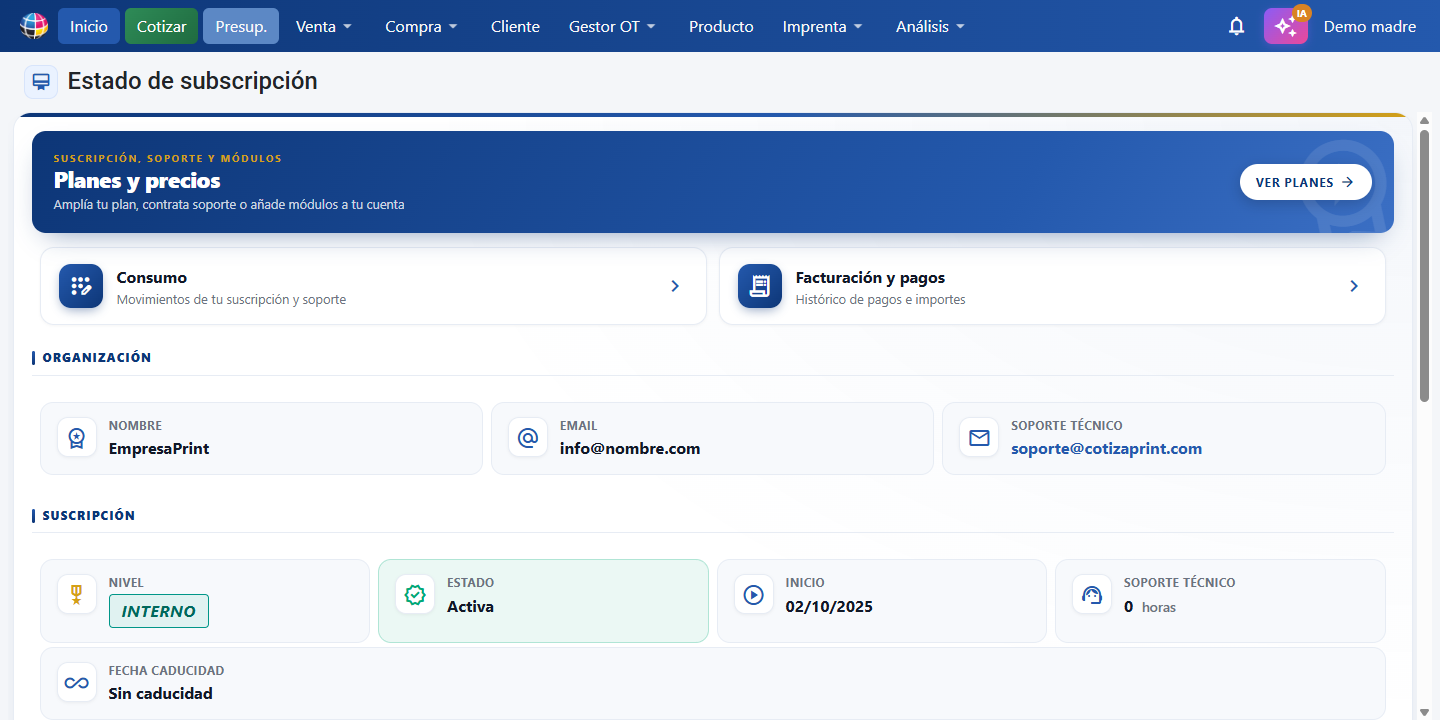
From top to bottom:
- Quick access cards — the Usage, Cycle summary, Billing and payments and Plans and pricing buttons, which open the detail dialogs. The list of modules you have contracted and the amount you are charged lives inside Cycle summary; the screen no longer repeats that block.
- Organisation details — Name, Email and Contact for the organisation.
- Subscription details — Level, Subscription status, start date, Technical support (hours available) and Expiry date. It also includes the Subscription progress bar.
- Plan allowances — quotas with a progress bar: Users, Quotes, Quotes, orders, delivery notes and invoices (documents issued during the year) and Storage, plus AI usage: the tokens spent and their approximate value in euros. This figure is for information only; AI is included in your plan and is not billed to you.
- Plans and pricing dialog — opens with the Plans and pricing button (page header or quick access card). It holds the Subscription / Support / Modules tabs, the Monthly / Annual period toggles and the plans available. There are two ways to pay, and each card says which one it is on its button:
- What you pay every month — the subscription plan and the modules that extend your account permanently (Additional user, Extra storage, Electronic invoices). You add them with Add to basket, which closes this dialog and opens Cycle summary with that line already ticked, so you pay for everything together in a single monthly charge on your billing date. Modules with several tiers (Extra storage, Electronic invoices) show a price range and a See options button, which opens another dialog where you pick the tier and click Add to basket.
- What you buy once, when you need it — the Support hours (Support tab) and the packs that top up your allowance for the year (Quote Pack and Document Pack, on the Modules tab, under the heading Bought once, when you need it). These carry the Buy now button, which goes straight to the gateway: it is a one-off payment, it does not renew and it is not added to your monthly fee. A pack is valid until 31 December of the current year; in January your allowance starts again and, if you need to, you buy another one.
The Modules tab separates those two blocks with the headings Added to your monthly fee and Bought once, when you need it, and closes with Arranged with your sales rep (E-commerce integration).
- Features of each plan — on the Subscription tab, each plan card (Standard, Pro, Full) lists what that plan includes below the price, with a tick per feature. The list is cumulative: the Standard card shows the full list under the heading Includes, and the Pro and Full cards start with Everything in <previous plan>, plus: followed only by what that plan adds over the one below (so nothing you already had is repeated). On wide screens the three plans sit side by side so you can compare them at a glance. Below that list, the cards that need it show the Contracted separately block, listing what the platform supports but which is not part of the plan fee (electronic invoicing on Standard, Pro and Full; WordPress or PrestaShop Online Shop on Full), in grey and with an icon different from the tick, so it is not read as included. The Full card also closes with a note on what it does not include.
Buttons and actions — what each one does
| Button / Control (text on screen) | What it does |
|---|---|
| Usage | Opens the Subscription usage dialog with the movements on your subscription: each line shows the date, the description, the Days it adds to or takes off your expiry date, the Support (h) hours and the related payment. |
| Billing and payments | Opens the dialog with the history of payments and amounts invoiced. |
| Plans and pricing | Opens the dialog with the subscription plans, support and modules available to buy. It is both a button in the page header and a quick access card. |
| See options | On modules with several tiers (Extra storage, Electronic invoices), opens a dialog where you choose the tier you want and click Add to basket. The card shows the price range and how many options there are. Packs (Quote Pack, Document Pack) have no tiers: they carry a Quantity field and a Buy now button. |
| Subscription (tab toggle) | Switches the payments area to the view of subscription plans (profile / level). |
| Support (tab toggle) | Switches the payments area to the view of technical support plans (buying support hours) and of Shop setup (Shop onboarding and connection and New shop and connection, with a Buy button). Both services are still here for anyone looking for them, but from the Online Shop card they are added automatically with Set up and buy. |
| Modules (tab toggle) | Switches the payments area to the view of additional modules and extensions. |
| Monthly (period toggle) | Filters the subscription plans to the monthly period (MONTHLY). |
| Annual (period toggle) | Filters the subscription plans to the annual period (YEARLY), with a discount of up to -24% against monthly (the exact saving depends on the plan and on the pricing zone). |
| Includes (list on the Standard card) | Heading of the feature list for the Standard plan on the Subscription tab: it lists everything the plan brings (users, quotes per year, storage, quoting engine, sales documents, job manager, payments and collections, support…). |
| Everything in … , plus: (list on the Pro and Full cards) | Heading of the feature list on Pro and Full: it says the plan includes everything in the plan below and, underneath, only what that plan adds. It lets you see at a glance what you gain by upgrading. |
| Contracted separately (block on the plan card) | Heading of the block listing what is not part of the plan fee and is bought as an additional module. On Standard, Pro and Full you see Electronic invoicing available as an add-on (From €15/USD a month, depending on country and allowance.); on Full you also see Ready to switch on a WordPress or PrestaShop Online Shop (Licence, onboarding and shop services are arranged separately.). Each line is in grey with an add icon, not with the tick used for what is included. They are bought from Plans and pricing → Modules tab. |
| Set up and buy | Button on the Web-to-Print Online Shop card of the Modules tab. It is a single card for both platforms —WordPress · WooCommerce and PrestaShop, listed inside it with their status Active or Available—: you choose the platform when you buy, not before. It replaces Add to basket. It opens a 4-step wizard: 1) Platform (WordPress/WooCommerce or PrestaShop), 2) Your shop (Connect an existing shop to CotizaPrint, or Create a new shop + Connect to CotizaPrint, which replaces the onboarding: they are not added together). Each option lists what it includes and, below it, the Not included in either case block, 3) How you want to pay the fee (monthly or annual) and 4) Your order, with today's Initial charge and the Next charge with its date. When you finish it opens Cycle summary with both lines already ticked —the module and the setup— so you pay them in a single charge. If you already paid for the setup in the past, the wizard detects it, shows it at 0.00 and does not charge you again. |
| Mandatory setup required from €600 — one-off payment (card notice) | Notice inside the Online Shop card. The setup is mandatory the first time: the module is the connector, and the installation and connection of the shop are done by us. You cannot buy the shop fee without it; if you try, the system rejects it and tells you to add it to the same payment. |
| Complete details (orange notice in the header) | Appears when your company record is missing billing details: the VAT number / company number (or the RUT, depending on your country), the Address or the Town. It opens, one after the other, the windows where they are filled in (Company details and Billing address), only the ones with gaps. While any of them is missing you cannot pay: without them we cannot issue your invoice. The same notice appears inside Cycle summary, and if you click a payment button with incomplete details those windows open before you continue. Unsubscribing from a module does not ask for them, because there is no charge in that case. |
| Find out more about each plan | Opens https://cotizaprint.com/ in a new tab with the plan information. |
| Add to basket | Button on the subscription plan cards and on the monthly fee modules (Additional user, Extra storage, Electronic invoices) of the Plans and pricing dialog. It does not open the gateway: it closes Plans and pricing (and the tier dialog, if you had it open) and opens Cycle summary with that plan or module already ticked and with the quantity you chose, so you can review everything and pay it all at once on your monthly billing date. You can repeat it to keep adding lines. It is disabled if your zone is not supported or if you have not entered a quantity. Quote and document packs no longer use this button: they are bought with Buy now. |
| Buy now | Button for everything that is paid only once: the Support hours (Support tab) and the Quote Pack and Document Pack packs (Modules tab). It takes you straight to the payment gateway, without going through the basket or Cycle summary. On packs it first asks for confirmation, showing the amount and a reminder that it is a one-off payment that does not renew and that adds allowance until 31 December of the current year. It is disabled when your zone is not supported or when you have not entered a quantity. |
| Added to your monthly fee (heading on the Modules tab) | Heads the block of modules that extend your account permanently (Additional user, Extra storage, Electronic invoices). Below it you read: Extend your account permanently. Charged every month along with the rest, on your billing date. They all carry Add to basket. |
| Already included with your Full plan (badge on the module card) | Replaces the price, the quantity and the buy button on the modules your plan already includes (Purchasing and Inventory, Cash register and Shift close, and Sales commissions, on the Full plan). Below it you see, struck through, what they would cost separately per month, so you can see what you are not paying. Those modules do not appear in the Cycle summary either: there is nothing to tick and nothing to charge. On any other plan the card keeps its price and its button, because there they really are bought separately. |
| With the Full plan these modules are included (banner on the Modules tab) | Heads the Modules tab naming the three modules the Full plan brings with it and how much they cost separately per month in your currency, with a See the plan button that takes you to the comparison. If you already have the plan that includes them, the banner confirms it and shows what you are saving. |
| Bought once, when you need it (heading on the Modules tab) | Heads the Quote Pack and Document Pack block. Below it you read: Top up your allowance for this year. Paid once only, it does not renew and it is not added to your monthly fee. They carry Buy now. |
| Arranged with your sales rep (heading on the Modules tab) | Heads the E-commerce integration card, which is not bought online: Services we set up for you. Get in touch and we will tell you how it works and what it costs. |
| One-off payment (card label) | Purple badge on the Quote Pack and Document Pack: a reminder that this purchase is paid once only and is never charged on its own. |
| Already bought this year (card label) | Appears on a pack you have already bought this year. You can buy another one: the units are added to your allowance for the current year. |
| Coming soon | Disabled state of the payment button: it appears when your zone is not supported yet and you cannot buy. |
| Quantity (field) | Numeric field (minimum 1) for how many units you want: units of the module you are adding to the basket, or how many packs you buy at once (2 quote packs = +2,000 quotes). |
| Back | On the screen shown after a payment, it closes that page and returns to /subscription. |
| Cycle summary | Quick access card (next to Usage, below Plans and pricing), with the subtitle What is charged this month and your billing date. It opens the Cycle summary dialog, whose list is headed Your monthly fee with the subtitle Tick what you want to pay now. Only what is charged every month is listed here: the plan and the monthly fee modules with their status in the current cycle, so you tick what you want to pay and generate a single payment. Below the total there is a reminder: Support hours and quote and document packs are not listed here: you buy them when you need them from Plans and pricing and pay for them there and then. It is also where you land when you click Add to basket in Plans and pricing, with the added line already ticked. It shows the Next charge with the Day N of each month chip, what is already paid (Paid until with its date), what is outstanding, any scheduled changes and, if there is one, the notice of a payment in progress with the Go to payment button. |
| Change billing date to the 10th | Inside the Cycle summary dialog (visible if your billing day is not the 10th). It moves your monthly billing date to the 10th, with a confirmation beforehand that explains the adjustment: the current cycle stays paid until its date, and the first charge on the 10th covers the month plus the difference in days. Those extra days are broken down module by module (one line per plan and per module contracted, each at the monthly price of that module for the days in the stretch) and are charged on your next payment; until then you carry on using everything as normal. Only an administrator can use it, and only once per cycle. |
| Unify into a single charge | Below the header of the Cycle summary dialog, next to the You have N modules with a different billing date notice. It appears when you have modules bought before unified billing that the gateway (PayPal or dLocal) still renews on its own, on a different date. When you click it you see the detail (module · covered until your billing date · stretch of days between its previous renewal and your billing date, with its amount) and, when you confirm, the automatic renewal on the gateway is cancelled: each module stays active until your next billing date and from then on is paid together with the rest in a single monthly payment. The stretches of days are left as Outstanding and are added automatically to your next payment. You receive an email with the summary. Only an administrator can use it; if a module cannot be cancelled on the gateway, that module is left as it was and support is notified. |
| Pay with dLocal | In the footer of the Cycle summary dialog. It generates a single payment with everything ticked (plus anything outstanding) and opens the dLocal gateway to complete it. |
| Pay with PayPal | In the footer of the Cycle summary dialog. It generates a single payment with everything ticked (plus anything outstanding) and opens PayPal to complete it. |
| Automatic payment / Manage automatic payment | In the footer of the Cycle summary dialog. It opens the Automatic payment dialog so you can link your PayPal account and have the active modules charged automatically every month, on your billing date. Once you have a saved payment method with automatic payment switched on, the button is called Manage automatic payment and below the summary header you see the line Automatic payment active · PayPal · <account holder> · will be charged on day N (or <brand> •••• <last 4 digits> if what you saved is a card). |
| I authorise the variable monthly charge to my PayPal account under the conditions above | Consent switch in the Automatic payment dialog (with no saved payment method). You have to turn it on before you can click Save my PayPal for automatic payment: it authorises a monthly charge of a variable amount (that of the modules active in each cycle), on your billing date, with advance notice by email and cancellable at any time. |
| Save my PayPal for automatic payment | In the Automatic payment dialog, after accepting the consent. It takes you to the PayPal website so you can authorise the charge with your own PayPal account (we never see your bank or card details) and when you finish you come back to Subscription, where the dialog opens on its own for the final step. PayPal will charge the amount every month to your PayPal balance or to the card or bank account linked to your account. If automatic payment is not available on the receiving account, the dialog says so and you can carry on paying each cycle with Pay with PayPal. |
| Confirm payment method | Final step when you come back from PayPal (the Final step screen of the Automatic payment dialog). It saves your PayPal account as your payment method and switches on monthly automatic payment. Start again discards that attempt and returns to the beginning. |
| Automatic payment (switch) | With a saved payment method, in the Monthly renewal section of the Automatic payment dialog. Switched on: every month, on your billing date, the active modules are charged automatically (you will see Next automatic charge on day N). Switched off: the payment method stays saved but each cycle is paid by hand from Cycle summary. |
| Remove payment method | In the footer of the Automatic payment dialog, with a saved payment method. It asks for confirmation, unlinks your PayPal account (or deletes the card) and switches off automatic payment; you can carry on paying each cycle with Pay with PayPal or link your PayPal again. |
| Unsubscribe (line switch) | Switch that appears on the lines of the Cycle summary dialog that you have contracted or already paid. When you turn it on and confirm, that module is cancelled: if you have it paid, it keeps working until what you paid for runs out (you will see the Switches off on label with the date); if you have it contracted but unpaid, the cancellation takes effect today. It costs nothing and adds nothing to the amount. It is the only way to cancel a module: unticking a line does not cancel it, it only means you are not paying for it now. |
| Switch everything to annual billing | Button in the Billing frequency block, inside Billing date and frequency in the Cycle summary dialog. It moves your plan and your monthly fee modules to a single payment once a year, with the annual discount (before confirming you see what you pay now, what you would pay instead and how much you save per year). If you already have a billing date, the change takes effect on your next billing day and nothing changes until then; if you have never paid, it takes effect today and your next payment is the full year — that payment is the one that sets your billing date. Quote and document packs and support hours stay out of it, and the block itself explains why: they are paid once only and have no frequency. |
| Switch back to monthly billing | The same button once you are paying once a year. It schedules the return to monthly billing when the year you have already paid for comes to an end: you are charged nothing until that date and you lose nothing you have paid in advance. |
| Cancel the frequency change | Appears next to the notice of a change already scheduled, in the Billing frequency block. It leaves things as they were: it deletes the pending change and you carry on paying at your usual frequency. |
| Go to payment | In the "You have a payment in progress" notice of the Cycle summary dialog. It opens the payment link of the basket you left pending so you can finish paying it. |