
The screen for squaring your bank statement with your invoices: you see what you have been paid, what you have paid and which bank transactions have no invoice. If this is your first time, follow the Guide: bank reconciliation step by step.
Note on wording: with the app in English, a few texts are still shown in Spanish (such as the "La factura … ya está cobrada" notice; see If something does not add up). They are quoted exactly as you will see them, followed by their meaning in brackets.
What it is
You upload the transactions file you export from your online banking (Norma 43, Excel or CSV) and you match:
- each credit (money in) with its outstanding sales invoice: the payment is recorded on the invoice automatically, with the bank date;
- each debit (money out) with its recorded purchase invoice: the invoice is left paid with a single payment.
It is in the Sale menu → Bank reconciliation (/conciliacionBancaria), right below Payment instruments.
What it is for
- No more marking invoices paid by transfer or direct debit as collected or paid by hand.
- Seeing which bank credits or debits have no invoice, and which invoices still have no transaction.
- Squaring what does not match: one transfer that pays several invoices, a payment on account or a bank fee.
How to use it

- In your online banking, export the account transactions. Norma 43 works (also called Cuaderno 43 or CSB43, a
.txtfile), and so do Excel (.xlsx) and CSV. - Click Import statement (①) and choose the file. You can upload the same statement twice, one that overlaps or the same period in another format: anything already imported is not repeated.
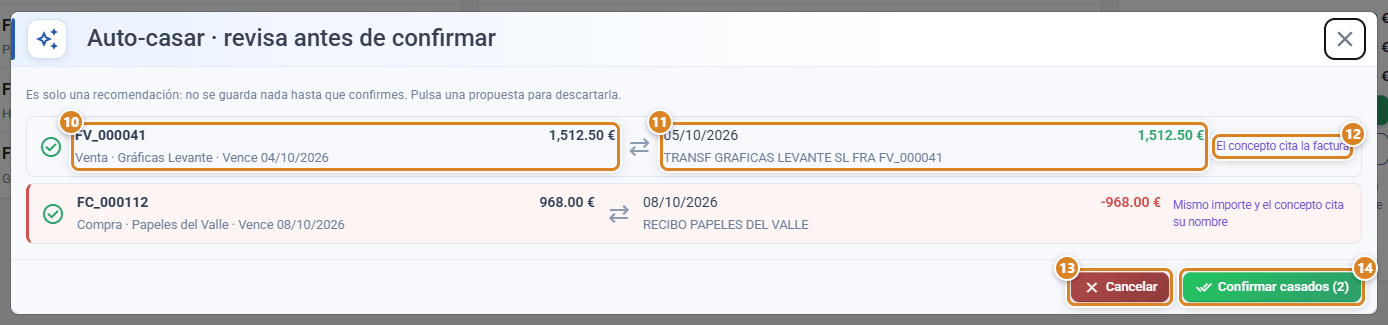
- Click Auto-match (②) or Match with AI (③). A list of suggested pairs (invoice ↔ transaction) opens, with the reason for each one. Click a pair to discard it and then click Confirm matches.
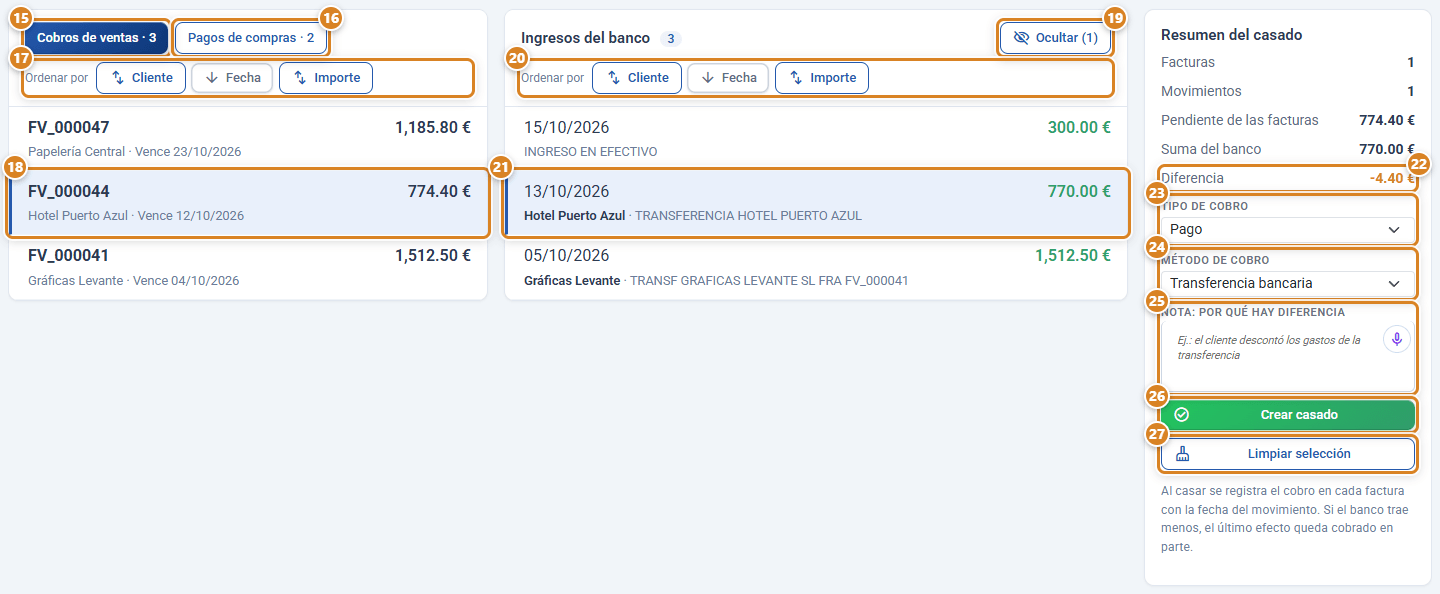
- Whatever is left, match it by hand in the Unmatched tab (⑤): choose Sales payments or Purchase payments, tick one or more invoices and one or more transactions, check the Match summary and click Create match.
- If you see a credit and its invoice is not on the list, select only that credit and click Find invoices for this deposit.
Watch out: Auto-match and Match with AI only make suggestions. Nothing is saved until you click Confirm matches.
Screen layout
| Area | What it shows |
|---|---|
| Unmatched, Matched, No matches, Hidden tabs (⑤ to ⑧) | What is still outstanding, what is already reconciled, the invoices with no candidate transaction and the transactions set aside. Unmatched, No matches and Hidden show their counter. |
| Search box (⑨) | Filters by invoice number, customer, supplier, description or amount. |
| Left column | Sales payments (outstanding payment instruments) or Purchase payments (recorded purchase invoices that are still Pending payment), each with its counter (⑮ ⑯). |
| Centre column | Bank deposits or Bank charges, depending on the left column. Debits (expenses) are shown in red, with a red stripe on the left; credits have the amount in green. If the description mentions a customer or supplier with outstanding invoices, their name appears in bold before the description. |
| Sort by (in each column, ⑰ ⑳) | Customer (or Supplier in Purchase payments), Date and Amount buttons. Each column is sorted separately. |
| Match summary | How many invoices and transactions you have selected, what each side adds up to (Outstanding on the invoices, Bank total) and the Difference. |
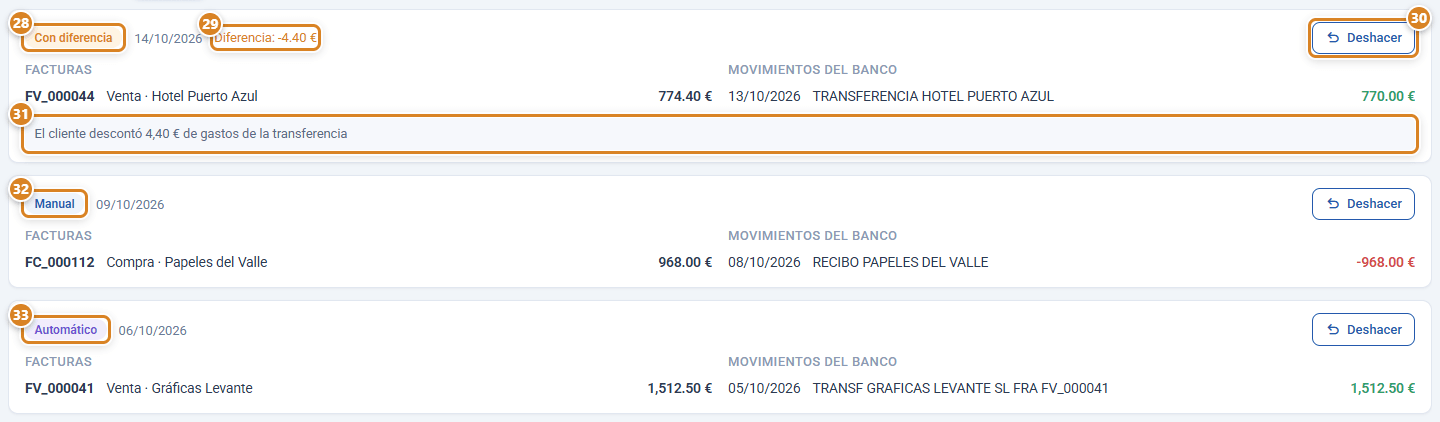
The Matched tab (⑥) holds everything reconciled, from newest to oldest:
Buttons and actions — what each one is for
The exact wording as it appears on screen.
| Button / Action | What it is for |
|---|---|
| ① Import statement | Uploads the bank file. When it finishes, it shows the format and how many new movements, how many already imported and how many lines not recognised there are. |
| ② Auto-match | Suggests the clear pairs, without AI: the description quotes the invoice number, carries the customer's or supplier's IBAN or VAT number, or their trading or legal name (abbreviated too), or only the amount matches a single invoice. |
| ③ Match with AI | Combines the Auto-match pairs with the ones the AI recommends for the rest, each with its explanation. The AI only sees what Auto-match does not resolve and never receives your customers' or suppliers' IBAN or VAT number. It uses your AI quota. Pairs that do not add up are discarded before you are shown them. |
| ④ Refresh | Fetches invoices and transactions from the server again: it picks up payments and invoices recorded in another tab or by another user. |
| ⑤ Unmatched (tab) | Bank transactions and invoices not yet joined. Its counter is the number of transactions still to match. |
| ⑥ Matched (tab) | Everything reconciled, with its status, its note and the Undo button. |
| ⑦ No matches (tab) | Outstanding invoices with no bank transaction that fits by amount, number, account or name. |
| ⑧ Hidden (tab) | Transactions set aside (bank fees, transfers between accounts…), with the Show button. |
| ⑨ Search by invoice, customer, supplier, description or amount | Filters both columns of Unmatched. |
| ⑩ Invoice in the pair (Auto-match window) | Document, outstanding amount, whether it is Sale or Purchasing, customer or supplier and due date. |
| ⑪ Transaction in the pair (Auto-match window) | Date, amount and description of the bank transaction. Debits are shown in red. |
| ⑫ Reason (Auto-match window) | Why it is suggested: The bank description mentions the invoice, Same amount and the bank description includes their IBAN or tax ID, Same amount and the bank description mentions their name, Same amount and a similar name or Same amount, only match. The AI ones also carry its explanation. |
| ⑬ Cancel (Auto-match window) | Closes without saving anything. |
| ⑭ Confirm matches (n) (Auto-match window) | Saves the pairs that are still ticked; in brackets, how many. Clicking a pair discards it (or brings it back). |
| ⑮ Sales payments | Puts the outstanding payment instruments in the left column and the Bank deposits in the centre. |
| ⑯ Purchase payments | Puts the purchase invoices pending payment in the left column and the Bank charges in the centre. |
| ⑰ Sort by → Customer / Supplier, Date, Amount (invoices) | Changes the order of that column. The active button is shown filled, with an arrow for the direction; clicking it again reverses it. By default, Date from newest to oldest; Amount starts with the largest and Customer goes from A to Z. For invoices, Date is the due date. |
| ⑱ Click an invoice | Selects it or removes it (it is highlighted). With a single invoice selected, the centre only keeps the transactions that fit (in amber). |
| ⑲ Hide (n) | Sets aside the selected transactions, such as bank fees or transfers between your accounts. In brackets, how many are selected. You get them back from Hidden. |
| ⑳ Sort by (bank) | Same as ⑰, in the bank column: Date is the transaction date; Customer groups by the customer or supplier quoted in the description and leaves at the end, in description order, the transactions with no recognised name. For debits, Amount sorts by the size of the debit. |
| ㉑ Click a transaction | Selects it or removes it. With a single transaction selected, its invoices are marked in amber. The recognised customer appears in bold before the description. |
| ㉒ Difference (Match summary) | What the bank moves minus what is outstanding on the selected invoices. It is highlighted when it is not zero. |
| ㉓ Payment type | The type the payment is recorded with on the sales invoices. |
| ㉔ Payment method | The method the payment is recorded with. By default, the method called "Transferencia" (bank transfer) or the first one that is not cash. |
| ㉕ Note: why there is a difference | Appears if the bank and the invoices do not add up to the same. It is mandatory: without a note, Create match flags it and does not save. In the Auto-match and AI pairs it is filled in automatically with the reason. |
| ㉖ Create match | Records the payment on the sales invoices or leaves the purchase invoices paid (with the debit date as the Payment date), and moves the transactions to Matched. |
| ㉗ Clear selection | Removes everything selected. |
| ㉘ With a difference (status in Matched) | The bank and the invoices did not add up to the same; the Difference and the note are shown. |
| ㉙ Difference (in Matched) | What the bank brought in over or under in that match. |
| ㉚ Undo (in Matched) | Deletes the payments the match recorded, returns the purchase invoices to Pending payment and the transactions to Unmatched. It asks for confirmation. |
| ㉛ Note (in Matched) | The reason written when matching with a difference. |
| ㉜ Manual (status in Matched) | A match made by hand, with no difference. |
| ㉝ Automatic (status in Matched) | A match suggested by Auto-match and with no difference. |
| Find invoices for this deposit | With a single credit selected: it searches sales invoices by number or customer, you choose one or more and click Match and record the payment. If any of them had no payment instrument, one is created. If they do not add up to the credit, it asks for the difference note. |
| Show (in Hidden) | Returns the transaction to Unmatched. |
Key concepts
- Match: the joining of one or more bank transactions with one or more invoices. Its status is Automatic (suggested by Auto-match and with no difference), Manual or With a difference (the bank and the invoices do not add up to the same, wherever it came from).
- Difference: what the bank moves minus what is outstanding on the selected invoices. For sales, if the bank brings in less, the last instrument (by due date) is left partly collected; if it brings in more, the surplus stays in the difference.
- Single payment (purchases): a purchase invoice is always matched in full; there are no part payments on purchases. Once matched, it is Paid in Purchases with the debit date.
- Recognised customer (bank): the customer or supplier with outstanding invoices whose trading or legal name appears in the transaction description. It is only a hint for sorting and searching: it does not match anything.
- Norma 43: the standard format Spanish banks use to export the transactions of an account.
Features by plan / role
| Plan | Bank reconciliation |
|---|---|
| Full | Included. |
| Standard and Pro | Bought separately, without changing plan: if you click the menu without having it, its module page opens with Subscribe to Bank reconciliation. |
You need the payments permission (access_pay). Purchase invoices only appear if you also have Purchasing and Inventory. Match with AI uses your plan's AI quota.
If something does not add up
| Symptom | Cause | Solution |
|---|---|---|
| "The file is not in Norma 43 format…" | The file is not a statement: a PDF, or a Norma 43 file opened and saved with another program. | Download it from the bank again and upload it without opening it. |
| "The Date and Amount columns (or Debit and Credit) cannot be found…" | The Excel or CSV file does not have those headers in its first rows. | Export in Norma 43, or keep the Fecha (date), Concepto (description) and Importe (amount) columns in the Excel file (or Cargo and Abono, debit and credit). |
| "The old .xls format cannot be read…" | It is an Excel file from before 2007. | Open it and save it as .xlsx. |
| A sales invoice does not appear on the list | It has no payment instrument, or it is already collected. | Select the credit and click Find invoices for this deposit. |
| I cannot see any invoices in Purchase payments | The invoice is a draft, it is already Paid, or you do not have Purchasing and Inventory. | Record the purchase invoice; if it was not paid, clear its Payment date in Purchases. |
| A purchase invoice I paid in cash or by card appears in Purchase payments | Nobody marked it as paid. | In Purchases, select it and click Mark as paid, or fill in its Payment date. |
| "La factura … ya está cobrada. Pulsa Refrescar." (the invoice … is already collected; click Refresh) | Someone recorded the payment in another tab or from another computer. | Click Refresh. |
| "There are too many outstanding invoices…" | You have more than 2,000 uncollected payment instruments. | The ones with the most recent due date are shown; find the older ones with Find invoices for this deposit. |
Frequently asked questions
Q: Does it connect to the bank on its own?
A: No. You export the file from your online banking and upload it with Import statement. We do not get access to your bank and we do not store any passwords.
Q: Which formats does it accept?
A: Norma 43 (.txt), Excel .xlsx and CSV. In an Excel or CSV file the Fecha (date), Concepto (description) and Importe (amount) columns, or Cargo and Abono (debit and credit), are found automatically, even if there are title rows above them. English headers such as Date, Description, Amount, Debit and Credit are recognised too.
Q: What happens if I upload the same statement twice, or the Norma 43 file and then the Excel file for the same month?
A: Nothing. A transaction with the same date, the same amount and the same account as one already imported is skipped. If there really are two identical entries on the same day, the missing one goes in.
Q: Does Norma 43 include the payer's IBAN or name?
A: Not in a field of its own. Almost every bank puts them in the description text. That is why matching searches that text for the invoice number and for the IBAN, the VAT number and the trading or legal name on the customer or supplier record.
Q: Does the AI match things on its own?
A: No. Match with AI shows you its pairs with an explanation and you confirm them. The same goes for Auto-match.
Q: I matched something wrongly, how do I fix it?
A: In Matched, click Undo on that match. The payment on the sales invoice is deleted (or the purchase invoice goes back to pending) and the transaction returns to Unmatched.
Q: One transfer pays several invoices, how do I match it?
A: In Unmatched, select all the invoices and the transaction, and click Create match. The amount is shared out in due date order.
Q: The customer paid short or the bank charged a fee.
A: Match it anyway: the Match summary shows the Difference and asks you for a note (Note: why there is a difference) with the reason. For sales, the last invoice is left partly collected.
Q: Can I pay a purchase invoice in two debits?
A: Yes, by selecting both debits and the invoice in the same match. A purchase invoice is always matched in full.
Q: I have received a credit for an invoice that is not on the list.
A: Select only that credit and click Find invoices for this deposit. It finds any sales invoice with something still outstanding and, if it had no payment instrument, creates one when matching.
Q: I paid a purchase invoice in cash and it still appears in Purchase payments.
A: In Purchases, select it and click Mark as paid (or fill in its Payment date). From then on it no longer appears here.
Q: Can I sort the invoices or the bank transactions by customer, date or amount?
A: Yes. Above each column of Unmatched there is Sort by with Customer (or Supplier), Date and Amount. Click the same button again to reverse the order. In the bank column, the customer is the one quoted in the description and shown in bold; transactions with no recognised name go to the end.
Q: What do I do with bank fees and transfers between accounts?
A: Select them and click Hide. They no longer appear in Unmatched and you can bring them back from Hidden with Show.