
What it is
A single module that handles the whole commercial document chain: Quote → Order (work order) → Delivery note → Invoice. It is the core of the system: this is where jobs are created, accepted, delivered, invoiced and paid.
All four types share the same form; what changes is the level in the chain, the numbering prefix, the status colour and which actions are available.
What it is for
- Quoting customers and turning those quotes into orders once they accept.
- Keeping track of what is pending, what is in production, what has been delivered and what has been invoiced.
- Issuing invoices (ordinary, credit notes and amended invoices), sending them to the tax authority through TicketBAI (the Basque Country electronic invoicing regime) and recording payments.
- Sharing the status of an order with the end customer through a public link.
The four document types
| Type | Screen | Numbering | Colour | What for |
|---|---|---|---|---|
| Quote | Quotes | NºPres. | Green, quoted | Initial price proposal |
| Order / work order | Work orders | NºOT | Orange, accepted | Customer accepts → the job goes into production |
| Delivery note | Delivery notes | NºAlb. | Blue, delivered | Confirmation of physical delivery |
| Invoice | Invoices | NºFac. | Red, invoiced | Final legal document |
The general order is Quote → Order (work order) → Delivery note → Invoice, but the flow is NOT rigid and not every level is compulsory: each company decides whether it uses Work orders and/or Delivery notes. Any level that is switched off is skipped automatically throughout the flow. See the next section.
Active levels per company
In Settings → Customisation → "Document flow" there are two switches:
| Option | Values | What it does |
|---|---|---|
| Do you use Work orders? | Yes / No | Set to No, the Order (work order) level disappears: no menu, no route, no columns, no work order actions, and that step is skipped when a document moves forward. |
| Do you use Delivery notes? | Yes / No | Set to No, the Delivery note level disappears in the same way. |
By default both are switched on (Yes), so the full four-level flow is the standard behaviour.
When a level is switched off:
- It does not appear in the menu, nor its list, nor its route, nor its columns or actions.
- It is skipped when moving forward. Example: if a company switches off Delivery notes, pressing Accept on a work order creates the Invoice straight away, with no delivery note in between.
This lets you adapt the system to each business: a shop that only invoices can stay on Quote → Invoice; a shop that needs production and delivery uses all four levels.
How to use it
Creating a quote
- Go to Quotes → press New quote.
- Choose the customer (autocompleted by trading name).
- Check the sales rep and contact (they are filled in from the customer record, together with the payment terms, the payment day and the discount).
- Add lines with the buttons below the lines:
- New Quotation — opens the product catalogue; picking a product opens the quoting engine, which works out the price and creates the line. With the Services and items module the button is called Catalog and also brings your services, items and kits: click one, choose the quantity and options and press Add (see Services and items).
- Free Quote — pick quotes you have already saved (Add Quotations window). Only if you quote products.
- Free line — a manual line: name, description, quantity, price.
- Adjust the discount and taxes per line if needed.
- Save. The system assigns the quote number.
Accepting a quote → order
- Open the quote and press Aceptar todo (accept all; green button, at the bottom), or in the Quotes list select one or more lines and press Accept.
- If an order already exists for the same customer with lines that came from this quote, the system asks whether to combine it with the existing order or create a new one. This prevents duplicates.
- The order inherits the customer, contact, sales rep, reference, observations and every accepted line.
- The delivery date is recalculated automatically from the delivery lead time of each quote.
Partial acceptance
If the quote has several lines and the customer only confirms some of them:
- On the quote, in the Status column of each confirmed line, choose Accept (the line changes to Accepted*).
- Press Save → only those lines move forward. (In the list you can also select just those lines and press Accept.)
- The ones left unticked stay on the quote as Pending: you can accept them later or cancel them.
Moving to the next level
The Accept button takes the document to the company's next active level:
- From a quote → it generates the next active level (work order, delivery note or invoice, depending on what is switched on).
- From an order → it generates a delivery note (or an invoice, if delivery notes are switched off).
- From a delivery note → it generates an invoice.
Accept respects the active levels: a level that is switched off is skipped. For example, with Delivery notes switched off, accepting a work order creates the invoice directly.
There are also two shortcuts:
- Create delivery note from a quote or an order — jumps straight to the delivery note (only visible if delivery notes are active).
- Invoice from any level — jumps straight to the invoice (creating the intermediate documents that are active in the background).
Combining with an existing document when moving forward
When you move lines forward and other sibling lines (from the same source document) are already linked to a document at the next level, the system can combine them into that document instead of creating a new one. You decide the behaviour in Settings → Sales, option "When moving to the next stage, if sibling lines are already linked to another document":
| Option | What it does |
|---|---|
| Always create a new one | Never combines; always generates a new document. |
| Always combine with the existing one | Combines automatically with the document already linked, without asking. |
| Ask every time | Opens a dialog showing the whole chain of documents related to the line, colour-coded by type (quote, work order, delivery note, invoice). Next-level documents are grouped under From the same document and From another branch (same quote), and those are the ones you can choose to combine with. The rest are shown below as traceability (information only, not mergeable). Buttons Create new and Cancel. |
Automatic progression on acceptance ("On accept")
In Settings → Customisation the "On accept" option decides how far a document goes when you accept it:
| Value | Meaning | Result |
|---|---|---|
0 | First document only | Accept creates only the next level; you move the rest forward by hand. |
1 | Up to the intermediate document | Accept goes as far as the intermediate level (delivery note). |
2 | Up to the final document (invoice) | Accept cascades all the way to the invoice. |
Automatic progression acts only on the company's active levels: a level that is switched off does not count. With usaOT and usaAlbaran at their default of Yes, the behaviour is exactly as it has always been, so customers with "On accept" set to 1 or 2 need no changes at all.
Document fields
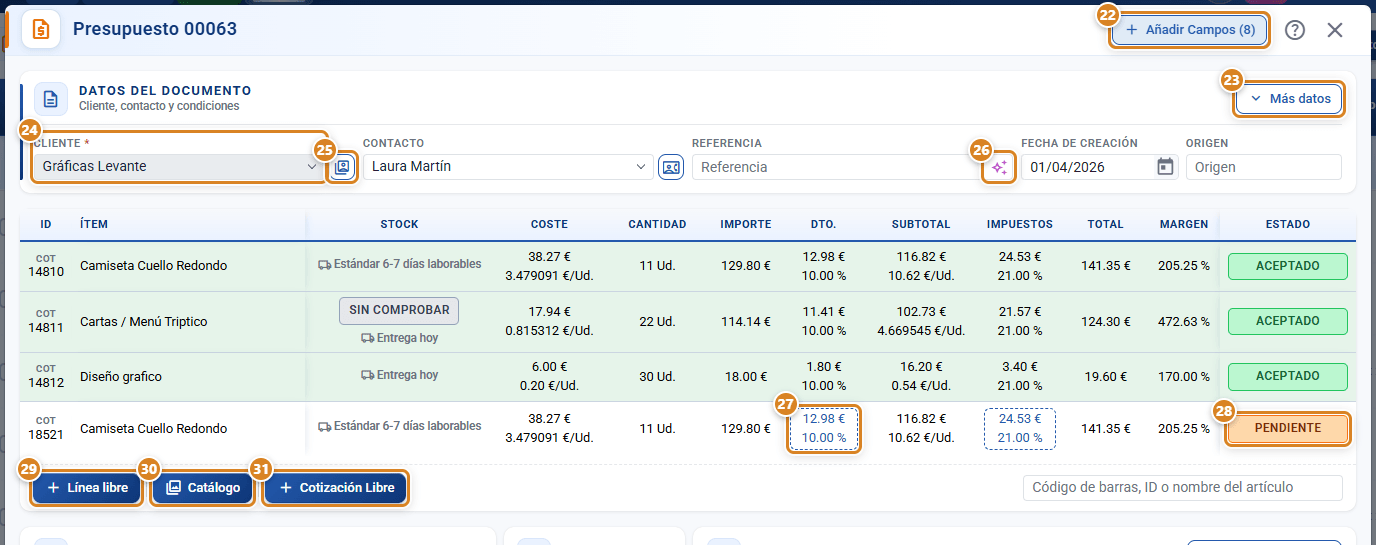
Header (common to all four types)
| Field | Required | Default | Notes |
|---|---|---|---|
| Customer | Yes | — | Search by trading name; choosing one autocompletes the contact, discount and their payment terms and payment day (see "Payment terms and payment day"). Clicking the "Customer" label opens the record of the selected customer so you can edit it (the same details, contacts and addresses as in Customers); on saving, the document picks up the changes (payment terms and day, discount, contacts). This is different from the Change customer button (magnifier with a person) next to it, which changes the customer on the whole document and its chain. |
| Salesperson | Yes | Current user | The person responsible. In the list, the Salesperson column is filtered with a dropdown listing the users (option All to clear the filter), not by typing the name. |
| Attended by | No | — | The user who handled the job. Editable under Más datos (more fields), next to Salesperson. In the list you can show the Attended by column (hidden by default, switched on from the column selector) and filter it with a dropdown listing the users (option All to clear the filter). |
| Contact | No | The customer's default contact | — |
| Delivery method | No | — | How the job is delivered, chosen from the delivery methods you have set up. It is under Más datos (more fields). |
| Document date | Yes | Today | The issue date. |
| Delivery date | No | Today + 30 days | On acceptance it is recalculated using the lead time of each quote. |
| Payment terms | No | The customer's | The payment terms of the document (cash, bank transfer, etc.). When you choose them, if the document's Bank account is empty, the default account for those payment terms is preloaded. |
| Bank account | No | The one from the payment terms | The bank account this document is to be collected into (alias + IBAN). Option No account to leave it unassigned. It is preloaded on its own when you choose the payment terms, but you can change it by hand; whatever you choose by hand wins and is not overwritten. Only active accounts from the account catalogue are listed. |
| Reference | No | Empty | Free text: the customer's own number, a short note, and so on. It has an AI Assistant button that writes or improves the text with artificial intelligence. |
| Observations / attachments | No | — | Files and images are attached here and notes are written; they travel to the next level. Each observation has an AI Assistant button that writes or improves the text with artificial intelligence. |
To keep the screen uncluttered, the header shows only the four main fields to begin with — Customer, Contact, Reference and Creation date — and hides the rest (Salesperson, Attended by, Completion date, Delivery method, Payment terms, Payment day, Bank account). The Más datos (more fields) button unfolds them; Menos datos (fewer fields) tucks them away again. The hidden fields still fill themselves in (for instance the payment terms and payment day inherited from the customer, and the bank account from the payment terms) even when they are out of sight.
Fields exclusive to Invoices
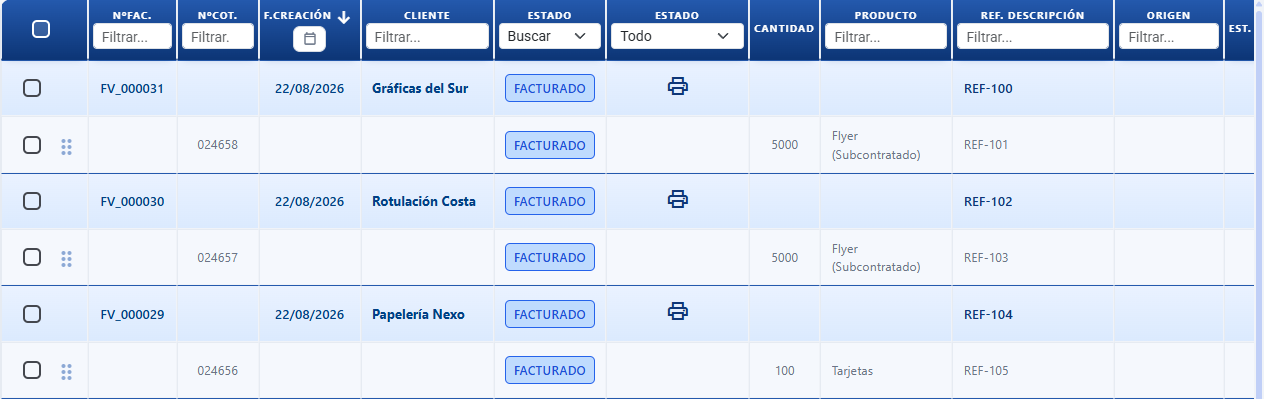
| Field | What for |
|---|---|
| ⑳ Collections (list column) | Payment status of each invoice and each line: Paid (green) when nothing is left to collect, Pending (grey) if nothing has been collected and Pending with the amount still due if it has been partly collected. |
| ㉑ Type | A coloured button showing the invoice type, styled like the statuses (Accepted/Pending): Invoice (blue), Simplified invoice (fuchsia), Credit note (orange) or Amended invoice (indigo/violet). The document number of credit notes and amended invoices is painted in the same colour. Filterable with the column dropdown. An ordinary invoice marks itself as a Simplified invoice when the document's customer has no VAT number (CIF/NIF) or when it is the generic / cash customer set in Settings → Sales (see "Simplified invoice"). Credit notes and amended invoices do not change label. |
| Commission (list column) | Only with the commissions module active and the Full plan: it summarises the commission accrued on the invoice as a coloured tag — green "Settled" with the amount when the whole commission has already been paid to the sales rep, amber with the total amount and "Pending" plus what is still to be settled (including commission not yet collected). It shows "-" if the invoice carries no commission. It only has data if Commissions is set to commission per invoice or per payment (with per order/per delivery note, commission is not attributed to invoices). The detail and the settlement are handled on the Commissions screen. |
| Source invoice | For a credit note or an amended invoice, the original invoice it is linked to. |
| Locked | Once ticked, the lines cannot be edited. |
| Invoice status | Shows whether the line has been collected / closed. When they all are, the invoice is closed. |
There is no separate "Work order" button at the foot of the form. The foot has a single "Share" button (share icon) that opens the Share dialog with every output of the document (printed document, work order, ticket, email, download, Direct, WhatsApp). It is the same dialog as the one behind the Share action on the list: same options, same order and same names. Print W.O. (print work order) is also available on invoices if they have lines with a quote.
Simplified invoice (automatic detection)
An ordinary invoice (not a credit note, not an amended invoice) is treated as a Simplified invoice automatically, with nothing to tick and no switch anywhere: CotizaPrint detects it from the document's own customer. Only one of these two conditions has to be met:
| Condition | When it happens |
|---|---|
| The customer has no VAT number (CIF/NIF) | The CIF/NIF field on the customer record is empty or is not a valid Spanish tax number (NIF). |
| The customer is the generic / cash customer | The document's customer is the one you have assigned in Settings → Sales, section Default customers, field "Default customer for ticket printing (generic / cash customer):". |
Where you notice it:
| Where | What you see |
|---|---|
| Invoice list, Type column | Instead of Invoice it reads Simplified invoice, with a fuchsia marker. Credit notes and amended invoices still show Credit note and Amended invoice as always. |
| Printed PDF of the invoice | Below the document number comes the SIMPLIFIED INVOICE stamp in amber, in the same place as the CREDIT NOTE and AMENDED INVOICE stamps. It comes out even if your organisation does NOT use electronic invoicing. |
To stop an invoice coming out as simplified, fill in the CIF/NIF on the customer record (or issue it to a customer who does have one, instead of to the generic / cash customer) and generate the printed document again.
Document lines
Each line represents a product or service. It can come from:
- A quote from the quoting engine (one to one: each quote = a single line).
- A manual entry with no quoting engine.
Fields on each line
| Field | Notes |
|---|---|
| Name | The product title. On editable manual lines it has an AI Assistant button that generates a short name for the item from the line. Available from the Pro plan upwards. |
| Description | Extra detail. On editable manual lines it has an AI Assistant button that writes a sales description of one to three sentences for the item. Available from the Pro plan upwards. |
| Stock | Column just to the right of Product. It only appears if a line is an item with stock control or a kit (with the Services and items module); the available quantity, the warning and the lead time are available from the Pro plan, and on Standard the column only shows the Contents of kits, and it is hidden from Add Fields (field Stock). It shows a pill with the available quantity (orange if the line quantity exceeds it; you can still sell; hovering shows Available, Committed and, where relevant, "Limited by: …") and, on kits, the Contents button, which opens the Kit contents panel with its components. On mobile it goes on its own row, below the product. Details in Services and items. |
| Quantity | Units / copies. |
| Base price | The price before discount (from the quoting engine). |
| Discount (%) | Per line. It is filled in with the customer's default discount when the line is created. |
| Subtotal | Base price × (1 − discount). Calculated. |
| Taxes (%) | Rate selectable per line. |
| Total taxes | Subtotal × tax %. |
| Total | Subtotal + taxes. |
| Status | Active or cancelled. Cancelled lines do not count towards the totals. |
Actions on a line
- Edit in the quoting engine (pencil): opens the quoting engine to adjust the price or cost. On saving, the changes are synchronised into the line.
- Duplicate line: copies it (including the quote attached to it). Available in two places: inside the document form and, in the Quotes list, by hovering over the line's Status — the Duplicate button creates the copy inside the same quote.
- Delete line: deletes it (if it is new) or unlinks it (if it had already been saved).
- Change tax: a selector per line.
- Attach files: adds observations / references.
- Reorder: drag and drop.
- Move to another document: drag a line between documents of the same customer and level — the line is unlinked from the source and linked to the destination, it is not duplicated.
Barcode
Below the lines, next to Catalog, is the Barcode field ("Scan or type the code"). It appears with Services and items (in print shops, the Products menu, marked BETA) and the role's Access to items permission, on a document that is not closed or locked. Put the cursor in it and scan, or type the code and press Enter: the line for that record is added with one unit (on a service, its default duration), its price and the default options of its extras, and the field is emptied for the next scan. If the record already has an open line in the document, 1 is added to its quantity and the price is recalculated. The code is entered on the record of the item, service or kit (Services and items).
Q: Can I add lines to the quote or the invoice with a barcode reader?
A: Yes. Put the cursor in the Barcode field, below the lines, and scan: the line is added with one unit and its price; if it was already there, 1 is added to its quantity. The code is filled in beforehand on the record of the item, service or kit.
Q: I scan and it says "There is no item with the barcode …" or "… is not for sale.".
A: The first: no active record has that code; type it in the Barcode field of its record. The second: the record is set to Internal use only; mark it For sale.
What happens when you change the customer
If you change the customer once lines have already been created:
- Only the discounts on lines that were at 0 % are updated (to the new customer's default discount).
- Lines with a manual discount are left alone.
- Taxes and prices are not touched.
- Shipping: if the new customer has Shipping (customer record → Sale tab) and the document has no PORTES line, The customer has shipping comes up with Add PORTES line of … or Do not add. If it already has one and the amount does not match, The customer's shipping does not match comes up with Update to … (amount, tax and cost set to the customer's shipping), Delete the PORTES line or Keep as it is. If the new customer has no shipping, The customer has no shipping comes up with Delete the PORTES line or Keep as it is. The PORTES line does not get the customer's discount. In each window you can switch on Don't ask again: the program remembers your choice in that browser and applies it automatically next time.
Totals and calculations
The system recalculates instantly with every change:
- Taxable base = the sum of the subtotals of the active lines.
- Global discount % = the percentage the total discount represents against the price before discount.
- Taxes = the sum of the taxes on each line (each line can have its own rate).
- Total = taxable base + taxes.
- Margin (only if you have permission to see it): the percentage between total cost and subtotal.
The amounts shown are rounded to two decimal places; full precision is kept internally.
Payment terms and payment day
When you choose the customer
When you select a customer on a sale, the system fills in their payment terms and payment day automatically. There is no need to type them: they are inherited from the customer record.
The document's bank account
Next to Payment terms sits the Bank account selector: the account (alias + IBAN) this document will be collected into. When you choose payment terms, if the document's account is still empty it is filled in automatically with the default account for those payment terms. You can change it by hand at any time with the No account option or by picking another one; the account you set by hand wins and is not overwritten again when the payment terms change. The selector only shows the active accounts from the bank account catalogue.
When you change a customer's payment terms or payment day
If you edit a customer and change their payment terms or payment day, the system asks whether you want to apply that change to that customer's open quotes, work orders and delivery notes. That way you do not have to go document by document.
Payment forecast on the work order
On the sales form of a quote, work order or delivery note (not on an invoice), if the document has payment terms and a payment day, a notice appears with the "Payment forecast (estimated)": the date on which it would be collected.
It is for information only. The real payment instrument, with its final due date, is created when you invoice.
Actions on the document
From the list


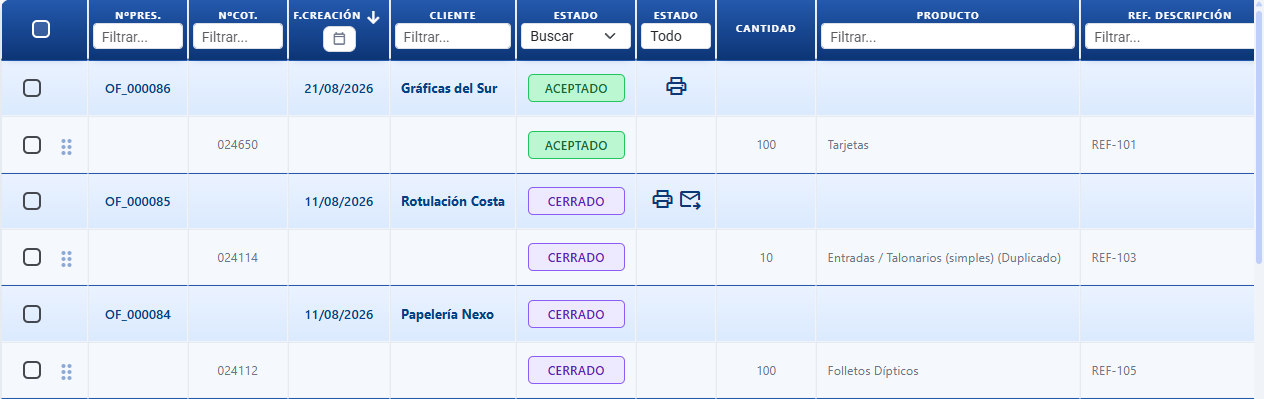
| Action | Available on | What for |
|---|---|---|
| ① Settings (Ajuste) | Always (with permission to edit sales) | Opens the sales settings in a window, the same ones as in Settings → Sales. |
| ② Import/Export | Always (with permission to import or export) | Opens the window for exporting the documents of the current filter to Excel or importing them. |
| ③ Full view / Simple view | Always | Switches between the full view, with the NºCot. column and the details of each quote, and the simple view, with fewer columns. The button shows the active view; the one you start with is chosen in the customisation settings. |
| ④ Add Fields (at the foot of the table, to the right of Resetear columnas) | Always | Opens the Fields list so you can choose which columns are shown; Select all shows them all. Your choice is remembered next time. |
| ⑤ New quote / New work order / New delivery note / New invoice | Always | Creates an empty document of the list you are in. |
| ⑥ Accept | Quote and Order | Moves to the next level. |
| ⑦ Create delivery note | Quote and Order | Shortcut to the delivery note. |
| ⑧ Invoice | Any level except Invoice | Shortcut to the invoice. |
| ⑨ Cancel | Quote and Order | Marks lines as cancelled (they do not count towards the totals). |
| ⑩ Share (on screen Compartir; share icon) | Always | Opens the Share dialog so you can choose the output of the document: print, download, send by email or share through Direct (see the next table). |
| ⑪ Pay | Always | Records a payment. In Invoices, if the invoice is still open, saving the payment asks Close the invoice? (Yes closes it). |
| ⑫ Duplicate | Always | Copies the document with its lines and quotes. In Quotes, if you select only lines (without ticking the document), it creates a new quote in Pending status with those lines. Lines from several quotes of the same customer are grouped into a single new quote (the header details are copied from the first one selected); if there are different customers, one quote is created per customer. It is the way to pull one or more lines out into a separate quote. In Work Orders, Delivery Notes and Invoices, duplicating documents opens a box (Duplicate O.T., Duplicate Delivery Note or Duplicate Invoice) that asks whether to also create the previous documents. For a work order: Quote + O.T. (recommended) or Only O.T.; for an invoice: Quote + O.T. + Delivery Note + Invoice, O.T. + Delivery Note + Invoice, Delivery Note + Invoice or Only Invoice. Only the header of the previous documents is created (customer, contact, reference, payment method…): the lines are those of the copy and stay linked as if it had been accepted step by step, so the new quote carries exactly the lines of the work order and you can send it to the customer. Only the levels you have enabled are offered (work orders and delivery notes can be disabled). The box remembers your last choice. |
| ⑬ Change customer | Always (toolbar action) and inside the form (icon next to the Customer field, ㉕) | Changes the customer of the document and of its whole related chain: every quote, work order, delivery note and invoice connected by the same lines (levels above and below) moves to the new customer. Before applying it, it shows a visual summary with the number of each document affected (NºPres./NºOT/NºAlb./NºFac.) grouped by level, plus the total, for you to confirm. In the dialog you can Search for an existing customer or Create new (Name + VAT number + Address), and also Fill in with AI (paste the customer's details and the AI creates the record with its contacts and addresses). It is not allowed if there are closed invoices in the chain. |
| ⑭ Modify date | Always | Changes the document date. |
| ⑮ Delete | Documents that have not been accepted (with permissions) | Deletes the document. It is not allowed if there are accepted documents (ones that have already generated a work order/delivery note/invoice): you have to Revert or Mark as pending first. If the selection has no later levels, it deletes the document and its payment instrument (see "Cascade delete"). |
| ⑯ Status column (the first one) | Always | Status of the document and of each line (Pending, Accepted, Closed…; see Statuses). Its dropdown filters the list. In Quotes, hovering over a line's status shows Duplicate. If the document or the line has already moved on to another document, hovering shows Go to W.O., Go to Delivery note or Go to Invoice so you can open it; on Invoices it does not appear, because you are already in the invoice. |
| ⑰ Status column (the second one) | Quote, work order, delivery note and invoice | Icons for what has already been done with the document: printed, sent by email and sent by WhatsApp. It is filtered with All, Pending, Printed and Print+Email. |
| ⑱ Document tick box | Always | Selects the whole document, with all its lines, for actions ⑥–⑮, which appear on the left of the list. |
| ⑲ Line tick box | Always | Selects only that line: the actions apply to it alone (partial acceptance, printing only those lines, a new quote with Duplicate…). |
| Edit | Double-click on a row | Opens the form. |
| Mark as pending | Quote and Order | Returns accepted lines to pending. |
| Revert | An accepted quote, already turned into a delivery note or cancelled, with no invoice | Returns a quote to Pending. If it has been accepted or already turned into a delivery note, it deletes the documents generated (work order and delivery note), asking for confirmation with their numbers, and goes back to Pending. A document with other jobs inside it is not deleted: only the line you are reverting is unlinked. If it has been cancelled, it is reactivated to Pending. Not available as soon as there is an invoice: at that point you issue a credit note or an amended invoice. |
| Close / Invoice | Invoice | Closes the invoice; if a balance is left, the "Queda importe pendiente de cobro" window (amount still to be collected) comes up first with Cobrar todo, Revisar los cobros and No cobrar. Closing it with the X, with Cancel or by clicking outside cancels: the invoice is not closed (see "Payment on closing / invoicing / moving forward"). |
| Reopen invoice | A closed invoice | Removes the lock so it can be edited. It does not work if the invoice has already been sent to electronic invoicing (locked, it warns you when you press it): in that case use Create amended invoice to correct it, or Void from Electronic invoicing. |
| Create amended invoice | Invoice (including a closed one; not on a credit note) | It asks how, with three options. Amend the invoice (in full or in part): a single editable negative document, labelled AMENDED INVOICE and using the amended invoice series (prefix "RF" by default) — you leave in it only the difference you are correcting; the original invoice is kept and stays closed. Create a credit note: the same as the previous one but labelled CREDIT NOTE and using the credit note series (prefix "AB"), without marking it as an amended invoice — for straightforward refunds. Redo the invoice: it generates a closed credit note that voids the whole invoice (credit note series) and a new editable invoice that opens so you can set the correct amount and issue it — with no difference document at all. In every case the negative document references the original invoice and can be signed through electronic invoicing. There is no need to reopen the invoice. With Amend the invoice and Create a credit note, nothing is created until you press Save on the screen that opens: if you close it without saving, no document is left behind and the original invoice is untouched. «Redo the invoice» is the recommended option: it appears first, highlighted in green. The dialog remembers the last option you chose and highlights it in amber. |
| Share work order with customer (on the action bar it appears as Compartir OT) PRO | Order | Generates a public link + QR for Direct. From an order/work order, the link shows the status of the job and allows you to Avisar a contactos (notify contacts). It is the direct route from the list; the other route is the Direct option in the Share dialog. Included in the Pro and Full plans or with the Direct module bought separately (on the Standard plan, without changing plan); without the module it shows the PRO badge and clicking it opens the module sheet with the Contratar Direct (Buy Direct) button, which takes you to Subscription → Modules tab. If the dialog opens without Direct, it shows the notice Sharing with your customer is included in the Pro and Full plans and, on the Standard plan, you can add the Direct module. and the Contratar Direct button. |
| Notificar (Notify) PRO | Order (selecting one line) | Opens Contactos a notificar (Contacts to notify) for that line: you see who Reciben avisos (receives email notices) when the status of the job changes, and you can Añadir contacto del cliente (add a contact of the customer), Crear contacto rápido (quick contact: name + email of an external person) or Quitar de todos (remove from all). Included in the Pro and Full plans or with the Direct module bought separately (on the Standard plan, without changing plan); without the module it shows the PRO badge and clicking it opens the module sheet with the Contratar Direct (Buy Direct) button, which takes you to Subscription → Modules tab. |
| Work Status cell (list column: View Status / Finished work) PRO | Quote and Order with a job in progress | On hover it shows the status of each step (machine, guillotine, operations) with the person in charge; clicking it opens the document's Direct dialog with the tracking link and QR. Included in the Pro and Full plans or with the Direct module bought separately (on the Standard plan, without changing plan); without the module it shows the PRO badge and clicking it opens the module sheet with the Contratar Direct (Buy Direct) button, which takes you to Subscription → Modules tab. |
| Direct option (inside the Share dialog) PRO | Quote and Order | It opens the same dialog with the Direct link and QR. From a quote, the link opens the quote view so the customer can accept or reject it (accepting turns it into a work order); from an order/work order, the link shows the status of the job and allows you to Avisar a contactos. Included in the Pro and Full plans or with the Direct module bought separately (on the Standard plan, without changing plan); without the module it shows the PRO badge and clicking it opens the module sheet with the Contratar Direct (Buy Direct) button, which takes you to Subscription → Modules tab. |
| Avisar a contactos (notify contacts; inside the Direct / Compartir OT dialog) PRO | Order | Manages the contacts who receive an email notice when the status of the job/work order changes. If the order has several lines, you pick the Job in the dropdown. You can add an existing contact of the customer or use Crear contacto rápido (quick contact) to create a new one (name + email, designed for external contacts) for the order's customer. When a customer signs up on their own from the Direct link, they are shown as "signed up by the customer" and the order's sales rep is notified by email. Status change notices are sent grouped together (a single email per contact every few minutes). |
Columns shown by default
Each list starts with the columns that matter for its document. All of them show the document number, Creation Date, Customer, Ref. Descripción, Source, the two Status columns and Subtotal; in the full view, also NºCot., Product and Quantity. In addition:
| List | Own default columns |
|---|---|
| Quotes | Size, Ink, Imp.Sup., Salesperson and NºOT (work order number; with no work order, NºAlb., delivery note number; with no work order or delivery notes, NºFac., invoice number) |
| Work orders | Size, Ink, Imp.Sup., Work Status, Salesperson, Collections and NºAlb. (with no delivery notes, NºFac.) |
| Delivery notes | Collections and NºFac. |
| Invoices | Collections, Type, Taxes and Total, and Commission if you work with commissions |
Size, Ink, Imp.Sup. and Work Status only appear in the full view. Disc %, Atendido por (attended by), Delivery method and the rest are added with ④ Add Fields. What you choose is saved for your user and for that list; Resetear columnas (the circular arrow at the foot of the table) goes back to the default columns of that list.
The "Share" dialog — printing types, download, email and Direct
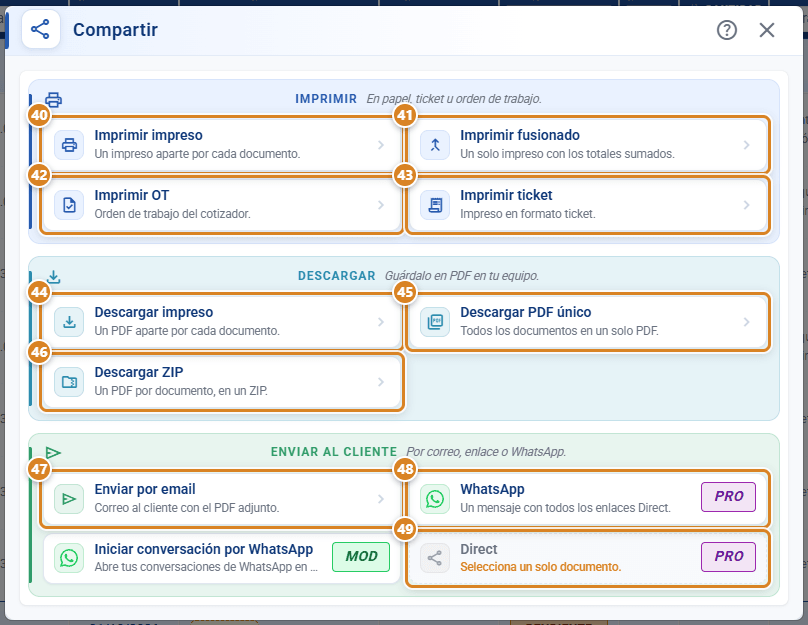
Pressing Share opens the Share dialog with the options grouped into three blocks according to what you want to do: Print ("On paper, as a ticket or as a work order.": Imprimir impreso, Imprimir fusionado, Print W.O., Imprimir ticket), Descargar (download; "Save it as a PDF on your computer.": Descargar impreso, Descargar PDF único, Download ZIP) and Send to customer ("By email, link or WhatsApp.": Enviar por email, Direct, WhatsApp). The three blocks appear one below the other, each in its own colour, with the options of each block in a row (on mobile, one below the other). Within each block the available options come first. Any that do not apply to the current selection appear disabled (dashed border) with the reason written on the option itself. This dialog used to be called "Print". It is the same dialog in the list and inside the form: the same 10 options, in the same order and with the same names (Imprimir impreso, Imprimir fusionado, Print W.O., Imprimir ticket, Enviar por email, Descargar impreso, Descargar PDF único, Download ZIP, Direct, WhatsApp). Only what is available changes: inside the form, the multi-document options come up disabled ("From the list, 2 or more from the same customer." on Imprimir fusionado; "Desde la lista, con 2 o más documentos." (from the list, with 2 or more documents) on Descargar PDF único and Download ZIP).
Partial printing by line: if in the list you tick only some lines of a document (without ticking the header checkbox), every option in the dialog produces the printed document/PDF with those lines only (the totals on the printed document add up only the lines chosen). If you tick the header, the whole document is printed. You can mix the two: some headers in full and, from others, only some lines, even across several documents at once.
| Option | What for | When it is available |
|---|---|---|
| ㊵ Imprimir impreso (print document) | Each document with its lines on its own printed document (with a preview before printing/sending). | Always. |
| ㊶ Imprimir fusionado (print merged) | Joins the lines of the selected documents into a single printed document, with one header and one single total (subtotal/VAT/total added up), as if it were one document. It opens the same preview as "Imprimir impreso" (not a direct download). Different from "Descargar PDF único", which keeps each document and its totals separate. | If you select two or more documents from the same customer (if they belong to different customers the option is disabled: "Select at least 2 documents from the same customer."). |
| ㊷ Print W.O. (print work order) | The quoting engine's work order with the production detail. It respects the line selection: if you tick a single line of a document with several quotes, it prints only the work order for that quote, not all of them. If you tick the header (or tick no lines), it prints the work orders for every line of the document. | If there are lines with a quote, also on invoices ("El documento no tiene líneas aceptadas con cotización.", the document has no accepted lines with a quote). |
| ㊸ Imprimir ticket (print ticket) | The printed document in ticket format. | Always: quote, work order, delivery note or invoice. |
| ㊹ Descargar impreso (download document) | Generates and downloads the PDF of each document separately (one file per document). | Always; inside the form, with the document saved. |
| ㊺ Descargar PDF único (single PDF) | All the selected documents merged into a single PDF (one document per page, each with its own totals), downloaded directly. | If you select two or more documents ("Select at least 2 documents."). |
| ㊻ Download ZIP | One PDF per document, packaged into a single ZIP file to download in one go. | If you select two or more documents ("Select at least 2 documents."). |
| ㊼ Enviar por email (send by email) | Generates the PDF of the printed document and opens the email to the customer ("Enviar correo al cliente") already preloaded with recipients, PDF attachments and subject. It requires a print template to be set up. | Documents belonging to the same customer ("Select documents from a single customer."). |
| ㊽ WhatsApp PRO | "A message from your WhatsApp with the Direct link so the customer can open it on their phone." It opens the Send via WhatsApp dialog with the document number, the total and the Direct link already written in (the same dialog as from the form, see below). With several documents selected the option reads "A single message from your WhatsApp with the Direct link of each document." and prepares one single message with an entry per document (type and number, the total on quotes, and its Direct link); when you send it, all of them are marked as sent by WhatsApp. Delivery notes from the same order share a link and come out together in one entry; a delivery note with no order has no link and is left out with the notice "Not included in the message (delivery note without order): …". With several documents the WhatsApp template is not used (it is for a single document): you can touch up the text before sending. | Selecting one or more quotes, work orders or delivery notes from the same customer (if they belong to different customers: "Select documents from a single customer."). Same as Direct: included in the Pro and Full plans or with the Direct module. |
| ㊾ Direct PRO | "Link and QR so the customer can view the document and approve it online." It opens the Direct dialog with the public link and the QR: from a quote the customer accepts or rejects it online (accepting turns it into a work order); from an order/work order they see the status of the job. | By selecting a single quote, work order or delivery note ("Select a single quote, work order or delivery note."). Included in the Pro and Full plans or with the Direct module bought separately (on the Standard plan, without changing plan); without the module it shows the PRO badge and clicking it opens the module sheet with the Contratar Direct (Buy Direct) button, which takes you to Subscription → Modules tab. |
Inside the form
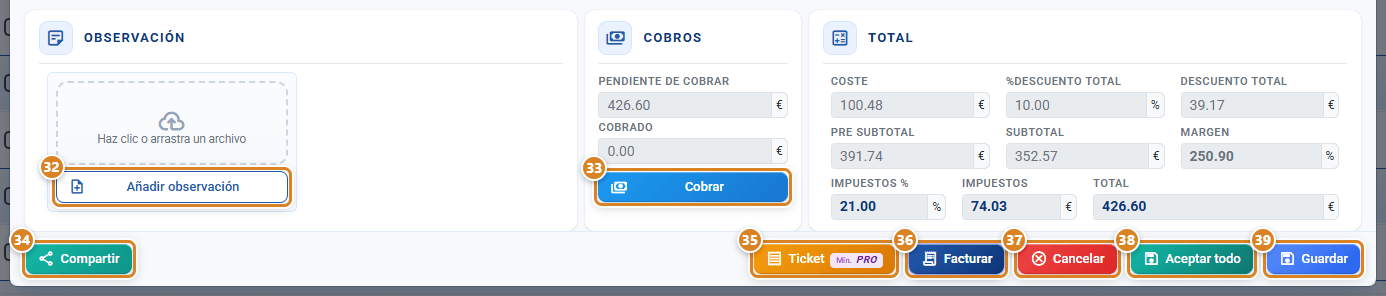
| Button / Control (wording on screen) | What it does |
|---|---|
| ㉒ Add Fields (top right; in brackets, how many are visible) | Chooses which columns are shown in the line table. |
| ㉓ Más datos / Menos datos (more / fewer fields) | Unfolds or hides the secondary header fields (Salesperson, Attended by, Completion date, Delivery method, Payment terms, Payment day, Bank account). |
| ㉔ Customer | The document's customer. Clicking its label opens the customer record so you can edit it. |
| ㉕ Change customer (magnifier with a person icon) | Changes the customer of the whole document and its chain, the same as ⑬ on the list. |
| ㉖ AI Assistant (next to Reference) | Writes or improves the reference text with AI. |
| ㉗ Disc. (box on the line) | Opens the Descuento de la línea (line discount) dialog (see below). |
| ㉘ Line Status | The line menu: accept or cancel it (partial acceptance, applied when you press Save), Duplicate and, on items, update the price or options. |
| ㉙ Free line | Adds a line by hand. |
| ㉚ New Quotation | Opens the product catalogue and the quoting engine. With Services and items it is called Catalog. |
| ㉛ Free Quote | Adds quotes you have already saved (Add Quotations window). |
| Barcode (field below the lines, "Scan or type the code") | With Services and items: scan or type the code and press Enter to add the line for that record, or add 1 if it is already there (see Barcode, in Document lines). |
| ㉜ Add observation | Adds an observation with a note and an attached file, which travels to the next level. |
| ㉝ Charge (Collections block) | Opens the payment dialog for the document. Above it, Pendiente de cobrar (still to collect) and Collected. |
| ㉞ Share | Saves the document and opens the Share dialog (㊵–㊾). |
| ㉟ Ticket | Invoices the walk-in customer and prints the ticket (from the Pro plan). |
| ㊱ Invoice | Issues the invoice and closes the document, after you confirm. |
| ㊲ Cancel | Cancels the pending lines and closes without moving forward. |
| ㊳ Aceptar todo (accept all) | Accepts every pending line and moves to the next level. |
| ㊴ Save | Saves the document and applies the partial acceptance or cancellation you have marked. |
| Reabrir (reopen; on a closed invoice, in the place of Save) | Reopens the invoice for editing, after asking ¿Reabrir esta factura? (Reopen this invoice?). It requires Reabrir y rectificar facturas (reopen and amend invoices): without it, it is greyed out and, when you hover over it, says "You don't have permission". On an invoice sent to electronic invoicing it is also greyed out. |
| Generar SEPA (generate SEPA; only on a saved invoice) | Downloads the invoice's SEPA file (see below). It requires Acceso Pago y Cobro (payments and collections access): without it, it is greyed out and, when you hover over it, says "You don't have permission". |
Details of each one (the list ones, plus):
- Más datos / Menos datos (more / fewer fields): unfolds or hides the secondary header fields (Salesperson, Completion date, Delivery method, Payment terms, Payment day, Bank account). To begin with you only see Customer, Contact, Reference and Creation date.
- Save (floppy disk): persists the changes.
- Share (share icon, a single button; tooltip "Imprimir, enviar por email, descargar o compartir por Direct."): saves the document and opens the Share dialog so you can choose the output. Options in the dialog (any that do not apply come up disabled, with the reason):
| Option | What for | When it is available |
|---|---|---|
| Imprimir impreso (print document) | The printed document with its lines (preview before printing/sending). | Always. |
| Print W.O. (print work order) | The quoting engine's work order with the production detail. | If the document has accepted lines with a quote, also on invoices ("El documento no tiene líneas aceptadas con cotización."). |
| Imprimir ticket (print ticket) | The printed document in ticket format. | Always. |
| Enviar por email (send by email) | Generates the PDF and opens the email to the customer, already preloaded with recipients, attachment and subject. | With the document already saved ("Guarda el documento antes de enviarlo.", save the document before sending it). |
| Descargar impreso (download document) | Downloads the printed document as a PDF, without going through the preview. | With the document already saved ("Guarda el documento antes de descargarlo.", save the document before downloading it). |
| Direct PRO | "Link and QR so the customer can view the document and approve it online." It opens the Direct dialog with the public link and the QR: on a quote the customer accepts or rejects it online; on an order/work order they check the status of the job. | On saved quotes, work orders and delivery notes only ("Disponible para presupuestos, OT y albaranes guardados.", available for saved quotes, work orders and delivery notes). Included in the Pro and Full plans or with the Direct module bought separately (on the Standard plan, without changing plan); without the module it shows the PRO badge and clicking it opens the module sheet with the Contratar Direct (Buy Direct) button, which takes you to Subscription → Modules tab. |
| WhatsApp PRO | "A message from your WhatsApp with the Direct link so the customer can open it on their phone." It opens the Send via WhatsApp dialog: you choose the customer's Contact (it fills in their Mobile; with Other number you type it yourself), check the Message text — it already carries the greeting, the document number, the total (on quotes) and the Direct link; it accepts emojis and WhatsApp formatting negrita, _cursiva_, ~tachado~ — and see the Preview. WhatsApp (app) opens the WhatsApp app installed on your computer or phone and WhatsApp Web opens it in a browser tab — handy if you use a different number in each; the one you used last is highlighted. Both open your own WhatsApp with the customer's chat and the message written: all you have to do is press send. Copy message copies it so you can paste it wherever you like. With no mobile number, WhatsApp lets you choose the chat. | Same as Direct: saved quotes, work orders and delivery notes and Direct (included in the Pro and Full plans or with the Direct module). |
The options that work on several documents at once (Imprimir fusionado, Descargar PDF único, Download ZIP) also appear, but disabled ("From the list, 2 or more from the same customer." or "Desde la lista, con 2 o más documentos."): inside the form there is only one document. For those, use the Share action on the list toolbar.
- Generar SEPA (generate SEPA; bank icon, on the Invoice form only): saves the invoice, creates its payment instrument if it did not exist yet and opens the wizard to download the SEPA file (Spanish direct debit format "Cuaderno 19") for that invoice. It only appears if the invoice has already been saved and the company has a default bank account set up in Settings → Finance. If you cannot see it, the usual reason is that no bank account has been marked as the default in Settings → Finance.
- Invoice: it asks for confirmation (¿Facturar y cerrar el documento?, invoice and close the document?), issues the invoice and leaves the document closed. If an amount is still outstanding, it first asks what to do about the payment (see "Payment on closing / invoicing / moving forward").
- Ticket (orange button, from the Pro plan; tooltip "Factura al cliente de mostrador e imprime el ticket.", invoices the walk-in customer and prints the ticket): it appears on any open document that has not been closed. It saves the document, asks what to do about the outstanding payment (No generar ticket, do not generate a ticket, leaves everything as it was), creates a closed invoice for the walk-in customer (the "Default customer for ticket printing (generic / cash customer):" in Settings → Sales) with the active lines not yet invoiced and opens the ticket printout. If that customer has not been set up, it opens the sales settings so you can choose it. If every line is cancelled or already invoiced it warns "There are no lines for the ticket".
- Aceptar todo (accept all; green button): accepts every pending line of the document and moves it to the next level.
- Save: saves the document and its lines. If you have ticked some lines as accepted or cancelled (partial acceptance), Save applies that selection: it accepts the ticked ones, cancels the ones you have marked as cancelled and moves only those to the next level. If you tick all of them as accepted (or all as cancelled), Save simply saves — for that case use Aceptar todo or Cancel. This partial selection used to have a button of its own, "Manage Partial", which has been withdrawn because it did the same thing.
- Next step (arrow): accepts every line (or only the ticked ones if there is a selection).
- Cancel (red button): only visible when there are lines still to be accepted. It asks for confirmation, stating how many pending lines are about to be cancelled; if the document has lines that have already been accepted, it warns you that those are left unchanged (only the pending ones are cancelled). On confirmation it marks only the pending lines as cancelled, saves and closes the form without moving to the next level or opening any other document.
- Buttons below the lines — Free line (a line by hand), New Quotation (opens the catalogue; with Services and items it is called Catalog and also adds services, items and kits) and Free Quote (quotes you have already saved, if you quote products). Services, items and kits are added from Catalog, one at a time, or with the Barcode field (see Barcode, in Document lines).
- Charge (the Collections card): opens the payment dialog to record a payment against the document. It used to be called "Payment and Collection"; the old "Collect everything" button has been removed (the dialog itself lets you collect the whole outstanding amount).
- In the line table, the Discount on a line with a quote is edited by clicking on it: the Descuento de la línea (line discount) dialog opens, a calculator with the undiscounted price and three linked fields — Descuento (%), Importe descuento (discount amount) and Total con descuento (total after discount) — you fill in whichever you prefer, the other two recalculate themselves and Apply saves the discount on the line. The Tax on a free line is changed by clicking on its amount and percentage box, which opens the Cambiar impuestos (change taxes) dialog (on lines with a quote the tax is not clickable).
Simultaneous editing warning ("Document being edited")
If you open a quote, a work order, a delivery note or an invoice that another user already has open, the Document being edited window appears, showing who is editing it, since what time and how many minutes they have been inactive, for example: "X is editing document 26-0412 since 10:35 (4 min inactive). If you both save, the last changes saved will be kept.". If it is you in another tab or on another device, it starts with "You, in another tab or device,". It is a soft lock: it warns you but does not stop you editing.
| Button / Warning (wording on screen) | What it does |
|---|---|
| Document being edited | Title of the window warning you that another user has the document open. |
| Keep editing | You go into the document anyway. If you both save, the last changes saved are the ones kept. If the other user has been inactive for 10 minutes or more, you become the editor and everyone else will see your name. |
| Close | Closes the document without going in, so you can come back when the other user has finished. It is the recommended option while the other user is still active. |
- If someone else takes over editing the document while you are in it, you get a warning: "X has started editing this document. If you both save, the last changes saved will be kept.".
- The warning is released automatically when the document or the browser tab is closed; if it cannot be released (for example, the connection drops), it expires after 90 seconds.
- It does not appear on a new document you have not saved yet, nor on a locked (read-only) document.
- If a warning gets stuck, any user with access to Settings → Modules and integrations → Custom function can clear them all with Unlock all documents being edited. See Custom function.
Invoice series
With the Full plan or the electronic invoicing module and more than one active series (Settings → Counters), every time an invoice is created you are asked ¿En qué serie va la factura? (which series does the invoice go in?): INVOICE, TICKET, a new invoice, invoicing several documents at once from the list (it asks once for all of them) and Duplicate on an invoice. Each option shows the expected Siguiente número (next number); the final number is assigned when you save. Series 1 comes up as recommended and the last one chosen is remembered. Cancel does not create the invoice. Credit notes and amended invoices do not ask: they go to their own series.
In the invoice list, the Type column adds the name of the series (for example Invoice · Counter) when there is more than one.
Payment on closing / invoicing / moving forward
On "INVOICE", on "TICKET", on "Close" for an invoice with an outstanding amount, or when you press TICKET in the quoting engine, the system asks first — "Queda importe pendiente de cobro" (amount still to be collected; shown in Spanish) — and offers three options:
- Cobrar todo (collect everything) — collects the whole outstanding amount without opening the payment screen: it is recorded on its own and closes.
- Revisar los cobros (review the payments) — opens the dialog with the outstanding amount spread out, so you can adjust it before saving.
- No cobrar (do not collect) — no payment is recorded; the document is closed, invoiced or moved forward all the same. It is the only option that carries on without a payment.
- Cancel (red button at the foot) — cancels the action: the document is not closed, not invoiced and does not move forward. Closing the window with the X or by clicking outside it does the same. When the notice comes from the TICKET button, this button is called No generar ticket (do not generate ticket): pressing it creates neither the invoice nor the ticket.
Details:
- If the customer pays cash (payment terms of 0 days), the notice says so and the dialog preselects the outstanding amount so you can collect it all in one go.
- If the customer pays on terms, the dialog opens with nothing preselected, so you can record a partial deposit or whatever amount you want.
- If the invoice is already 100% paid, nothing is asked.
- When closing, invoicing or moving forward, if you choose Revisar los cobros and close the payment dialog without clicking Save, the document is not closed, invoiced or moved forward either.
When you move a work order or a delivery note forward from the list (Create delivery note, Invoice or Accept), the same three-option window comes up, with the same cancel rule, when the customer pays cash and an amount is still outstanding. If the customer pays on terms, it moves forward without asking.
Deposits
You can record payments (deposits) against a work order or order before invoicing. When you invoice, that deposit is automatically counted as collected on the invoice's payment instrument (the line keeps its identity as it moves from work order to invoice), so there is no need to record it again.
Cascade delete
The Delete action is no longer blocked because the document has generated later levels.
When deleting, the system cascade-deletes the equivalent documents downstream (the delivery note and/or the invoice derived from it) and their payment instrument:
- If there are payments recorded, it asks for an extra confirmation before deleting.
- It respects the TicketBAI lock: an invoice already sent to the tax authority is not deleted.
- It respects the "Allow invoice deletion" permission.
Statuses
Status per line
| Status | Colour | When |
|---|---|---|
| Pending | Grey | A quote line not yet accepted. |
| Quoted | Light green | An active line on a quote. |
| Accepted | Orange | It has moved to an order. |
| Delivered | Blue | On a delivery note. |
| Invoiced | Red | On an invoice. |
| Closed | Dark grey | Invoice collected. |
| Cancelled | Struck through | Voided, does not count towards the totals. |
Document status
It is worked out from the statuses of its lines:
- Pending — no line accepted.
- Partial — a mixture of accepted and pending.
- Delivered — every line has reached the delivery note.
- Invoiced — all of them on an invoice.
- Cancelled — all of them cancelled.
Differences by plan
- TRY / STD — everything described so far.
- PRO — no additional features in this section.
- PRO, FULL or Direct module (included in Pro and Full; on Standard it is bought on its own as Portal del cliente Direct, without changing plan) — the WhatsApp option in the Share dialog of the list and of the form (a message with the Direct link from your own WhatsApp) and the Direct option in the Share dialog (link + QR for Direct, for both the quote and the order/work order, from the list and from the form), Share work order with customer, Notificar, the Work Status cell of the list and the tracking QR on printed documents (if the template switches it on). Without the module, those accesses show the PRO badge and clicking them opens the module sheet with the Contratar Direct button, which takes you to Subscription → Modules tab. Links already sent to customers keep working. Direct opens from Share → Direct.
Permissions
| Screen | Permission |
|---|---|
| Quotes | access_oferta |
| Work orders | access_ot |
| Delivery notes | access_albaran |
| Invoices | access_bill |
| Ajuste (settings) button of the list | venta_edit |
| Accept a quote (turn it into a work order) from the list, the Accept button of the Status column or the form (Aceptar todo) | Acceso OT (work order access; access_ot) |
| Create delivery note from the list and Aceptar todo / Accept on a work order when the next step is the delivery note | Generar albaranes y facturas (generate delivery notes and invoices; factura_generar) |
| Invoice from the list, Accept when the next step is the invoice, and Invoice and Ticket on the form (except inside an invoice) | Generar albaranes y facturas (factura_generar) |
| Typing the Amount, Disc., Unit price and Subtotal of the lines on the form | Editar precios, costes y márgenes (edit prices, costs and margins; precio_edit) |
| Opening the linked document with Go to Quote, Go to W.O., Go to Delivery note or Go to Invoice and with the document numbers in the columns (NºOT, NºAlb., NºFac.…) | The access for that document: Acceso Presupuesto, Acceso OT, Acceso Albarán or Acceso Factura |
| Opening the document just generated with Accept, Create delivery note or Invoice | The access for that document. Without it, the document is generated all the same but it is not opened: the notice "Documento generado. No tienes permiso para abrirlo" (Document generated. You do not have permission to open it) appears. |
| Opening the work order from a task in the Job manager | Acceso OT to edit it; without it the work order opens view-only (without Save, Invoice, Accept or payments; Share and Print are available) |
| Delete on the bar (quotes, work orders, delivery notes and invoices) and Delete on an already saved line in the form | Eliminar documentos de venta (delete sales documents; venta_delete) |
| Reopen Invoice and Create Rectifying Invoice on the bar and Reabrir on the form | Reabrir y rectificar facturas (factura_rectificar) |
| Recording a payment: Pay on the bar (work orders, delivery notes and invoices), Charge on the form, the payment in the window "Queda importe pendiente de cobro" (an amount is still outstanding) when closing, invoicing or moving forward, and Ticket on the form | Registrar cobros (record payments; cobro_registrar) |
| Seeing the Collections block of the form (Pendiente de cobrar and Cobrado) | Registrar cobros or Acceso Pago y Cobro (access_pay) |
| Generar SEPA on the invoice form | Acceso Pago y Cobro (access_pay) |
| Opening Finance from the Bank account label of the document | Configurar Finanzas (configure finance; bank_edit) |
| Creating a payment method when collecting if the company has none | Parametrizar Metodo de Pago (set up payment method; PayMethod_edit) |
| Unit cost, Total cost and Margin columns of the lines, the Cost of the Total block and the cost column of the export | *** Visualización Coste Global (view_global_coste) |
| Margin columns of the lines and of the Total block, the margin column of the export and the colours of the margin alert | *** Visualización Margen Global (view_global_margen) |
| Import / Export the list | allow_Import / allow_Export |
Integrations
- Quoting engine — the natural source of lines with a calculated price.
- Customers — provides the contact, address, discount and payment terms.
- Payments and Collections — the Pay button opens the payment screen and reduces the outstanding balance.
- Payment instruments — each invoice generates a payment instrument with its due date (payment terms + payment day); they are consulted in Sales → Payment instruments.
- TicketBAI — when an invoice is issued, if the organisation has TicketBAI switched on, it is sent automatically to the regional tax authority.
- Direct (customer portal) — reached through Share → Direct: from a quote it generates the public link so the customer can accept or reject it (accepting turns it into a work order); from an order it generates the link so the customer can see its status.
- Tasks / Calendar — when an order is accepted, each line is given a scheduled work date based on the lead time of the quote; it appears in the Tasks section for the shop floor.
- Email — automatic notifications are sent on a status change if templates and recipients are set up.
Important rules
- One quote = one line. A quote is never split across several lines, and several quotes are never put into one.
- Configurable levels. The flow is not rigid: each company switches Work orders and Delivery notes on or off; the levels switched off are skipped throughout the flow.
- Cascade delete. Deleting a document also deletes the levels derived from it downstream and its payment instrument, with an extra confirmation if there are payments, and respecting the TicketBAI lock.
- A closed invoice is read-only. To edit it, use Reopen invoice (a record is kept). If it has also been sent to electronic invoicing, it cannot be reopened: it is corrected with Create amended invoice, or voided from Electronic invoicing.
- Automatic numbering. The document number is generated by the system, it is not assigned by hand.
- One single way out: Share. Printing, downloading, sending by email and sharing through Direct all come out of the Share button/action, both in the list and at the foot of the form. Direct is an option inside that dialog, available for quotes and work orders, included in the Pro and Full plans or with the Direct module bought separately.
- Automatic simplified invoice. An ordinary invoice labels itself as a Simplified invoice (the Type column in fuchsia + the SIMPLIFIED INVOICE stamp on the printed document) when its customer has no CIF/NIF or is the generic / cash customer from Settings → Sales. There is nothing to switch on or tick, and it does not depend on electronic invoicing.
- Local drafts. If you add lines and close the browser without saving, the lines are kept in the browser itself and reappear when you come back. They are cleared when the document is saved.
- Combining orders. The system spots when accepting a quote would create an order for a customer who already has one, and offers to combine them instead of duplicating.
- Moving a line between documents unlinks it from the source and links it to the destination. It does not duplicate it.
- Changing the customer only recalculates the discounts on lines that were at 0 %.
- Simultaneous editing = a warning, not a lock. If two users open the same document, Document being edited appears; nobody is locked out and, if both save, the last changes saved are the ones kept.
- The printed document comes out in the customer's language. If the customer record has a Document language (Spanish, English, Portuguese or French), their quotes, orders/work orders, delivery notes and invoices are printed with the fixed texts in that language (PDF, email, Direct and WordPress). What the user types is not translated. With no language set, the user's language is used.
Frequently asked questions
Q: When I open a quote (or a work order, delivery note or invoice) I get "Document being edited". What should I do?
A: Another user has that document open; the window tells you who, since what time and how many minutes they have been inactive. The best option is to click Close and come back when they have finished. If you click Keep editing you go in anyway, but if you both save, the last changes saved are the ones kept (the other user's changes may be lost). If the other user has been inactive for 10 minutes or more, clicking Keep editing makes you the editor and they get a warning.
Q: I get "Document being edited" with my own name ("You, in another tab or device"). Why?
A: You have the same document open in another browser tab or on another computer. Close it there, or click Keep editing if you know you are no longer using it. When the other tab is closed the warning is released automatically; otherwise it expires after 90 seconds.
Q: I got the warning "X has started editing this document". What does it mean?
A: That another user has opened the document and chosen Keep editing after you had been inactive for 10 minutes or more. You can carry on, but if you both save, the last changes saved are the ones kept: agree between you before saving.
Q: The "Document being edited" warning is stuck with the name of someone who is no longer in it. How do I clear it?
A: Normally it is released automatically when the document is closed and, otherwise, it expires after 90 seconds. If it still remains, go to Settings → Modules and integrations → Custom function and run Unlock all documents being edited: it clears all the company's document-being-edited warnings at once. See Custom function.
Q: Can I print or send a quote or an invoice in English?
A: Yes, per customer. On the customer record, Finance tab, choose a Document language (Spanish, English, Portuguese or French) and save. Their quotes, orders/work orders, delivery notes and invoices come out with the fixed texts of the document in that language (Quantity, Price, Subtotal, Total, Taxable base, Payment conditions, Due date…), also by email, in Direct and in WordPress. The product names, descriptions and notes you type yourself are not translated. See Customers.
Q: I cannot delete a line: it says «A line with recorded payments cannot be deleted». What do I do?
A: The line has a payment recorded (for example, a customer deposit). So that money is not lost, the line stays in the document until you delete its payments first; then you can delete it. If deleting anything else (a customer, a supplier, a payment method, a tax) shows «Cannot delete it because it is used in…», the message tells you where it is used (quotes, delivery notes, invoices, purchase invoices…): change it there or leave it as it is.
Q: When I duplicate a work order no quote is created and I cannot send it to the customer. How do I do it?
A: Select the work order in the Work Orders list and click Duplicate. In the Duplicate O.T. box choose Quote + O.T.: the new work order is created and also a new, already accepted quote with the same lines as the work order, including the changes the customer asked for and you added to the work order. Open it in Quotes and send it with Share. It works the same when duplicating a Delivery Note or an Invoice: you can also create the delivery note, work order and quote that come before. With Only O.T. it is duplicated as always, without a quote.
Q: Where does the PORTES (shipping) line on my quote come from?
A: From the Shipping field on the customer record (Sale tab). If it is above 0, when you choose the customer on a quote, work order, delivery note or invoice you are asked whether to add the PORTES line with that amount plus the customer's tax; the cost equals the amount, unless you have set a Shipping cost: in Settings (Operations or Substrates → Settings → Consumption and costs). You can edit or delete it like any other line. When you change the customer, if the shipping does not match, the program asks before updating or deleting it. In each window you can switch on Don't ask again: the program remembers your choice in that browser and applies it automatically next time.
Q: I created a quote with 3 lines and the customer only accepts 2. How do I do that?
A: Open the quote and, in the Status column of those 2 lines, choose Accept; then press Save (from the list you can also select just those 2 lines and press Accept). An order is created with those 2 lines; the third one stays on the quote as Pending. You can accept it later or cancel it if they turn it down.
Q: I changed the customer on a quote. Why did some discounts not change?
A: The new customer's discount is only applied to lines that were at 0 %. If a line had a manual discount, it is left alone so nothing that was negotiated is lost.
Q: The customer cancelled the job. How do I stop an order/job being "Accepted"?
A: Open the order (or the quote) and use Mark as pending to return the accepted lines to Pending, or Cancel if the job is not going to be done at all (cancelled lines are struck through and do not count towards the totals). Both actions are in the Quotes and Orders list and inside the form. If the work order or the delivery note has already been generated, use Revert in the Quotes list: it deletes those documents and returns the quote to Pending. If there is already an invoice and you want to undo the whole chain, use Delete, which cascade-deletes the derived levels (with an extra confirmation if there are payments, and respecting the TicketBAI lock). An invoice already sent to the tax authority is not cancelled by deleting it: you have to issue a credit note or an amended invoice.
Q: I accepted a quote by mistake. How do I undo it so it goes back to "Pending"?
A: In the Quotes list, select the quote and press Revert. If it had been accepted or already turned into a delivery note, it deletes the work order and the delivery note generated (asking for confirmation and showing their numbers) and the quote goes back to Pending; a document that has other jobs inside it is not deleted, only your line is unlinked. If you had cancelled it and want it back, Revert also returns it to Pending. It works as long as there is no invoice: once an invoice has been issued the option does not appear and you have to issue a credit note or an amended invoice (or use Delete to remove the whole chain if the document still allows it). "Revert" is not the same as "Cancel": Cancel voids; Revert undoes the acceptance or reactivates something cancelled.
Q: Can I see who prepared the quote / who created the invoice (the sales rep)?
A: Yes. Every document carries the Salesperson field (the user responsible), which defaults to whoever creates it. On the form it appears when you press Más datos (more fields); in the list you can add or show the Salesperson column and filter by it, choosing the user in its dropdown (option All to clear the filter). If you have several people preparing quotes, that field tells you who to ask about each document. There is also the Attended by field (who handled the job), likewise under Más datos and with its own column in the list (hidden by default, switched on from the column selector), with the same user dropdown for filtering.
Q: Why can I not edit an invoice?
A: It depends on its status. If it is only closed (collected/invoiced): press Reopen invoice, edit it and close it again. If it has already been sent to electronic invoicing (the tax authority): it cannot be reopened or edited — use Create amended invoice to correct the amount, or Void from Electronic invoicing if you want to invalidate it completely and issue a new one.
Q: I have already issued the invoice to the tax authority (TicketBAI/Verifactu) and I got it wrong. What is the right way round it?
A: An invoice declared to the tax authority is never edited. The route depends on what you want: to correct only the difference → Create amended invoice → Amend the invoice (in full or in part) (a negative document of −€2, for example; edit it, close it and sign it); to cancel it and issue it again with the right amount, with no difference document → Create amended invoice → Redo the invoice (a credit note that voids the invoice + a new editable invoice: sign the credit note, set the new one to the correct amount, close it and sign it); the invoice should never have existed (wrong customer, duplicated, etc.) → the Electronic invoicing screen → Void (it notifies the cancellation to the tax authority), then issue a new invoice if appropriate.
Q: I do not want a −€2 document; I want to cancel the €10 invoice and issue one for €8. How?
A: Create amended invoice → Redo the invoice: in one click it generates a −€10 credit note that voids the original invoice (it is left closed, ready to sign in Electronic invoicing) and a new editable invoice that opens straight away — change the amount to €8, close it and sign it like any ordinary invoice. The customer receives the credit note and the new €8 invoice.
Q: The customer wants to return a job, or an invoice needs correcting. What do I do?
A: From the invoice, press Create amended invoice and choose: Amend the invoice (in full or in part) creates a single editable negative document labelled AMENDED INVOICE — you leave in it only the part being returned or corrected (you invoiced €10 and it should have been €8 → you leave it at −€2) and the original is kept; Redo the invoice creates a credit note that voids the whole invoice plus a new editable invoice — you set it to the correct amount (€8) and issue it, with no difference document at all. It also works on a closed invoice, without reopening it.
Q: What is the difference between "Amend the invoice" and "Redo the invoice"? Which one do I use?
A: It changes what the customer receives. With Amend the invoice (in full or in part) the original invoice stays as it is and you add a negative document that corrects or voids it — use it for refunds, or when a difference document is good enough for you (you invoiced €10 and it should have been €8 → a −€2 credit; the customer files the €10 one and the credit). With Redo the invoice the original is voided by an automatic credit note and you issue a new, correct invoice — use it when the customer should receive one clean invoice (you cancel the €10 one and they get an €8 one) or when the invoice has several errors. Quick rule: is adding a correcting document enough for you? → Credit note. Do you want to replace the whole invoice? → Redo.
Q: When I create an amended invoice it asks me for a "Reason for the amendment". What do I put?
A: It is compulsory: the tax authority requires every amended invoice to state the reason behind it. Choose the one that fits from the list — Full or partial return of goods, Later discount or rebate, Later change in price, Error in quantity or price, Error in tax details, Termination or cancellation of the transaction, Bad debt, Insolvency proceedings or Other reason. The reason is saved in the document's Reference field (with its tax code at the end, e.g. "(R1)"), it is printed on the PDF ("Reason: …") and that R1–R5 code is what is declared when the electronic invoice is issued. You can extend the Reference text before saving, but keep the "(R…)" code at the end. If you cancel without choosing a reason, no document is created.
Q: Where is the Create credit note button?
A: It is the Create amended invoice → Create a credit note option: it creates an editable negative document using the credit note series (prefix "AB") and labelled CREDIT NOTE, without marking it as an amended invoice — for straightforward refunds. The other two options: Amend the invoice (in full or in part) creates the negative document using the amended invoice series (RF), and Redo the invoice automatically generates a credit note that voids the whole invoice along with the new invoice.
Q: I want my amended invoice to be a single negative document saying AMENDED INVOICE, not CREDIT NOTE. Can I do that?
A: Yes, that is the Create amended invoice → Amend the invoice (in full or in part) option: a single document with the amounts in negative, labelled AMENDED INVOICE and with its own numbering series (prefix "RF" by default, configurable in the counters). It references the original invoice and can be signed through electronic invoicing.
Q: How do I send the amended invoice to TicketBAI / electronic invoicing?
A: With Amend the invoice (in full or in part): first edit the negative document (leave only the part you are correcting) and close it with Close / Invoice — only then does it appear on the Electronic invoicing screen, where it is signed with Sign TicketBAI / Sign Verifactu. With Redo the invoice: the voiding credit note is born closed — sign it straight away in Electronic invoicing; the new invoice is signed like any ordinary invoice once you have it right and close it. A requirement in both cases: the original invoice must already be signed in electronic invoicing — if it is not, the submission warns you "The source invoice is not signed yet". Once submitted, each document is locked and cannot be edited.
Q: Does the printed document say that it is an amended invoice or a credit note?
A: Yes. The title of the PDF says Amended invoice or Credit note followed by the number, and below it a coloured stamp — CREDIT NOTE in orange or AMENDED INVOICE in indigo — reading "Credits/Amends invoice [number], dated [date]" to identify the original invoice. On the document screen, the CREDIT NOTE / AMENDED INVOICE field is highlighted in the same colour and clicking it opens the original invoice. The printed version of a negative document also hides the payment conditions, the company's bank account, the delivery method and the due date (there is nothing to collect or deliver); the customer's account, the electronic invoicing QR and the negative amounts are kept. Ordinary invoices do not change, unless they are simplified: in that same place they carry the SIMPLIFIED INVOICE stamp in amber (see "Simplified invoice").
Q: I have amended an invoice; what happens to its due dates (payment instruments) and the commissions?
A: They adjust themselves. The payment instrument of the original invoice is recalculated to the net figure: with a full amendment it disappears from the due dates (voided); with a partial one it stays for the remainder. The commissions on the original invoice are reversed in proportion to what was amended (see the Commissions document).
Q: I pressed Invoice from a quote. Were the order and the delivery note skipped?
A: The levels your company has switched on are created in the background. If you have Work orders and Delivery notes switched on, you will find them in Work orders and Delivery notes. If they are switched off, they are not created: it goes straight to the invoice.
Q: I do not want to use delivery notes (or I do not want to use work orders). How do I turn them off?
A: Go to Settings → Customisation → "Document flow" and set "Do you use Delivery notes?" (or "Do you use Work orders?") to No. That level disappears from the menu and from the actions, and it is skipped automatically on acceptance.
Q: I switched off delivery notes. When I accept a work order, what gets created?
A: The invoice, directly, with no delivery note in between. The system skips every level you have switched off.
Q: Can a level be skipped (for example, going from the quote to the invoice with no work order)?
A: Yes. Each company decides whether it uses Work orders and/or Delivery notes; the ones you switch off are skipped throughout the flow. By default all four levels remain active.
Q: I want to delete a quote that already has a work order, delivery note or invoice and Delete does not appear.
A: Delete only appears on documents or lines that have not moved on to the next level yet, and it also requires the Eliminar documentos de venta (delete sales documents) permission. If the quote has already generated a work order or delivery note, first use Revert and then delete it. If it already has an invoice, Revert is not available: the invoice is corrected with Create Rectifying Invoice. When you delete, a window shows what is deleted in cascade (payment instruments included) and the Delete permanently button; recorded payments are not deleted: they stay recorded with no document. An invoice already sent to electronic invoicing cannot be deleted.
Q: When I closed the invoice it asked me whether to record the payment. Is that normal?
A: Yes. If a balance is still outstanding, closing or invoicing always brings up the "Queda importe pendiente de cobro" window with Cobrar todo (collect everything), Revisar los cobros (review the payments) and No cobrar (do not collect). If the customer pays cash, Revisar los cobros opens the dialog with the outstanding amount preselected; if they pay on terms, it opens empty so you can record whatever you want. If it is already 100% paid, it does not ask. If you close the window with the X, with Cancel or by clicking outside it, the invoice is not closed (nor invoiced, nor moved forward): to carry on without taking payment, click No cobrar.
Q: Can I take a payment before invoicing (a deposit)?
A: Yes. Record the payment against the work order or order. When you invoice, that deposit is automatically counted as collected on the invoice; there is no need to enter it again.
Q: I chose a customer and the payment terms and payment day filled themselves in. Why?
A: They are inherited automatically from the customer record when you select them. You can change them on the document if this particular case is different.
Q: I changed a customer's payment terms and it asked me whether to apply them to their open documents.
A: That is right. When you change a customer's payment terms or payment day, the system offers to propagate the change to their open quotes, work orders and delivery notes, so you do not have to edit them one by one.
Q: On the work order I see a "Payment forecast". Is that the real collection date?
A: No, it is estimated and for information only. It works out when the money would come in according to the payment terms and payment day. The real payment instrument, with its final due date, is created when you invoice.
Q: How is the Due date of each document worked out?
A: It depends on the document. On quotes, work orders and delivery notes it is the expiry: today's date + the due days in Settings → Sales (30 if nothing is set). On the invoice it follows the payment terms: the invoice date + the days of its Cycle, moved to the Payment day if there is one (an invoice dated 02/10 with "Direct debit at 60 days" → due on 01/12). It is worked out when the invoice is created (invoicing, new invoice, duplicating) and recalculated if you change the invoice's Payment terms, Payment day or Creation date; if the invoice has neither payment terms nor a payment day, the expiry is used. You can always correct it by hand under Más datos (more fields).
Q: How do I send the customer the link so they can see the status of their order?
A: Two routes, both included in the Pro and Full plans or with the Direct module bought separately. In the list, select the order and use the Share work order action (Share work order with customer). Or, in the list or inside the order form, press Share and choose Direct. Both open the same dialog with the URL and the QR; copy or download them and send them by WhatsApp or email.
Q: Can I send the customer the quote so they can accept or reject it online?
A: Yes. Save the quote, press Share and choose Direct (included in the Pro and Full plans or with the Direct module bought separately): it generates a link and a QR that the customer opens in the Direct portal, where they see the quote and can accept or reject it. If they accept, the quote becomes a work order automatically; if they reject it, it is cancelled. It works the same from the quote form and from the list (there, select a single quote, work order or delivery note).
Q: Where do I manage who receives the email notices when the status changes?
A: Inside that same dialog (reached through Share → Direct on the order, or through the Share work order with customer action) press Notify contacts. There you can see who receives notices, add a contact of the customer or use Quick contact to create a new one (name + email), which is handy for external contacts. Included in the Pro and Full plans or with the Direct module bought separately. You can also open it for a specific line with the Notificar action in the order list.
Q: The total I can see does not match my own sum.
A: Check whether any line is cancelled (it does not count) or has a different tax rate. Taxes can vary line by line.
Q: Can I move a line from one order to another?
A: Yes, by dragging it between documents of the same customer and the same level. It is not duplicated, it is unlinked from the source.
Q: The delivery date changed by itself when I accepted the quote.
A: On acceptance, the system recalculates the date using the delivery lead time defined on each quote. Edit it by hand after accepting if you want a different one.
Q: I want a single PDF with several delivery notes.
A: Select the delivery notes in the list, press Share and choose Descargar PDF único (single PDF): it downloads one PDF with all the documents (each document on its own page).
Q: I want to download several documents at once.
A: Select the documents, press Share and choose Download ZIP to get one PDF per document inside a single ZIP file, or Descargar PDF único if you want them merged into one PDF.
Q: An order was duplicated when I accepted two quotes from the same customer.
A: If the two quotes are accepted at the same time, the system spots the common customer and offers to combine them. If it offered to combine and you chose "create new", that is why there are two. Check it again when accepting.
Q: A closed invoice has been paid and it will not let me mark it as paid / the option to collect does not appear.
A: A closed invoice is locked against payments. Reopen it first (the Reopen invoice button), record the payment and close it again. The option to collect only appears with the invoice open.
Q: I want a single invoice with all the delivery notes for one customer (at the end of the month).
A: In the delivery note list, filter by that customer, select every delivery note that has not been invoiced and press Invoice (or Accept). A single invoice is generated grouping all those delivery notes.
Q: I deleted an invoice by mistake. Can I get it back or reuse its number?
A: The invoice cannot be recovered, but the delivery note/work order/quote it came from is still there: press Invoice on it again to redo it. The deleted number is not reused on its own; the counter does not go back. To reuse that number, go to Settings → Counters and adjust the counter, or use the counter editor. To prevent deletions, switch on the invoice deletion lock in Sales Settings.
Q: I cannot see all my invoices, only the first ones / the latest ones are missing.
A: It is the status filter. Set the Status filter to All to see the closed ones too. They have not been deleted; they are filtered out because they are closed.
Q: When I enter an invoice number it says "That number already exists", but I do not see the invoice in the list.
A: The invoice with that number exists and is Cancelled: the Search filter of the Status column does not show cancelled ones. Set the Status filter to All, look for it by its number and open it to edit it. If you prefer to delete it, the number becomes free and you can use it again.
Q: I print the work order from the quote and it comes out with the quote number, not the work order number.
A: When you print the work order from inside the quote it uses the quote numbering. To get the work order number, print from the Work Orders screen, selecting that work order.
Q: I accepted a quote but the work order does not appear in the manager / I cannot find it when I search.
A: Accepted work orders are on the Work Orders screen. The search box filters by work order number, not by quote number. Search by the work order number, or use the Accepted status filter to see what is still waiting for a delivery note.
Q: I want a quick counter invoice without entering the customer's details (cash).
A: In Settings → Sales, Default customers section, assign a customer in "Default customer for ticket printing (generic / cash customer):". Then, in the quote calculation, the TICKET button generates the invoice straight to that customer; or on the quote select that customer and press Invoice and close. Invoices for that customer are issued as a SIMPLIFIED INVOICE (the same as for any customer with no VAT number).
Q: Why does the "Type" column of the invoice list say "Simplified invoice" and not "Invoice"?
A: Because CotizaPrint detects it on its own. An ordinary invoice is marked as a Simplified invoice (fuchsia label) when one of two things happens: the document's customer has no VAT number (CIF/NIF) (the field is empty or not valid as a Spanish NIF), or the customer is the generic / cash customer you have set in Settings → Sales → "Default customer for ticket printing (generic / cash customer):". It is not an error or something you ticked: if you want an ordinary invoice, fill in the CIF/NIF on the customer record or issue it to a customer who has one. Credit notes and amended invoices are not affected.
Q: How do I make a simplified invoice?
A: There is nothing to switch on: issue the invoice to a customer with no VAT number (CIF/NIF) or to the generic / cash customer in Settings → Sales (field "Default customer for ticket printing (generic / cash customer):") and the invoice becomes a Simplified invoice on its own. On the list you will see it in the Type column in fuchsia and the printed document will carry the SIMPLIFIED INVOICE stamp. The quick route is the TICKET button in the quote calculation, or Invoice and close choosing that customer.
Q: My invoice PDF shows the "SIMPLIFIED INVOICE" stamp. What is it and how do I remove it?
A: It is the amber stamp printed under the document number, in the same place where CREDIT NOTE and AMENDED INVOICE appear. It shows that the invoice is issued as simplified because its customer has no VAT number (CIF/NIF) or is the generic / cash customer. It appears even if you do not use electronic invoicing. To stop it appearing: fill in the CIF/NIF on the customer record — or change the invoice's customer to one who has it — and generate the printed document again.
Q: I issued an invoice to a customer with no VAT number and it does not come out as an ordinary invoice. Is that a fault?
A: No. Without the customer's CIF/NIF, the invoice is issued as a Simplified invoice: that is how it is labelled in the Type column of the list and how it is stamped on the printed document. If that sale should have been a full ordinary invoice, go to the customer record, fill in their CIF/NIF and print the document again.
Q: I changed the quantity / the final price of the quote and it does not match the work order total.
A: The price of the quote calculation is fixed when you save it. If you changed it by hand, go into the calculation, adjust it and save; if you touched an operation or the substrate, it will ask you to update when you leave. To redo everything, use the green Update button (it recalculates with the product's current settings).
Q: I have several calculations in one quote and the customer only accepts one. How do I get to its work order?
A: Accept only that line (Status column → Accept, then Save). Accepted lines show a button that takes you straight to their work order.
Q: How do I turn a quote into a work order?
A: When the customer accepts the quote, open it and press Aceptar todo (or select it in the Quotes list and press Accept). That generates the work order in Work Orders, which is what you use for production: what has to be done, which product, which tasks and with which dates and statuses. Before accepting, check that the quote is saved and correct (lines, quantities, prices), because the work order inherits all of that. If you only want to accept part of it, in the Status column of each line the customer confirms choose Accept and press Save.
Q: How do I find a work order?
A: Search for it by its work order number on the Work Orders screen. The quote list shows quote and calculation details and may not bring every work order field, so use the right filter depending on whether you are looking for a quote, a calculation or a work order. If you only know the quote number, the work order search will not find it: go to Work Orders and filter by work order number, or use the Accepted status filter to see what is waiting for a delivery note.
Q: What is the difference between a quote, a quote calculation and a work order?
A: The quote (and the calculations it is made of, one per line) is the price proposal you send to the customer. The work order (order) is the internal production document generated when the customer accepts. The order is: first you price and quote; if the customer accepts, you press Accept and the work order is generated and managed. The quote is for selling; the work order is for making.
Q: Can I put several lines on one quote?
A: Yes, a quote can have several lines (each calculation is one line). If an order contains different jobs or deliveries on different dates, consider splitting it into several lines, calculations or work orders to handle them separately. If what you need is for each line to end up on a different delivery note, write the case up with a concrete example and open a ticket: depending on the flow it may be an improvement to look at.
Q: I applied a discount and it does not show on the quote. What do I do?
A: First check where you applied it: the discount can be per line, on the calculation, on the product or on the total, and if it is somewhere other than where you expect, it will not show where you are looking. Then check the print template / PDF: make sure that template shows discounts, because some do not print them even when they are applied. If the discount is applied correctly and still does not appear on the document, open a ticket with a screenshot of the quote and of the PDF.
Q: The customer sends me a job directly (by WhatsApp, etc.). Do I have to make a quote?
A: Not always. If the job has already been decided and you only need to record it, charge for it and produce it, use a direct sale / ticket (CASH customer + the TICKET button, or "Invoice and close"): it generates the invoice straight away and lets you record the payment or leave it pending. Make a formal quote only when you need to price it first, before the customer accepts. Quick rule: if the price has to be negotiated first → quote; if it is already agreed → ticket / direct sale.
Q: What is the direct sale Ticket for?
A: For a direct sale or a quick job, when the customer has already asked for the job and does not need a quote first. It generates the invoice instantly and helps you record the payment or leave it as pending. If you need an invoice without entering the customer's full details, use the CASH customer + TICKET.
Q: Where do I see everything I still have to collect?
A: Use Payment instruments (Sales menu → /efectosCobro): each invoice generates a payment instrument with its due date, and that is where you see what is outstanding. You can also filter by status on the invoice list (a Closed invoice = collected; the rest, outstanding) and check the estimated Payment forecast on the work order. For a particular customer's outstanding balance, also look at the Collections button on their record.
Q: How do I see the delivery notes I have not invoiced yet?
A: On the delivery note list, filter by status to isolate the ones that are Delivered but not Invoiced. From there you can select them and invoice them (for example, several delivery notes for the same customer on a single invoice at the end of the month).
Q: Can I export my invoicing to Excel?
A: Yes, if you have the export permission. On the invoice list (or the list of whichever document), first apply the date and status filters you need and use the Export list action: it downloads what you have filtered to Excel. For more elaborate invoicing analysis and reports, use the Analysis / Reports section.
Q: How do I change which customer name appears on the quote, the invoice or the work order?
A: The customer name that is printed (trading name, legal name or the contact) depends on the customer's details and on the print template you use for that document. Check the customer record (that the trading/legal name and the contact are right) and the document's template. If you need a particular name to appear and the template does not allow it, open a ticket with a screenshot: it may be a template adjustment.
Q: How do I email a quote or an invoice to the customer from the list?
A: Select the document (or several from the same customer) on the list, press Share and choose Enviar por email (send by email). The system generates the PDF of the printed document and opens the email to the customer ("Enviar correo al cliente") already preloaded with the recipients, the PDF attachment and the subject; check the content and press Send. You need a print template set up for that document.
Q: I pressed "Enviar por email" and nothing happens / it warns me something is missing.
A: Check two things: that all the selected documents belong to the same customer (it does not mix customers) and that there is a print template set up (without it, it cannot generate the PDF to attach).
Q: What is the "Generar SEPA" button on the invoice for? / How do I generate the SEPA file for an invoice?
A: It is at the foot of the Invoice form (bank icon). When you press it, CotizaPrint saves the invoice, creates its payment instrument if it did not exist yet and opens the wizard to download the SEPA file (Spanish direct debit format "Cuaderno 19") for that invoice, ready to upload to the bank. It only appears if the invoice has already been saved and your company has a default bank account in Settings → Finance.
Q: I cannot see the "Generar SEPA" button on the invoice. Why?
A: The button is only shown when the invoice is saved and your company has a default bank account marked. Go to Settings → Finance and, with the Default account selector, choose an account from the catalogue; the button will then appear.
Q: How do I print the printed document, the ticket or the work order from the form?
A: With the Share button (share icon) at the foot. Press it and choose the option in the Share dialog: Imprimir impreso, Print W.O., Imprimir ticket, Enviar por email or Direct. On the Invoice form, Print W.O. is also available when the invoice has accepted lines with a quote; otherwise it is disabled with the message «El documento no tiene líneas aceptadas con cotización.» (shown in Spanish). The orange Ticket button that is at the foot is something else: it invoices the lines to the walk-in customer and prints that ticket.
Q: "Imprimir fusionado" does not work / it will not let me click it / it does nothing.
A: That option needs 2 or more documents from the SAME customer. With a single document selected, or with documents from different customers, the option stays locked (greyed out) and cannot be clicked. The card itself tells you what is missing — "Select at least 2 documents from the same customer." — and clicking it also shows that warning. Solution: on the list, tick the boxes of the quotes (or orders, delivery notes, invoices) from the same customer, press Share and choose Imprimir fusionado. Note: inside the form of a document this option never appears, because there is only one document there. If what you want is each document with its own totals in a single PDF, use Descargar PDF único.
Q: Where is the "Print" button? / I cannot find the Print button on the quote.
A: Printing is inside Share (share icon; on screen Compartir), on the list's action bar and at the foot of the document form. It opens the Share dialog, which brings together every output of the document: Imprimir separado, Imprimir fusionado, Imprimir impreso, Print W.O., Imprimir ticket, Enviar por email, Descargar impreso, Descargar PDF único, Download ZIP and Direct.
Q: How do I send the quote to the customer by WhatsApp?
A: Save the quote, press Share and choose WhatsApp. Send via WhatsApp opens with the quote's contact and their Mobile, and a message already written with the quote number, the total and the Direct link. Touch it up if you like (it accepts emojis and negrita between asterisks for bold), look at the Preview and press WhatsApp (app) or WhatsApp Web: your WhatsApp opens with the customer's chat and the message; press send. The customer taps the link, sees the quote, downloads it and accepts it online. It works the same on a work order (the customer follows the status of the job) and on a delivery note (they follow their shipment). It comes with Direct (Pro and Full plans or the Direct module). If the contact has no name (only a mobile number), the Contact selector shows their mobile and the greeting uses the customer's name; to greet the person, add their name to the contact on the customer record.
Q: Can I send several quotes (or several work orders or delivery notes) by WhatsApp at once?
A: Yes, from the list. Tick the documents from the same customer, press Share and choose WhatsApp ("A single message from your WhatsApp with the Direct link of each document."). Send via WhatsApp opens with one single message: the greeting, an entry per document with its type and number (on quotes, also the total) and its Direct link, and your signature. Choose the contact, touch up the text if you like and press WhatsApp (app) or WhatsApp Web: the customer gets all the links in one message and every document is marked as sent by WhatsApp in the Status column. If the documents belong to different customers, the option comes up disabled with the notice "Select documents from a single customer.". The Direct option (link and QR) is still one document at a time.
Q: How do I know whether a quote has already been sent by WhatsApp?
A: On the list, the Status column (the one with the printed and email icons) shows the WhatsApp icon on the quotes, work orders and delivery notes sent with Send via WhatsApp, next to the printed and sent-by-email ones. In that column's filter, All includes them; Printed and Print+Email also pick up the ones that were sent by WhatsApp as well.
Q: Can I change the text sent by WhatsApp for everyone?
A: Yes, in Settings → Templates → WhatsApp template there is a text per type (quote, work order, delivery note and resource) with chips for inserting variables —{{contacto}}, {{cliente}}, {{documento}}, {{numero}}, {{subtotal}}, {{impuesto}}, {{total}}, {{fecha}}, {{referencia}}, {{enlace}}, {{usuario}} and {{empresa}}, the same as the email template—, emojis and a preview. The default quote text carries the Subtotal, Taxes and Total breakdown, and the signature with your name and your company in bold. If you already had the text saved, it is kept as it is; to use the new one press the Restore the default text icon in that section. If a variable is empty, its line is not sent. It also opens from the Send via WhatsApp window itself with the Configure template button (it requires permission to edit email templates); when you save, the message is rebuilt with the new template if you had not touched it up yet. Each user can touch up the message before sending it, and Send via WhatsApp also has the row of emojis.
Q: Is the WhatsApp message sent by the application or by my WhatsApp?
A: By your WhatsApp. CotizaPrint prepares the text and opens WhatsApp (web, desktop or the mobile app) with the chat and the message written; you are the one who presses send, from your own number. That is why it costs nothing and there is nothing to connect. If the contact has no mobile number or you type another number, WhatsApp lets you choose the chat.
Q: I have switched on the QR in the quote template. Does it appear on the printed document?
A: Yes. With the tracking QR switched on in the quote template, the printed document carries the code with the caption Ver presupuesto (view quote); when your customer scans it, they open the quote in Direct and can accept it. On the work order and the order the caption is Seguimiento Orden (order tracking).
Q: How do I share a document through Direct from the form?
A: Press Share and choose Direct. It is available on saved quotes, work orders and delivery notes; if the document is not saved or is an invoice, the option comes up disabled ("Disponible para presupuestos, OT y albaranes guardados.", available for saved quotes, work orders and delivery notes). From the list it is the same: select a single quote, work order or delivery note, press Share and choose Direct (if you select several, it warns "Select a single quote, work order or delivery note."). It requires the Pro or Full plan, or the Direct module bought separately: without it, the option carries the PRO badge and clicking it opens the module sheet with the Contratar Direct button. For an order you also have the direct Compartir OT action on the list.
Q: Has Direct stopped working / does it ask me to upgrade when I press Direct? Can I use Direct without the Full plan? Is it included in the Pro plan?
A: Direct is included in the Pro and Full plans (and in the 14-day free trial) and, on the Standard plan, it is bought on its own without changing plan (Portal del cliente Direct, €19/month or €190/year; USD 15/month or USD 150/year). You open it through Share → Direct, through Share work order, through Notificar or from the Work Status cell of the list. If you do not have it, those accesses show the PRO badge: clicking them opens the module sheet with the Contratar Direct button, which takes you to Subscription → Modules tab. In the Send via WhatsApp dialog the notice reads Sending via WhatsApp is part of the Direct module, included in the Pro and Full plans. Activate it to send the link to your customer. Links you have already sent to your customers keep working.
Q: When I print the work order of a quote with several calculations, all of them come out even if I select only one. Can I print just the one I chose?
A: Yes. Print W.O. respects the selection: tick the box of the line (not the header one) and only the work order for that calculation is printed. If you tick the header, or tick no line, the work orders for every line of the document are printed.
Q: I printed the work order from the quote and the PDF header came out with the quote number, not the work order number. Why?
A: It was a bug, now fixed. The work order printout always carries the Work Order number, whether you print from Quotes & Quotations, from Work Orders, from the delivery note or from the invoice: the PDF and the file name come out identical in every case (OT_26-3235.pdf). Before, the number was taken from the document from which you pressed Share → Print W.O., so from the quote it was labelled with the quote number. If a quote was accepted into two different work orders, each block of the PDF carries its own.
Q: And if I print the work order of a quote I have not accepted yet?
A: As there is no Work Order yet, the document is identified as a Quote with its number (and the file comes out as Presupuesto_26-4722.pdf), instead of labelling a work order that does not exist yet. As soon as you accept the quote and the work order is generated, the same printout comes out as a work order with its number. The tracking QR is only printed once there is a Work Order, because that is what the customer follows in Direct.
Q: I have a quote with a lot of lines (40, for example) and it is hard to find the one I want to duplicate. How do I locate it?
A: The Filter... box of the Ref. Descripción (or Product) column on the list leaves only the quotes that contain that text, but inside them you still see all their lines. To locate the line quickly: at the foot of the table, open Row height and choose Minimum or Compact (or use the simple view) to see all the lines at a glance. If you press Duplicate on a line's Status, the copy is created inside the same quote. If you select one or more lines and press Duplicate on the action bar, they are created in a separate new quote, easy to find. When the lines come from several documents, it asks Separately or Merge into one.
Q: How do I add a service, item or kit to the quote?
A: With Catalog, below the lines: click one, choose the quantity and the options (you see the price, the stock and, on a kit, what it is made of) and press Add. Each Add puts in one line; for another one, press Catalog again. For a line written by hand use Free line. More detail in Services and items.
Q: What is the Stock column on the lines? How do I see what a kit contains?
A: The Stock column, to the right of Product, appears when a line is an item with stock control or a kit. Its pill says how much is available and turns orange if the line quantity exceeds it (you can still sell); in that case, if the line has a Delivery lead time, it appears underneath with a lorry icon. The lead time is chosen when you add the line or when you click its name: if there is stock it says In stock. On a kit, the Contents button opens the Kit contents panel with its components for the line quantity. This used to appear under the product and made the row very tall. If you do not want to see it, untick Stock in Add Fields.
Q: When does stock go down when I sell (items and quoting-engine paper)?
A: With the first delivery note of the line or, if you invoice it without a delivery note, with the invoice; only once, even if you invoice the delivery note afterwards. The quote does not touch stock and the work order only reserves the items. It is the same for items and for the quoting-engine paper or vinyl, in print shops and in Beauty. Crear un abono (Create a credit note) and Rectificar la factura (Amend the invoice) return the material; Redo the invoice does not, because the new invoice is still selling it. If you delete the delivery note or the invoice, the stock is put back on its own.
Q: "Aceptar", "Albaranar" or "Facturar" does not appear, or "Aceptar todo" is greyed out. Why?
A: Your role does not have the permission for that step. Accepting a quote (turning it into a work order) requires Acceso OT; generating a delivery note or an invoice from another document (also Invoice and Ticket on the form) requires Generar albaranes y facturas. Without it, the action does not appear in the list and the button on the form is greyed out with "You don't have permission". An administrator grants it in Roles & Permissions.
Q: I cannot change the price or the discount of a line of the document.
A: Without the Editar precios, costes y márgenes permission, the Amount, Disc., Unit price and Subtotal of the lines are read-only. It also happens if the document is locked (for example, a closed invoice).
Q: When I click the work order number (or Go to W.O., Go to Invoice…) I get "You don't have permission".
A: To open the linked document you need the access for that document: Acceso Presupuesto, Acceso OT, Acceso Albarán or Acceso Factura. Without it, the number is visible but does not open.
Q: "Delete", "Reopen Invoice" or "Create Rectifying Invoice" does not appear on the bar.
A: Each one requires its own permission: Eliminar documentos de venta (also to Delete an already saved line on the form) and Reabrir y rectificar facturas (Reopen Invoice, Create Rectifying Invoice and the Reabrir button on the form, which without it is greyed out with "You don't have permission"). Delete also does not appear if the document has already moved on to the next level, on an invoice sent to electronic invoicing or, on Invoices, with Enable the delete invoice option switched off. An administrator grants the permissions in Roles & Permissions.
Q: "Pay" does not appear, "Charge" is greyed out or when invoicing it says "The pending payment is not recorded now: someone with payment permission will record it."
A: Recording a payment requires the Registrar cobros permission: Pay on the bar (on work orders, delivery notes and invoices; it does not exist on quotes), Charge on the form, the payment when closing, invoicing or moving forward, and the Ticket button. Without it, Pay does not appear, Charge and Ticket are greyed out with "You don't have permission", and when invoicing or closing with an outstanding amount the document goes ahead without a payment and that notice appears: the payment is entered later by whoever has the permission. The Collections block of the form is visible with Registrar cobros or Acceso Pago y Cobro.
Q: How do I hide cost and margin from a salesperson on the documents?
A: Remove *** Visualización Coste Global and *** Visualización Margen Global from their role in Roles & Permissions. Without cost they do not see the Coste Ud. (unit cost), Total Cost or Margin columns of the lines nor the Cost of the Total block; without margin, nor the Margin columns or the margin alert colours. They cannot get them back from Add Fields and the list export comes out without those columns.
Q: Why do quotes, work orders, delivery notes and invoices show different columns? I do not see Disc % or Salesperson on invoices.
A: Each list starts with the columns of its document (see "Columns shown by default"): in quotes, the quote and the Salesperson; in work orders, production with Work Status and the Collections; in delivery notes, whether it is paid and its NºFac.; in invoices, Taxes, Total, Collections and Type. Any other column, such as Disc % or Salesperson, is added with Add Fields and stays saved for you in that list. Resetear columnas goes back to the default ones.