
What it is
The screen where you set up everything you sell: your services, the products you sell or use up in the treatment room, and the vouchers or packs that bundle several of them.
It is in the Services → Services and products menu. Each record is one of these three types:
| Type | What it is | Unit | Stock |
|---|---|---|---|
| Product | A product for sale or for the treatment room, with its stock. E.g. a shampoo, a cream, a tub of hair dye. | Ud., always. | Its own: it goes up with purchases and down with sales. |
| Service | Work charged by the session or by the hour, with or without products used up. E.g. a haircut, a facial. | Any except Pack. A new one starts in Units with 60 minutes of Duration (min); it can also go in hours or in minutes. | No stock of its own. It shows how many can be done with the stock of its consumables. |
| Voucher or pack | A session voucher or a pack of services and products sold together. E.g. a 10-session voucher, a gift set. | Pack, always. | No stock of its own. It shows how many packs can be put together with the stock of its components. |
Each record has its price (with a margin table or prices by quantity), its cost, its tax, its category and, if you like, an image. Prices are entered and shown with VAT included, which is what the client pays; you can change this in Settings → Sales.
Note: the screen used to be called Services and items (Product menu), products were Items and vouchers or packs were Kits. The Type column and filter of the list now say Product, Service or Voucher or pack, the list button is called Extras and the Catalog counts say "products" and "vouchers or packs". The Kit contents panel, the Excel file and the reports keep the old names.
What it is for
- Keep your menu of services and products organised by category, with a photo and a price.
- Know how much each service costs you: the products it uses, the labour and other expenses.
- Set prices by quantity: one price for 1 session and a cheaper one for 5.
- Sell the same service with extras that add to the price and the duration: with a vitamin C ampoule, long hair, gift wrapping.
- Sell session vouchers and packs, and have the stock of what they contain go down on its own.
- Know how much stock you have left of each product and get a warning when it falls below the minimum.
- Add services, products and vouchers or packs to a quote, order, delivery note or invoice from the Catalog, with photos, extras, price and stock in view.
- See on each sales line the stock that is left and, for vouchers or packs, what they contain.
- Show the appointments in the calendar with the colour of their category.
- See later what you have sold, by service, by category or by type.
How to use it
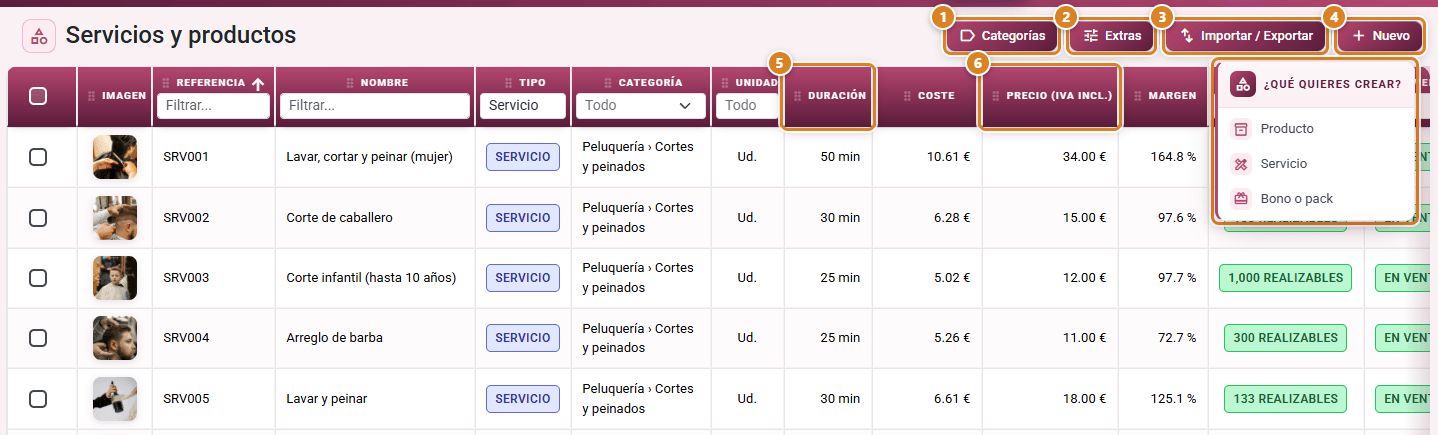
The list shows, for each record, its image, reference, name, type, category, unit, Duration (the minutes of one unit, services only: for example, "60 min"), cost, price, stock and whether it is For sale. With prices including VAT, the price column is called Price (VAT incl.). By default only enabled records appear; change the Status filter to see disabled ones too. The category column and filter show the full path ("Section › Sub › Subsub"), and filtering by a category also shows all the ones below it, at any depth.
To open a record from any screen, click Search… in the top bar (or Ctrl + K) and type its name or its reference: it appears in the Services and items section of the search and, when you choose it, its record opens. If you type "services", "kits" or "stock", the search also offers to take you to this screen.
1. Set up the categories
- Click Categories to organise your menu. There are sections (for example, "Hairdressing") and, if you like, subsections inside them (for example, "Colour"), at as many levels as you want: a subsection can have its own subsections (for example, "Colour › Highlights"). Click New section to create a section, or the + on any row ("Add subsection") to create a subsection inside it; type the Name, upload an Image if you want and click Create. Reorder them by dragging each row by its handle (six-dot icon, "Drag to reorder"): there are no arrows any more. Below each section, its services and products that are For sale appear: drag them by their handle ("Drag to reorder or move to another section") to sort them or move them to another section, add more with the playlist_add button on the row and take them out with Remove from catalog (they become Internal use only, they are not deleted). On each row you change the name (saved when you leave the field), the image (click the thumbnail: Change image), the colour of its appointments (the colour dot, Calendar colour), hide or show it (Visible / Hidden) and, if you have the WordPress or PrestaShop module, enable it in that store with its logo (coloured = enabled, grey = disabled). Enabling a section also enables its subsections, which show in colour and locked ("Enabled in WordPress by the category that contains it"); a new subsection inside an enabled section is born enabled. Services and products have no mark of their own: the store goes on categories only. A category with services, products or subcategories cannot be deleted: hide it. It is the same window that opens with Configure catalog in the Catalog (Categories).
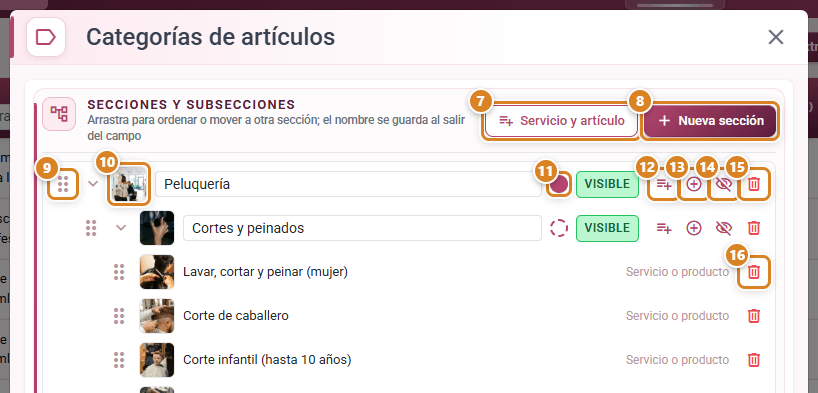
- Calendar colour: click the colour dot of a section or subsection and choose Automatic or one of the 8 colours. The appointments for its services are shown in that colour in the calendar ("Appointments in the calendar are shown in this colour. With Automatic, a subsection uses its section’s colour.").
- Units of measure are fixed and cannot be configured: Units, Pack, Hours and Minutes. A per-session service goes in Units, with its Duration (min): a new service already comes like that, with 60 minutes.
2. Create the record
- Click New (the button with the + sign) and, in What do you want to create?, choose Product, Service or Voucher or pack. The record opens with the title New product, New service or New voucher or pack; when you edit it, the title is its type. Inside the record, the type is changed at the top right, next to the X.
- Fill in Name (required), Reference, Description and Category.
- For a service, check the Unit and the duration. A new one starts in Units with Duration (min) 60: change it to how long one session lasts (for example, 45). If you choose Hours or Minutes, the duration is filled in for you, the price is calculated based on the hours of the line (the quantity in the price table is in hours) and you can set the Default time it enters the quote with.
- Upload an Image (it shows in the Catalog and on documents).
- Under Sale, leave For sale if you sell it to the client. Switch it to Internal use only if the product is only used up in the treatment room (for example, a 1-litre tub of hair dye): that way it does not appear when you sell.
- In Tax, choose the tax it is sold with. Your company's default tax is already chosen ("Tax it is sold with. After saving you can add more, reorder them or tick another one."). Once the record is saved, under Sale → Taxes you have the full list: Add (an existing one or a new one), remove, sort with the arrow and tick the ones that apply (for example, VAT and equivalence surcharge, or VAT and withholding). If it has none, the customer's tax applies.
- For a service or a voucher or pack, fill in the Agenda block (it appears with the Appointment organizer, from the Pro plan): the Validity (days) of the sessions sold and who does it in Performed by (Whole team or Only these professionals). You can already do this when you create it.
- Click Save. It saves everything (the record, its consumables or components, its extras, the tax and the agenda) and closes the window. If something cannot be saved, the window stays open so you can fix it.
3. The cost
- Product: type the Unit cost (what it costs you).
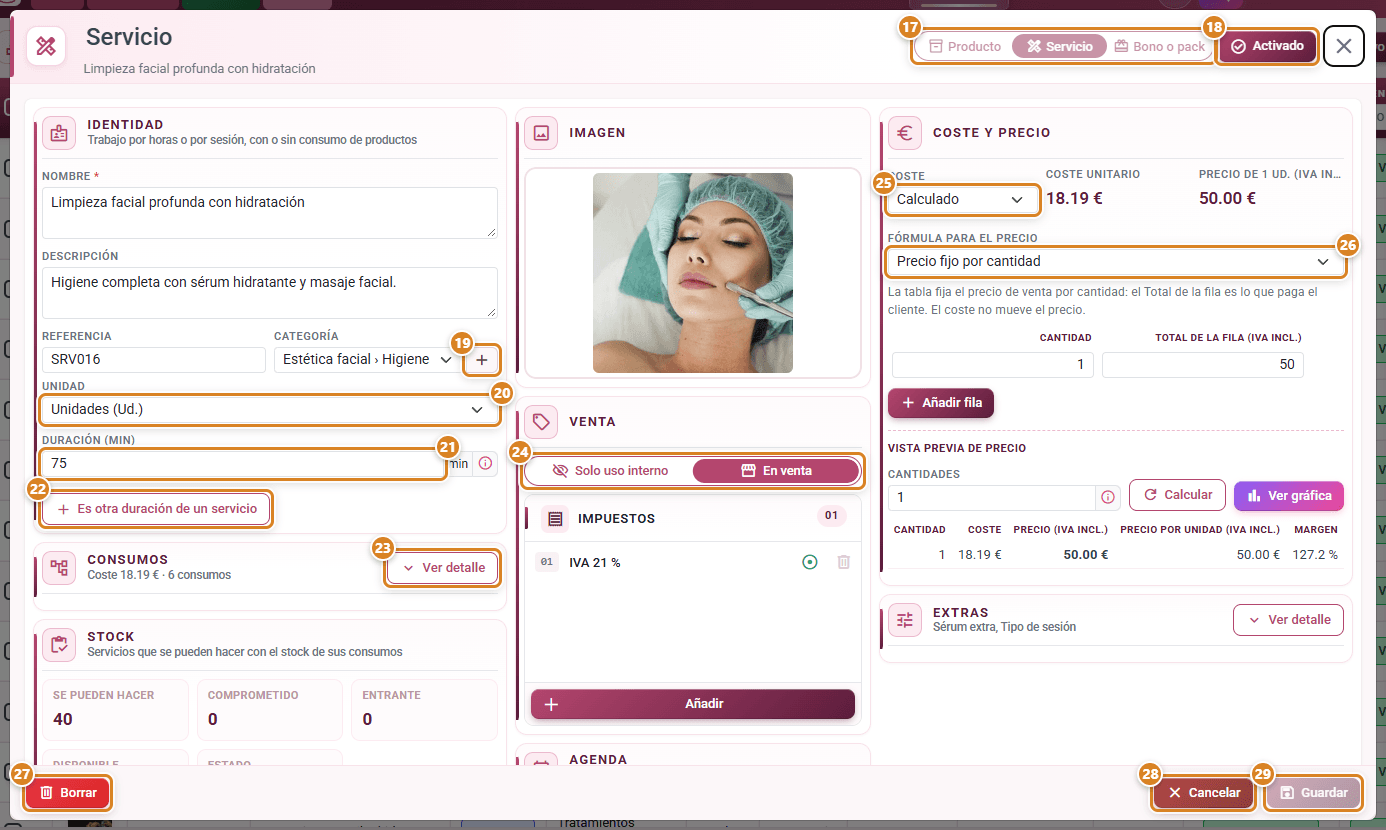
- Service: under Cost, choose Calculated or Manual.
- Calculated (the service's cost breakdown): the cost is the sum of three things:
- Consumables: the products each service uses, in fractions. For example, 0.25 of a tube of hair dye. Click Add consumables, tick the products in the list (with a search by name or reference) and click Add.
- Other costs: disposables, laundry or the share of the equipment, per service.
- Labour: the minutes of work times the Hourly cost. With The whole time, the whole service counts. With Only part of it, you type the actual minutes (for example, if the professional is free while the colour develops).
- The Hourly cost can be the Company rate (the same for all services; change it with Change, on the record itself) or the Service's own rate.
- Manual: you type the cost yourself. It uses no consumables: any it had are removed when you save.
- Voucher or pack: the cost is always the sum of its components.
For a service, the Consumables block appears folded, with a summary such as "Cost 3.20 € · 2 consumables". Click Show details to see the consumables table, the other costs, the labour and the breakdown with the total Cost; Hide folds it again. If, when you save, the quantity of a consumable is not valid, the block opens by itself and tells you which one to check.
When you change the cost of a product or the company hourly cost, the services and the vouchers or packs that use it are recalculated automatically.
4. The price
Under Cost and price, choose the Price formula:
| Formula | How it calculates |
|---|---|
| Single margin | One margin % for everything, with no tiers. Price = cost × (1 + margin). |
| Margin by quantity tiers | One margin % per quantity tier. The price follows the cost. |
| Fixed price by quantity | The table sets the selling price per quantity. The row total is what the client pays. The cost does not move the price. |
| Unit price by quantity | Closed list: the unit price charged is the one in the row with the next quantity down. |
- In the formulas with a table, add rows with Add row.
- In Margin by quantity tiers and Fixed price by quantity, the price of a quantity between two rows moves smoothly from one row to the other: there is nothing to choose.
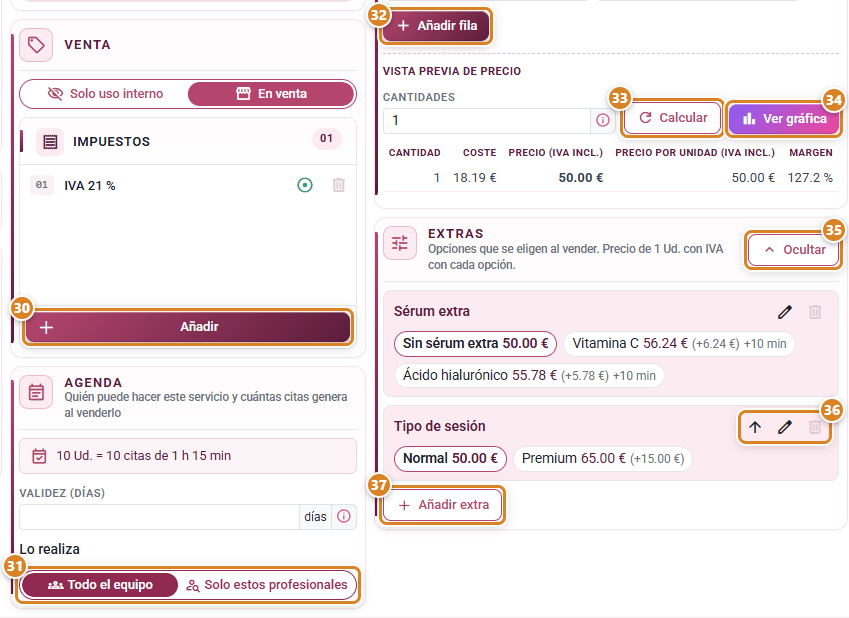
- In Price preview, type several Quantities separated by commas and click Calculate: you get the Price (VAT incl.) and the Price per unit (VAT incl.) of each one. With View chart, you see the unit price, the margin and the cost by quantity, excluding VAT.
- Once the record is saved, next to the cost you will see Price of 1 with the unit: what one unit costs, with VAT included (for example, "Price of 1 Ud. (VAT incl.)").
Prices with VAT. The amounts on the record are entered and shown with VAT already added: in the price table the columns say Row total (VAT incl.) and Price per unit (VAT incl.), and the price of the voucher or pack, the price of its components and the price of each option of an extra also include VAT. Enter what the client pays. The VAT used is that of the taxes ticked on the record; when you create it, the one you choose in Tax, and if it has none, your company's default one. The View chart chart and the margins are shown excluding VAT.
- If a price with VAT cannot be charged exactly to the cent, the record keeps the closest one and tells you. For example: "35.00 € cannot be charged exactly with 21 % tax: it stays at 35.01 €. If you prefer, enter 34.99 €.".
- To enter prices without VAT, change Settings → Sales → Prices → Service and product prices: to Excluding VAT (Sales Settings). The app always stores the price without VAT, so changing this option does not change what you charge.
If the cost is 0 and you use a margin, the price comes out as 0. In that case, use Fixed price by quantity.
Note: if the record is For sale and its price is 0, it warns you: "The price is 0: it will be sold for free. Enter the price in the table.". This happens with services and with vouchers or packs.
In a Voucher or pack, also choose the Voucher or pack price:
- Fixed voucher or pack price: it has its own price table (the one above). A new one starts with Fixed price by quantity: when you add its components, if the table is empty, it fills in by itself with the sum of the components' prices. You only have to lower it if you give a discount.
- Sum of the components: the price is what each product adds for its quantity and each service for its hours, each with its own formula (for example, a service priced per hour by tiers charges the tier of the hours it carries). The voucher or pack formula is not used and is not shown.
5. Put a voucher or pack together
- Click New → Voucher or pack.
- Under Composition, click Add components, tick in the list the services and products it contains (you can tick several at once) and click Add. They come in with quantity 1: then set the Quantity of each one in the table. Products go in whole units; services, in their own unit. For example, a 10-session voucher carries the service with quantity 10.
- Reorder them with the arrow or remove them with the bin.
- Check the price: with Fixed price by quantity, the table already holds the sum of the components; lower it if you give a discount. Click Save.
A voucher or pack cannot contain another one. A voucher or pack with no components cannot be sold.
The Composition table of a voucher or pack is a single one: Component, Quantity or hours, Price (what it adds to the price of one pack) and Stock of each product. At the bottom, the Voucher or pack price of one pack and how many Can be assembled with the stock of its products; below, the Limiting component. Services have no stock and do not count.
6. Add extras: options that add to the price
An extra is a choice made when selling the service that adds to the price and to the minutes: "Ampoule: No ampoule, With vitamin C", "Hair length: Short, Medium, Long" or "Wrapping: Gift". You create it once and add it to all the services and products that use it. It has no stock of its own.
- In the list, click Extras: the Extras window opens. Click New extra.
- Type the Name (for example, "Ampoule") and set Show on documents: whether it appears on quotes, invoices, Direct and emails.
- Fill in each option: its Name, what it Adds to the price (excl. VAT) (what it adds to the price of each unit; positive amounts only) and, for services, the ± minutes (it adds or subtracts minutes to each appointment). Add more with Add option.
- Use the circle to mark the Default option: it is the one already chosen when selling. There is only one and it adds 0, because it is already in the service price ("The default option «…» is already in the service price: leave what it adds to the price at 0.").
- Click Save.
For special cases, turn on Advanced at the top: each option shows its own Show on documents (turn it off for options such as "No wrapping", which add nothing for the client), its Cost items and its Margin. With Add cost item you enter a Fixed amount (per unit of the line: per session, per pack or per hour) or a Percentage (of the record's unit cost, between -100 and 1000). Under Margin you choose Same as item (with a fixed price, the price rises in the same proportion as the cost) or Own margin (the option is charged separately with its own margin, the same on every record); with its own margin, amounts and percentages cannot be negative. An option made this way shows "Price set with cost items: change it in Advanced." in the simple view.
To put it on a record, open the record and, in the Extras section, click Show details and then Add extra: Use existing or Create new. With Use existing, the list of active extras that the record does not have yet opens, with their options (the default one in bold): search for it by name, tick one or more and click Add. When folded, the Extras section shows the names of its extras ("No extras" if it has none). When unfolded, you see each option with the price of 1 unit with VAT, the difference from the default one and its minutes. Reorder them with the arrow, change them with the pencil (Edit extra), remove them with Remove and save the record. To put it on many records at once, select it in the Extras window and use Add to items. Each record takes up to 10 extras.
- An option that has already been sold shows Sold and cannot be deleted: disable it. A disabled extra or option is no longer offered when selling; what was sold does not change.
- Extra or another duration. Another duration of a service is another service, with its own price: the same massage at 30 or at 60 minutes. On its record, click It is another duration of a service and fill in Another duration of (the main service) and Duration (its label, for example "30 min"); they share a category and in the sale it shows as "Full-body relaxing massage · 30 min". On a product, the button is It is another format of an item, with Format of and Format (another shade, another size), each with its own stock. An extra, on the other hand, is an option of the same line. A record can have both.
7. Sell
There are two ways:
- From the sale (quote, order, delivery note or invoice): click Catalog, below the lines. You see the categories and the records with photos; only active records that are for sale appear. Click one and Add to document opens: you choose the Quantity (and the duration), the extras if it has any, and you see the price, the stock and, for a voucher or pack, its composition. Click Add: the line goes into the document and the catalog closes. To add another one, click Catalog again.
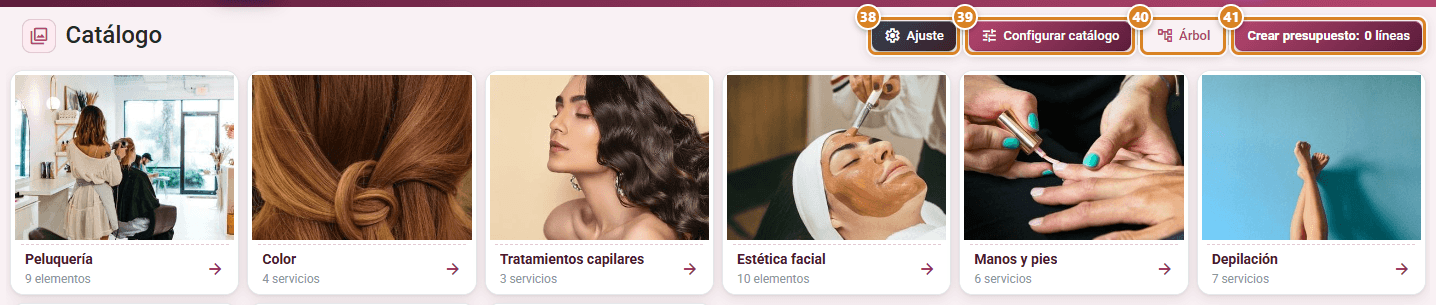
- From the Catalog menu: click a record, choose the quantity and click Add and continue (to keep choosing) or Create quote. The Create quote button at the top shows how many lines you have. Ticket invoices the walk-in customer and prints the receipt. Each category says how many it has for sale and of which type (8 services, 5 products, 3 vouchers or packs), or items if it mixes types; the tune icon marks the ones with extras ("With options: the price is for the default options"). If nothing is for sale yet, the catalog says "Nothing is for sale yet. Set «For sale» on the record of each service or product so it shows here."; for a category with nothing for sale, "This category has nothing for sale.". With Tree you see the categories as folders and, when you click a service or product in the tree, the same quantity window opens. Configure catalog opens the categories window with their services and products inside, to add them, move them to another section or remove them from the catalog. If you have the WordPress or PrestaShop module, the store filter (ERP only, WordPress only, PrestaShop only, All) separates the categories by whether they are enabled on WordPress or PrestaShop; those logos are used for filtering, but for now the online store does not publish services and products.
The sale's Item button has been removed. The Item button below the lines no longer exists, nor does its Add items window, which let you tick several at once: services, products and vouchers or packs are added only with Catalog, one at a time. The buttons below the lines are Free line, Catalog and, if you quote print products, Free Quote. In a print shop with services and items, Catalog also brings the products of the quoting tool; without the Services and items module, the button is called New Quotation and the hand-typed line, Item / Line.
If the service has extras, its options are chosen when adding it:
- In the Catalog window (Add to document from the sale, Add to quote from the menu), there is one drop-down per extra in the same row as the quantity (and the duration), with the same width and the default option already chosen. The price is recalculated when you change an option. On the card, the tune icon marks the ones with extras ("With options: the price is for the default options").
- If an option stops being available before you save, the app warns you: "This option is no longer available: choose another.". In the quote you prepare from the Catalog menu, a line with an option that is no longer valid is removed with the warning "The item "…" has changed: choose its options again".
To type a line by hand, with no record, use Free line.
In the document:
- Clicking the name of a service, product or voucher or pack line opens its window (the same one used to add it). The code in the ID column opens the record.
- In that window: Taxes that you tick and untick; Visible Observation (Quote, Ord., Del. Note) to write the note shown on the quote, the order or the delivery note (Ord. is the "Observation visible on the order", for example a note for the client on the order); and at the bottom, in a single row, Total Cost and Margin (with permission), %Disc, Discount, Unit price, Subtotal, each tax and Total. Changing the margin, the discount, the subtotal or the total recalculates the rest; Show original price undoes the change. With permission to see costs you can type the Total Cost (force cost): the price goes up or down in the same proportion and the margin is kept; the Deactivate manual cost icon goes back to the calculated cost. The forced cost is saved with the line and is still there when you reopen it. The Margin turns orange or red if it falls below your company's margin warnings. For a per-session service you can change the line's Duration (min) (used by appointments, the PDF and Direct); for one by the hour, change the hours and you will see "Price based on 1 h + 30 min (Long) = 1.5 h". For a service or a voucher or pack, with the Appointment organizer (Pro plan), you choose in Employee who does it: its new appointments are assigned to that person.
- The line keeps the record as it was when added: if you later change the record, the line does not change. Reload (in the line window) loads the current record again and recalculates the price.
- In a Voucher or pack, the line window shows its composition in the same table, and you can change it for that line only: the Quantity or hours of each component, Replace one with another (arrows icon, then choose in Replace with), remove it (bin) or Add item or service. The price is recalculated at once with the Voucher or pack price of the record (fixed or sum of the components), and Can be assembled counts with the new composition. When you save, the line keeps that composition: the stock that goes down and the appointments come from it. The voucher or pack record does not change. Reload goes back to the current composition of the record.
- From the Catalog, a service sold by the hour comes in with its Default time (you can change the hours before clicking Add) and the line keeps its price, its taxes and its record.
- When you change the quantity, the price is recalculated with the table the line was quoted with, and any discount entered by hand is kept.
- The chosen extras appear under the line's name as "Extra: Option", with the minutes if they change the duration (for example, "Hair length: Long · +30 min"). The ones that do not appear on the client's documents are shown in grey; with permission to see costs, hovering shows what they add to the cost. The line's name does not change, and the quantity, Duplicate or a credit note keep the options.
- Change options (in the line's status menu, or with the tune icon next to its options, which says "Change options") opens the Change options window with the current choice: a drop-down per extra, what was chosen, the price including tax and the difference from the default options (for example, "Long · +30 min" and "54.60 € (+12.60 €)"). When you click Accept, the price is recalculated ("Price updated with the options"); save the document. It does not appear on an invoiced or locked line: to change it, issue a corrective invoice.
- Stock column. It sits just to the right of Product and appears only if some line of the document is a product with stock control or a voucher or pack. You hide it from Add Fields, by unticking the Stock field. On each line:
- A pill with the available stock (a number): green with stock, orange below the minimum and red with no stock. It also turns orange if the line quantity is higher than what is available: you can still sell it. Hovering shows Available, Committed and, if it applies, the limiting component ("Limited by: …").
- For a voucher or pack, the Contents button (puzzle-piece icon). Clicking it or hovering over it opens the Kit contents panel, with each component: its quantity and unit for the line quantity, its name and its options in brackets. At the top, a note: "Composition saved when sold" if the document is already saved, or "Current item composition: it is saved when you save the document" if not yet. To change what the voucher or pack contains in that line, click the line's name.
- On a phone, the Stock cell goes on its own row, below the product.
- The Product cell only carries the name, the description and the chosen options (with the tune icon for Change options). The available stock and the components of the voucher or pack are in the Stock column, so the rows are lower.
- In the line's status menu you have Update price (to the record's current price; if the line is not on a delivery note yet, also to the current cost of its options) and, for services and vouchers or packs, Update composition (to the record's current composition, as long as the line has no delivery note or invoice).
- On the PDF, the quantity appears with its unit (for example, "1 Pack" or "0.5 h") and with the record's image. The line note appears on the right document (quote, order or delivery note) and taxes are broken down one by one (for example, VAT and surcharge). Under a voucher or pack there is a Note listing its components (for example, "10 Ud. Pressotherapy"). A service's consumables are not printed.
- In the Facturae electronic invoice (Sign FacturaE button, for invoices to Public Administrations), each service, product or voucher or pack line carries its unit: Hours for services by the hour, Packages for vouchers or packs (Pack) and Units for everything else. Facturae has no minutes: a service in minutes goes as Others. Lines with no record stay in Units.
- On the PDF, in Direct and in the email to the client, the options appear under the line as "Hair length: Long": only those with Show on documents on both the extra and the option (for example, "No wrapping" and "Session type: Normal" do not appear). A template hides them by turning off Item options in its editor (Print templates). In a voucher or pack, each component shows its visible default options in brackets, for example "Keratin smoothing (Hair length: Medium)".
8. Stock
Stock is kept on products. Services and vouchers or packs use the stock of what they contain.
| When | What happens to stock |
|---|---|
| Quote | Nothing changes. |
| Order | It is reserved: it shows under Committed. |
| Delivery note or invoice | It goes down, with whichever of the two comes first; it never goes down twice. |
| Credit note | Exactly what was sold comes back. |
| Appointment marked Done (Beauty) | The service's consumables go down: the products it uses go out as each session is done, not when it is charged. A 10-session voucher deducts one tenth of its consumables per session done. |
| Credit note for a service with appointments (Beauty) | The consumables of the sessions already done do not come back; the products sold do. |
| Purchase receipt | It goes up (with the Purchasing and Inventory module). |
In Beauty, the consumables of a single service or of the services in a voucher or pack are deducted when each appointment is marked as Done, whether or not it has a delivery note or invoice. Committed only counts the sessions still to be done; cancelled or expired ones use nothing. If an appointment stops being Done, its consumables come back on their own. Products sold on the line still go down with the delivery note or the invoice, and in their quantity window you also choose the Employee who sells them.
- If there is not enough stock, the app warns you but lets you sell: "Not enough stock of …: you can still sell it".
- Lead time: in the quantity window, if there is stock for the quantity requested, the field says In stock; if not, you choose the lead time (those in Settings → Delivery → Lead times) or *To be indicated with a Delivery date. It appears on the printout under the line and in the document's Stock column. It does not change the price.
- If you delete an order, delivery note or invoice, the stock is put back on its own.
- To correct it by hand (stock count, breakage, spoilage), open the record and click Adjust stock. With History, you see every movement in and out.
- On the product record, under Purchasing, set the Minimum stock: below it, the product shows as Below minimum. You can also enter the Supplier and the Supplier reference.
- In Purchasing → Inventory you have all the stock in one place, the Minimum stock report and Generate order to order what is missing from each supplier.
9. Import, export and bulk changes
- Import/Export downloads the list as an Excel file or uploads one. The Excel column names are in Spanish. To create a new record, leave the id column empty and fill in Nombre (name) and Tipo (type). In the Excel file the types keep their usual names: Artículo for a product, Servicio for a service, and Kit for a voucher or pack. A service with no unit comes in as Ud. with 60 minutes. To change an existing record, keep its id. More details in the frequently asked questions.
- Select several rows and use Edit items to change status, category, costs, minimum stock or the price formula all at once. Taxes are changed on the record or with the Impuesto (tax) column when importing.
- Modify cost raises or lowers by a percentage the cost of the records that have a manual cost.
- The Variantes column holds the record's extras separated by "|", in order. On import, the record keeps exactly those (they must exist and be active); if you leave it empty, it is left with none, and if you remove the column, they are not touched. The Presentación de and Presentación columns link other durations and formats (the old "Variante de" and "Variante" columns are also accepted).
- The Extras window has its own Import/Export: one row per option and per cost item.
10. See what you have sold
In Sales Analysis, under Configure analysis → Quick views, the Items and kits group has ready-made reports: Item sales, Sales by item category, Sales by item type and month, Margin by item and more. In the reports, products appear as items and vouchers or packs as kits.
Vouchers or packs can be counted in two ways, in the Kits filter:
- Together: each kit counts as one line (the usual way).
- Split kits: allocate by their contents: spreads the amount of the voucher or pack across what it contains. The total for the period is the same.
To see which options of the extras sell most, in Configure analysis group by Variant option and choose the Variant in the filter; without it, the app asks you to "Choose a variant to group by option.".
Buttons and actions — what each one does
In the list
| Button / Control (text on screen) | What it is for |
|---|---|
| ① Categories | Opens Item categories (see the In Item categories table): create (New section, or the + on any row for a subsection, with no limit on levels, with Name, Image and Create), rename, change the image (row thumbnail), choose the Calendar colour (colour dot on the row), reorder by dragging the handle, hide or show (Visible / Hidden), enable on WordPress or PrestaShop with its logo (with those modules; the section carries its subsections along) or delete sections and subsections. Below each section its services and products that are For sale appear, which you add (playlist_add), drag to another section or take out of the catalog (Remove from catalog). It is the same window as Configure catalog in the Catalog. |
| ② Extras (list button) | Opens the Extras window: New extra and, on the selected ones, Add to items, Duplicate, Status, Show on documents, Where it's used and Delete. Also Import/Export. |
| ③ Import/Export | Downloads the list as Excel, or creates and changes records from an Excel file. |
| ④ New (with +) | What do you want to create? menu: choose Product, Service or Voucher or pack to create the record. |
| ⑤ Duration (column) | Minutes in one unit of the service, for example "60 min". Services only. |
| ⑥ Price (VAT incl.) (column) | Price of one unit with VAT. With prices excluding VAT, the column is called Price. |
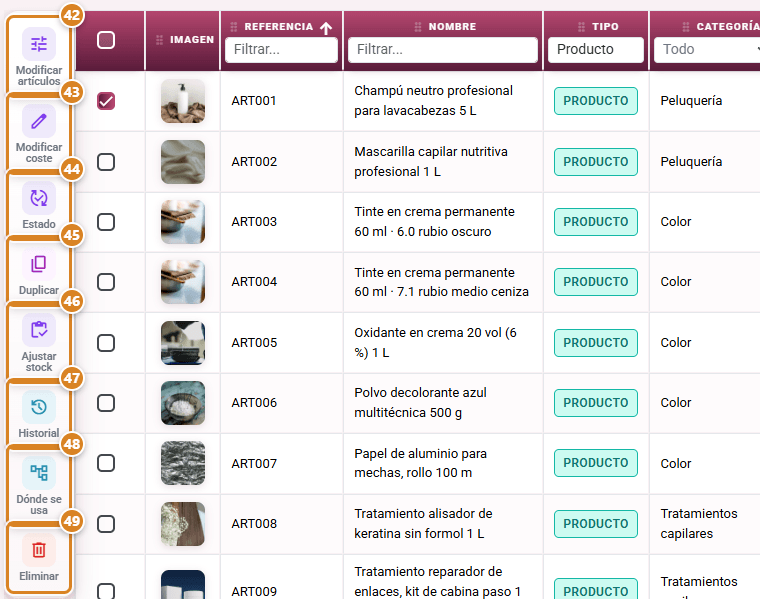
| ㊷ Edit items | Changes several fields of the selected rows at once, including the price formula. |
| ㊸ Modify cost | Raises or lowers by a % the cost of the records with a manual cost. |
| ㊹ Status | Enables or disables the selected records. |
| ㊺ Duplicate | Copies the record with its composition. The copy of a product starts with no stock. |
| ㊻ Adjust stock | Stock in, stock out or set the balance of a product (one row at a time). |
| ㊼ History | Lists the product's stock movements in and out. |
| ㊽ Where it's used | Shows which vouchers or packs and services include the record and how many sales, purchases and movements it has. Click one to open it. |
| ㊾ Delete | Deletes the record. If it has already been used, it will not let you: it offers Disable instead. |
In Item categories
| Button / Control (text on screen) | What it is for |
|---|---|
| ⑦ Service and item (header) | Opens Add services and items: the ones you tick become For sale, outside the sections (under Outside the sections). |
| ⑧ New section | Creates a section with its Name and, if you like, its Image; click Create. |
| ⑨ Handle (six-dot icon) | "Drag to reorder": sorts the section or subsection within its level. On a service or product, "Drag to reorder or move to another section". The order is saved automatically. |
| ⑩ Thumbnail | Change image: opens Category image to upload, copy or delete it. |
| ⑪ Colour dot | Calendar colour: Automatic or one of the 8 colours. The appointments for its services are shown in that colour. |
| ⑫ playlist_add | "Add services and items": the ones you tick go into this category and become For sale (if they were in another one, they move to this one). |
| ⑬ + | "Add subsection" inside that row, with no limit on levels. |
| ⑭ Crossed-out eye | Hide / Show: the row label changes from Visible to Hidden. A hidden category does not appear in the catalog or when choosing a category. |
| ⑮ Bin on the section | Delete the section or subsection. If it has services, products or subcategories, you get It cannot be deleted: hide it. |
| ⑯ Bin on the service or product | Remove from catalog: it is no longer in that category and becomes Internal use only; it is not deleted. |
On the record
| Button / Control (text on screen) | What it is for |
|---|---|
| ⑰ Product / Service / Voucher or pack (top right, next to the X) | The record type. It is locked (shown in grey) once the record has sales, movements, or saved consumables or components, or is part of another record. |
| ⑱ Enabled / Disabled (at the top) | Enables or disables the record. When disabled, it does not appear when selling or in the pickers. |
| ⑲ Category (with +) | Choose the category. Each option shows its full path ("Section › Sub › Subsub"). The + opens Item categories. |
| ⑳ Unit | Selling unit. Fixed for products (Ud.) and vouchers or packs (Pack). A new service starts in Units. |
| ㉑ Duration (min) | Minutes in one unit of the service, if the unit is not a time unit. A new service starts with 60. |
| ㉒ It is another duration of a service → Another duration of / Duration | (Services) Links the record to another service as another duration of it, with its own price: the same massage at 30 or at 60 min. Duration holds its label, for example "30 min". They share a category. |
| ㉓ Show details / Hide (in Consumables) | Unfolds or folds the section. When folded, Consumables shows a summary ("Cost 3.20 € · 2 consumables"). |
| ㉔ Internal use only / For sale | Whether it appears when selling and in the Catalog. |
| ㉕ Cost | Manual or Calculated (services only). |
| ㉖ Price formula | Single margin, Margin by quantity tiers, Fixed price by quantity or Unit price by quantity. |
| ㉗ Delete | Deletes the record (bottom left). |
| ㉘ Cancel | Closes without saving. |
| ㉙ Save | Saves everything (record, consumables or components, extras, tax and agenda), recalculates its cost and price and closes the window. If something fails, the window stays open. |
| ㉚ Taxes (once the record is saved) | The record's tax list: Add, remove, sort and tick the ones that apply. With none, the customer's tax applies. With prices including VAT, the VAT of the prices comes from the ticked taxes. |
| ㉛ Agenda: Validity (days) / Performed by (Whole team / Only these professionals) | (Services and vouchers or packs, with the Appointment organizer) Days from the sale to use the sessions and who can do the service. It can also be filled in when creating the record and it is saved with Save. |
| ㉜ Add row | Adds a tier to the price table. |
| ㉝ Calculate | Works out the Price (VAT incl.) and the Price per unit (VAT incl.) of the Quantities you typed, without saving. |
| ㉞ View chart | Chart of the unit price, the margin and the cost by quantity, excluding VAT. |
| ㉟ Show details / Hide (in Extras) | Unfolds or folds the section, like ㉓ in Consumables. When folded, Extras shows the names of its extras or "No extras". |
| ㊱ Arrow / pencil / bin (in Extras) | Moves the extra up, opens it with Edit extra or removes it from the record with Remove. |
| ㊲ Add extra (in Extras) | Adds extras to the record: Use existing (list with a search by name; tick one or more and click Add) or Create new. Up to 10 per record. |
| It is another format of an item → Format of / Format | (Products) Links the record to another product as one of its formats (another shade or size), with its own price and stock, and gives it its label. |
| Add consumables / Add components (in Consumables or Composition) | Opens a list with a search by name or reference. Tick one or more and click Add: they come in with quantity 1 and then you adjust the quantity in the table. The ones it already carries show as "Already added". |
| Up arrow / bin (in the table) | Moves a component up or removes it. |
| Other costs | Disposables, laundry or equipment depreciation, per unit of the service. |
| The whole time / Only part of it | Labour counts the whole service, or only the minutes you type in Labour (min). |
| Company rate / Service's own rate | The hourly cost is the general one, or one just for this service. |
| Change | Changes the Company hourly cost. Recalculates the services that use it. |
| Adjust stock / History (in Stock) | Corrects the product's stock or shows its movements. |
| Image | Uploads or removes the photo. |
| Tax (when creating the record) | The tax it is sold with. Your company's default tax is already chosen. After saving, the Taxes list lets you add more, reorder them or tick another one. |
| Row total (VAT incl.) / Price per unit (VAT incl.) | Price table columns with prices including VAT: enter what the client pays. With prices excluding VAT, they are called Row total and Price per unit. |
| Voucher or pack price | (Vouchers or packs only) Fixed voucher or pack price: its own price table, which fills in by itself with the sum of the components if it is empty. Sum of the components: what each component adds according to its quantity or hours. |
In the sale and in the Catalog
| Button / Control (text on screen) | What it is for |
|---|---|
| ㊳ Settings | (Catalog menu) Opens the Sale settings, the same as Settings → Sales: for example, the walk-in customer for the Ticket or whether prices include VAT. |
| ㊴ Configure catalog | (Catalog menu, tune icon) Opens Item categories with the services and products of each section: playlist_add on a row or Service and item in the header opens Add services and items; those added go into that category and become For sale (if they were in another category, they move to this one). It replaces the catalog's old Categories and + Service and item (and Items) buttons. |
| ㊵ Tree | (Catalog menu) Shows the Tree view: categories as folders with their subcategories and their services, products and vouchers or packs. Clicking one opens the quantity window. |
| ㊶ Create quote | (Catalog menu) Opens the quote with the chosen lines. The button says how many you have, for example "Create quote: 0 lines". |
| Free line | Adds a line typed by hand, with no record. Without the Services and items module, this button is called Item / Line. |
| Catalog | (Sale) Opens the catalog with photos. Click a service, product or voucher or pack, choose the quantity and the extras (you see the price, the stock and the composition of the voucher or pack) and click Add. It is the only way to add them: it replaces the old Item button and its Add items window, which have been removed. |
| Add | (Add to document window, from the sale) Adds the line to the document and closes the catalog. |
| Quote / Ord. / Del. Note (Visible Observation) | (Quantity window) The line note that appears on the quote, the order or the delivery note. Ord. is the "Observation visible on the order" ("E.g. note for the client on the order."). |
| Lead time | (Quantity window: Add to quote, Add to document or Document line) Only for products, vouchers or packs and services with stock control. With stock for the quantity requested, it says In stock. If the quantity is higher than what is available, it is a drop-down with the active lead times from Settings → Delivery → Lead times; it suggests the default lead time. With *To be indicated, Delivery date appears. The lead time appears on the printout ("Lead Time: …") and in the Stock column; it adds no surcharge to the price. |
| Employee | (Quantity window: Add to quote, Add to document or Document line) Only for services and vouchers or packs, with the Appointment organizer available (Pro plan and access to it). Who does the service: it lists the active people of the organizer's team who can do it (Agenda block of the service record; for a voucher or pack, the whole team). On a new line it suggests the person quoting, if they do that service. Unassigned = no employee: the appointments go to the professional suggested by the organizer. The line's new appointments are assigned to the employee if they can do the service (for a voucher or pack, the services they do; the rest, to the suggested one); those already created do not move. If the saved employee no longer does the service, it shows as "Name (no longer performs this service)". |
| Stock (column of the lines) | To the right of Product, only if some line is a product with stock control or a voucher or pack. Pill with the available stock: green with stock, orange below the minimum or if the line quantity is higher than it (you can still sell it), red with no stock. If the line is higher than what is available and has a lead time, the lead time appears below with a truck. Hovering shows Available, Committed, "Limited by: …" if it applies, and the Lead time. You hide it from Add Fields (Stock field). |
| Contents (puzzle-piece icon, in the Stock column of a voucher or pack) | Opens, when you click it or hover over it, the Kit contents panel: each component with its quantity and unit for the line quantity, its name and its options in brackets, and the note "Composition saved when sold" or "Current item composition: it is saved when you save the document". |
| Add and continue | (Catalog menu) Keeps the line for the quote and lets you keep choosing. |
| Retry | (Catalog quantity window) It only appears with the warning "No connection to the server: the price of … could not be calculated". It asks again for the price, the stock and the options. Before showing the warning, the window has already retried by itself for a few seconds. |
| Ticket | (Catalog menu, in the quantity window of a service or product) Invoices the walk-in customer and prints the receipt. From the Pro plan, with the walk-in customer chosen in Settings → Sales. |
| ERP only / WordPress only / PrestaShop only / All | (Catalog menu, with the WordPress or PrestaShop module) Store filter: separates the categories by whether they are enabled on WordPress or PrestaShop. If nothing is left, "Nothing to show with this filter.". |
| Information icon on the card | Opens the Item details. |
| Update price | (Line status menu) Sets the record's current price. |
| Reload / Reloaded | (Line window) Loads the current record from the catalog again and recalculates the price. Save the document afterwards. |
| Show original price | (Line window) Removes the change of price, margin or discount made by hand. |
| Total Cost (force cost) | (Line window, with permission to see costs) Type the cost by hand: the price adjusts in the same proportion and the margin is kept. |
| Deactivate manual cost | (Line window) Removes the forced cost and goes back to the record's calculated cost. |
| Update composition | (Line status menu) Sets the current composition of the service or of the voucher or pack. Only if the line has no delivery note or invoice yet. |
| Replace / Replace with | (Line window of a voucher or pack) Swaps a component for another in that line only. |
| Add item or service | (Line window of a voucher or pack) Adds a component in that line only; the price is recalculated at once. |
| Keep the sold composition / Update composition | When a document whose composition has changed becomes a delivery note or invoice: stock goes out for what was quoted, or for the current composition. |
| tune icon on the Catalog card | "With options: the price is for the default options". |
| Option drop-downs (Catalog window) | One per extra, in the quantity row, with the default option chosen. The price is recalculated when you change an option. |
| Change options | (Line status menu, or tune icon next to its options) Opens the Change options window: a drop-down per extra, the price including tax and the difference from the default options. Accept recalculates the line price. Not shown on invoiced or locked lines. |
In Adjust stock
| Button / Control (text on screen) | What it is for |
|---|---|
| Adjustment type | Stock in (+), Stock out (−) or Set balance to. |
| Quantity / Final balance | What goes in or out, or the balance you want to end up with. |
| Reason | Stock count, Breakage, Spoilage, Correction or Other (with Reason details). |
| Apply adjustment | Saves the movement. |
On the extra record
| Button / Control (text on screen) | What it is for |
|---|---|
| Enabled / Disabled (at the top) | Enables or disables the extra. When disabled, it is not offered when selling; what was sold does not change. |
| Name | The extra's name, for example "Ampoule". There cannot be two active extras with the same name. |
| Show on documents | Whether the extra appears on quotes, invoices, Direct and emails. With Advanced, each option has its own. |
| Advanced | Shows the full editor of each option: Show on documents, Cost item and Margin. When it is off, each option only has its Name, Adds to the price (excl. VAT) and ± minutes. |
| Adds to the price (excl. VAT) | What the option adds to the price of each unit, excluding VAT. Positive amounts only; the default option stays at 0. |
| Circle (on the option) | Mark as default option. |
| ± minutes | Services only: adds or subtracts minutes to each appointment. |
| Add cost item | (With Advanced) Adds a Cost item: Fixed amount or Percentage. |
| Same as item / Own margin | (With Advanced) Whether the price rises in proportion to the cost, or the option is charged separately with its own margin. |
| Copy / bin / eye (on the option) | Duplicate, Delete or disable the option. A Sold option is not deleted: it is disabled. |
| Add option | Adds another option to the extra. |
| Delete | Deletes the extra. If it is on a record or has already been sold, it will not let you: it offers Disable instead. |
| Save | Saves the extra with its options. |
Key concepts
- Product: a product for sale or for the treatment room, with its stock, in Ud. It used to be called Item.
- Service: work charged by the session or by the hour, with or without products used up. A new one goes in Units and lasts 60 minutes.
- Voucher or pack: a session voucher or a pack of services and products sold together, in Pack. It used to be called Kit.
- Consumables: the products each service uses, in fractions of their unit.
- Composition: the services and products in each voucher or pack, with their quantity.
- Cost breakdown: how the cost of a service is worked out with Cost set to Calculated: consumables + other costs + labour.
- Labour: minutes of work × hourly cost.
- Company hourly cost: the one used by services that do not have their own.
- Price of 1: the price of one unit, with VAT included if your prices include VAT.
- Prices with VAT: the record's prices are entered and shown with VAT already added. The app always stores the price without VAT. It is chosen in Settings → Sales → Service and product prices:.
- Calendar colour: the colour of a category, used for the appointments of its services. With Automatic, a subsection uses its section's colour.
- For sale / Internal use only: whether the record appears when selling.
- Balance: the product's real stock, based on its movements in and out.
- Committed: what is reserved by orders not yet delivered or invoiced.
- Incoming: what has been ordered from suppliers and not yet received.
- Available: balance minus committed.
- Can be done: services that can be done with the stock of their consumables.
- Can be assembled: packs that can be put together with the stock of their components.
- Limiting component: the one with the least stock, which sets how many can be done or put together.
- Stock status: No control (no stock kept), In stock, Below minimum or Out of stock.
- Composition saved when sold: the composition of a voucher or pack or of a service at the time of the sale. If you change the record afterwards, the document does not change.
- Stock column: the column of the sales lines with the available stock of each product and, for vouchers or packs, the Contents button.
- Kit contents: the panel opened by the Contents button, with what the voucher or pack contains for the line quantity.
- Free line: a sales line typed by hand, with no record.
- Extra: a choice made when selling (for example, "Ampoule") that adds to the price and to the minutes of the line. In the Excel file and in the reports it is called a variant.
- Option: each value of an extra (No ampoule, With vitamin C), with what it adds to the price and its minutes.
- Default option: the one already chosen when selling. It is already in the service price, so it adds 0.
- Another duration / Format: another record in the same group, with its own price (and its own stock, for products): the 30 or 60 minute massage, another shade of hair dye.
Features by plan / role
- All plans (including the trial): the list, the records, categories, units, extras, the Catalog, adding to a sale and stock with its adjustments.
- From the Pro plan: Ticket from the Catalog, the Sales Analysis reports and the Agenda block with the Appointment organizer.
- Purchasing and Inventory module (included in Full; with other plans it is subscribed to separately): Inventory, Minimum stock report, Generate order and stock coming in from purchases.
- Role permissions (in Settings → Company → Roles & Permissions, from the Pro plan):
- Access to items (
access_articulo): see the list, the records and the Catalog, and add services, products and vouchers or packs to a sale from the Catalog, choosing their extras. Without it, the menu is greyed out with "You don't have permission". - Edit items (
articulo_edit): create, change and delete records, categories and extras, adjust stock and make bulk changes. - Import and export also need
allow_Import/allow_Export. The Margin column of the list needsview_global_margen. The Service and product prices: option in Settings → Sales needsauto_edit.
Frequently asked questions
Q: What is the difference between a product, a service and a voucher or pack?
A: A product is what you sell or use up in the treatment room, and it keeps stock. A service is work charged by the session or by the hour, and it can use up products. A voucher or pack bundles services and products (for example, a 10-session voucher or a gift set) and is sold as a single line. They used to be called item, service and kit.
Q: Where is the Item button to create a record? And the Kit type?
A: In the list, the button to create is called New (with the +): it opens What do you want to create? with Product, Service and Voucher or pack. Product is the old item and Voucher or pack is the old kit. The screen is in Services → Services and products.
Q: How do I set a service to last 45 minutes?
A: A new service already goes in Units with Duration (min) 60: change the 60 to 45 and click Save. If its unit is Hours or Minutes, the duration comes from the unit.
Q: Can I create a unit of my own, such as "Session"?
A: No. Units are fixed: Units, Pack, Hours and Minutes. For a per-session service, use Units and type its Duration (min).
Q: How do I know what a service really costs me?
A: Set Cost to Calculated and add its Consumables, its Other costs and the Labour. The Consumables block appears folded with the cost and the number of consumables ("Cost 3.20 € · 2 consumables"); click Show details to see the breakdown with the total Cost.
Q: Labour does not add anything. Why?
A: The Company hourly cost is set to 0. Change it with Change on any service record, or set a Service's own rate.
Q: My price comes out as 0.
A: With a cost of 0 and a margin formula, the price is 0. Use Fixed price by quantity and type the price in the table. If the record is For sale with a price of 0, it warns you itself: "The price is 0: it will be sold for free. Enter the price in the table.".
Q: Can I enter prices with VAT?
A: Yes, and in beauty it is the usual way: the record already comes like that. In the price table the columns say Row total (VAT incl.) and Price per unit (VAT incl.): enter what the client pays. The VAT is that of the taxes ticked on the record (when you create it, the one in the Tax field). It is changed in Settings → Sales → Prices → Service and product prices:, with By sector (VAT included for beauty) (the default option), VAT included or Excluding VAT. The app always stores the price without VAT, so changing the option does not change what you charge. The chart and the margins are always excluding VAT.
Q: I typed 35 € and the record leaves it at 35.01 €. Why?
A: With 21 % VAT, 35.00 € does not come out exact to the cent from a price without VAT, so the record keeps the closest one and tells you: "35.00 € cannot be charged exactly with 21 % tax: it stays at 35.01 €. If you prefer, enter 34.99 €.". Enter 34.99 € if you prefer to round down.
Q: Which tax does a new record get?
A: The one you choose in Tax when you create it; your company's default tax is already chosen. After saving, under Sale → Taxes you can add more, reorder them or tick another one.
Q: Where is the service's Save agenda button?
A: It no longer exists. The Agenda block (Validity (days) and Performed by) is saved with the record's Save, which saves everything and closes the window. You can also fill it in when you create the service, without saving it first.
Q: When I click Save, the record closes. Has everything been saved?
A: Yes. Save saves the record, its consumables or components, its extras, the tax and the agenda, and closes the window. If something cannot be saved, the window stays open with the warning so you can fix it.
Q: I cannot see a service's consumables or extras.
A: They appear folded. Consumables shows a summary ("Cost 3.20 € · 2 consumables") and Extras, the names of its extras. Click Show details to unfold them and Hide to fold them again.
Q: When I click a service in the Catalog I get "The price could not be calculated" or "No connection to the server" and the amounts are 0.
A: With "No connection to the server", the app could not reach the server (the connection dropped or the server was busy for a moment): the record is fine. The window retries by itself for a few seconds; if it persists, click Retry. With "The price could not be calculated", check the record's formula and cost and that it is Enabled; if the record is fine and it happens again, close the window and open it again.
Q: Can I charge less per unit when the client buys more?
A: Yes. Use Fixed price by quantity or Unit price by quantity and add one row per quantity. Test the result with Price preview.
Q: When does stock go down?
A: With the delivery note or the invoice, whichever comes first, and only once. A quote does not touch it and an order only reserves it. A credit note puts it back.
Q: How do I quickly find a service or a product from any screen?
A: Click Search… in the top bar (or Ctrl + K) and type part of its name or its reference. It appears in the Services and items section of the search; when you choose it, its record opens.
Q: Which unit does a service or a voucher or pack carry in the Facturae electronic invoice?
A: The one the line had when it was sold: Hours for services by the hour, Packages for vouchers or packs and Units for everything else. A service in minutes goes as Others, because Facturae has no minutes.
Q: Can I sell even if there is no stock?
A: Yes. The app warns you with "Not enough stock of …: you can still sell it", but it does not stop you. In the same window you can set the Lead time.
Q: I have no stock of a product. How do I say when it will be delivered?
A: When you add it (or click the name of its line), the Lead time field becomes a drop-down when the quantity is higher than what is available. Choose a lead time or *To be indicated and set the Delivery date. It appears on the quote under the line ("Lead Time: …") and in the Stock column. If there is stock, the field says In stock and there is nothing to do. Lead times are created in Settings → Delivery → Lead times.
Q: When I edit an order line, it asks me for a lead time even though there was stock.
A: It should not: the window counts what that line has already reserved. If the real available stock (not counting the line) is not enough, it does ask.
Q: How do I create a session voucher or a pack?
A: Click New → Voucher or pack. Under Composition, click Add components and add the services and products it contains, with their quantity (a 10-session voucher carries the service with quantity 10). The price table fills in by itself with the sum of the components' prices: lower it if you give a discount and click Save.
Q: I sell a voucher or pack. Which stock goes down?
A: The stock of the products inside it (and of the consumables of its services). The voucher or pack has no stock of its own.
Q: I have changed the composition of a voucher or pack. Do the quotes I have already made change?
A: No. Each line keeps the composition from the time of the sale. To bring it up to date, use Update composition in the line's status menu (while it has no delivery note or invoice). When the document becomes a delivery note or invoice and there are differences, the app lets you choose between Keep the sold composition and Update composition.
Q: Can I change what a voucher or pack contains in just one quote?
A: Yes. Click the voucher or pack line and, in its window, change the quantities or hours, replace, remove or add components. The price is recalculated and, when you save, the line keeps that composition (stock and appointments come from it). The voucher or pack record does not change.
Q: How is the price of a voucher or pack worked out?
A: According to the Voucher or pack price on its record: with Fixed voucher or pack price, with its own price table (when you create it, it is filled in with the sum of the components); with Sum of the components, by adding up what each product charges for its quantity and each service for its hours.
Q: I have changed the price of a record. Does it change on documents already made?
A: No. Use Update price in the line's status menu and save the document.
Q: It will not let me delete a product or a service.
A: It has already been used in sales, purchases, stock or inside another voucher or pack or service. What has been sold keeps its data. Click Disable: it will no longer appear when selling or in the pickers.
Q: It will not let me change the type of a record.
A: The type is locked once the record has sales, stock movements, or saved consumables or components, or is part of another record. Create a new record of the type you need.
Q: I have a product I only use up in the treatment room. How do I stop it appearing when I sell?
A: On its record, set Internal use only. It still keeps stock and you can use it as a consumable in a service.
Q: I cannot see a service in the sale's Catalog.
A: Check that it is Enabled and For sale. A voucher or pack does not appear either if it has no components. If the catalog says "Nothing is for sale yet. Set «For sale» on the record of each service or product so it shows here.", no record is For sale. In the Catalog, also check the store filter: with WordPress only or PrestaShop only, only the categories with that mark appear, and services without a category do not appear.
Q: Where is the sale's Item button? The "Add items" window no longer appears.
A: It has been removed. Services, products and vouchers or packs are added with Catalog, below the lines of the quote, order, delivery note or invoice: click the record, choose the quantity and the extras (you see the price, the stock and, for a voucher or pack, its composition) and click Add. For a line typed by hand, use Free line.
Q: Can I add several services to a quote at once?
A: From the sale, one at a time: each Add in the Catalog puts in one line and closes the catalog; click Catalog again for the next one. To prepare a new quote with several at once, use the Catalog menu: Add and continue on each one and, at the end, Create quote.
Q: What is "Ord." in the quantity window?
A: It is the line note that appears on the order: "Observation visible on the order" (for example, a note for the client). Quote appears on the quote and Del. Note on the delivery note.
Q: Where do I see a product's stock in the quote?
A: In the Stock column, to the right of Product. The pill says how much is available: green with stock, orange below the minimum, red with no stock. If the line quantity is higher than what is available, it turns orange, but you can still sell it. Hovering shows Available, Committed and, if it applies, the limiting component.
Q: The Stock column does not appear in the sale.
A: It only appears if some line of the document is a product with stock control or a voucher or pack: services on their own carry no stock. If there are such lines and you cannot see it, click Add Fields and tick Stock.
Q: How do I see what a voucher or pack contains in the quote?
A: In the Stock column of its line, click Contents (or hover over it). The Kit contents panel lists each component with its quantity for the line quantity and its options. "Composition saved when sold" means it is the one in the saved document; "Current item composition: it is saved when you save the document" means you have not saved it yet. To change it in that line only, click the line's name.
Q: The available stock and the components used to appear under the product. Where are they now?
A: In the Stock column: the available stock in the pill and the components in the Contents button. That way the rows are lower. The Product cell only carries the name, the description and the chosen options.
Q: How do I sort the categories? I can no longer see the arrows.
A: Click Categories (or Configure catalog in the Catalog) and drag each row by its handle (six-dot icon, "Drag to reorder"): categories are sorted within their own level, sections among themselves and each subsection within its own section. The order is saved automatically and is the one shown in the Catalog.
Q: How do I change the colour of a service's appointments in the calendar?
A: The colour goes by category. Click Categories (or Configure catalog), click the colour dot of the service's section or subsection (Calendar colour) and choose one of the 8 colours or Automatic. With Automatic, a subsection uses its section's colour. The appointments in the calendar are shown in that colour.
Q: How do I add an image to a category?
A: When you create it, upload it in Image before clicking Create. If it already exists, in Categories click the thumbnail of its row (Change image) and, in Category image, upload, copy or delete it. It shows on the category card in the Catalog.
Q: It will not let me delete a category.
A: You get It cannot be deleted because "The category has items or subcategories.". Move its content to another category first, or click Hide: it stops showing in the catalog and when choosing a category, and the records that already have it keep it.
Q: Why can I not remove WordPress from a subsection? Can I mark a single service?
A: The store is enabled on categories only, and everything inside inherits it. If the section is enabled, its subsections are too: their logo shows in colour but cannot be clicked ("Enabled in WordPress by the category that contains it"). Disable the section and enable again only the subsections you want. Services and products have no mark of their own. For now the online store does not publish services and products: these logos are used for the store filter of the Catalog. The same goes for PrestaShop.
Q: How do I put a service in a Catalog category? Where is the Items or + Service and item button?
A: They are no longer there: it is done in Configure catalog (in the list, Categories). On the row of the category where you want it, click playlist_add ("Add services and items"): Add services and items opens with the active ones that are not there yet. Tick the ones you want and click Add: they go into that category and become For sale (if they were in another category, they move to this one). Service and item, in the window header, leaves them outside the sections. New services are created in Services → Services and products.
Q: How do I move a service or a product to another category? Can I create subsections inside subsections?
A: In Categories (or Configure catalog), grab the service by its handle ("Drag to reorder or move to another section") and drop it in the section or subsection you want, or in Outside the sections. You can also change the Category on its record. And yes: there is no limit on levels, every row has its + ("Add subsection"), so you can create a third level or more. If you take one out of the catalog with Remove from catalog, it is not deleted: it becomes Internal use only and you can add it again.
Q: How do I correct the stock after a stock count?
A: On the product record, click Adjust stock, choose Set balance to, type the real balance, choose the reason Stock count and click Apply adjustment.
Q: How do I import my menu from Excel?
A: Click Import/Export and download the list first so you have the columns (their names are in Spanish). In each new row, leave id empty and fill in Nombre (name) and Tipo (type): in the Excel file you write Artículo for a product, Servicio for a service, or Kit for a voucher or pack. A service with no unit comes in as Ud. with a duration of 60 minutes. Categoría (category) is written with its full path, at whatever level: "Section", "Section › Subsection", "Section › Subsection › Sub-subsection"… (› or > both work); if it does not exist, it is created with all its levels. If you fill in Margen % (margin %), the formula becomes Single margin with that %. If you fill in PVP (IVA incl.) (retail price including VAT), the price is fixed at that amount; if it cannot be charged exactly with its tax, the row is rejected and you are offered the two closest prices. If in a new row you leave Impuesto (tax) empty (or do not include the column), the record is created with your company's default tax. In Impuesto you can put several separated by commas (for example, "IVA21, RE"): the record keeps those, ticked; empty on an existing record leaves it without its own taxes. Stock (fijar) (set stock) only works for products. The Componentes (components) column is for information only: the composition is put together on the record.
Q: Can I change the price of many services at once?
A: Yes. Select them, click Edit items and set the formula and its table. It replaces the formula of all the selected records and recalculates their price.
Q: Why does the tax of a voucher or pack not match the tax of its components?
A: The sales line carries the taxes of the voucher or pack, not those of its components. The record warns you if a component has different ones.
Q: In Sales Analysis, how do I see the sales of each product inside a voucher or pack?
A: In the Kits filter, choose Split kits: allocate by their contents, or use the quick view Items sold with kits split. In the reports, vouchers or packs appear as kits.
Q: How do I charge for an extra, such as a vitamin C ampoule or long hair?
A: Click Extras in the list and, in the Extras window, New extra. Call it, for example, "Ampoule", with the options "No ampoule" (default, adds 0) and "With vitamin C", with what it adds in Adds to the price (excl. VAT) (for example, 8) and, if it takes longer, its ± minutes (for example, 10). Save it and add it to the service with Add extra on its record. When you sell it, choose the option in its drop-down in the Catalog window.
Q: Why can I not enter an amount on the default option of an extra?
A: The default option is already in the service price, so it adds 0: "The default option «…» is already in the service price: leave what it adds to the price at 0.". If you want to charge more, raise the service price or mark another option as the default.
Q: An option shows "Price set with cost items: change it in Advanced.".
A: That option was created with cost items. Turn on Advanced at the top of the extra record to see and change its Cost items and its Margin.
Q: What is the difference between an extra and another duration of the service?
A: Another duration is another service, with its own price and cost breakdown: the 30 or 60 minute massage. It is linked with It is another duration of a service on its record. For a product, the same is done with It is another format of an item (another shade of hair dye), with its own stock. An extra is an option of the same line, with no stock of its own: long hair, with vitamin C, gift-wrapped. A record can have both.
Q: How do I change the options of a line that is already in the document?
A: Click Change options in the line's status menu, or the tune icon next to its options. Choose the new ones, click Accept and save the document.
Q: Change options does not appear on a line.
A: The line is already invoiced or locked: to change it, issue a corrective invoice. It does not appear either if the record has no extra with active options.
Q: Does my client see the options? Do they appear in Direct?
A: Yes. On the PDF, in Direct and in the email they appear under the line as "Hair length: Long", but only those with Show on documents on both the extra and the option: "No wrapping" or "Session type: Normal" do not appear. To remove them from a template, turn off Item options in its editor. In the sale you see them all; the ones the client does not see are in grey.
Q: I have changed what an option adds. Do the documents already made change?
A: No. Each line keeps the option with its price and its cost at the time of the sale. To bring it up to date, use Update price in the line's status menu, as long as it is not on a delivery note or an invoice.
Q: It will not let me delete an option or an extra.
A: It has already been sold, or the extra is on a record. Disable it: it is no longer offered when selling and what was sold keeps its options.
Q: Can an option make the appointment longer?
A: Yes, for services: ± minutes adds or subtracts minutes to each appointment (for example, +30 for long hair). You see it when you choose it: "Long · +30 min".
Q: How do I assign a service to an employee?
A: When you add the service or the voucher or pack to the quote, or when you click its line, choose in Employee who does it and save. Its new appointments are assigned to that person in the Appointment organizer. If you do not choose anyone (Unassigned), the appointments go to the professional suggested by the organizer. You need the Pro plan and access to the organizer.
Q: A person does not appear in Employee.
A: Only the active people of the organizer's team who can do that service appear. On the service record, check the Agenda block (Whole team or Only these professionals), and check the Team tab of Organizer settings.
Q: I have changed the employee of a line. Do its appointments move?
A: No. The change applies to the appointments created from then on. The ones that already exist are moved to another professional from the Organizer (Reassign… or by dragging them).