
What it is
The screen for working out and settling your sales reps commissions. You decide what commission is earned on (order, delivery note, invoice or each payment) and when it is paid (the day you choose of the following period: month, quarter, four-month period, half year or year). The screen groups commissions by expected payment date and, within each date, by sales rep, with a button to settle in bulk whatever is outstanding for each rep.
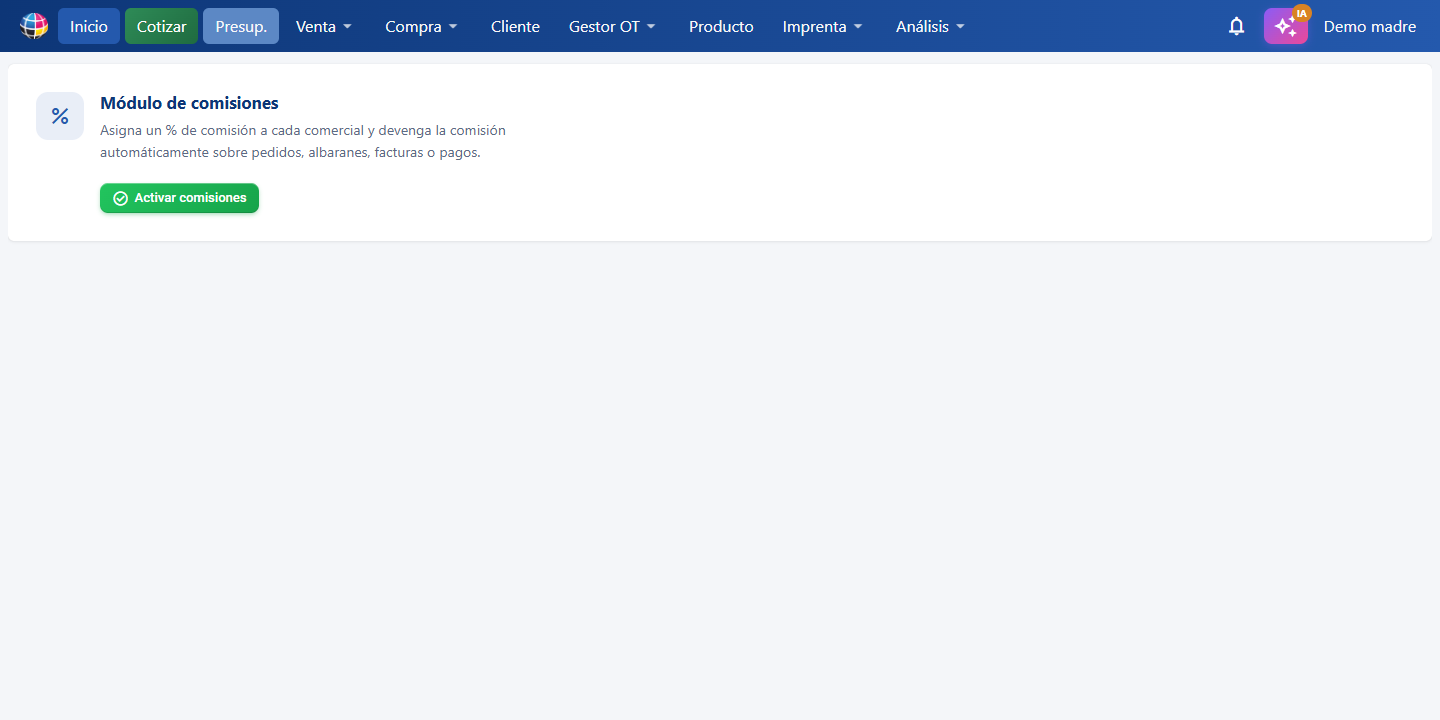
It is in the Sales → Commissions menu (/comisiones), with the Full plan badge beside it. It is included in the Full plan and, with any other plan, it can be added as a separate module without changing plan: pressing Commissions without having it opens the "Commissions module" card, which explains what it does and offers Subscribe to the commissions module. It is not a locked option: it can be taken out from Standard, Pro or Full.
On top of that, with the module active, the invoice list (/ggpFactura) shows the Commission column: a per-invoice summary of the state of its commission — green "Settled" with the amount if it has all been paid to the rep, amber with the amount and what is still "Outstanding". It only has data if commission is earned per invoice or per payment.
What it is for
- Know how much each sales rep is due and when it has to be paid.
- Choose the commission basis: per order, per delivery note, per invoice or per payment received.
- Decide whether commission is earned only on what has been collected (recommended: if it is not paid, no commission) or on everything issued.
- Set each rep's commission %, either flat or in bands by amount (e.g. up to €1,000 → 5%, up to €2,000 → 7%).
- Settle a rep's commissions for a period in one click.
- Export the detail to Excel or PDF.
How you get in
The module has no activation step: if your plan includes it or you have taken it out separately, it is already active.
- Go into Commissions from the Sales menu (
/comisiones), with the Full plan or with the module taken out separately. - You will see the commissions table straight away. If nothing has been worked out yet, press Recalculate.
- If you do not have the module yet, the page shows the "Commissions module" card with the Subscribe to the commissions module button.
Settings (the Settings button)
This opens the Commission settings window:
| Control (wording on screen) | What it is for |
|---|---|
| Commission is based on | Choose the basis: Per order, Per delivery note, Per invoice (one commission per document, on its net amount) or Per payment (each receipt) (one commission for each payment recorded, in proportion to what has been collected). |
| When commission is earned (document mode only) | Only when collected: the document earns no commission until its payments cover the total; the date it is earned is the date of the last payment. Always, even if not collected: commission is earned on the document date. |
| Payment period | Following month, Following quarter, Following four-month period, Following half year or Following year: commission earned in one period is paid in the next one. |
| Payment day of the following period | The day (1-31) of the following period on which you pay the commissions. E.g.: Month period + day 5 → whatever is earned in August is paid on 5 September. |
When you save, the outstanding commissions are recalculated with the new settings (the ones already paid are kept as history).
How it is used
- Look at the KPIs: Total earned, Outstanding, Paid and — in document mode with "only when collected" — Not yet paid.
- Each card is an earning period, with a readable label (August 2026, 3rd quarter 2026, Year 2026) and the line Start (first day of the period) · Expected payment (the configured day of the following period).
- Expand the card to see each sales rep with their totals and the Change % and Settle buttons.
- Expand the rep to see the detail: date earned, document, customer, base, collected, editable %, commission, status and per-row actions (mark as paid ✓ / revert ↶).
- The screen opens showing only what is outstanding; the Show all button also shows what has been paid (and goes back with Outstanding only). The Commission is based on: … chip reminds you of the configured basis.
- The Not yet paid section (document mode + only when collected) lists the documents that do not earn commission yet, with the amount collected against the total.
Buttons and actions — what each one is for
Wording exactly as it appears on screen.
| Button / Control (wording on screen) | What it is for |
|---|---|
| Recalculate | Recalculates every outstanding commission according to the current settings. Useful if a commission is missing. It does not overwrite a % edited on a row (where there are no bands) or the Paid status. |
| Sales reps | Opens the Commission per sales rep window: calculation basis (amount, margin or both), flat % and bands for each rep. |
| Settings | Opens the Commission settings window (basis, when commission is earned, period and payment day). |
| Excel | Exports the full detail to Excel. |
| Exports the full detail to PDF (landscape, with totals). | |
| Show all / Outstanding only | The screen opens showing only what is outstanding; Show all also shows the paid ones and the €0.00 ones, and the button becomes Outstanding only to go back. |
| Edit | Switches on edit mode: on every outstanding commission, the % and the Commission (€) open as editable fields so you can correct several rows quickly. Save changes and Cancel appear. If you change the € on a row, the € wins; if you change the %, the amount is recalculated. |
| Save changes (edit mode) | Applies all the edited percentages and amounts in one go. The adjusted rows become fixed: recalculation does not overwrite them. |
| Cancel (edit mode) | Leaves edit mode without applying anything. |
| Start / Expected payment (card) | Start is the first day of the earning period; Expected payment is the date on which it falls due (the configured day of the following period). |
| Change % (sales rep row) | Bulk percentage change: it applies the percentage you enter, with confirmation, to every outstanding commission for that rep in that period. The ones already paid are left alone. |
| Change € (sales rep row) | Bulk change in absolute terms: enter the total in € you want to pay that rep for that period and it is shared out in proportion between their outstanding commissions. |
| Settle (sales rep row) | Marks as paid, with confirmation, every outstanding commission for that rep on that payment date. |
| ✓ Mark as paid / ↶ Revert (row) | Changes the status of one particular commission. |
| % (column, clickable on outstanding rows) | Edits the % on that row and recalculates its amount. |
| Apply to all (Sales reps window) | Sets the same flat % for every sales rep. |
| Calculation basis (Sales reps window) | Choose what that rep earns commission on: On amount (the net amount), On margin (sales less cost) or Amount + margin (the two added together). |
| Bands (toggle, Sales reps window) | Switches on band-based scaling and opens its editor. There is one toggle for the amount bands and another for the margin bands: both can be used at once. |
| Add band (Sales reps window) | Adds a band ("up to" + %), in both the amount table and the margin table. |
| Save (windows) | Saves the changes. |
How a commission is worked out
- Document basis (order / delivery note / invoice): the net amount of the document (excluding VAT) × the % of the document's sales rep. With Only when collected, no commission is earned until the payments on its lines cover the total; the date it is earned is the date of the last payment ("what counts is the day the payment came in"). With Always, the date it is earned is the document date.
- Payment basis: each payment produces its own commission (the amount collected excluding VAT × the rep's %), dated on the payment date.
- % in bands: if the rep has bands, the % of a new commission comes from the band its base falls into (e.g. a base of €800 → the band up to €1,000 → 5%). Above the last band, the % of the last band applies.
- Calculation basis per sales rep (amount, margin or both): each rep earns commission On amount (the net amount, as it has always been), On margin (the difference between what is sold and what it costs) or Amount + margin, which adds the two parts into a single commission. E.g.: 3% on a base of €1,000 plus 10% on a margin of €300 = €30.00 + €30.00 = €60.00.
- Each basis has its own bands: you can scale by amount, by margin or by both at once, with independent tables.
- In payment mode, the margin is shared between the payments in the same proportion as the amount: a payment covering 50% of the document earns commission on 50% of the margin.
- If the margin is negative (it was sold below cost), that part of the commission is negative too.
- Reconfiguring a rep's % only applies going forward: changing the % (or the bands) in Sales reps only affects commissions generated from that moment on. The ones already earned keep their %. To change the present, use Edit mode, Change % or Change €.
- Manual edits are fixed: a commission edited by hand (%, € or a group adjustment) becomes fixed and the Recalculate button does not change it.
- A commission of €0.00 is shown straight away as Paid (there is nothing to settle) and does not appear in the outstanding filter.
- Credit notes and amended invoices (invoice mode): the credit note produces its commission as a negative, which is deducted from the rep in the period of the credit note.
- A sales rep with no % configured earns commission at 0%.
Key concepts
- Commission basis: which document it is generated on (order, delivery note, invoice) or whether it is generated on each payment.
- Earning: the moment the commission comes into being. With "only when collected", when the payment is completed; with "always", when the document is created; with the payment basis, when each payment is recorded.
- Expected payment: the date on which it falls due to be settled — the configured day of the period following the one it was earned in.
- Payment period: month, quarter, four-month period, half year or year. What is earned in one period is paid in the next.
- Bands: scaling of the % according to the amount of the base (up to €X → Y%).
- Margin: the difference between the selling price and the cost. It is the profit left before commission.
- Calculation basis: what a sales rep earns commission on — the amount, the margin or both.
- Not yet paid: documents that do not earn commission yet because they have not been collected in full.
- Settle: marking a sales rep's commissions as paid.
What you get with each plan / role
- Included in the Full plan (
FLL) and available separately with any plan (Standard, Pro or Full). Without it, the screen shows the "Commissions module" card (what the module does, the Full badge and the Subscribe to the commissions module button, which takes you to/subscription?planes=MOD&extra=comisiones). - It requires the payments / receipts permission (
access_pay).
Frequently asked questions
Q: Can I earn commission per order instead of per invoice?
A: Yes. In Settings → Commission is based on, choose Per order, Per delivery note, Per invoice or Per payment (each receipt).
Q: When is the commission paid?
A: On the configured day of the period following the one it was earned in. E.g.: the Following month period and day 5 → whatever is earned in August is paid on 5 September. Each card on the screen is one Expected payment date.
Q: If the customer does not pay, does the sales rep still earn commission?
A: It depends on When commission is earned: with Only when collected (the default), no — the document appears under Not yet paid until it is collected in full, and then it is earned with the date of the last payment. With Always, commission is earned even if it has not been collected.
Q: How do I set commission bands (up to €1,000 at 5%, up to €2,000 at 7%)?
A: In Sales reps, switch on the rep's Bands toggle and define each band ("up to" amount + %). Above the last band, the % of the last band applies.
Q: Can I pay commission on the margin instead of on turnover?
A: Yes. In Sales reps, in the Calculation basis column, choose On margin for that rep. The commission will be worked out on the difference between the selling price and the cost, not on the amount invoiced.
Q: Can I combine a % on the amount with another on the margin?
A: Yes. Choose Amount + margin in the Calculation basis column: the two parts are worked out and added into a single commission. Each one has its own % and its own bands.
Q: Do the bands work for the margin as well?
A: Yes. There are two Bands toggles per sales rep: one scales the % by amount and the other by margin. You can switch on both at once.
Q: Do I have to activate the commissions module?
A: No. If your plan includes it or you have taken it out separately, you go into Commissions and it is already working. If you do not see any commissions worked out, press Recalculate.
Q: Can I change the % of all of a rep's commissions for a month in one go?
A: Yes. Open the period card, find the rep and press Change %: enter the percentage and confirm — it is applied to every outstanding commission of theirs for that period (the paid ones do not change). With Change € you instead set the total in euros to pay them for that period (it is shared out in proportion). For individual rows, use Edit mode.
Q: How do I correct the % or the amount of one particular commission?
A: Press Edit on the top bar: the % and the Commission (€) of every outstanding row open as fields. Change what you need and press Save changes. The edited rows become fixed and recalculation does not overwrite them.
Q: If I change a rep's % in Sales reps, do their commissions already generated change?
A: No — it only applies going forward. Commissions already earned keep their %. To change the existing ones, use Edit, Change % or Change €.
Q: Why does a commission show as Paid if nobody has settled it?
A: Because its amount is €0.00 (the rep was on 0% at the time): there is nothing to settle, so it is shown as Paid and does not count as outstanding. If you give it an amount or a % with Edit, it goes back to Outstanding.
Q: Why can I not see the commissions that have already been paid?
A: The screen opens showing only what is outstanding. Press Show all to include the paid ones.
Q: How do I settle a sales rep's commissions?
A: Open the payment date card, find the rep and press Settle: it marks as paid every outstanding commission of theirs for that date (with confirmation). You can also mark individual rows with ✓.
Q: Can I export the commissions?
A: Yes, with the Excel and PDF buttons on the top bar.
Q: I changed the basis (from invoice to order, say). What happens to the earlier ones?
A: The commissions already paid are kept as history; the outstanding ones are recalculated on the new basis when you save the settings or press Recalculate.
Q: I cannot see the commissions screen / it asks me to subscribe.
A: The module comes with the Full plan. With any other plan (Standard or Pro) there is no need to upgrade: it is taken out on its own from the card itself with Subscribe to the commissions module, or from Plans and pricing (/subscription) → Modules.
Q: One of my sales reps has no commission. Why?
A: With no % configured (neither flat nor banded), commission is earned at 0%. Set one for them in Sales reps.