
Build your own website at direct.cotizaprint.com with an AI-made design: your logo, who you are, your contact details and your products and services with their prices by quantity. No online shop and no basket: your customers open it from the QR code or from Google and ask you for a quote by WhatsApp, phone or email. 5 steps, one image per step. See the result in the sample catalogue; every button is explained in Website and catalogue.
Part of the window still appears in Spanish in the English version of the app (for example the Publicar tab, Publish): those labels are quoted as you see them, with their meaning in brackets.
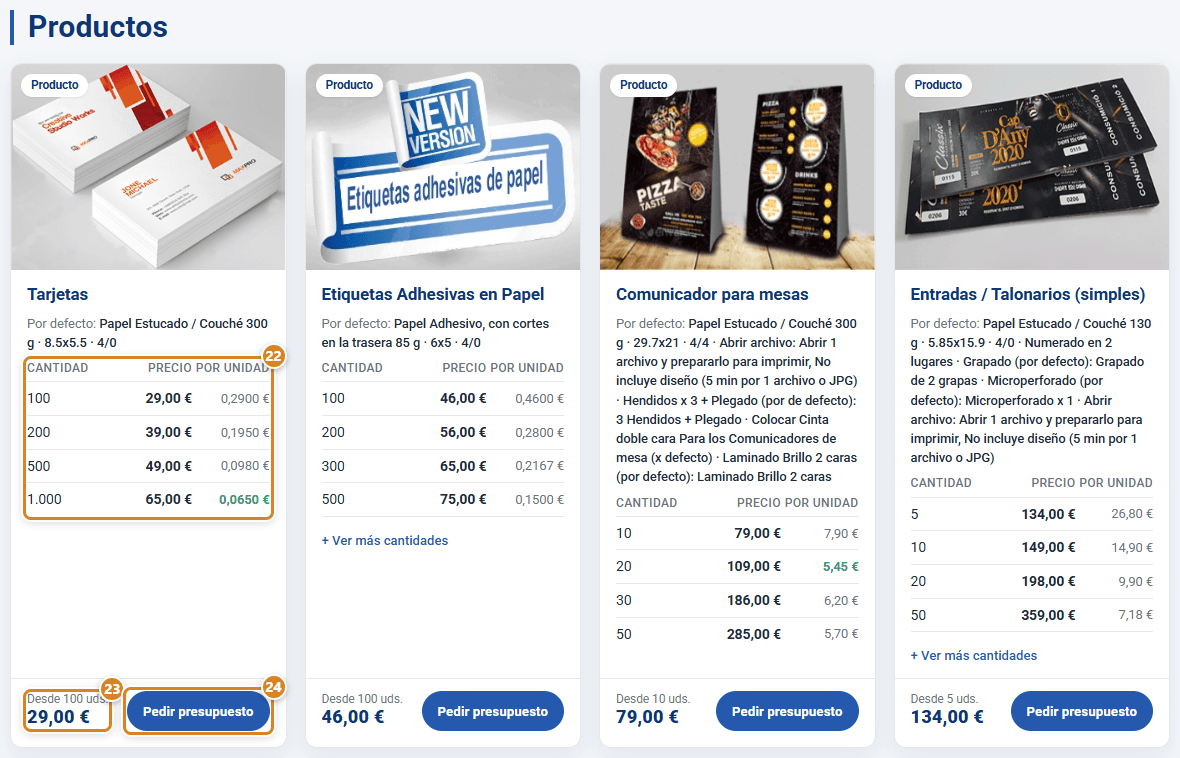
Your website at a glance
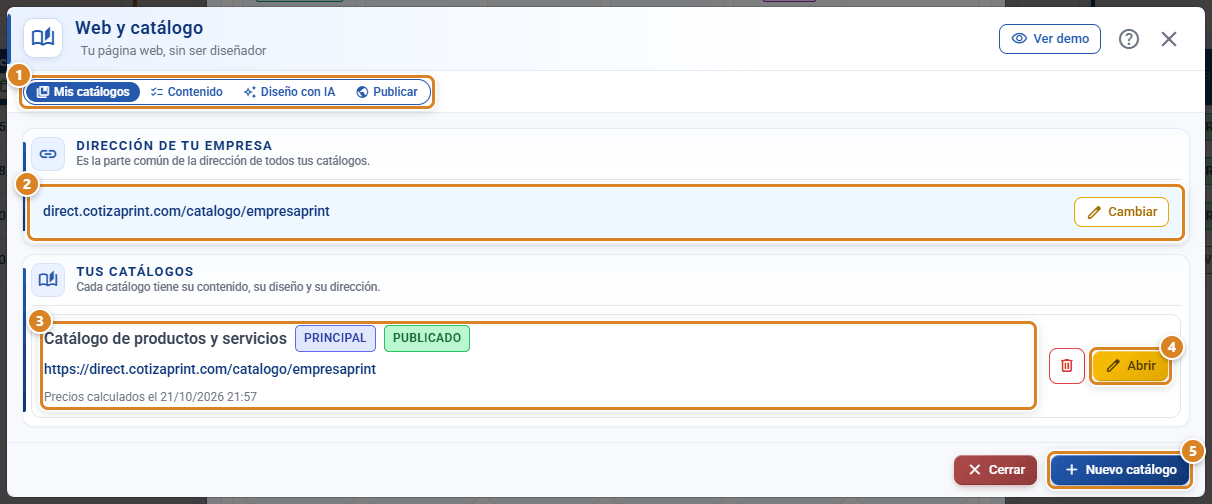
Step 1 · Open Website and catalogue and check your address
Click your name (top right) → Settings → Modules and integrations → Website and catalog. If you already have the module, it also opens with Crear mi web (create my website) in Announcements and updates. If your company does not have it, it is in Settings → Available to add → "Website and catalog", which opens the page to subscribe to it. The first time, check the address we suggest and click Save address.
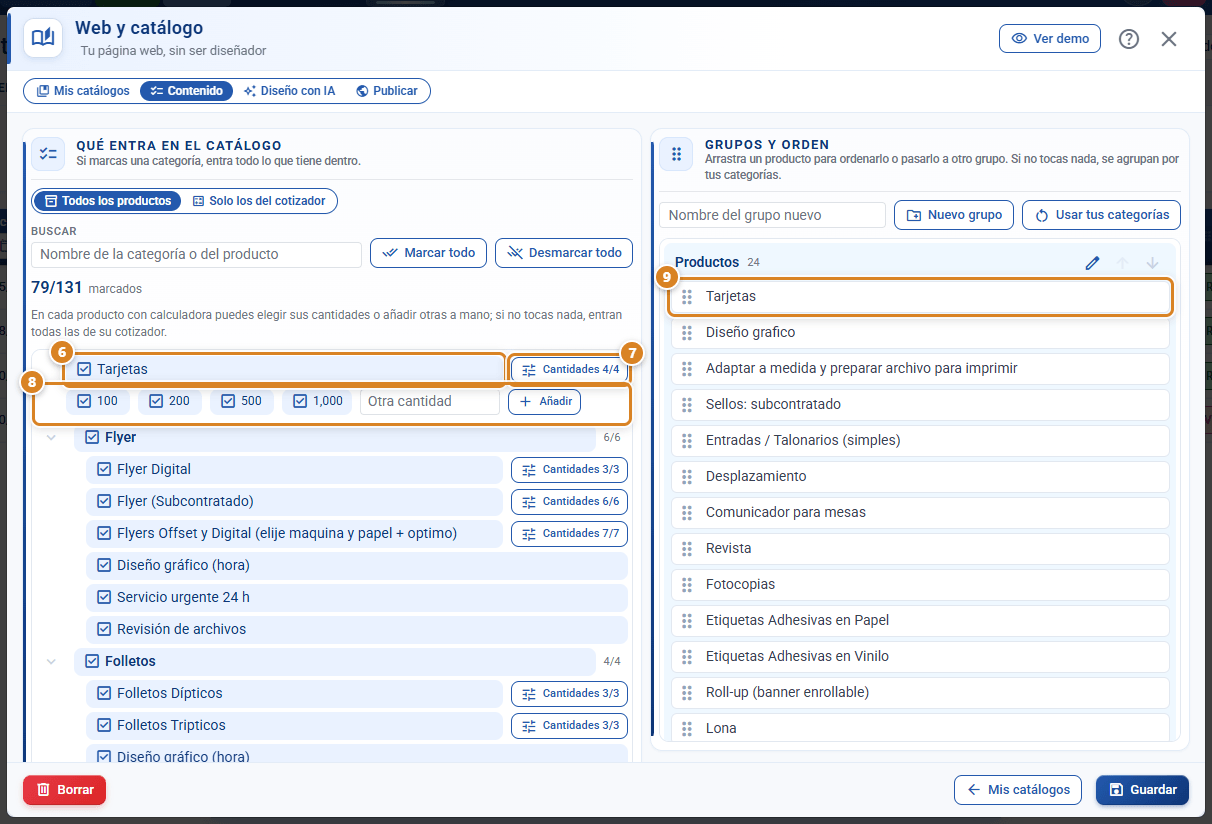
Step 2 · Choose what goes in and with which quantities
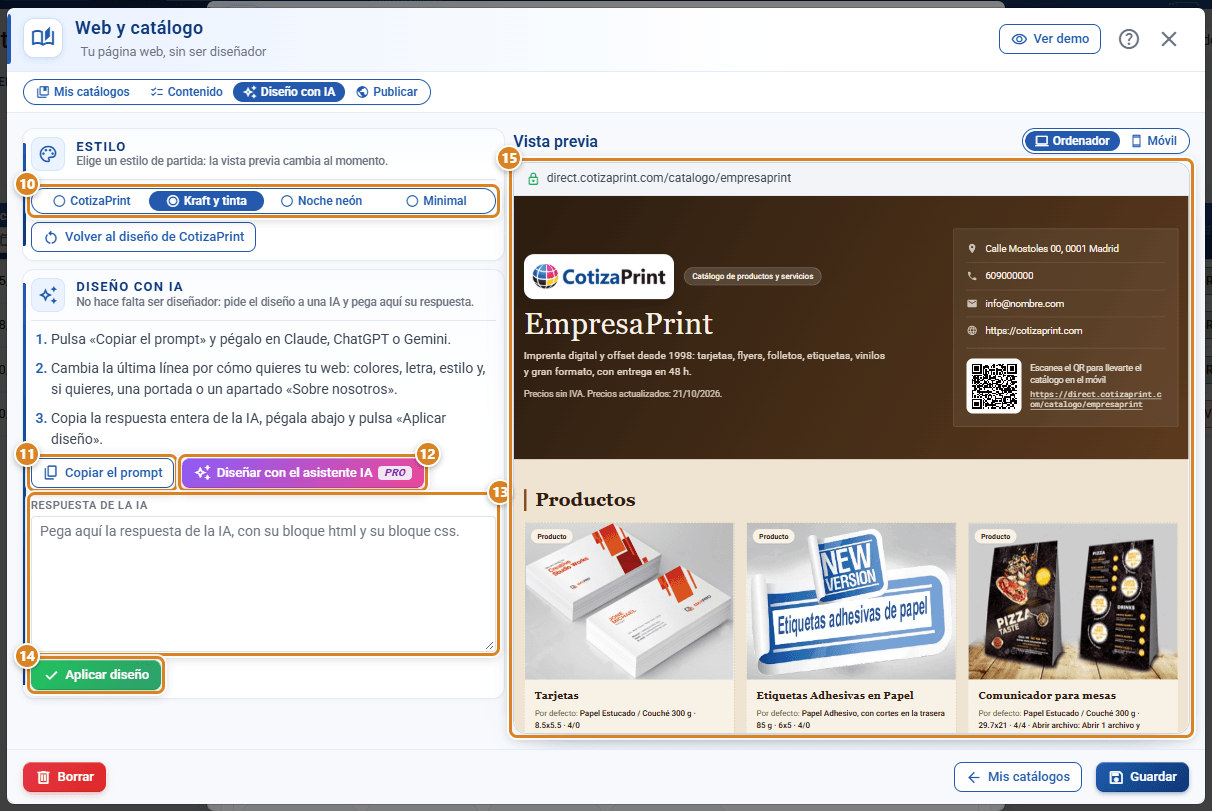
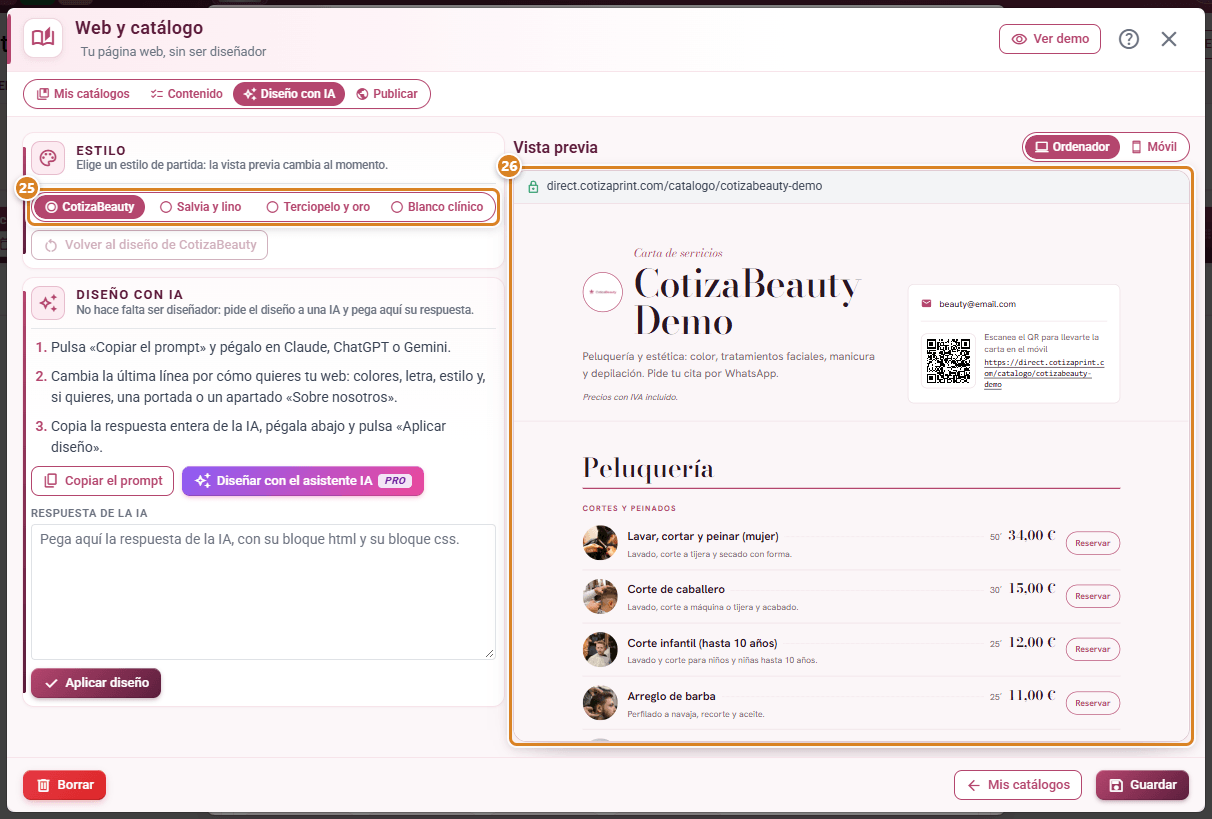
Step 3 · Give it your design with AI
Step 4 · Add your contact details, calculate the prices and publish
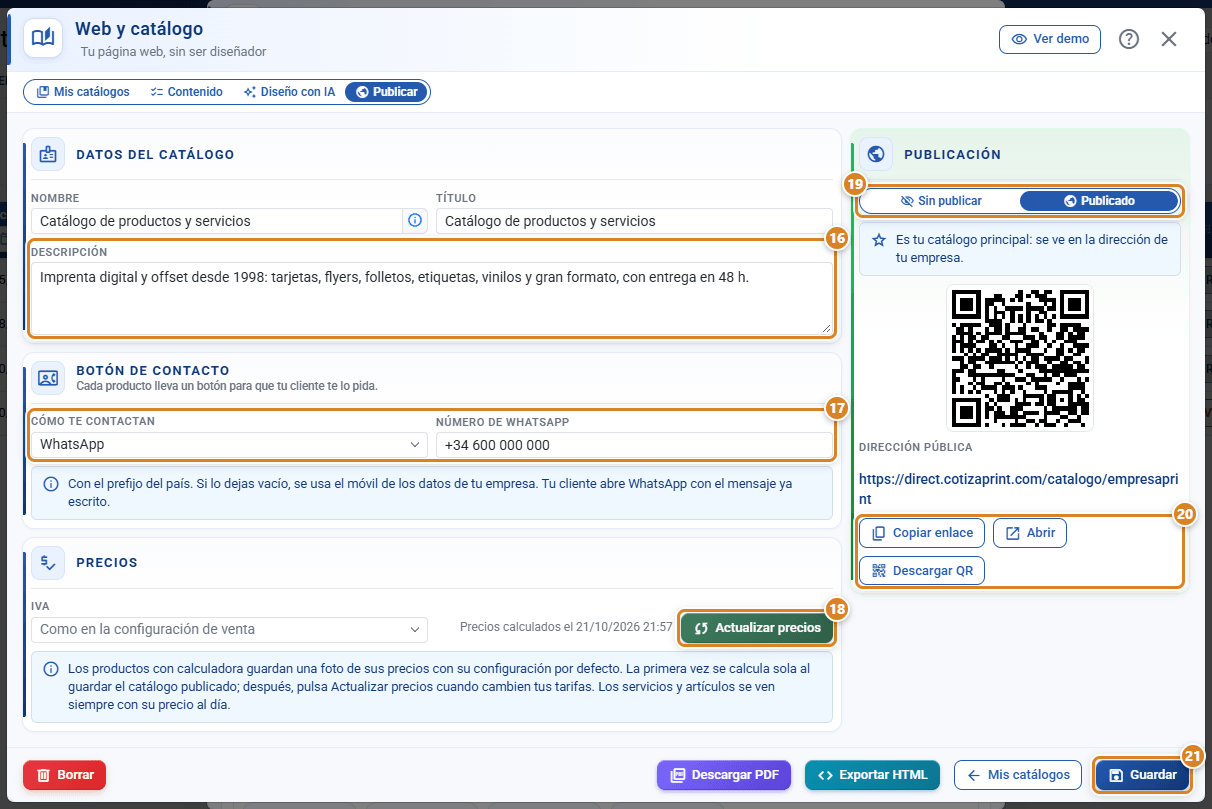
Shortcut: the first time you save as Published, the prices are calculated automatically. After that, click Actualizar precios (update prices) when you change your price lists.
Step 5 · This is how your customers see it
In CotizaBeauty: your service menu
In CotizaBeauty, Website and catalogue publishes your menu: services with their duration and price, packages and products from Services and products, always with the up-to-date price. The button on services is Reservar (book). See the sample menu.
If something does not add up
| Symptom | Solution |
|---|---|
| New catalog is greyed out | First save Your company's address with Save address (Step 1). |
| A product has No price and cannot be ticked | It has no visible and open quoting engine: in Products, set its internal quoting engine to Visible and Open. |
| Products appear as Precio a medida (custom price) | In Publicar (Publish), click Generate, or set Published and click Save. |
| I have changed prices and the website is still the same | Click Actualizar precios (update prices) in Publicar. |
| The address shows Catalog not available | Set Published and click Save. |
| The WhatsApp button does not appear | Type the Número de WhatsApp (WhatsApp number) or add the mobile number under Settings → Company. |
| Apply design shows a warning | Ask the AI to remove what the warning says and paste the full response again. |
Which plan you need
| Feature | Plan |
|---|---|
| Website and catalog in CotizaPrint | Separate module (MOD) with any plan, including Full |
| Website and catalog in CotizaBeauty | Included in Full; with Standard or Pro, separate module |
| Design with the AI assistant | Pro or higher (Copy the prompt works with any plan) |
Price and how to subscribe: Website and catalogue, § Features by plan / role. Your role needs the Configurar integraciones y automatizaciones permission (configure integrations and automations).
Frequently asked questions
Q: Is it an online shop?
A: No: it has no basket and no payment. Your customers see your prices and ask you for a quote or book with you through the contact button.
Q: I know nothing about design, can I still build it?
A: Yes. Choose a Style or use Copy the prompt with Claude, ChatGPT or Gemini and paste its response into AI response → Apply design.
Q: How do I share it with my customers?
A: In Publicar (Publish), Copy link to send it or Download QR for the counter and your printed materials. Download PDF gives you the version for printing.
Q: Do the prices update by themselves?
A: Services and items do. Products with a calculator keep a snapshot of their prices: click Actualizar precios (update prices) when you change your price lists.
Q: Does it show up on Google?
A: Yes, once it is Published. To get it found sooner, link to it from your website and your social media.
Q: Can I see it before subscribing?
A: Yes: View demo, on the module page, opens your sector's sample catalogue.